
A network scan starts with a target and a question about what you need to learn from it. Nmap is a command-line tool that sends test messages to a specified host and uses the replies to report host availability and port states.
In this piece, I’ll show you how to run a focused scan and understand the port states Nmap reports.
TL;DR
Nmap scans authorized hosts and reports reachable ports, their observed state, and optionally the service behind them.
- Run nmap <host> for a default scan of a host you are permitted to test.
- Use -p to limit ports, -sn for host discovery without a port scan, and -sV to probe services.
- Read open, closed, and filtered as observations from probes, not a complete security verdict.
- Save a human-readable result for later review.
What is Nmap?
Nmap, short for Network Mapper, is a command-line network exploration and security auditing tool. It sends probes to specified hosts and uses the replies to report host availability, port states, and, when requested, service details.
A port is a numbered endpoint used by network services. TCP and UDP are separate transport protocols, so a result such as 53/tcp is distinct from 53/udp. The service label is a useful hint associated with a port, while version detection actively asks a responding service for more information.
Use Nmap only on systems and networks you own or have explicit permission to assess. A scan sends network traffic, and permission should cover the target range and the kind of probes being used.
How to Use Nmap on Linux Step by Step
Choose the target and scan scope before running Nmap. I used a TCP connect scan against three loopback ports. The captured result shows the state Nmap reported for each one.
Step 1: Scan a host you are allowed to test
Pass a hostname or IP address as the target. A plain command such as nmap 192.0.2.10 scans a default set of commonly used ports. Replace the documentation address with an authorized target.
For a focused example, this TCP connect scan checks only three ports on the local machine. It uses 127.0.0.1 so the target stays on the same host.
nmap -sT -p 22,80,443 127.0.0.1
The captured output was:
Starting Nmap 7.94SVN ( https://nmap.org ) at 2026-10-18 22:16 UTC
Nmap scan report for localhost (127.0.0.1)
Host is up (0.00074s latency).

PORT     STATE  SERVICE
22/tcp   open   ssh
80/tcp   closed http
443/tcp  closed https

Nmap done: 1 IP address (1 host up) scanned in 0.06 seconds
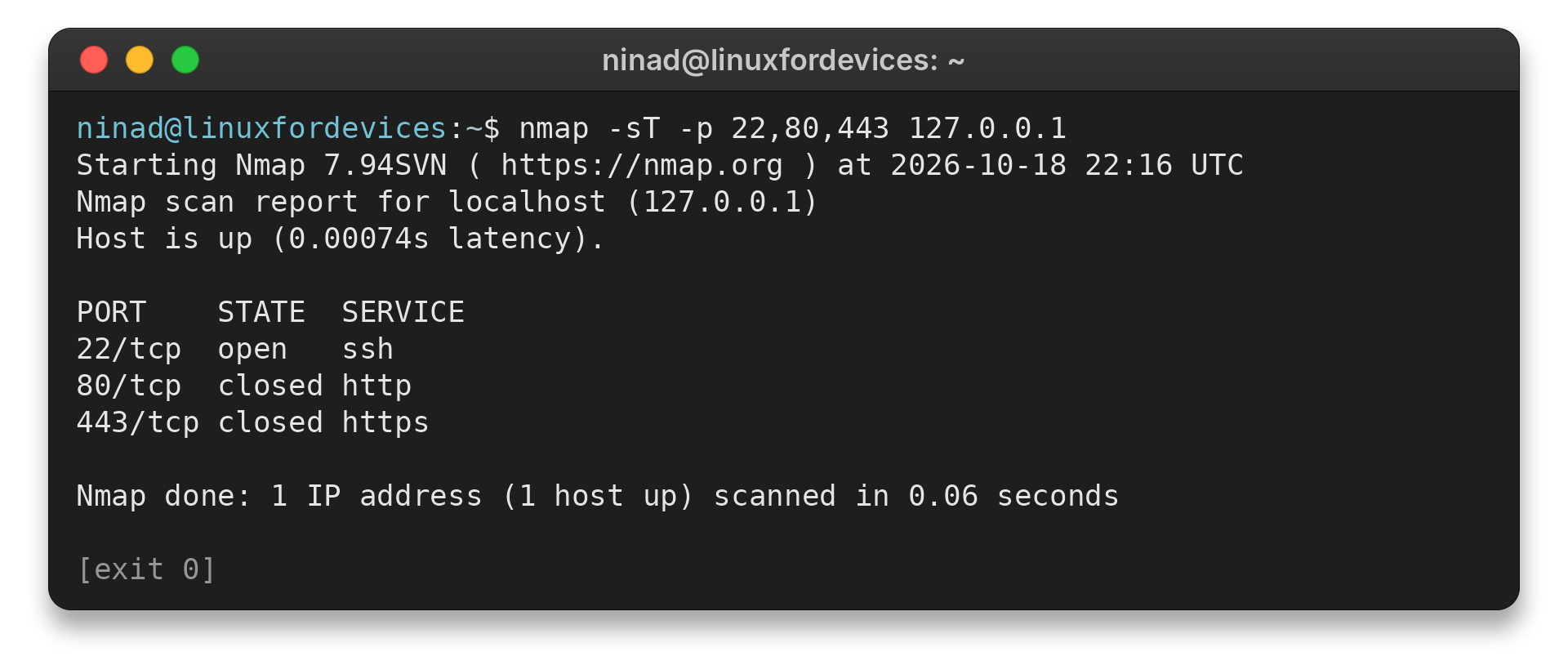
In this result, Nmap found port 22 open and ports 80 and 443 closed on this machine at scan time. The -sT option requests a TCP connect scan, which uses the operating system’s connection call rather than raw packets. Nmap can use this scan when raw-packet privileges are unavailable, so it is a clear choice for this bounded example.
Step 2: Limit the scan to the ports you need
Use -p followed by a comma-separated port list when you already know which services matter. This keeps the scan focused on those ports.
nmap -p 22,80,443 192.0.2.10
Step 3: Check which hosts respond without scanning ports
Use -sn to perform host discovery without a port scan. It is useful for inventorying an authorized local range before choosing which individual machines need a more detailed scan.
nmap -sn 192.168.1.0/24
Replace the example network with the range assigned to your environment. If you have authorization and reason to scan a host that ignores discovery, -Pn skips that stage and attempts the requested scan against the target.
Step 4: Identify services and versions
nmap -sV -p 22,80,443 192.0.2.10
I use it after narrowing the port range to identify software answering on the ports relevant to the task.
Step 5: Save results for later review
Use -oN for normal text output or -oA to create normal, XML, and grepable output files with one base name.
nmap -sV -p 22,80,443 -oA host-check 192.0.2.10
Nmap writes files named host-check.nmap, host-check.xml, and host-check.gnmap. Choose normal text for a person reviewing a scan and XML when another program needs structured data. Choose a distinct base name for each assessment so a new run does not overwrite a result you still need.
For a managed fleet, availability checks are only one part of an inventory. A device outside the selected range will not appear in the results. Network controls can also prevent a response.
A subnet target uses CIDR notation, where the suffix describes how many leading address bits identify the network. For example, the familiar private range 192.168.1.0/24 covers addresses in that subnet. Confirm the exact CIDR with the network administrator before scanning it because a mistyped range can include devices outside the intended scope.
That distinction matters when teams use scan output to plan operating-system updates. A scan does not establish the installed package’s patch level or support status. A configuration-management inventory or the host’s package manager supplies that information.
Nmap Results and Common Scan Limits
Nmap reports what its probes could observe at the time of the scan. Read each state alongside the target, protocol, and scan method before deciding what to investigate next.
| State | Meaning | What to check next |
|---|---|---|
| open | An application is accepting connections or packets on the port. | Confirm the service and whether it should be reachable. |
| closed | The host responded, but no application is listening on that port. | Check the intended service and target address. |
| filtered | A filter or network obstacle prevents Nmap from deciding open or closed. | Review the network path and firewall rules with the network owner. |
| unfiltered | The port responds to the probe, but this scan cannot determine open versus closed. | Use a scan type suited to the question, within the approved scope. |
| open|filtered | Nmap cannot distinguish a silent open port from a filtered one. | For UDP, use service-aware probes or confirm with the service owner. |
UDP commonly produces open|filtered when Nmap cannot distinguish a silent service from a filtered probe. Check with an application-aware request or ask the service owner to confirm its listener.
When discovery says a host is down, first verify the address and route. If an approved target is known to suppress discovery replies, -Pn proceeds without that preliminary check and may take longer across a range of inactive addresses.
For troubleshooting network reachability, compare the Nmap result with a separate check such as the Linux ping command. To inspect addresses and routes, see the Linux ip command guide. Compare results only when the tools test the same target and time window.
When packet-level details are needed, tcpdump on Linux can show traffic visible at the capture point. For a graphical packet view, the Wireshark installation guide is a next step. To check listening sockets locally rather than scan a remote host, use the ss and netstat command guide.
The state table describes what a probe returned. Its labels depend on the scan type. Choosing a command is a separate decision based on the target and available information.
Choosing Nmap for a Specific Network Task
Match the first scan to the information you already have. I prefer a narrow port check for one known host because its result is simpler to review against an approved scope.
- For one authorized host, use nmap -p 22,80,443 <host> to limit probes to ports tied to a known question.
- For an assigned local range, use nmap -sn <approved-cidr> to build a reachability list without requesting a port scan.
- To identify a service, use nmap -sV -p <port-list> <host> after setting the port scope.
Who Maintains Nmap?
Nmap is an open-source project maintained by its contributors and documented on the Nmap project site. Its reference guide explains options in more detail than a short command tutorial can, while the installation page describes project-supported Linux installation routes.
Use those first-party pages for option semantics and supported downloads. Distribution repositories remain the authority for package names, packaging choices, and updates on a particular Linux system. Check the package manager and the project documentation together when choosing an installation route.
nmap --version
The version check names the executable Nmap finds first.
Use the version check to identify the local executable. For package support or patch status, check the distribution package record rather than inferring it from a remote port response. The version string alone does not confirm patch support.
Keep Exploring After a Scan
A port result is one observation in a larger troubleshooting process. Use a reachability check when the question is whether packets reach the host, and inspect local sockets when you can log in to the machine. Choose the check that matches where you can observe the system.
- Compare reachability with the Linux ping command.
- Check routes and interface addresses with the ip command guide.
- Inspect visible packets with tcpdump or examine local listening sockets with ss.
A hostname can resolve to more than one address, and the chosen route can affect which system answers. When a result surprises you, confirm the resolved address and interface used to reach it before changing scan options.
Port state names describe Nmap’s view, not a promise about every client. A firewall can allow one source network and reject another, so run an authorized check from the network location whose access matters.
Timing also affects interpretation. A service may restart, a route may change, or a policy may be updated between scans. Keep the timestamp and source location with the output when it supports an operational decision.
Service probes add detail beyond the initial port-state check.
Service detection sends additional probes to responding ports. I keep it limited to relevant ports because the focused command answers the identification question without expanding the target set. Add this step only when service details matter.
Normal output is convenient for a human review, while XML preserves structure for tools that process scan results. Choose the format that matches the next reader, and protect saved results according to the sensitivity of target information they reveal. Keep the output with the scope and timestamp of the scan.
For a one-time check, normal text can be enough to discuss a result. For recurring assessments, structured output can help a separate approved process compare runs, while accounting for changed addresses, options, and scan locations.
Conclusion: Match the Scan to the Question
Nmap is clearest when the target, protocol, and question are explicit. Start with an authorized host and a narrow port list, then add host discovery, service probes, or saved output only when the task calls for them.
For the complete option reference, read the official Nmap Reference Guide, including its pages on host discovery, port scanning techniques, and output formats.
FAQ
The answers below cover a single-host scan, ambiguous UDP output, and saving a result.
How do I scan an IP with Nmap?
Run nmap followed by an IP address you are authorized to test, such as nmap 192.0.2.10. Add -p with a port list to keep the scan focused.
What does open|filtered mean in an Nmap result?
Nmap could not tell whether the port is open or filtered because it did not receive a response that distinguishes those states. This is common in UDP scanning.
How can I save Nmap scan results?
Use -oN filename for normal text output or -oA basename to save normal, XML, and grepable output formats.