
A Linux server may need to accept SSH connections on a different port from the one it uses now. Changing the SSH port configures the server to listen for SSH connections on a different TCP port.
In this piece, I’ll walk through changing the SSH port on Linux and Ubuntu, then verifying that the server listens on it and accepts a new connection.
TL;DR
Change the SSH port by allowing the new TCP port through every firewall, configuring the active listener, validating the settings, and testing a second connection before you close the current session.
- On Ubuntu, inspect /etc/ssh/sshd_config and /etc/ssh/sshd_config.d/ for Port settings.
- Check whether ssh.socket is active before expecting a service restart to change the listener.
- Verify the new listener with ss and connect from another terminal with ssh -p PORT.
What does the SSH port control?
The SSH port is the TCP endpoint where the server accepts SSH client connections. OpenSSH commonly uses port 22 unless its configuration or socket listener specifies a different port.
The server process and client each handle a separate part of an SSH connection. Ubuntu’s OpenSSH guide documents the main config file, modular snippets, a syntax test and a service restart. It warns a bad remote config can cut off access.
A listening socket combines a transport protocol, port number and local address. A wildcard address such as 0.0.0.0 accepts connections addressed to any IPv4 interface, while [::] represents the IPv6 wildcard. A service can use the same port number on both families, so check both rows when clients connect over different networks.
A different port can reduce hits from scanners that only try the default endpoint. Keep authentication controls and security updates current.
How to change the SSH port on Linux and Ubuntu
Make the new port reachable before changing the listener, then check the configuration and keep the original session open until a new login succeeds. Use an unused TCP port permitted by your network policy, such as 2222 in these examples.
- Keep a current SSH session open, or confirm console access to the server.
- Have permission to edit SSH configuration and firewall rules.
- Know whether UFW and a cloud or hosting-provider firewall filter inbound traffic.
Choose a port with the server’s other services and network policy in mind. IANA divides ports into System Ports (0–1023), User Ports (1024–49151) and Dynamic or Private Ports (49152–65535). Its registry advises administrators to base firewall and system choices on actual traffic and service use.
| Port range | IANA category | Practical check |
|---|---|---|
| 0–1023 | System | Contains established service ports such as SSH 22 and HTTPS 443. |
| Range 1024–49151 | User | Check the IANA registry and local services for existing assignments. |
| Range 49152–65535 | Dynamic or Private | Unassigned by IANA, but still check local use and policy. |
Avoid choosing a port used by another daemon. Port 443 may already serve a web service, and an intervening firewall may treat its traffic as HTTPS. SSH on port 443 remains SSH.
Step 1: Check the current SSH listener
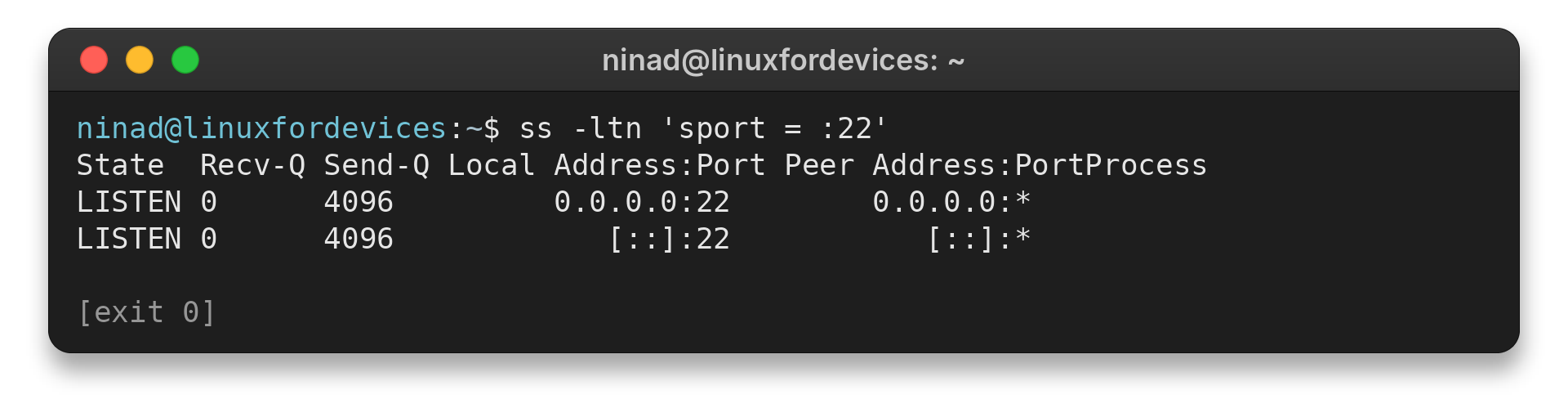
Inspect live listening sockets instead of relying on /etc/services, which records service-name and port assignments. Run this on the server:
ss -ltn 'sport = :22'
Find the LISTEN row and note its local address and port. This command lists TCP listeners without process names, so it can run without elevated privileges. To check a different port, replace 22 in the filter.
For other socket views, see how to find open ports in Linux.
I ran the listener check without elevated privileges. It returned port 22 on IPv4 and IPv6 wildcard addresses, which accept connections for either address family on that port.
State  Recv-Q Send-Q Local Address:Port Peer Address:PortProcess
LISTEN 0      4096         0.0.0.0:22        0.0.0.0:*
LISTEN 0      4096            [::]:22           [::]:*
Step 2: Allow the new port through firewalls
Add an inbound TCP rule for the selected port before applying the listener change. On a server managed with UFW, substitute the port you plan to configure:
sudo ufw allow 2222/tcp
Check the resulting rule with sudo ufw status verbose. If UFW is inactive, first review its default policy and required access rules. On a cloud server, allow TCP 2222 in the provider’s network firewall or security group too.
These firewall layers are independent, so a local rule alone may not make the port reachable. See the UFW setup and configuration guide for host rule management.
For a server behind a home or office router, the router may also need a port-forwarding rule that sends incoming TCP traffic to the server’s private address. Keep the external and internal port values consistent with your router rule. On a cloud host, use its network firewall or security-group controls instead of assuming UFW covers the provider network.
Step 3: Find the active SSH port setting
The Include directive loads these files near the top of the main config. Search for active Port entries before editing, since conflicting values can leave the running server on its old port.
grep -RniE '^[[:space:]]*(Include|Port)[[:space:]]' /etc/ssh/sshd_config /etc/ssh/sshd_config.d/
Review matching files before editing, and preserve administrator-managed settings. Change the Port value in the file that controls the active configuration.
Step 4: Configure the SSH daemon port
Set the Port directive in the effective server configuration to the chosen value. For this example, use:
Port 2222
The setting may be in /etc/ssh/sshd_config or an included file under /etc/ssh/sshd_config.d/. Set the chosen port in the effective file.
Check whether systemd manages the listening socket separately before relying on the Port directive:
systemctl is-active ssh.socket
If it reports active, inspect ListenStream and follow the distribution’s documented socket-override procedure. Confirm its bind addresses and reset behavior before applying an override. The Ubuntu OpenSSH page reviewed here does not establish a release-specific socket default.
Step 5: Validate and apply the configuration
Run the daemon’s configuration test before restarting the service. Ubuntu documents this command:
sudo sshd -t
No output and a successful exit indicate the configuration passed this syntax check. If the command reports an error, correct the file and test again before applying changes. This check cannot prove that a client can reach the port.
After the test passes, restart the Ubuntu SSH service with:
sudo systemctl restart ssh.service
Keep the existing remote session open. If systemctl reports a failure, use that session or a console to inspect the service journal and restore the last working configuration.
Step 6: Verify the listener and connect on the new port
Check that a process listens on TCP 2222, then test from a separate client terminal:
sudo ss -ltnp 'sport = :2222'
ssh -p 2222 [email protected]
Pass your account name and hostname in the command. The first command checks the local listening socket. The second tests the client path on port 2222.
Only after a fresh connection succeeds should you consider removing an old firewall allowance for port 22. Keep required administrative or monitoring access rules. The SSH command guide explains client-side connection options.
What to check when the SSH port does not change
A changed config line does not prove that the daemon or socket listens on the requested port. Compare the active configuration, socket owner and firewall rules, then test from another network path.
| Symptom | Likely layer | Check |
|---|---|---|
| Port 22 still appears in ss | Effective daemon config or socket unit | Review included Port directives and whether ssh.socket is active. |
| New port is listening, connection times out | Firewall or routing | Check UFW, provider rules and network route. |
| Connection is refused | No listener at destination address and port | Confirm the server IP, port, bind address and service state. |
| New connection works but login fails | Authentication or account policy | Check username, authorized key or permitted authentication method. |
If systemd owns the listening socket, follow the operating system’s documented socket activation procedure instead of repeatedly restarting ssh.service. If the port listens locally but remote clients time out, check provider, router or network security rules as well as the host firewall.
Document the selected port for each client. For firewall checks, use the Linux firewall status guide.
For an account access-control layer, see how to log in to SSH with a private key.
Conclusion: verify the new SSH connection
Confirm a fresh client login before removing the old access path.
Use Ubuntu’s OpenSSH server documentation for current configuration guidance and the OpenSSH manuals for daemon and client options.
FAQ
These answers cover the port number, client syntax and why a change may not take effect.
Is SSH always on port 22?
Port 22 is the usual default, but the SSH server can listen on a configured alternative port. Check the live listener rather than assuming the default.
How do I connect to SSH on another port?
Use ssh -p PORT [email protected], replacing the port, account and host with the server’s values.
Why does SSH still listen on port 22 after I edit sshd_config?
An earlier Port directive in an included configuration snippet may take precedence, or a systemd socket may manage the listening port separately. Inspect the effective configuration and whether ssh.socket is active.
Can I use port 443 for SSH?
SSH can use another available TCP port, but port 443 commonly serves HTTPS and may already be assigned or filtered. Choose a port allowed by your network and verify that no other service needs it.