
When a name lookup does not return the result you expect, checking DNS can show how Linux is set up to look up names. DNS, the Domain Name System, maps names such as example.com to records that contain addresses and other service data.
I’ll show how to inspect the DNS servers Linux is configured to use and compare a system lookup with a direct DNS query.
TL;DR
Check the resolver configuration and the result of a lookup separately: resolvectl status shows systemd-resolved settings, while nmcli device show shows DNS values managed by NetworkManager.
- Read /etc/resolv.conf to see the resolver entry point, not always the upstream DNS provider.
- Use the resolver manager active on the machine, if present.
- Compare getent hosts example.com with dig example.com to distinguish application name lookup from a direct DNS query.
What Does DNS Checking Show on Linux?
DNS checking answers two related questions: where the system sends name lookups, and what answer a particular lookup returns. DNS, the Domain Name System, maps names such as example.com to records that contain addresses and other service data.
A resolver is the software that receives a lookup from an application and finds an answer. Linux applications commonly use the Name Service Switch (NSS), which can consult DNS, local files such as /etc/hosts, or other configured sources. A direct DNS utility such as dig sends a DNS question and reports the response it receives.
The resolver file may point to a local stub, a small resolver listening on the same machine. For example, systemd-resolved commonly exposes one at 127.0.0.53. That address is the local handoff point, not necessarily the upstream server for a link or domain.
DNS can also vary by interface. A VPN may route internal names to its own DNS server while ordinary internet names use another connection. I use the manager’s per-link view rather than treating one nameserver line as the whole configuration.
How to Check DNS on Linux Step by Step
Work from the resolver entry point toward an actual lookup. These checks read settings or ask for a name. They leave DNS configuration unchanged.
Step 1: Inspect the resolver file
Check whether the resolver file is a regular file or a symbolic link, then read it. This identifies the file applications may use and whether a local stub appears in its nameserver entries.
ls -l /etc/resolv.conf
cat /etc/resolv.conf
A line such as nameserver 127.0.0.53 points to a local loopback address. Do not replace it with a public resolver just because it looks unfamiliar. A network manager may generate the file, and changing it directly can be overwritten or bypass per-link routing.
A regular file with a non-loopback address gives a useful clue about the configured resolver, but it still may not describe an application using its own DNS-over-HTTPS setting. Check the active manager next when this file does not answer which upstream is in use.
Step 2: Check systemd-resolved
On systems using systemd-resolved, resolvectl status displays global resolver settings and DNS information for each network link. Use this command to see upstream server addresses, search or routing domains, and which interface owns them.
resolvectl status
For a shorter view of DNS servers attached to links, run resolvectl dns. A link can have a different server from the global setting, so match the interface name to the connection you are troubleshooting.
resolvectl dns
If the command is missing or reports that the service is not available, the machine may use another resolver manager. That is a useful finding, not a reason to install a package just to run this check.
Step 3: Check NetworkManager
When NetworkManager manages the connection, use nmcli to inspect the device’s IP and DNS properties. The command below reports device details without editing a connection profile.
nmcli device show
Look for IP4.DNS or IP6.DNS under the active device. These fields show DNS data known to NetworkManager. A VPN or multiple active links can produce more than one server, so note the device alongside each address.
If NetworkManager is not running, nmcli cannot report its connection state. Use the manager that actually controls the machine rather than editing settings through an unrelated tool.
Step 4: Test the system name-resolution path
getent hosts asks the system’s NSS lookup path for a name. This makes it a useful test of what ordinary programs may receive, including an answer supplied by a local hosts file rather than a DNS server.
getent hosts example.com
The captured output was:
2606:4700:10::6814:179a example.com
2606:4700:10::ac42:93f3 example.com
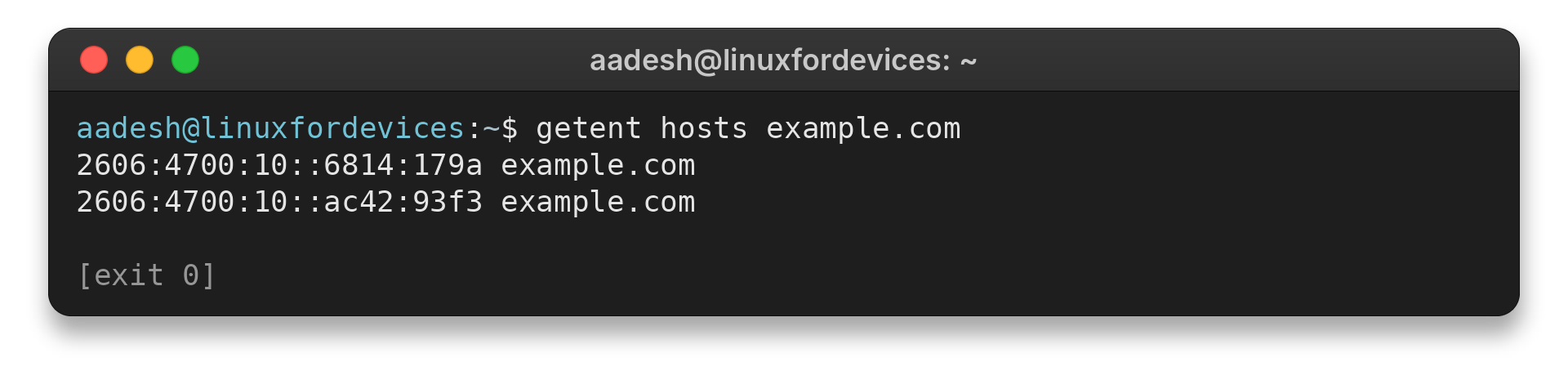
The command returned two IPv6 addresses for example.com. A later lookup may return different addresses because DNS answers depend on time and location. Use the output as a sample, not a fixed address list.
These lines show the address result from the system lookup path. When dig returns something different, compare local hosts entries, NSS rules, split DNS and the application’s resolver settings before changing network configuration. That comparison narrows down which lookup path differs.
Step 5: Query DNS records directly
Use dig when you want to inspect a DNS response directly. The default query requests address records, and the output includes the responding server and answer section when a response arrives.
dig example.com A
Choose the record type that matches the question. A requests IPv4, AAAA requests IPv6, MX requests mail exchangers, and PTR supports reverse lookup.
dig example.com AAAA
dig example.com MX
dig -x 192.0.2.1
The reverse lookup uses a documentation-only address, so it may have no PTR answer. Use an address from the system or service you are investigating when a reverse record is relevant. nslookup example.com is another option when that utility is installed, while host example.com gives a compact lookup.
To compare a response from a particular DNS server, give dig an explicit server address: dig @192.0.2.53 example.com A. Replace the example address with a server you are authorized to query. This is a comparison query, not a change to the system resolver configuration.
How to Resolve a URL and Test DNS
DNS resolves the hostname in a URL. The browser uses the scheme, port and path for the later connection and request.
For https://example.com/docs, the hostname is example.com. A successful lookup confirms that this lookup path returned an address for that host.
The result says nothing about whether the server accepts HTTPS or whether its /docs page exists.
NetBeez describes DNS testing as part of network monitoring. Repeated probes add time and location context when failures are intermittent or limited to one network segment.
Use getent for the system lookup path and dig for a direct DNS answer. Recurring monitoring fits a different need: comparing results across locations over time.
| Check | Command | What it answers |
|---|---|---|
| System lookup | getent hosts hostname | What the system name-service path returns |
| Direct DNS query | dig hostname | What the DNS response contains |
Common DNS Lookup Errors
Command output depends on which resolver manager controls the link. Check the service documentation when a command is missing or its output does not match the active connection.
- Command not found: check whether that resolver tool is installed before choosing another manager.
- Timeout: compare the configured server and route, then check whether filtering blocks DNS traffic.
- NXDOMAIN: verify the spelling and ask the DNS server that should know the name.
These checks read settings and query names without changing them. Check which manager is active before relying on one resolver file to describe the whole configuration.
DNS Checks That Can Mislead You
A DNS command reports one part of a resolution path, not a guarantee that every application uses the same server. Use the symptom and the command’s scope to decide what the result proves.
| Observation | What it indicates | Next check |
|---|---|---|
| resolv.conf lists 127.0.0.53 | A local DNS stub is an entry point | Run resolvectl status for upstreams and per-link routing |
| getent succeeds but dig differs | NSS or a local source may affect applications | Check /etc/hosts, NSS and resolver policy |
| Public name works, private name fails | VPN routing domain or internal DNS may be missing | Compare per-link DNS and routing domains |
| DNS query returns an address but a site fails | Name resolution worked for that query | Check routing, service availability, TLS and application settings |
A local stub can cache answers and forward queries to different upstream servers depending on the link or domain. Its loopback address does not reveal which upstream answered a given request. Read the resolver manager’s per-link information alongside the query result.
VPNs often use split DNS: selected internal domains go through the VPN while public names use the ordinary connection. If an internal hostname fails, compare routing domains and server assignments for the VPN interface instead of assuming the public resolver should know that name.
The system lookup can use local files or other NSS sources. Some applications also provide their own encrypted DNS service.
A timeout means no response arrived before the client stopped waiting. The cause can be an unreachable server, a broken route, or a filter dropping the request.
NXDOMAIN means the responding DNS path reported that the queried name does not exist. An A answer does not confirm an MX record or prove that a service accepts connections.
A DNS cache belongs to a resolver service, and some systems have no local caching resolver. Check the active service documentation before inspecting its cache.
Flushing a cache changes machine state. It does not identify which resolver is configured.
Use ping as a separate reachability check. A failed ping can reflect blocked ICMP or a route problem, while a successful ping by IP does not verify DNS. Services may use different addresses or restrict ICMP.
Conclusion: Check the Resolver and the Query
To check DNS on Linux, inspect the resolver entry point, use the active network manager to see configured servers, and test both NSS lookup and direct DNS behavior. A stub address, per-link server, and application-specific resolver describe different parts of the path.
For record-specific examples, see the LinuxForDevices guide to using the dig command in Linux. For adjacent socket and connection checks, see the guide to netstat and ss commands.
FAQ
These answers distinguish the configured resolver from DNS query and cache behavior.
How do I find the DNS server used by Linux?
Check /etc/resolv.conf, then use resolvectl status for systemd-resolved or nmcli device show for NetworkManager. A loopback address can be a local stub rather than the upstream server.
How do I check whether a DNS name resolves?
Use getent hosts name to test the system name-service path, and dig name to query DNS directly. The tools can differ because NSS may consult local sources and applications may use their own resolver.
How can I check DNS records on Linux?
Use dig with a record type, such as dig example.com MX for mail exchanger records or dig example.com AAAA for IPv6 address records.
Does /etc/resolv.conf show the upstream DNS server?
Not always. It may point to a local stub such as 127.0.0.53. Check the active resolver manager for per-link upstream servers and routing domains.