

Your old login name no longer fits, but you don’t want to start over with a fresh Ubuntu account. Renaming the existing account lets you keep your home files and their ownership.
The change uses terminal commands from a separate administrator account while you’re signed out of the account being renamed. You can also move its home folder to a path that matches the new name.
Choose the name you want to change
Ubuntu stores the login name, desktop display name and hostname separately.
| Value | What changes | Use this when |
|---|---|---|
| Login name | Account name and, if requested, its home-directory path | You want a different sign-in name |
| Display name | Full name shown in desktop account screens | You want to change the label, not the login |
| Hostname | Computer name shown in prompts and on the network | You want to rename the machine |
The passwd database stores the login name separately from the numeric user ID (UID), so file ownership remains with the same ID after a rename. Saved settings or services that contain the old home path may still need updates.
Prepare a backup and a separate administrator
Because usermod cannot rename an account with active sessions or processes, you need another administrator login. Back up important home files before moving them.
- Save a backup of files you cannot replace.
- Choose a new login name that is not already assigned.
- Keep a separate administrator login available for the change.
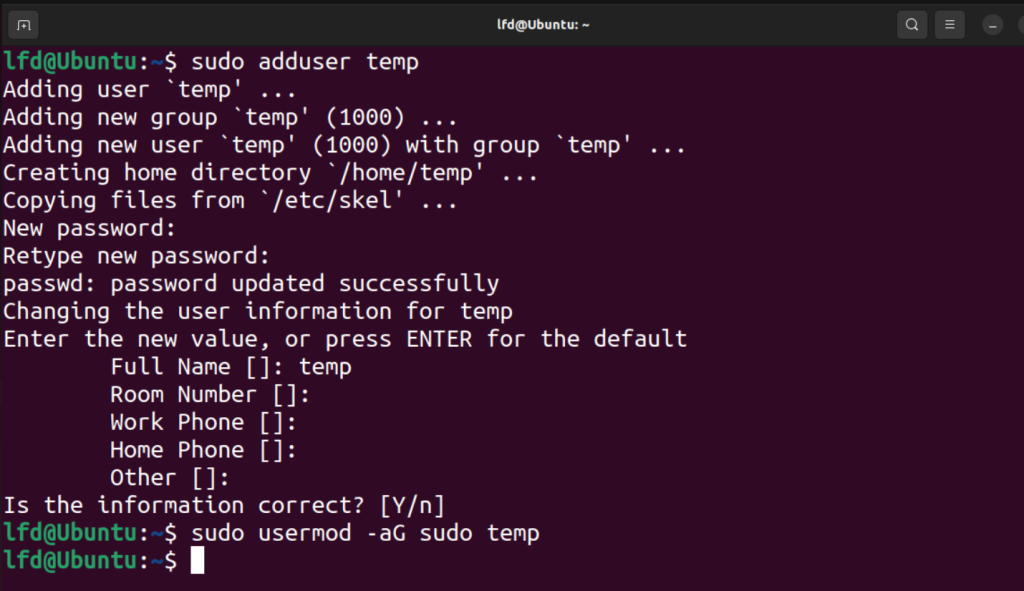
On Ubuntu Desktop, open Settings, choose System, then Users, unlock the panel, and add a temporary administrator. Ubuntu’s account setup instructions describe that flow, and the sudoers guide covers administrative access for the terminal commands below:
sudo adduser temp
sudo usermod -aG sudo temp
The screenshots show account setup and sign-in selection. I added temp to sudo so it can run the rename.
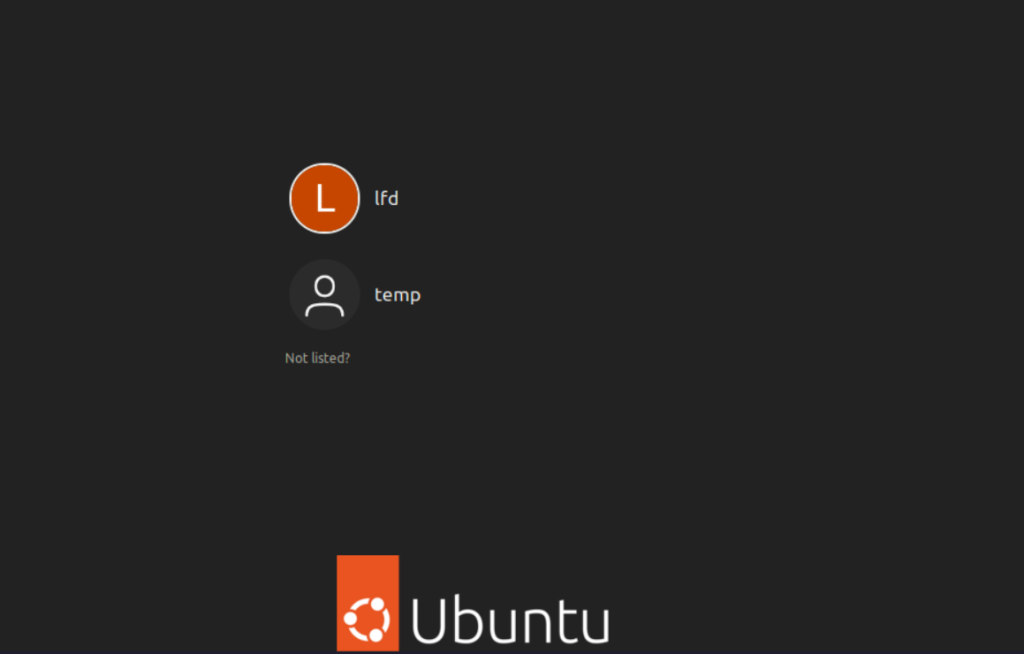
After creating temp, sign out of the current account and choose temp at the login screen. The next screenshot shows that selection.
Once signed in as temp, open a terminal there and check that the new login name is free before running the rename.
The Ubuntu user list can help you spot accounts already using your preferred name. Replace aadesh and lfd below with your intended new and current names:
getent passwd aadesh
getent group aadesh
id lfd
Before the rename, I ran getent passwd and group checks and found no aadesh entry. If either command returns an account or group, choose another name first, then compare the id output before and after the rename.
Rename the account and its home directory
The Ubuntu usermod manual defines -l as a login rename, -d as the home path and -m as the move of existing contents. Pass the current login as the final argument.
1. Stop sessions for the account being renamed
Run loginctl user-status lfd to inspect that account’s sessions. Do not terminate a session until you know what work it owns.
The usermod command will not rename an account that has active processes. Before the rename, inspect scheduled work with sudo crontab -u lfd -l, then stop the relevant session or service deliberately.
2. Rename the login and move its home
From the temp administrator’s terminal, run:
sudo usermod -l aadesh -d /home/aadesh -m lfd
The command changes lfd to aadesh, preserves UID 1000 and moves /home/lfd to /home/aadesh. I ran it in an isolated Ubuntu 26.04.1 database, and stat confirmed the new home was owned by aadesh:aadesh.
3. Rename the private group when it matches the old login
Use the user and group lookup commands to confirm lfd is a private group, not a shared group used by other accounts. The Ubuntu groupmod manual documents -n, which changes the group name without changing its numeric GID:
sudo groupmod -n aadesh lfd
id aadesh
In my isolated run, id reported uid=1000(aadesh) and gid=1000(aadesh), so the names changed while both numbers stayed at 1000. If your account uses a shared primary group, keep that group name instead of renaming it.
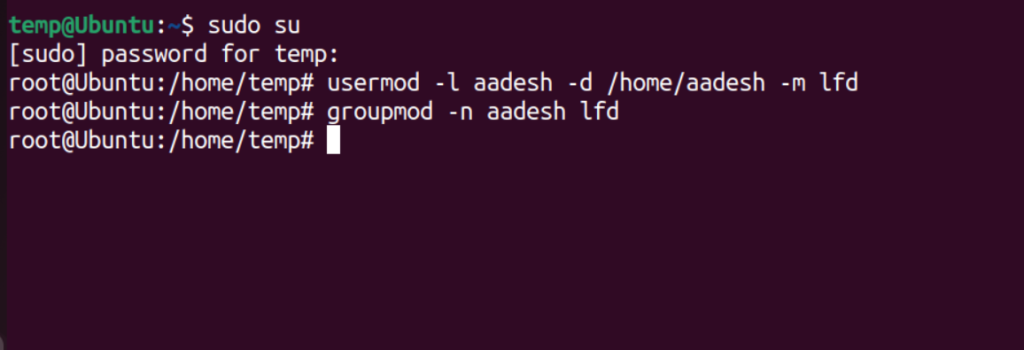
The screenshot shows both renames from a root shell. You can stay in temp and use the sudo commands above rather than opening one.
4. Sign in with the new login
Run the same identity command after signing in with the new login:
id aadesh && getent passwd aadesh && getent group aadesh
The expected values are aadesh and /home/aadesh, with aadesh as the primary group when you renamed its private group. My isolated run kept UID 1000 and GID 1000 after the rename.
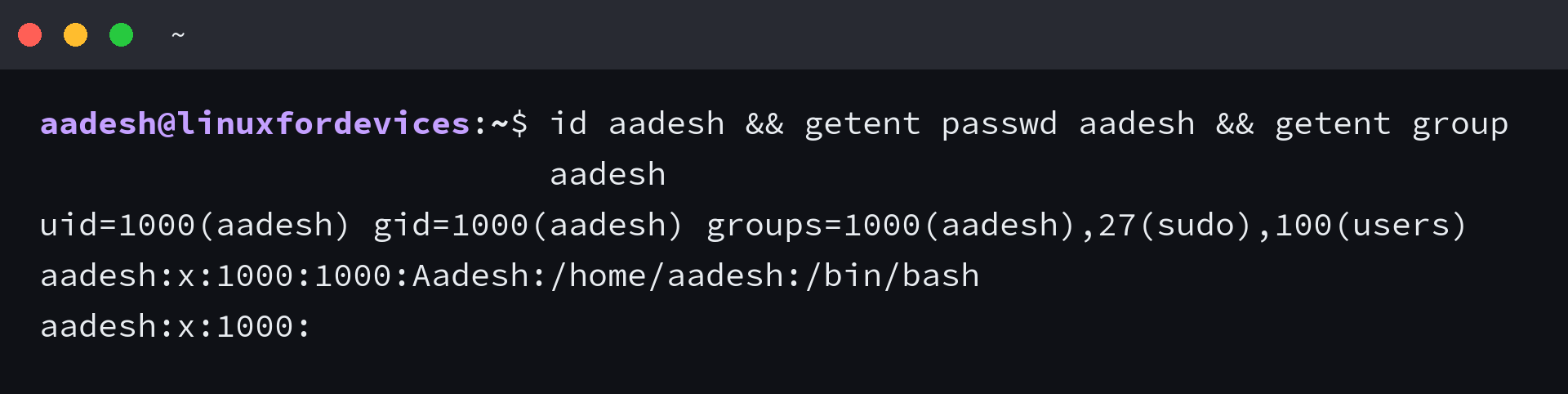
The identity fields confirm the account record, but not that you can open your files or use sudo from a new session. Keep temp until both checks pass.
Repair references to the old home path
Some programs store an absolute path such as /home/lfd rather than resolving the account’s current home directory. Search your own service and application configuration for that exact old path, then update each reference that should follow the account.
If a service genuinely needs the old path, a symbolic link can point it to the moved directory. Create one only after checking that /home/lfd no longer exists:
sudo ln -s /home/aadesh /home/lfd
ls -ld /home/lfd
I ran ls -ld after creating the link, and it showed /home/lfd pointing to /home/aadesh. That confirmed the old path resolved to the moved home.

The screenshot also changes the link owner, a separate operation this compatibility step does not require.
| Check | What to do |
|---|---|
| Scripts and service files | Search for /home/lfd and change references that should follow the new path. |
| User crontab | Review name-based jobs for lfd and recreate them under aadesh if needed. |
| Shared or managed account | Follow the directory administrator’s process before renaming. |
Retire the temporary administrator after verification
After those checks pass, sign in as aadesh and remove only temp and its own home directory without the -f force option:
sudo deluser --remove-home temp
The command can refuse removal while temp owns a running process, which gives you a chance to investigate before deletion. The Ubuntu userdel manual warns that forced removal can leave an inconsistent system, so leave out the -f option.
Account names do different jobs
The login name identifies the account, while the display name, password and hostname are separate values.
Does changing an Ubuntu username change the password?
No. A login-name change does not set a new password. Change it separately with passwd after signing in to the renamed account.
Can I change my Ubuntu username in Settings?
Settings can change the account’s display name, but not its login name or home-directory path. Use an administrator session and usermod for the login rename.
Does changing a username change the computer hostname?
No. The hostname identifies the computer on the network. Change it separately with hostnamectl if that is the name you want to edit.
After removing temp, sign out once and sign in again as aadesh. Running whoami in a fresh terminal should return aadesh.