

Listing all groups on a Linux system is one command, and there are two common ways: reading /etc/group or asking the system with getent. They can return different answers on a machine that uses a directory service.
What a Group Record Holds
Every group on a Linux system is one line of a colon-separated record. The fields are fixed in order, and three of the four are always present.
head -n 3 /etc/group

root:x:0:
daemon:x:1:
bin:x:2:
| Field | Example | What it carries |
|---|---|---|
| Group name | root | The name you pass to chown, usermod, and every access check |
| Password placeholder | x | Almost always x, because group passwords moved to /etc/gshadow |
| Group identifier | 0 | The numeric group identifier (GID) the kernel stamps onto files |
| Member list | (empty) | Supplementary members only, so it is often blank |
The fourth field is the one that gets misread. It lists supplementary members, so a user whose primary group this is never appears in it.
getent group ubuntu

ubuntu:x:1001:
The ubuntu account clearly belongs to the ubuntu group, yet the member list is empty. Its membership is recorded in the fourth field of the passwd record instead.
getent passwd ubuntu

ubuntu:x:1001:1001:Ubuntu:/home/ubuntu:/bin/bash
That field reads 1001, which is the primary group from the group record above. Two records describe one membership and only one of them shows the name, which is why grepping the group file for a username is an unreliable way to answer membership questions.
If you want the wider picture of how accounts, groups, and file modes fit together, managing users, groups, and permissions in Linux covers the permissions model these fields feed into.

Read the Group Database with getent group
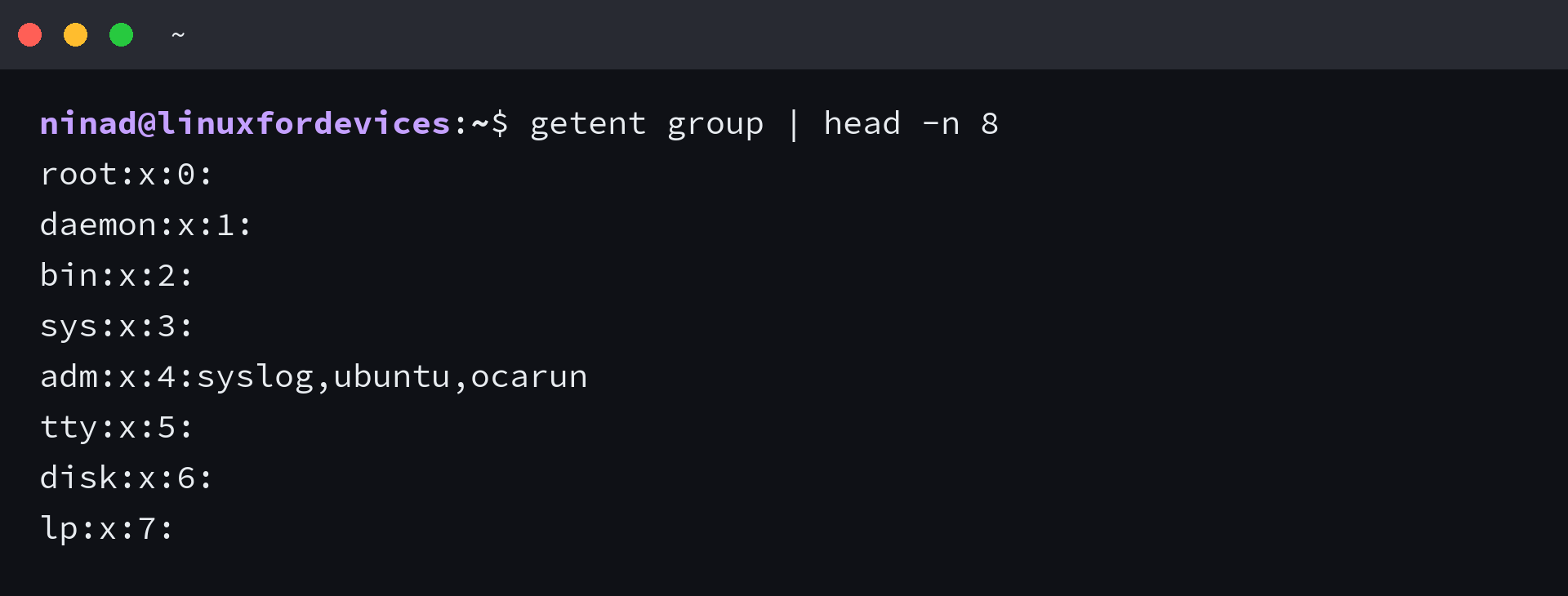
The getent command asks the name service switch (NSS) for every group the machine can resolve, which makes it the reader that matches what the system itself believes.
getent group | head -n 8

root:x:0:
daemon:x:1:
bin:x:2:
sys:x:3:
adm:x:4:syslog,ubuntu,ocarun
tty:x:5:
disk:x:6:
lp:x:7:
NSS is the layer that decides which database answers a lookup. The caller asks for a group and the switch decides whether that comes from a local file, a directory service, or a daemon.
grep -E '^group:' /etc/nsswitch.conf

group:          files systemd
On this machine group lookups are served by files and systemd, so the switch and the local file return the same 71 entries.
getent group | wc -l
71

grep -c '' /etc/group
71
Change that switch line to include sss or ldap and the two readers part company. The local file keeps returning local groups only, while getent group keeps returning everything the directory serves, which is the failure you get when a group exists on the directory and every file check on the box still denies access.
Print Group Names Without the GIDs
For scripts and quick reads you usually want names alone. Three tools do it, and they differ in where the text comes from rather than in what they print.
cut -d: -f1 /etc/group | head -n 8

root
daemon
bin
sys
adm
tty
disk
lp
The cut command splits each line on the colon and keeps field one. It reads a file or its standard input, so it needs both the delimiter and the field number. cut command guide covers the field ranges you can ask for.
getent group | awk -F: '{print $1}' | head -n 8

root
daemon
bin
sys
adm
tty
disk
lp
The awk version asks for the same field with a program instead of a flag. That costs a little more typing and buys you the ability to reach into other fields, reformat them, and filter in the same pass. See awk command guide for the field syntax beyond column one.
compgen -g | head -n 8

root
daemon
bin
sys
adm
tty
disk
lp
compgen is a bash builtin that completes group names. With the g option it prints the group names it would have offered, which is a genuinely different mechanism from the other two because it never reads a file. It only exists inside bash, and you can see its full behaviour with help compgen.
| Tool | Where it reads from | Reach for it when |
|---|---|---|
| cut | A file or standard input | You want one fixed field and nothing else |
| awk | Standard input | You want to select, reformat, or filter in one pass |
| compgen -g | The shell’s own group list | You are inside a bash script and want names only |
Sort the List and Count the Groups
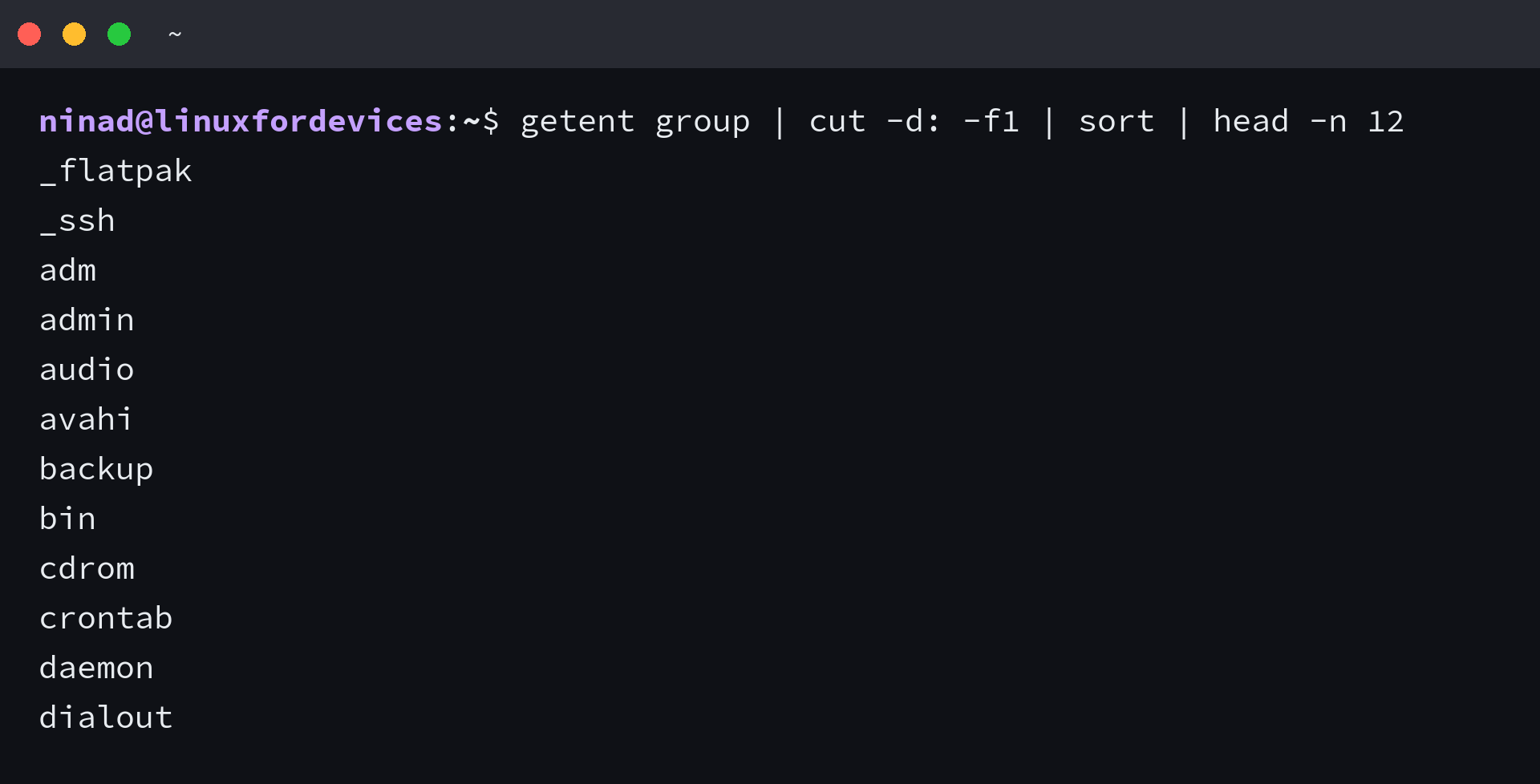
Piping names into sort gives you a list you can scan for a name instead of reading it top to bottom. The sort command guide guide covers the ordering flags.
getent group | cut -d: -f1 | sort | head -n 12

_flatpak
_ssh
adm
admin
audio
avahi
backup
bin
cdrom
crontab
daemon
dialout
Counting is where a small choice changes the answer you report. The wc command counts lines, while grep counts matches, and the two only agree when every line matches.
getent group | wc -l
71

getent group | cut -d: -f1 | sort -u | wc -l
71
On this machine both counts came back at 71, which tells you the switch is not returning the same group name twice. On a directory-backed host the unique count is the one you want to report, because a service can legitimately publish the same name from more than one source.
Filter for One Group or a Few by Name
Filtering the output is a matter of matching against the start of each line, and anchoring that match is what stops the search from also catching any group whose name merely contains your text.
getent group | grep -E '^(sudo|adm|docker)'

adm:x:4:syslog,ubuntu,ocarun
sudo:x:27:ubuntu
admin:x:109:
docker:x:987:
The caret holds the match to the first field, so a group named sudoers-admins would not appear here unless you ask for it. The grep command guide guide covers the anchoring and extended regular expression syntax if you want to build a longer list.
When the group name is already known, no pipeline is needed.
getent group sudo

sudo:x:27:ubuntu
The direct lookup returns exactly one record, which makes it the right shape for a script that has to test whether a group exists before using it.
List the Groups a User Belongs To
Hand a username to the groups command and it prints every group that account is in, primary and supplementary together.
groups ubuntu

ubuntu : ubuntu adm cdrom sudo dip video lxd
Drop the username and you get the groups of whoever is running the command. Use id when you need the numbers alongside the names, and note that the fourth field of its output confirms which group is the primary one.
id ubuntu

uid=1001(ubuntu) gid=1001(ubuntu) groups=1001(ubuntu),4(adm),24(cdrom),27(sudo),30(dip),44(video),104(lxd)
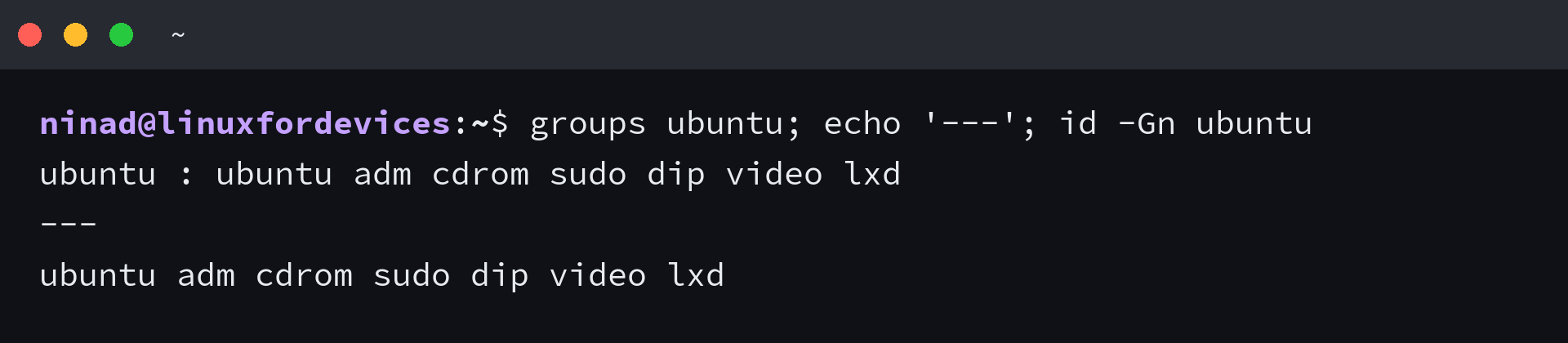
The catch for scripting is that the groups command prefixes its output with the username and a separator. The id command with the n and G options prints the names and nothing else.
groups ubuntu; echo '---'; id -Gn ubuntu

ubuntu : ubuntu adm cdrom sudo dip video lxd
---
ubuntu adm cdrom sudo dip video lxd
| Command | Output shape | Use it when |
|---|---|---|
| groups USER | username : name name name | You are reading the result yourself |
| id -Gn USER | name name name | You are splitting the result in a script |
| id USER | uid, gid, and every group with GIDs | You need the numeric identifiers too |
The most common follow-up question is which group a given user actually answers to, and finding the user group of a user walks through that comparison. When you are ready to change a membership, adding a user to a group shows the usermod and gpasswd forms.
Find Out Who Is in a Group
Reading a group record gives you its member list directly, which is the fastest way to answer who holds a privilege.
getent group adm

adm:x:4:syslog,ubuntu,ocarun
Field four is the member list, so cutting it out of the record leaves just the names.
getent group sudo | cut -d: -f4

ubuntu
Keep the primary-group rule from the first section in mind here, because it makes this output look emptier than the system is. A group whose members all use it as their primary group shows a blank fourth field, and those accounts still belong to it. The sudo group carries its members in the file, so it reads as you would expect.
For an audit you want every account and its groups side by side rather than one group at a time. This loop reads the passwd database, keeps the regular accounts, and asks the system for each one’s groups.
for u in $(getent passwd | awk -F: '$3>=1000 && $3<65534 {print $1}'); do
  printf '%s: %s\n' "$u" "$(id -Gn "$u")"
done

opc: opc
ubuntu: ubuntu adm cdrom sudo dip video lxd
The lower bound of 1000 skips the system accounts that own daemons, and the upper bound skips the nobody account. Running it before an access review tells you which accounts hold sudo, which is the question behind adding a user to sudoers. If an account is missing from the passwd database entirely, useradd command guide covers creating it.

Check That a New Group Membership Took Effect
Adding an account to a group and then seeing the old group list is the most confusing result in this whole area, so I ran the sequence on one account to show exactly where the change lands. The first step creates the group and joins the account to it.
sudo groupadd lfdemo
sudo usermod -aG lfdemo ubuntu
getent group lfdemo

lfdemo:x:1002:ubuntu
The database already agrees the account is a member. Now ask the shell you are typing in which groups it holds, and ask a fresh process for the same account in the same breath.
id -Gn; sudo -u ubuntu id -Gn

ubuntu adm cdrom sudo dip lxd
ubuntu adm cdrom sudo dip video lxd lfdemo

The first line is the open shell, and its list did not change at all. The second line is a process started after the change, and it includes lfdemo.
It also carries video, which the first line never had. Both differences come from the same behaviour, because a process receives its supplementary group identifiers when it starts, from the database as it stood at that moment. The open shell is running on a login-time snapshot, so it holds neither the group you just added nor anything else that changed while you were signed in.
If you need the group inside a shell you already have open, sg starts a command with that group as its primary one.
sg lfdemo -c 'id -Gn'

lfdemo adm cdrom sudo dip lxd ubuntu
Compare that line with the earlier ones and the group has moved to the front of the list, which is what a new primary group looks like. Signing out and back in has the same effect for a group you want everywhere. The demo group is disposable, so removing the member and then the group returns the machine to its earlier state.
sudo gpasswd -d ubuntu lfdemo
sudo groupdel lfdemo
getent group lfdemo || echo 'group removed'

Removing user ubuntu from group lfdemo
group removed
- Confirm the membership landed in the database with getent group GROUPNAME.
- Run id -Gn in the shell you were already using to see the old credential set.
- Start a fresh process with sudo -u USER id -Gn to confirm the system agrees.
- Sign out and back in, or use sg, when you need the group in your working shell.
How do I list all groups on Linux?
Run getent group. It asks the name service switch for every group the machine can resolve, which covers local groups and any directory service the host is wired to. Use getent group | cut -d: -f1 when you want the names without the group identifiers.
What is the difference between getent group and cat /etc/group?
The cat command reads one local file. The getent command goes through the name service switch, so it also returns groups served by LDAP, SSSD, or another directory. On a machine with only local groups the two agree. On a directory-backed host the file is missing whatever the directory adds.
How do I list the groups a user belongs to?
Run groups USERNAME for a readable answer, or id -Gn USERNAME when a script needs the names without the username prefix. The id command with no options adds the numeric identifiers for each group.
How do I find out who is in a group?
Run getent group GROUPNAME and read the fourth field. That field lists supplementary members only, so an account that uses the group as its primary group will not appear there even though it belongs.
Why does a user not see a group they were just added to?
A process receives its supplementary group identifiers when its session starts. A shell that was already open keeps the old set. Start a new login, or use sg GROUPNAME -c COMMAND, and the new group appears.