
The two questions arrive together when you restart a Linux machine from a terminal. Which command is the right one, and does the choice matter?
The names you learned are one program on a systemd box, so what separates them is not the restart itself. It is what each one tells the machine, and the people on it, to do first.
Reboot, shutdown and telinit are one program now
The commands carry separate names, separate man pages and separate histories, which is why the question keeps coming back. A systemd install ships them as one binary with several entry points, and the name you invoke decides which action the program takes.
ls -l /sbin/reboot /sbin/shutdown /sbin/telinit
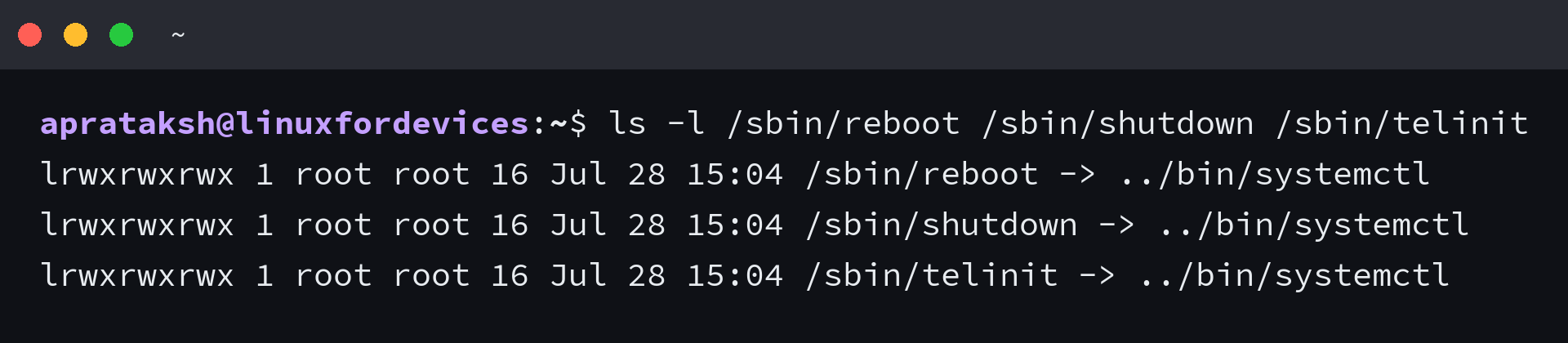
None of the three is a rival tool. Each name is a link to systemctl, which reads the name it was called by and picks a behaviour from it, the same way busybox and ip present a dozen commands from one binary.
I checked the same names on a systemd 255 install, and every one of them resolved to the systemctl binary with the init process confirming which manager was in charge.
That is why the flags you learned for one of them keep working on another, and why a script that calls reboot keeps working on a distribution whose documentation talks about systemctl instead.
Runlevel 6 is now a target
On a System V machine, the telinit command changed the runlevel and the scripts attached to that runlevel performed the restart. systemd keeps the entry point and maps it onto the reboot target, so the old command still works and the machinery behind it is different.
If the machine runs OpenRC, runit or plain SysV init, that split still holds. The old commands are the implementation there and the systemd options do not exist, which is worth checking before you copy a command from one box to another. Projects like Devuan exist to keep that side alive.
The verbs behind the names
Restart, halt and shut down are three different end states, and the names sit close enough together to mix up. A restart cycles the machine, a halt leaves the hardware running with nothing on the screen, and the poweroff command cuts the supply.
systemd is strict about the difference, and the man page says so directly: on many older systems halt meant the same thing as poweroff, while a modern halt stops the machine and leaves the hardware where it is.
That distinction decides which command you want on a remote machine. A halt can leave you with a box that answers a ping and nothing else until somebody walks over and switches it off.
What the command does to the programs under it
The request leaves your shell and goes to PID 1 over D-Bus, which is why it wants root or a password.
The manager then stops services and processes in order, and the process that sent the request is one of them. Nothing below the call runs, so a cleanup step you placed after it never executes.
That boundary decides how you write the program that starts a restart.
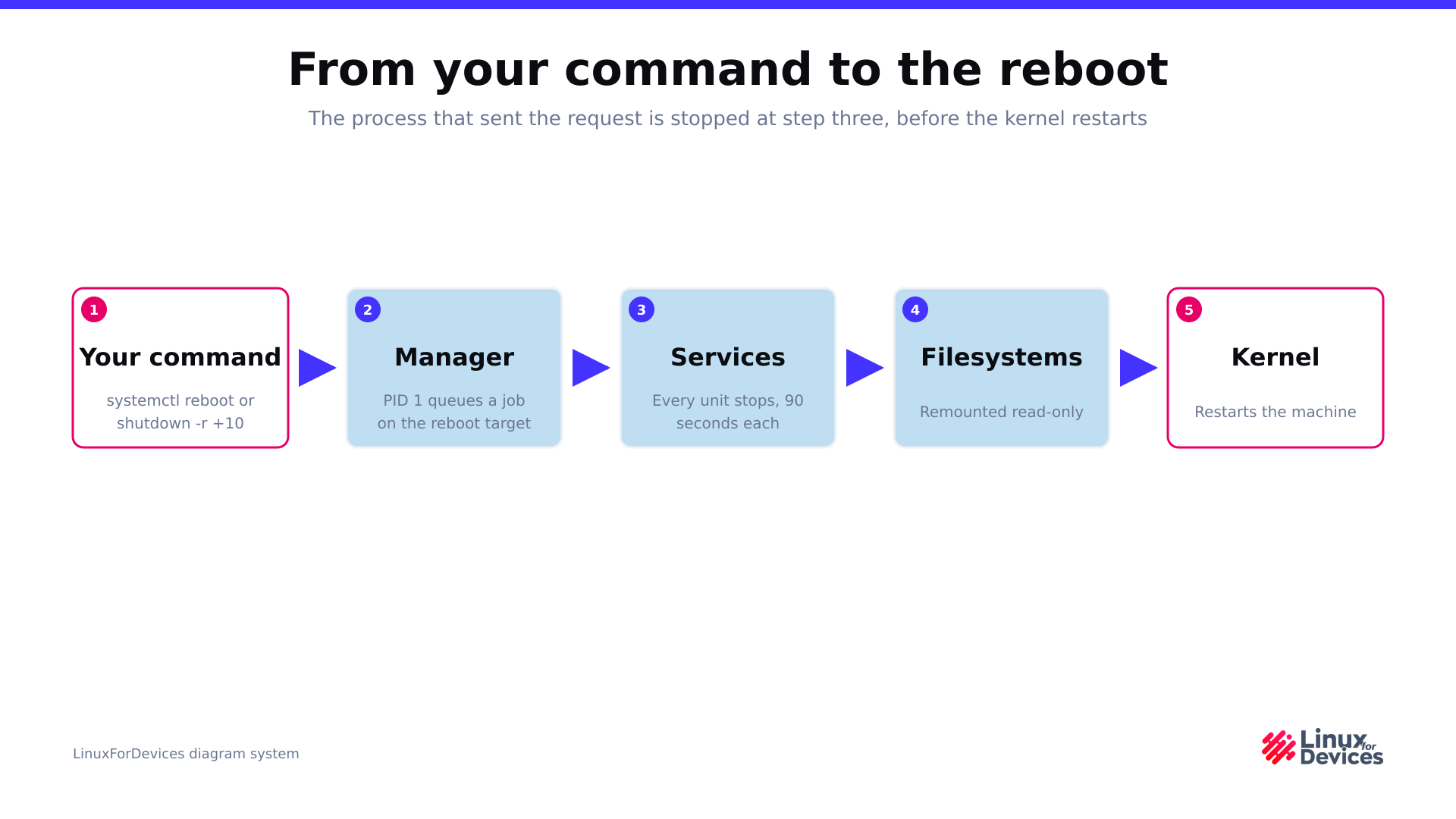
The order matters more than the individual boxes. Your command is only the first step, and the third step is where your own session ends.
The job is queued in a mode that a later request cannot replace, which is why a second restart command while the first is in flight does not queue a second restart, and why the command can report success and then appear to do nothing for a moment.
Each stop has a cap as well, since a unit gets 90 seconds by default before the manager kills it, which is where a restart that seems to hang comes from.
A restart from a desktop menu and a restart from a script reach that same manager by different routes. The desktop route is authorised by the session, while a script running without a terminal has to bring its own permission.
Check the box before you take it down
What you can run depends on three things: the init in charge, your account, and the sessions that will go down with the machine.
ps -p 1 -o comm=
id -u
who
systemctl list-jobs
The first line names the init that will receive the request. The second prints 0 for root and your own user id otherwise, and the third lists every session that ends when the machine does. On the box I checked, the answer was systemd and a user id above 0, with the job list empty.
- Init: read PID 1 before you choose a command, because a System V box answers to different flags.
- Privilege: the request is authenticated, so a script without a terminal needs sudo without a password prompt or a policy rule.
- Sessions: the users and groups page covers who owns a session, and who can end one.
The privilege side comes up often enough to have its own question on Ask Ubuntu, where a normal account is prompted for a password by the shutdown command. The answer there is sudo or a policy rule, not a different command.
Load is worth a look as well on a shared machine, and the usage commands show whether the box is working through something that will be lost at the worst moment.
Restart the machine from the terminal
There are four routes: a restart now, a restart later, a cancelled restart, and a forced one. Pick the one that matches the state of the machine rather than the one you remember, and if the shell itself is new, the command line guide starts from the prompt.
Restart it now
The same request goes out from three commands, and the plainest one is the one to type.
sudo systemctl reboot
sudo reboot
sudo shutdown -r now
The call returns as soon as the manager accepts the job, which happens a moment before your session is torn down. You will rarely see the prompt come back, and the exit status is not something you can read on the way out.
Schedule it and leave a warning
Only the shutdown command owns a timer and a way to warn the other users, and that is the reason to prefer it for planned work. My own order for a maintenance window puts the warning and the timer in the same command, which is one less thing to remember.
The shutdown manual page lists the time forms and the cancel flag in one place, which is worth reading once before you schedule anything.
sudo shutdown -r +10 "Kernel updates, saving work"
A wall message needs a time argument. The message form always carries the delay, and with no time at all the command schedules the stop one minute out by default.
The manager creates that marker file 5 minutes before the scheduled time. It refuses new logins until the machine is back.
| Form | What it does | Detail |
|---|---|---|
| shutdown -r now | Restart immediately | now is an alias for +0 |
| shutdown -r +10 | Restart in 10 minutes | a message may follow the time |
| shutdown -r 23:30 | Restart at a clock time | 24 hour format |
| shutdown -c | Cancel a pending stop | no effect on an immediate restart |
| shutdown –show | Print the pending stop | added in systemd 250 |
The cancel flag matters for that reason. A scheduled stop keeps running while you track down the fault that made you schedule it.
Cancel a scheduled restart
The shutdown command cancels its own timer, and the systemd verb has a time option that schedules, prints and cancels the restart by itself.
sudo shutdown -c
sudo systemctl reboot --when=23:30
sudo systemctl reboot --when=show
sudo systemctl reboot --when=cancel
On an older release the shutdown timer is still the way to delay a restart. The time option arrived in systemd 254, and the systemctl manual page documents the time forms it accepts.
Warn the people on the box
A restart that comes from something other than your shell, such as an unattended upgrade or a maintenance script, still needs a warning, and that is what the wall command is for. Package work is the usual reason a restart gets scheduled at all.
echo "Kernel upgrade in 10 minutes, save your work" | sudo wall
wall writes the line to every terminal that accepts messages, and it wraps long lines at 79 characters. The group flag limits the notice to one group when the message is not for everybody.
If the restart itself comes from a schedule, the shell scripting and cron page covers where that job lives.
Force it when the box will not come down
A forced restart is for a machine that is already failing, and it is the one option here that can cost you data.
sudo systemctl reboot -f
sudo systemctl reboot -ff
The single force skips stopping services and kills the processes instead. The double force performs the restart inside systemctl without contacting the manager at all, so it still works when the manager has stopped answering.
The reboot binary has the same flag with the same meaning, and its manual page is direct about the trade: the command does not contact the init system, and filesystems are not properly unmounted before the machine goes down.
I would keep the double force for a machine I cannot reach any other way, and use the single force everywhere else.
Restart the userspace without the kernel
A userspace restart re-executes the service manager and everything above it while the kernel keeps running, which is faster than a full cycle and enough for everyday service work.
sudo systemctl soft-reboot
The verb needs systemd 254 or newer. Its own service description explains the mechanics: it signals the processes that are left with a terminate, then a kill, switches the root if a new one is waiting in the nextroot directory, and re-executes the manager off that root.
A normal restart turns into a userspace restart in one situation. If something has staged a new root filesystem, the reboot verb performs the userspace variant instead, unless the environment variable that skips it is set.
Restart the machine from Python
The Python version is a short file, and the decisions that matter are how you build the command and what you do with the answer.
Build the command as an argument list
Passing a list to subprocess keeps the wall message in one piece and keeps the shell out of the picture.
import shutil
import subprocess


def build_argv(mode, minutes, message):
    if minutes > 0:
        action = "-r" if mode == "restart" else "-P"
        argv = ["shutdown", action, f"+{minutes}"]
        if message:
            argv.append(message)
    else:
        argv = ["systemctl", "reboot" if mode == "restart" else "poweroff"]
    if shutil.which("sudo"):
        argv.insert(0, "sudo")
    return argv
A single string would go through the shell instead, and a message with spaces in it would arrive as three arguments rather than one. The list form makes that class of mistake impossible, because nothing between the brackets can be re-parsed.
No shell sees those arguments, so nothing between the brackets gets expanded. I ran the confirm path with a message carrying a command substitution and a backtick expression, and the argument that arrived was the literal text.
I ran the sample itself under Python 3.12 in a fresh virtual environment, and the argument list it printed was the one I typed.
Print it, then require a confirmation
A mistyped argument here takes the machine down under whoever is logged in, so the last step is deliberate. The sample prints the command it is about to run and stops unless you pass the confirm flag.
python3 restart.py restart --in 10
python3 restart.py restart --in 10 --message "Rebooting for kernel updates"

Nothing is sent on that pass. The line above the notice is the exact argument list the manager receives once you add the confirm flag.
Read the exit status before you relax
subprocess.run returns the status of the command it ran, and a refused request comes back non-zero. The program reports that instead of assuming the restart is on its way.
In practice the confirm path never finishes, because the manager stops the process that asked for the restart. I ran that path against a stand-in that recorded the argument list and exited 3, which is how the last line of the program is proven without losing this session.
Restart the machine from C++
The C++ program does the same work through the older interface, and the older interface brings one bug with it.
system() runs your line through a shell
The classic call hands a string to the shell rather than an argument list, so a wall message has to be quoted inside the command the program builds.
#include <cstdlib>
#include <iostream>
#include <string>
#include <sys/wait.h>

std::string build_command(const std::string& mode, int minutes, const std::string& message) {
    std::string command;
    if (minutes > 0) {
        command = "sudo shutdown ";
        command += (mode == "restart") ? "-r " : "-P ";
        command += "+" + std::to_string(minutes);
        if (!message.empty()) {
            command += " \"" + message + "\"";
        }
    } else {
        command = "sudo systemctl ";
        command += (mode == "restart") ? "reboot" : "poweroff";
    }
    return command;
}
The quotes in that string are load bearing. Without them the shell would split the message into separate arguments, and with them the shell takes the quotes back off before the binary sees the message as one argument.
The same property is a hazard the moment the message comes from outside the program. Anything interpolated into that string is handed to the shell, so a message assembled from user input can carry a command along with it. Keep the message a fixed string, or validate it before it reaches the builder.
g++ -O2 -Wall -Wextra -o restart restart.cpp
./restart restart --in 15 --message Maintenance
| Argument list in Python | Shell string in C++ | |
|---|---|---|
| What runs it | the target binary directly | the shell, then the binary |
| A message with spaces | stays one argument | needs quoting in the string |
| The exit code | the command’s own status | the shell’s wait status |
| Input from outside | stays literal | can carry a command of its own |

The return value is a wait status
system() returns the termination status of the shell rather than the exit code of your command, and the difference shows up as soon as a command fails.
int status = std::system(command.c_str());
std::cout << "system() returned: " << status << " (wait status)\n";
if (WIFEXITED(status)) {
    int code = WEXITSTATUS(status);
    std::cout << "command exited with: " << code << "\n";
    return code;
}
Against a stand-in that exits 3, the raw value came back as 768 and the decoded code was 3. Returning the raw value from main would report success for a command that failed, which is the trap in this interface.
The sample compiled clean with warnings enabled under g++ 13.3, and the command it printed came out of the string builder with the quotes in place.
The boundary from the Python section applies unchanged here: the program ends when the manager stops it, and the shell adds one more place for a quoting mistake to hide.
Prove the machine came back
The session that issued the restart is gone by the time the machine returns, so the check happens on a new login. The boot time is the plainest evidence, because it reports when the kernel came up rather than when you reconnected.
who -b && uptime
journalctl --list-boots

On the machine I checked, the journal held a single boot, so the older entries were already rotated away. The boot list gives each boot an id with its first and last entry times, which is how you point the journal at the run before the restart.
The boot line looks the same whether or not the restart came from you, so read it against the uptime line as well. Mine showed a boot from earlier in the week with an uptime to match, which is what agreement looks like.
journalctl -b -1 -n 20 --no-pager
When the previous boot is still in the journal, that command returns the last 20 lines of it, which is where a service that refused to stop shows up, and when it is gone the command says so plainly rather than printing an empty screen.
The last check lists work the manager is still holding. Naming the job before you retry it is the same habit the dpkg sub-process failure asks for.
systemctl list-jobs
When the restart does not happen
Each of these failures has a different next move, so the message matters more than the command you retype.
| Message | Cause | Next move |
|---|---|---|
| a password is required | the account cannot authenticate the request | run it with sudo, or grant the command in a policy rule |
| a stop job is running | a unit ignored the termination signal and the 90 second cap applies | note the unit name, then fix or shorten its stop |
| logins are refused | the no-login marker appeared 5 minutes before the timer | wait for the restart, or cancel the pending stop |
| nothing happens, status 0 | the job is queued behind a dependency or scheduled for later | read the job list and the current boot log |
systemctl list-jobs
journalctl -b -n 50 --no-pager
systemctl status <unit>
The stop timeout that holds the machine
Every unit gets 90 seconds to stop, and that number comes from the manager’s default rather than from the unit itself. The value is per unit and can be shortened for a service that has no business taking that long.
systemctl show -p TimeoutStopUSec <unit>
Reading it back is how you tell a slow stop from a wedged one, and the 1 minute 30 seconds I read on two services is the manager default while a service that overrides it shows its own number instead.
A manager that has stopped answering is a different problem from a unit that will not stop. The double force restart is the one that still works, because systemctl carries it out without contacting the manager.
On a machine where even that fails, the kernel’s own keys finish the job. Hold Alt and SysRq on a physical console and press them in one order: unraw, terminate, kill, sync, remount read-only, then restart, which the kernel documentation lists as r, e, i, s, u and b.
The last key restarts without syncing or unmounting anything, which is the same exposure as pulling the plug.
A machine that comes back with a unit in a failed state is a different outcome from one that does not come back at all. The failed unit list and that unit’s own log are the two places to look, and both are read after the restart rather than during it.
I listed the pending jobs on an idle box and the list came back empty, which is the state you want before you ask for a restart.
The check that answers the question after a reboot
A restart is confirmed from the other side of it, not from the command that started it. The command worth typing once you are back in is the one that lists what failed to return, because that decides whether the restart solved your problem or moved it.
systemctl --failed
An empty list and a fresh boot time mean the machine came back whole.
Frequently asked questions
Every one of these comes up when a restart is planned, and the answers stay short because the commands carry the detail.
What is the difference between reboot and shutdown -r now?
Nothing on a systemd system. Both names resolve to the same binary, and the restart comes from the same target.
Does systemctl reboot wait for the machine to come back?
No. It returns once the manager has accepted the job, and the restart continues after your session is stopped.
How do I cancel a restart that is already scheduled?
Run shutdown -c before the timer expires. The cancel flag does nothing to a restart that was requested immediately.
Can a Python or C++ program restart the machine without root?
Not by itself. The request is authenticated, so the program needs sudo without a password prompt or a policy rule that allows the command.
How do I check that the machine restarted?
Read the boot time from who -b, or compare the current boot id with the list from journalctl –list-boots.