

Ask an Ubuntu machine to list its services and the answer depends on the command you run. Four commands sound identical and answer four different questions, which is why the lists disagree and none of them says what starts at boot. I ran all four on Ubuntu 24.04.4 LTS and counted the output: 27 entries from the legacy init system, 31 services running right now, 70 loaded into memory, and 263 service unit files installed, of which 57 are enabled at boot.
What Ubuntu counts as a service
systemd is process 1 on every current Ubuntu release, and each daemon it starts is packaged as a unit, which is a small text file describing one thing systemd manages. Listing services means asking systemd rather than reading a process table, and killing a process is a separate job.
The four questions behind one list
One request usually collapses four questions into one, and each question has its own command.
| Question | Command | Answer on this machine |
|---|---|---|
| What is installed here? | systemctl list-unit-files –type=service | 263 unit files |
| What has systemd loaded? | systemctl list-units –type=service | 70 loaded units |
| What is running right now? | systemctl list-units –type=service –state=running | 31 running services |
| What starts at boot? | systemctl list-unit-files –type=service –state=enabled | 57 enabled unit files |
Units, sub-states, and enablement
LOAD reports whether systemd read the unit file, ACTIVE reports whether the unit is active, and SUB carries the state that matters for a service: running, exited, dead or failed.
Enablement is a second axis. A unit can be enabled and stopped, disabled and running, or static, which means it has no install section and starts only as another unit’s dependency.
What you need before you start
Keep a login session in mind for the per-user list, which reads a different manager than the system one.
Everything below needs a terminal session on a release with systemd, so 15.04 onwards, and none of these list commands needs root. Ubuntu 24.04 LTS ships systemd 255 and 26.04 LTS ships 259, and the commands behave the same on both.
The version check below confirms which Ubuntu and which systemd you are on.
lsb_release -a

Distributor ID:	Ubuntu
Description:	Ubuntu 24.04.4 LTS
Release:	24.04
Codename:	noble
systemctl --version | head -1

systemd 255 (255.4-1ubuntu8.17)
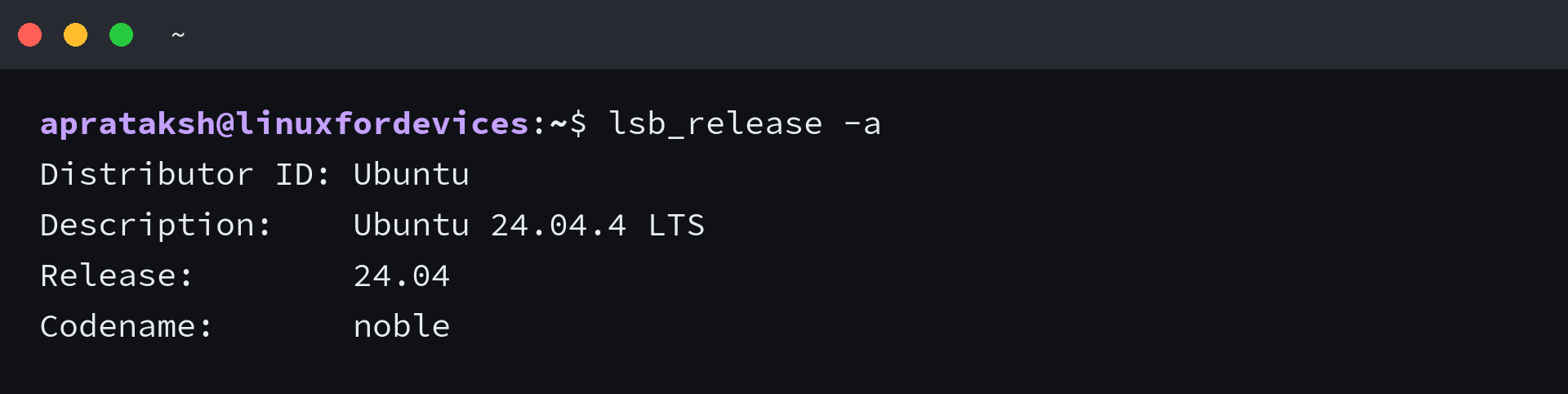
If the release line is not the one you expected, the guide to checking your Ubuntu version covers the other ways to confirm it.
How to list services on Ubuntu
Each step answers one question from the table, in the order I would run them, and every command here reads state only.
List the services systemd has loaded
The plain list-units command with a service filter is the widest runtime view, so this is where I start.
systemctl list-units --type=service --no-pager

  UNIT                                                       LOAD   ACTIVE SUB     DESCRIPTION
  apparmor.service                                           loaded active exited  Load AppArmor profiles
  avahi-daemon.service                                       loaded active running Avahi mDNS/DNS-SD Stack
  blk-availability.service                                   loaded active exited  Availability of block devices
  cloud-config.service                                       loaded active exited  Cloud-init: Config Stage
  cloud-final.service                                        loaded active exited  Cloud-init: Final Stage
  cloud-init-local.service                                   loaded active exited  Cloud-init: Local Stage (pre-network)
  cloud-init.service                                         loaded active exited  Cloud-init: Network Stage

# ... 68 rows omitted ...

70 loaded units listed. Pass --all to see loaded but inactive units, too.
To show all installed unit files use 'systemctl list-unit-files'.
The footer counts the rows and names the two commands that widen the view. Adding all is how you find a unit systemd knows about and has not started, which is the usual reason a service is not on the list.
List only the services running right now
When I only care about processes that are up, I narrow the same command with a state filter.
systemctl list-units --type=service --state=running --no-pager

  UNIT                                                       LOAD   ACTIVE SUB     DESCRIPTION
  avahi-daemon.service                                       loaded active running Avahi mDNS/DNS-SD Stack
  containerd.service                                         loaded active running containerd container runtime
  cron.service                                               loaded active running Regular background program processing daemon
  dbus.service                                               loaded active running D-Bus System Message Bus
  docker.service                                             loaded active running Docker Application Container Engine
  [email protected]                                         loaded active running Getty on tty1
  mariadb.service                                            loaded active running MariaDB 10.11.14 database server

# ... 29 rows omitted ...

31 loaded units listed.
cron, dbus and docker are typical rows, and each carries running in the SUB column. For the schedule side of the cron service, the cron jobs guide covers what it runs.
Count a list without the pager
When I want a number instead of a table, I drop the legend and the pager, then count the lines.
systemctl list-units --type=service --state=running --no-legend | wc -l

31

Leave off no-pager and systemctl hands the list to a pager whenever output is a terminal, which is why the same command sometimes looks like it did nothing.
List the unit files installed on disk
list-unit-files answers the inventory question. It reports what is installed with its enablement state, and unlike list-units it includes unit templates.
systemctl list-unit-files --type=service --no-pager

UNIT FILE                                                  STATE           PRESET
apparmor.service                                           enabled         enabled
apt-daily-upgrade.service                                  static          -
apt-daily.service                                          static          -
apt-news.service                                           static          -
[email protected]                                            alias           -
avahi-daemon.service                                       enabled         enabled
blk-availability.service                                   enabled         enabled

# ... 257 rows omitted ...

263 unit files listed.
systemctl list-unit-files --type=service --no-legend | wc -l

263
I counted 263 installed service unit files against 70 loaded, so most of what is installed is not loaded. The config file guide covers reading the files themselves.
List the services that start at boot
Boot state comes from the unit files, not the running system, so this is the inventory command with one filter added.
systemctl list-unit-files --type=service --state=enabled --no-pager

UNIT FILE                                                  STATE   PRESET
apparmor.service                                           enabled enabled
avahi-daemon.service                                       enabled enabled
blk-availability.service                                   enabled enabled
cloud-config.service                                       enabled enabled
cloud-final.service                                        enabled enabled

# ... 53 rows omitted ...

57 unit files listed.
systemctl list-unit-files --type=service --state=enabled --no-legend | wc -l

57

Static units are missing here and should be, because they carry no install section and start only as a dependency. The reboot command guide covers what happens to that set on the next restart.
Filter by state: failed, inactive, exited, dead
Exited belongs to a oneshot unit that ran to completion, so reading it as stopped is the mistake the wording invites.
| State | What it means | Command |
|---|---|---|
| running | the process is up now | systemctl list-units –type=service –state=running |
| exited | a oneshot unit finished successfully | systemctl list-units –type=service –state=exited |
| inactive | not running and not failed | systemctl list-units –type=service –all –state=inactive |
| dead | not running with no process left | systemctl list-units –type=service –all –state=dead |
| failed | the last start attempt failed | systemctl –failed |
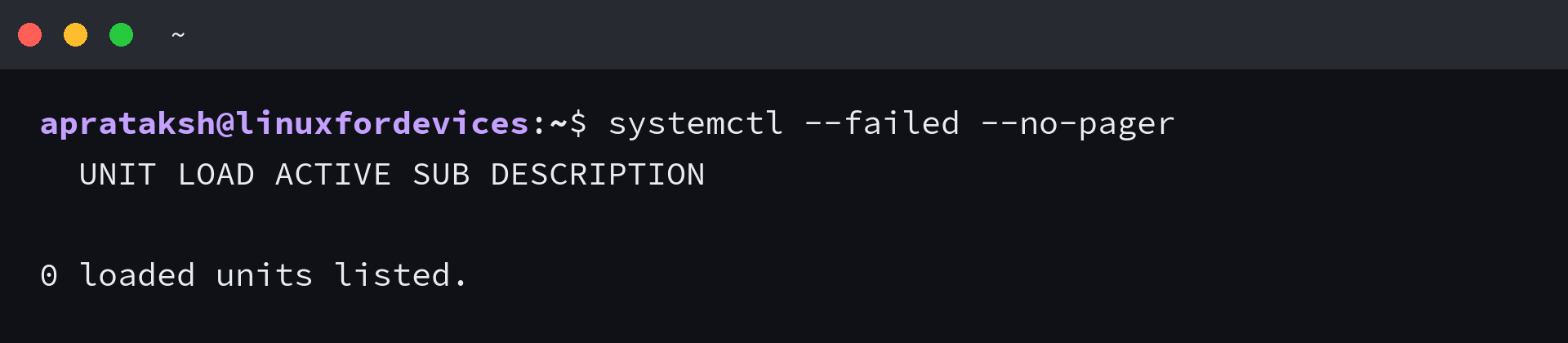
Failed is worth checking first, because a service that breaks at boot leaves no other trace in a list.
systemctl --failed --no-pager

UNIT LOAD ACTIVE SUB DESCRIPTION

0 loaded units listed.
Exited units pile up on a healthy machine, since cloud-init and the LVM monitor finish and stop. I ran that filter here and got 39 units, none of them broken.
UNIT                                           LOAD   ACTIVE SUB    DESCRIPTION
  apparmor.service                               loaded active exited Load AppArmor profiles
  blk-availability.service                       loaded active exited Availability of block devices
  cloud-config.service                           loaded active exited Cloud-init: Config Stage
  cloud-final.service                            loaded active exited Cloud-init: Final Stage
  cloud-init-local.service                       loaded active exited Cloud-init: Local Stage (pre-network)
  cloud-init.service                             loaded active exited Cloud-init: Network Stage

# ... 38 rows omitted ...

39 loaded units listed.
Check one service without listing everything
When you already know the name, two one-word answers are faster than a table.
systemctl is-active ssh && systemctl is-enabled ssh

active
disabled
is-active prints active and exits 0. is-enabled prints disabled and exits 1, because a disabled unit is not an error.
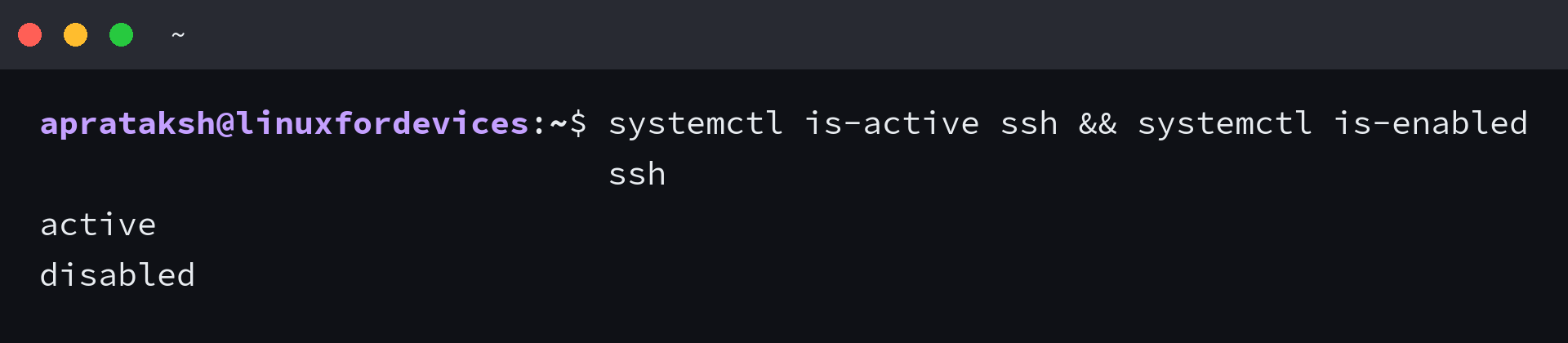
ssh is serving connections and reported as disabled, because ssh.socket owns port 22 and starts the daemon on the first connection.
systemctl status ssh --no-pager | head -12

● ssh.service - OpenBSD Secure Shell server
     Loaded: loaded (/usr/lib/systemd/system/ssh.service; disabled; preset: enabled)
     Active: active (running) since Fri 2026-09-11 06:37:27 UTC; 10h ago
TriggeredBy: ● ssh.socket
       Docs: man:sshd(8)
             man:sshd_config(5)
   Main PID: 2180396 (sshd)
The status line names that trigger, and the Avahi verify guide applies the same check to a daemon you installed yourself.
Search the list with grep
A long list is easier to search than to read, and the filter syntax is the one you already use.
systemctl list-units --type=service --all --no-pager | grep -i docker

docker.service                                             loaded    active   running Docker Application Container Engine
Keep all in the pipeline when the unit may be installed without being loaded, and the grep command guide covers the case-insensitive and word-boundary options.
List legacy init.d services with service –status-all
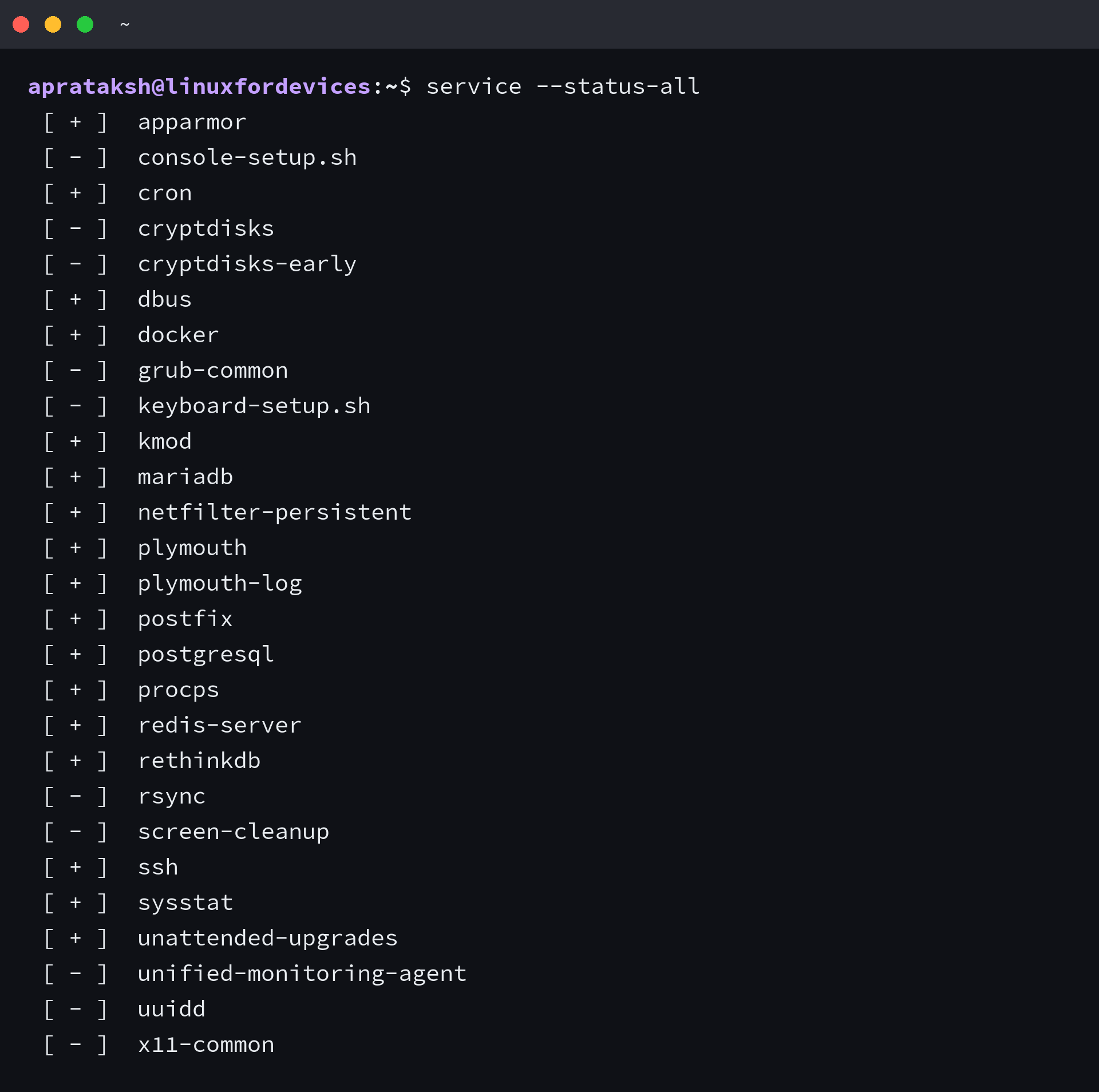
On a current Ubuntu install service –status-all is the narrowest command of the set, and the manual states that it only calls status for sysvinit jobs. It runs every script in the init.d directory with the status argument, so a short list is expected.
service --status-all

[ + ]  apparmor
 [ - ]  console-setup.sh
 [ + ]  cron
 [ - ]  cryptdisks
 [ - ]  cryptdisks-early
 [ + ]  dbus
 [ + ]  docker
 [ - ]  grub-common
 [ - ]  keyboard-setup.sh
 [ + ]  kmod
 [ + ]  mariadb
 [ + ]  netfilter-persistent
 [ + ]  plymouth
 [ + ]  plymouth-log
 [ + ]  postfix
 [ + ]  postgresql
 [ + ]  procps
 [ + ]  redis-server
 [ + ]  rethinkdb
 [ - ]  rsync
 [ - ]  screen-cleanup
 [ + ]  ssh
 [ + ]  sysstat
 [ + ]  unattended-upgrades
 [ - ]  unified-monitoring-agent
 [ - ]  uuidd
 [ - ]  x11-common
ls /etc/init.d | wc -l

27
Twenty seven entries is the whole legacy list on a current install, while the same machine reports 263 service unit files.
List per-user and socket-activated services
Two more lists sit outside the system manager. Both explain rows that look wrong in the others.
systemctl --user list-units --type=service --no-legend | wc -l

13
The per-user manager runs its own set under your login session, which is why a desktop application can be running without appearing in the system list.
systemctl list-sockets --no-pager

LISTEN                                 UNIT                            ACTIVATES
0.0.0.0:22                             ssh.socket                      ssh.service
[::]:22                                ssh.socket                      ssh.service
kobject-uevent 1                       systemd-udevd-kernel.socket     systemd-udevd.service
route 1361                             systemd-networkd.socket         systemd-networkd.service
/dev/rfkill                            systemd-rfkill.socket           systemd-rfkill.service
/run/avahi-daemon/socket               avahi-daemon.socket             avahi-daemon.service
/run/cloud-init/share/hook-hotplug-cmd cloud-init-hotplugd.socket      cloud-init-hotplugd.service

# ... 19 rows omitted ...

24 sockets listed.
A socket unit listens on a port and starts its service on demand, so the service stays absent from other lists until traffic arrives.
Why a service is missing from your list
Four situations explain almost every unit that fails to show up in a list.
- Installed but never loaded, where the unit file exists and systemd has not read it, so add all or switch to list-unit-files.
- An instance of a template, where the name ends in an at sign and belongs to a template unit, since the plain list shows instances rather than the template itself.
- Masked, where the unit file is linked to /dev/null and can never start, so it never appears in a running list.
- Triggered by a socket or a path, where nothing starts until the first connection or file change arrives.
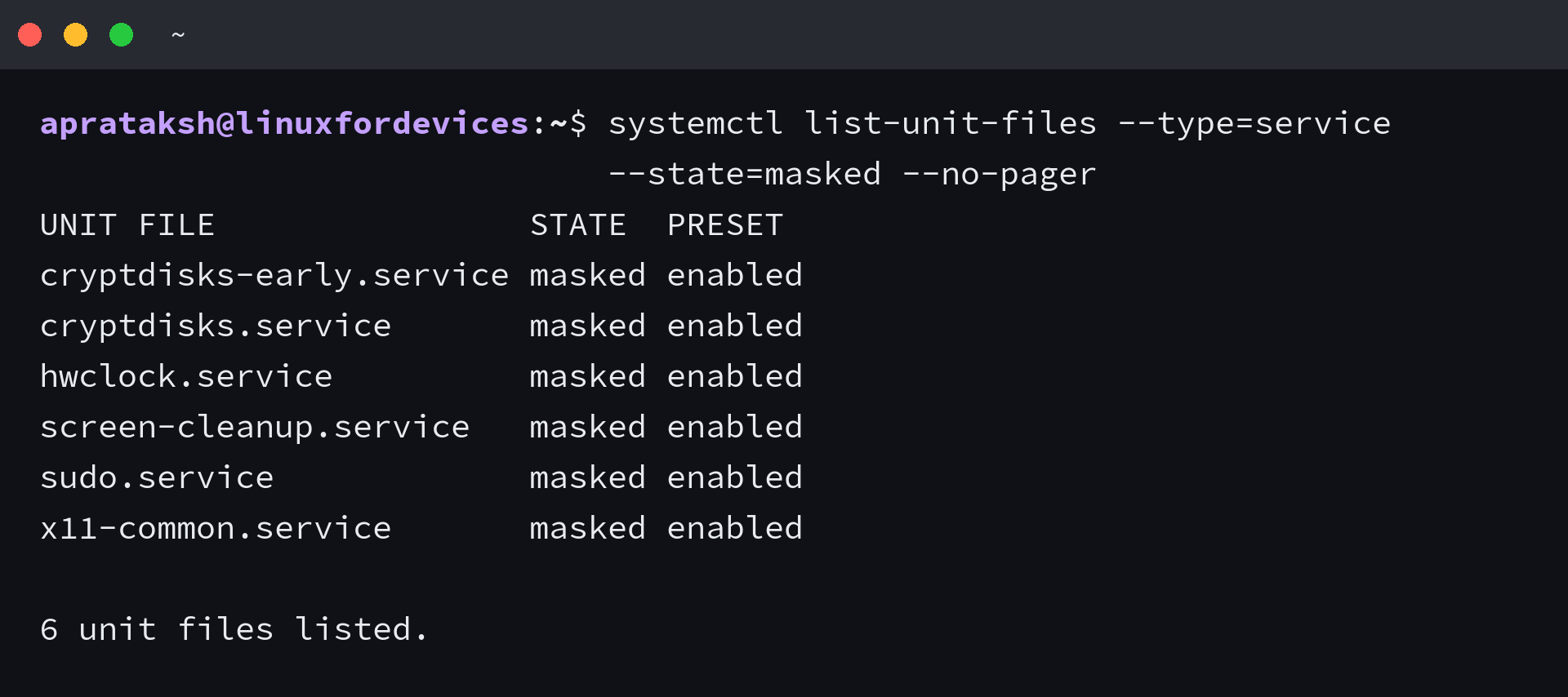
A type filter of my own hides the rest. It drops everything that is not a service unit.
When a service is installed, documented and still not running, the DHCP server guide is one where the enable step decides whether it answers.
One check worth adding to your routine
I keep two counts side by side, because together they separate a service that stopped from a service that was never meant to run.
systemctl list-units --type=service --state=running --no-legend | wc -l

31

systemctl list-unit-files --type=service --state=enabled --no-legend | wc -l

57
When the running count drops and the enabled count holds, something exited and stayed down, so check the failed filter next. The service management guide covers the restart commands.
Frequently asked questions
Short answers to the questions the four lists raise most often.
What is the single command to list all services in Ubuntu?
systemctl list-units –type=service –all lists every unit systemd has loaded, inactive ones included. Add systemctl list-unit-files –type=service when you also want the installed files that were never loaded.
Why does service –status-all show so few services?
It reads the init.d directory and calls the sysvinit status job, so units that exist only under systemd never appear. A list of twenty or thirty entries is the whole legacy set on a current install.
How do I see which services start at boot?
systemctl list-unit-files –type=service –state=enabled lists the enabled units, which is the set that starts on the next boot. Socket activation is separate and starts a service only when something connects.
What is the difference between active and enabled?
Active describes the present, as in the service is running now. Enabled describes the next boot, as in the unit is configured to start then. Either one can hold without the other, and ssh on this machine is active and disabled at once.
How do I list stopped services?
systemctl list-units –type=service –all –state=inactive covers units that are not running, and –state=dead covers units with no process left. Exited belongs to a oneshot unit that finished, not a stopped daemon.