
Choosing a Linux desktop means weighing ready-made software against control over defaults and the project behind the system. Nobara is an independent Linux desktop distribution that uses Fedora technology and comes with gaming and creator-focused defaults.
This article compares Nobara with Fedora and helps you choose an edition for your desktop.
TL;DR: Is Nobara Linux a better fit than Fedora?
Nobara suits desktop users who want gaming and creator software prepared for them. Fedora Workstation suits users who prefer Fedora’s broader development and support structure.
- Both share Fedora technology, but Nobara is an independent hobby distribution, not a Fedora edition.
- Nobara 44 offers five editions and unified images for standard and NVIDIA installations.
- Nobara’s project warns that it has no warranty or professional support and is not for critical production.
What is Nobara Linux?
Nobara Linux is an independent Fedora-based desktop distribution focused on gaming, streaming and content creation. It combines Fedora packages with Nobara changes and third-party repositories so users can start with codecs, Wine dependencies and creator tools available without assembling each piece themselves.
Fedora Workstation is a GNOME desktop from the Fedora Project. Nobara uses Fedora technology but is not a Fedora Spin and has no formal relationship with Red Hat. That distinction matters: shared foundations do not mean shared release decisions, support guarantees or project staffing.
The official Nobara project describes its distribution as a hobby project for personal use, with no warranty or professional support. It explicitly says not to use Nobara for critical production environments. Fedora Workstation, by contrast, is developed with upstream projects and backed by the Fedora community and Red Hat.
| Decision | Nobara | Fedora Workstation |
|---|---|---|
| Project | Independent hobby project using Fedora technology | Fedora Project desktop developed with upstream projects |
| Default focus | Gaming, streaming and content creation | General-purpose GNOME desktop and developer workflows |
| Software sources | Fedora packages plus RPMFusion and Nobara repositories | Fedora repositories, with optional sources chosen by the user |
| Support boundary | No warranty or professional support. Not for critical production. | Fedora release updates for about 13 months per version |
These are different project choices rather than a simple good-versus-bad ranking. Nobara reduces setup for its intended desktop tasks, while Fedora keeps its own project structure and general-purpose defaults.
| Choice | What changes |
|---|---|
| Nobara | Additional software sources and gaming-oriented defaults |
| Fedora Workstation | Fedora Project GNOME desktop and its own release/support model |
Fedora is not an incomplete version of Nobara. The projects make different choices about what to include and who maintains the result. Fedora’s release updates and upstream development model suit users who value those project relationships.
Nobara chooses additional repositories and gaming-oriented defaults for people who would otherwise add similar software themselves. That distinction also changes where to look when something breaks. A Fedora Workstation issue belongs first with Fedora’s documentation and community.
A Nobara-specific package or image issue belongs with Nobara’s guides and community, even when its root package originated in Fedora. The shared base can help readers recognize familiar RPM and Fedora-family tools, but it does not make project-specific fixes interchangeable.
That distinction also matters when updates arrive. Fedora publishes its release schedule and maintenance window, while Nobara’s release, package selection and fixes are managed by its own project. A Fedora troubleshooting page can explain a shared component, but check Nobara guidance before applying a repository or upgrade command that changes the system.
Fedora Workstation is designed as a general desktop rather than a preconfigured gaming distribution. Its third-party software choices are optional, which gives the user control over what to add. Nobara makes more of those decisions on the user’s behalf, so a user who values a smaller default software set may prefer Fedora even if both systems can be configured for similar tasks.
There is a maintenance trade-off in that convenience. Additional packages and repositories mean more components are involved when an update or compatibility issue appears. Use the distribution’s own upgrade guidance, and avoid mixing repository instructions from Fedora and Nobara simply because both use RPM packages.
| Your priority | Better starting point | Reason |
|---|---|---|
| Ready-made gaming and media defaults | Nobara | Its stated project focus includes gaming, streaming and content creation |
| Fedora project relationship and general desktop | Fedora Workstation | It is the Fedora Project’s GNOME desktop offering |
| Vendor-backed production support | Neither by assumption | Check the support terms for the specific distribution and use case |
How do Nobara’s editions differ?
The five Nobara 44 downloads separate desktop preference from device use. Start with the device category first, then pick the desktop experience that suits how you work.
| Edition | Designed for | Desktop or device focus |
|---|---|---|
| Official | General desktop | Main experience with custom KDE design |
| GNOME | General desktop | Clean, content-focused layout |
| KDE | General desktop | Classic KDE with customization options |
| Steam-HTPC | Television and controller | Console-like living-room setup |
| Steam-Handheld | Steam Deck-style device | Compact desktop for small screens |
The Official and KDE labels may seem similar because both involve KDE. Use the official descriptions and screenshots to compare their intended setup rather than assuming the names mean identical defaults. A handheld edition is also not simply a desktop theme: its stated purpose is to fit a small display and handheld controls.
For a living-room PC, Steam-HTPC is the edition aimed at a television and controller. For a normal monitor and keyboard, compare Official, GNOME and KDE instead.
If the computer is a Steam Deck-style handheld, the handheld image is the relevant starting point. These labels describe intended use, not a promise that every peripheral or game will work.
The project says Nobara 44 uses unified images for standard AMD/Intel and NVIDIA installations. That tells you which image path to start with, not whether every GPU generation or laptop switching arrangement will behave exactly as expected. Check the current release notes and hardware guidance for the computer you plan to use.
Edition names also do not tell you whether a particular game supports its anti-cheat system on Linux. The game publisher controls that compatibility, and it can differ between titles even when they use the same launcher. Look up the exact game and its current multiplayer requirements before choosing an operating system for a gaming PC.
Which distribution fits your desktop priorities?
A distribution change is also a change in software sources, defaults and support channels. A short inventory helps separate what Nobara provides from what you still need to configure or verify yourself.
Step 1: Check the applications you depend on
Check that each application supports Linux and review its vendor’s current system requirements, especially for paid creative work. Nobara’s creator focus does not replace application-specific GPU, codec or licensing requirements.
Step 2: Check each game separately
Proton can run many Windows games, but game-specific anti-cheat or launcher rules can block a title. Check the games you actually play instead of inferring compatibility from Steam being installed or another game working.
Our guides to Steam on Linux, ProtonUp-Qt and installing Minecraft cover related setup tasks.
Step 3: Check hardware and firmware dependencies
Note GPU features, laptop power controls, audio interfaces and peripherals that matter to your work. Nobara’s unified release images simplify choosing an installer, but they cannot establish that a particular device feature is supported. Search the current project guidance for the exact hardware.
Step 4: Keep a recovery route
Back up personal files and know how to boot your existing system or installation media before changing partitions or firmware. If you plan a dual boot, read about Linux dual-boot recovery and Secure Boot first.
This checklist does not predict whether Nobara will work on a particular machine. It gives you a way to test the decision against your applications and hardware before making the change permanent. Keep the notes available.
How to choose and install a Nobara edition
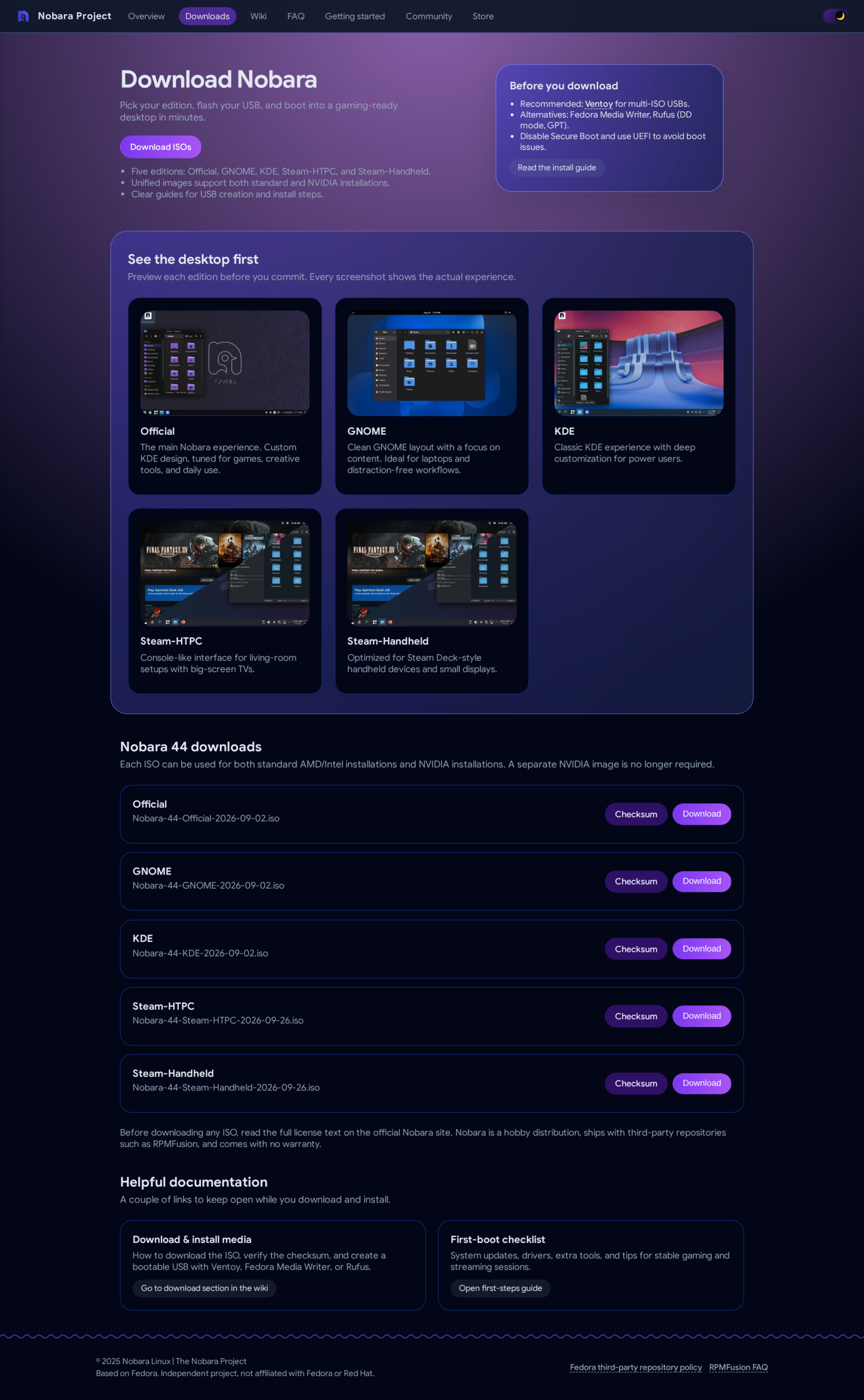
The official download page lists five Nobara 44 editions and points users to its installation guidance. Check the current image and instructions before writing a USB, because project downloads and edition details can change. It also recommends Ventoy, Fedora Media Writer or Rufus for USB creation.
Step 1: Match the edition to the computer
Choose Official, GNOME or KDE for a general desktop, Steam-HTPC for a television and controller setup, or Steam-Handheld for a Steam Deck-style device. Compare the current descriptions on the download page before deciding.
Step 2: Read the current install guide
Open the official Nobara download page and follow its current ISO, USB and installation instructions. Do not reuse commands written for an older release when the project provides current instructions.
Step 3: Check firmware requirements
The project recommends UEFI and says to disable Secure Boot to avoid boot issues. If Windows shares the computer, understand the firmware change and recovery route before altering settings.
Step 4: Select and verify the image
Nobara 44’s official page says its listed ISOs support standard AMD/Intel and NVIDIA installations, so it does not list a separate NVIDIA image. Verify the chosen download with the checksum shown by Nobara and use its USB instructions.
Step 5: Test before changing the disk
Back up files before changing partitions, then test the live environment if the hardware permits. Confirm that the display, network and devices you rely on work before making the installation permanent.
The five current edition cards make the project’s choices concrete. The ISO list also shows checksums and download controls for each image. Those controls help you verify that you have the intended image before proceeding.
A checksum is a short value calculated from the file. Comparing it with the value published beside the download can reveal a damaged or mismatched ISO, although it does not by itself prove who provided the file. Download from the official project page and follow its verification instructions.
Edition choice changes the desktop or device focus, not the underlying reason to choose Nobara. If you want a Fedora Workstation desktop, compare its GNOME-focused experience and project model before installing a different Fedora-based system.
Edge cases before installing Nobara
Nobara’s ready-to-use choices trade some direct control over defaults for less initial setup. They do not guarantee that every game, GPU feature or creator workflow will work on every computer.
- Game compatibility is per title. Wine and Proton help run Windows software, but a game’s launcher, anti-cheat or update can still prevent it from working. Check a specific game’s current compatibility before changing operating systems.
- Hardware support is not a performance promise. A configured driver or kernel change can reduce setup steps, but it cannot guarantee a frame-rate gain. The available hardware, driver and game determine the result.
- Third-party repositories add another project dependency. Nobara includes RPMFusion and Nobara sources for software outside Fedora’s default set. If you want to choose and maintain every additional source, configuring Fedora yourself may fit better.
- Project support differs from Fedora support. Nobara is a hobby distribution without professional support or warranty. Avoid it for systems where a vendor support contract or production guarantee is required.
- Installation may require a firmware decision. Secure Boot and UEFI settings vary by computer. Read the project guide and understand the consequences before changing firmware settings, especially on a dual-boot PC.
For a Windows game, check Steam compatibility and any anti-cheat requirement. Our guides to Steam on Linux and ProtonUp-Qt explain next steps.
Before dual boot, read about Secure Boot and dual-boot recovery. For an RPM-based system, see how to install RPM packages.
Creators can evaluate the software separately from the distribution choice. Nobara’s focus can reduce initial setup for streaming and media, but a particular application may have its own GPU, codec or licensing requirements. Confirm those requirements with the application’s vendor before relying on the machine for paid work.
The same caution applies to codec support and hardware acceleration. Having media packages available does not establish that a workflow’s export settings, capture card or proprietary plugin is supported. Test the complete task on a spare drive or live system when the work matters, and keep the existing installation intact until the result meets your needs.
Conclusion: choose Nobara for its defaults, Fedora for its project model
Nobara is a practical choice when its gaming and creator defaults match the desktop you want and you accept the support boundary of an independent hobby project. Fedora Workstation is the clearer choice when you want Fedora’s own project structure, general-purpose defaults and published release maintenance.
Before installing, compare the current Nobara editions and download instructions with the Fedora Workstation overview. Back up your data and verify the hardware and software you depend on.
FAQ
These answers cover Nobara’s Fedora relationship, use cases and edition choice.
Is Nobara Linux based on Fedora?
Yes. Nobara uses Fedora technology and packages, but it is an independent hobby project, not a Fedora Spin or a Red Hat project.
Is Nobara Linux good for gaming?
Nobara is built for gaming and includes gaming-focused defaults, but no distribution guarantees that every game or anti-cheat system will work. Check compatibility for the titles you play.
Is Nobara suitable for critical production?
No. The Nobara project says it is a hobby distribution with no warranty or professional support and is not intended for critical production environments.
Which Nobara edition should I choose?
Choose among Official, GNOME, KDE, Steam-HTPC and Steam-Handheld based on the desktop or device you want. Consult the current official download page because editions and images can change.