
Bash keeps your history in two places, and the list that the history command prints is not the file the next shell reads. I ran history -c on a test session and printed the file straight afterwards, and every line was still in it. Clearing bash history means handling both stores, and the file is the one that waits until you exit.
Where Your Command History Actually Lives
The history command prints a numbered list that bash holds in memory for the session you are in, and that list is not the file on disk.
The file is ~/.bash_history unless HISTFILE points somewhere else, and it is what a new shell loads when it starts. Bash creates it with mode 600, so no other account can read it, and a password passed as a command argument lands in it as plain text.
Bash reads the file once, at startup, and writes it again when the shell exits. Commands you type live in the list in between.
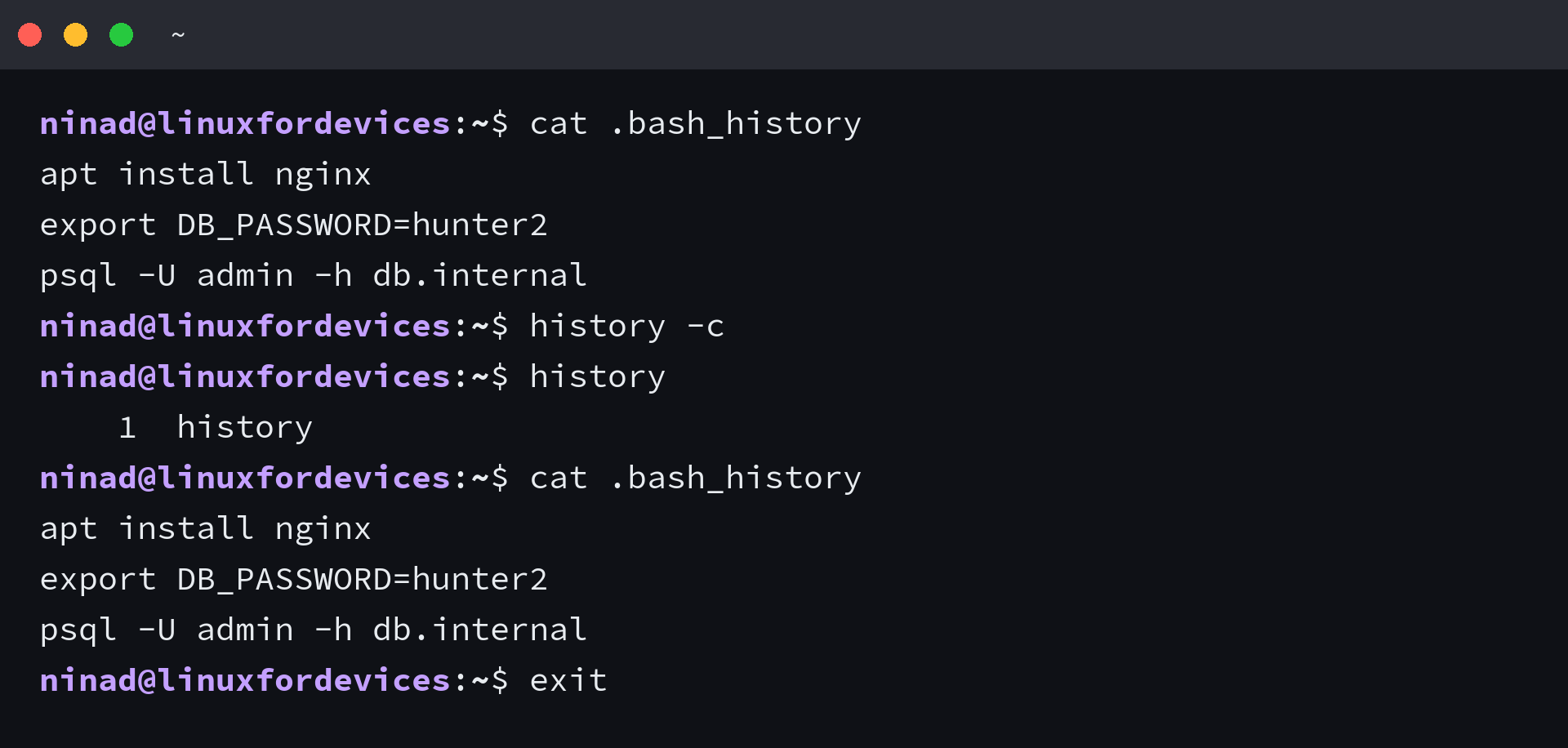
Seeding a history file and running the documented clear shows the split on one screen:
cat .bash_history
apt install nginx
export DB_PASSWORD=hunter2
psql -U admin -h db.internal

history -c

history
    1  history

cat .bash_history
apt install nginx
export DB_PASSWORD=hunter2
psql -U admin -h db.internal
The list emptied and the file did not move.
I read the file before the clear and again afterwards, and everything typed before the clear was still on disk, because history -c never opens it.
| Command | What it changes | What it leaves alone |
|---|---|---|
| history -c | the list in memory | the file |
| history -d 462 | one line in the list | the file, and the numbering of later entries |
| history -w | the file, replaced by the list | the list |
| history -a | the file, with the session’s new lines added | the list, and everything already in the file |
| history -r | the list, reloaded from the file | the file |
What You Need Before You Start
You need a shell you can type into and write access to your own home directory, so nothing here needs root. A root shell on a shared server writes a different history file from yours, which is part of why cleanup there does not affect the account you log in with.
Check which shell your terminal starts and where it keeps the list. The first command prints the shell, and the second prints the path bash writes at exit.
echo $SHELL
echo $HISTFILE
- Are you removing history that already exists, or stopping new commands from being recorded?
- Is the shell you are clearing the one whose file you want changed?
- Do you have other terminal windows open for the same account? They write to the same file.
Clearing the History in the Current Session
Each clear command does a different job, and the naming hides which is which.
Empty the list in memory
history -c drops every entry that the current session is holding, and the file on disk is never touched.
Numbering restarts from the next command you type, so the list refills from the moment the clear finishes. On a session with three older commands and one clear, the list shows a single line straight afterwards.
history -c

history
    1  history
Delete one entry or a range
history -d takes the number that history printed beside the line you want gone, and a range works the same way. Offsets are read at the moment you run the command, so deleting an early line shifts every number after it.
Entries come out of the list and stay in the file until something rewrites it. That is why the command can look like it did nothing when you check the file instead of the list.
history
    1  apt install nginx
    2  export DB_PASSWORD=hunter2
    3  echo one
    4  echo two
    5  echo three
    6  echo four
    7  history

history -d 3-4

history
    1  apt install nginx
    2  export DB_PASSWORD=hunter2
    3  echo three
    4  echo four
    5  history
    6  history -d 3-4
    7  history
Deleting one line at a time is its own procedure with its own pitfalls, and there is a dedicated walkthrough for removing a single command from the terminal history when that is the whole job.
Write the empty list over the file
The command that empties the file is history -w, which writes the current list over whatever the file held.
Empty the list first and the write lands as zero bytes, so the pair belongs on one line where the second command cannot run on its own.
history -c && history -w

wc -c .bash_history
0 .bash_history
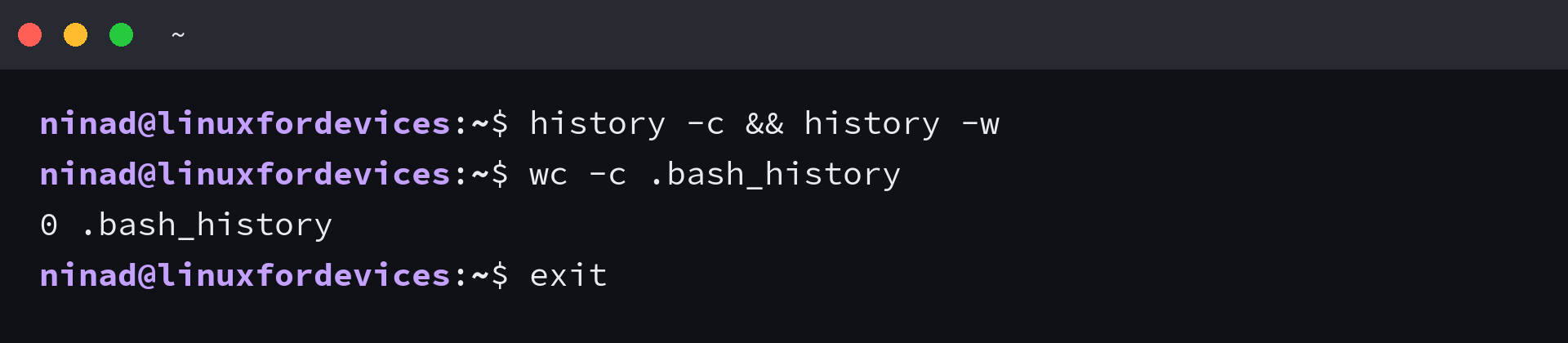
Zero bytes is the state right after the pair. I measured the file at that point, and the shell keeps recording from there, so everything typed afterwards is written back when the window closes.
history -a and history -r sit beside that command and are worth knowing. history -a appends the session’s new lines without touching what is already stored, and history -r reloads the list from the file after you edit it in a text editor.
Keeping Commands Out of the History From the Start
Cleanup happens after the secret is already written, so the settings that stop recording are worth more than any clear command. I set each one below in a shell, ran a command that should not be saved, and read the list back.
| Setting | What it does | Use it when |
|---|---|---|
| HISTCONTROL=ignorespace | skips any line that starts with a space | you want to keep one command out without changing anything else |
| HISTIGNORE=’export *:history’ | skips lines that match a colon-separated list of rules | a whole family of commands should never be recorded |
| HISTFILE=/dev/null | points the session at a file that goes nowhere | the session is throwaway and nothing from it should persist |
| set +o history | stops recording from that point in the session | something sensitive is coming and you cannot retype it |
Both skip rules are exact, so the leading space only counts when HISTCONTROL is set to ignorespace or ignoreboth, and it has to be the first character on the line.
A HISTIGNORE entry has to match the whole line, because bash anchors each rule at the start and never adds a wildcard for you.
A rule such as export * covers every export, and the same list can carry a literal command name like history to keep the list command out of the record.
export HISTCONTROL=ignorespace
echo visible
 echo hidden-from-history
history
    1  export HISTCONTROL=ignorespace
    2  echo visible
    3  history

export HISTIGNORE='export *:history'
export TOKEN=abc123
echo visible
history
    1  export HISTIGNORE='export *:history'
    2  echo visible
Put the settings in your shell startup file rather than typing them into one session. The difference between bashrc and bash profile decides which file a login shell reads, and that decides whether the setting survives a reboot.
If the cleanup should run without you, a small script on a cron schedule can truncate the file at a fixed hour.
It cannot empty the list inside shells that are already open, so a live session still writes its own lines later.
Clearing History in Zsh
Starting with macOS 10.15, the login shell and the interactive shell on a Mac are zsh, so the bash section above describes the wrong shell for a lot of readers. Zsh keeps its own list and its own file, and its history builtin is a thin wrapper around fc.
The first thing that breaks is the option you already know. Zsh answers history -c with a bad option error rather than clearing anything.
history -c
history: bad option: -c

fc -p

fc -l 1
    1  fc -l 1
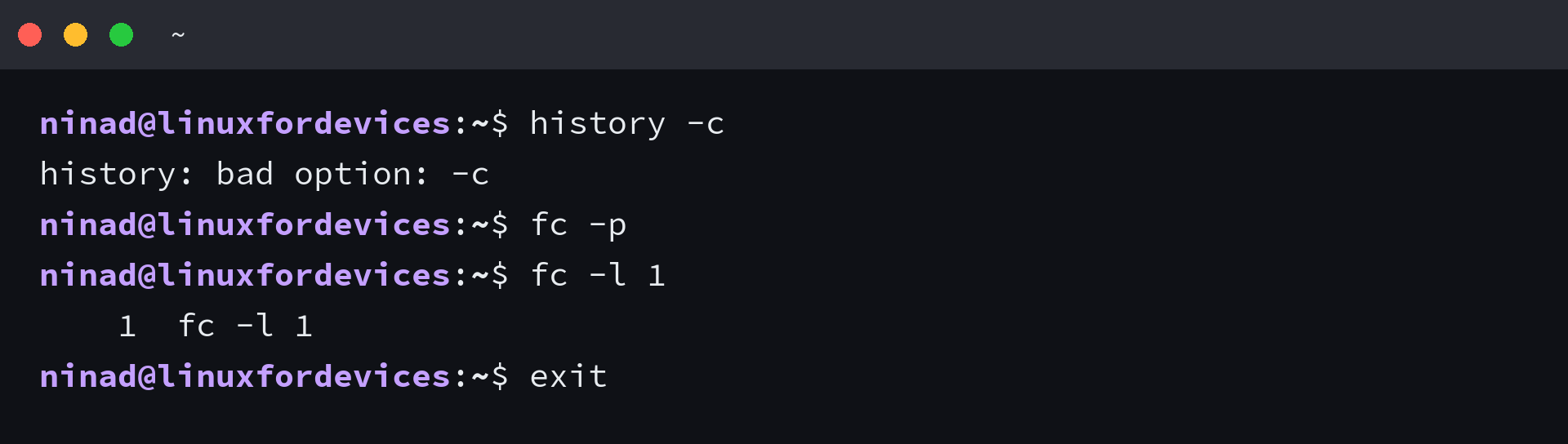
fc -p pushes the current history list aside and starts a fresh empty one, which is what clears the session in zsh. I ran fc -P straight afterwards and the old list came back, because the clear sets the list aside rather than erasing it.
The file is untroubled by any of it until you delete it, and the shell rewrites what it holds when it exits. On a Mac that file is ~/.zsh_history, the same path your Linux zsh uses.
For the file itself, removing it is the honest move. If you would rather edit the entries by hand, the vim commands for saving and quitting are the ones that stop a careful edit from becoming a lost one.
Zsh has a prevention setting too. HIST_IGNORE_SPACE removes a line whose first character is a space, which is the zsh version of what HISTCONTROL does in bash, and it works the moment the option is set.
Shell options do not carry across, so check the differences between the shells before you copy a snippet from one into the other.
What Clearing History Does Not Remove
The shell history file is one record among several, and the others keep copies that a clear command never visits.
- The scrollback in the terminal window is drawn by the terminal program, not by bash. On macOS, Command-K clears that, and the shell history file is a separate thing again.
- Other REPLs write their own history files. Python creates ~/.python_history, and psql defaults to ~/.psql_history, so a database password typed at a prompt needs its own cleanup.
- A root shell keeps /root/.bash_history. Work done through sudo -i or a root login is recorded there, away from your own file.
- Backups, snapshots, and image-level copies hold the file as it was when they ran.
- System-wide logging is configured separately from your shell, and the Linux logging system keeps its own journal with its own retention.
Truncating the file on its own is the trap that catches people who skip the list. The file reads as zero bytes the moment you truncate it, and the commands from that session go back in when the shell exits, because the list still holds them.
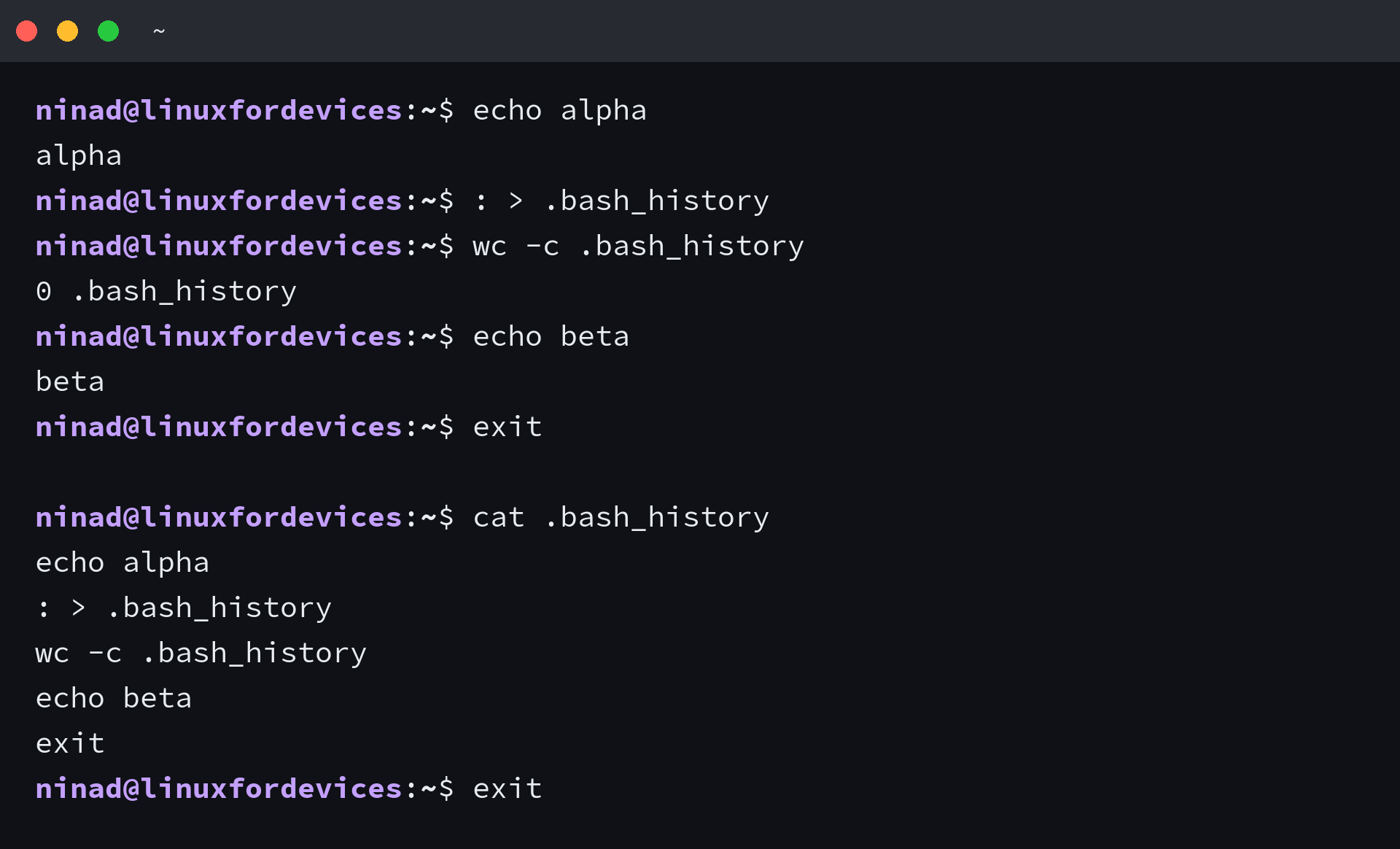
A window you opened before the clear keeps its own list, and when it exits it adds its lines to the file you just emptied.
Killing the window instead of closing it does the opposite. I killed a shell with SIGKILL mid-session and checked the file straight afterwards, and it still held only what it had before the crash.
Permissions decide who could have read the file in the first place, and if you share the account, the rules for users, groups, and permissions are what tell you whether the history was private at all.
Test the Clear in a Fresh Shell
The exit is what writes the file, so the honest check happens in a shell that started after the clear. Open a new terminal and look at the list and the byte count together, because a short list beside a large file means something is still holding the old lines.
history

wc -c .bash_history
0 .bash_history
Keeping the next secret out is cheaper than clearing this one. A leading space on the command costs nothing and takes effect before the file is written, which is the only moment that matters.
Frequently asked questions
The questions below come from the searches and the threads this topic generates, answered in the order people ask them.
Does history -c delete the .bash_history file?
No. It clears the list that bash holds in memory for the current session and leaves the file on disk alone. Read the file with cat straight afterwards and every old line is still there, which is why the next shell shows the commands again.
How do I clear bash history permanently?
Clear the list and then write it over the file with history -c && history -w on one line. That leaves the file at zero bytes. Commands typed after that point are recorded again, so close the session or set HISTFILE to /dev/null if the window has to stay clean.
Why did my deleted command come back?
Deleting an entry changes the list, not the file, so the file still holds the line until something rewrites it. Truncating the file mid-session has the same problem in reverse, because the commands already in the list are written back when the shell exits.
How do I clear the terminal history on a Mac?
On macOS the login shell is zsh, so use fc -p to clear the list and remove ~/.zsh_history for the file. Command-K clears the scrollback that the Terminal window is showing, which is a third store and unrelated to either.
Can other users read my bash history?
Bash creates the history file with mode 600, so only your account and root can read it. Anything running as root can read the file and the list, which is why a clear command is not a substitute for keeping secrets off the command line in the first place.