
A GNOME screencast can save a quick screen-only clip, but a narrated tutorial needs audio controls it doesn’t provide. I find that contrast striking, and it makes me want to compare how other recorders handle microphone or desktop audio.
Match the recorder to your desktop session first. Then let the clip you need narrow which capture controls matter.
The best recorder depends on the desktop session
Choose by display session first, then by clip, because a quick screen capture needs fewer controls than a narrated tutorial or instant replay.
I chose GNOME as the screen-only pick because its built-in screencast records a full display or a selection. Choose OBS, Kooha or Blue Recorder when you need explicit microphone or desktop-audio controls.
| Your task | Start with | Check first |
|---|---|---|
| Quick screen or selection clip | GNOME screencast | It has no separate audio mixer |
| Scenes, overlays or a livestream | OBS Studio | Choose the supported screen source for your session |
| Game capture or instant replay | GPU Screen Recorder | Your GPU and driver must support its encoding path |
| Simple screen recording with audio options | Kooha | Window capture and some encoders are experimental |
| Screen recording on GNOME Wayland | Blue Recorder | Flathub lists WebM for this Wayland case |
| Detailed X11 capture controls | SimpleScreenRecorder | It does not support Wayland sessions |
| Screen capture with extra tutorial controls | vokoscreenNG | Its X11 and Wayland feature sets differ |
Check the capture path before you install anything
Wayland apps ask the desktop to provide a screen-cast source through a portal. The ScreenCast portal documentation describes a session that lets you select a screen or window and exposes the resulting stream to the app.
If the material is terminal text rather than a desktop video, the Linux Script command guide covers recording terminal sessions as text.
Match a recorder to its capture job
These options solve different capture jobs. The order is a set of use cases, not a quality ranking.
| Recorder | Best fit | Main trade-off |
|---|---|---|
| GNOME screencast | Fast screen-only clip | Fewer audio controls than a dedicated recorder |
| OBS Studio | Scenes, sources and streaming | More setup than a one-button capture |
| GPU Screen Recorder | Game capture and instant replay | Hardware and driver support matter |
| Kooha | Minimal capture with audio options | Some capture features are experimental |
| Blue Recorder | Basic capture with input selection | Wayland support is narrower than its X11 support |
| SimpleScreenRecorder | Detailed X11 and OpenGL controls | Wayland is unsupported |
| vokoscreenNG | Capture tools for screen tutorials | Features vary between X11 and Wayland |
GNOME’s built-in screencast for a quick clip
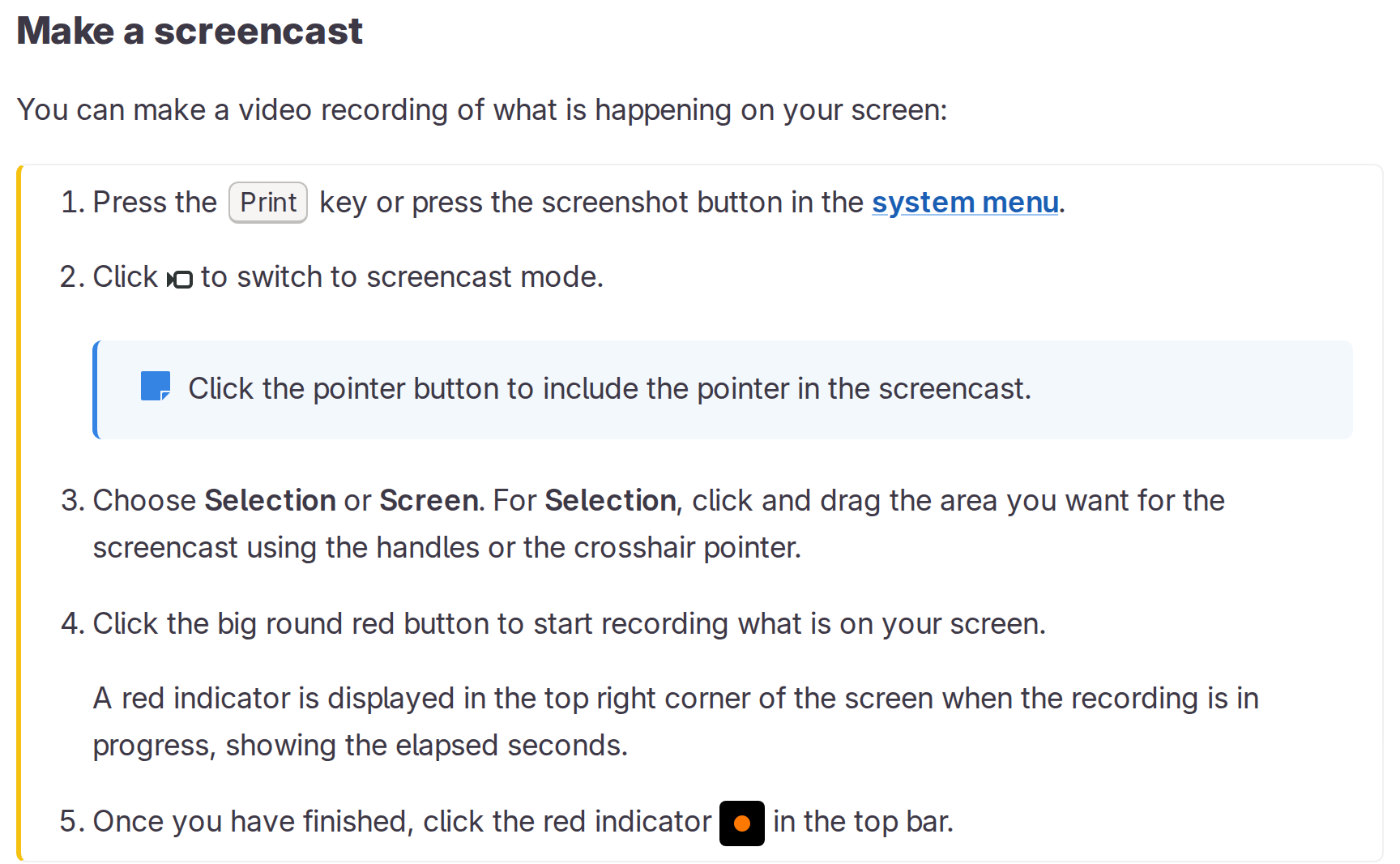
If you just need a screen clip to share and do not need a webcam, GNOME’s built-in tool records the full screen or a selection. GNOME Help says the video is saved under Videos/Screencasts, and the red indicator shows while recording.
Use GNOME for clips with no separate audio track. Choose a recorder with explicit microphone and desktop-audio inputs when narration matters.
OBS Studio for scenes and streaming
OBS Studio fits production scenes built from screen capture and audio sources. It also records and streams live.
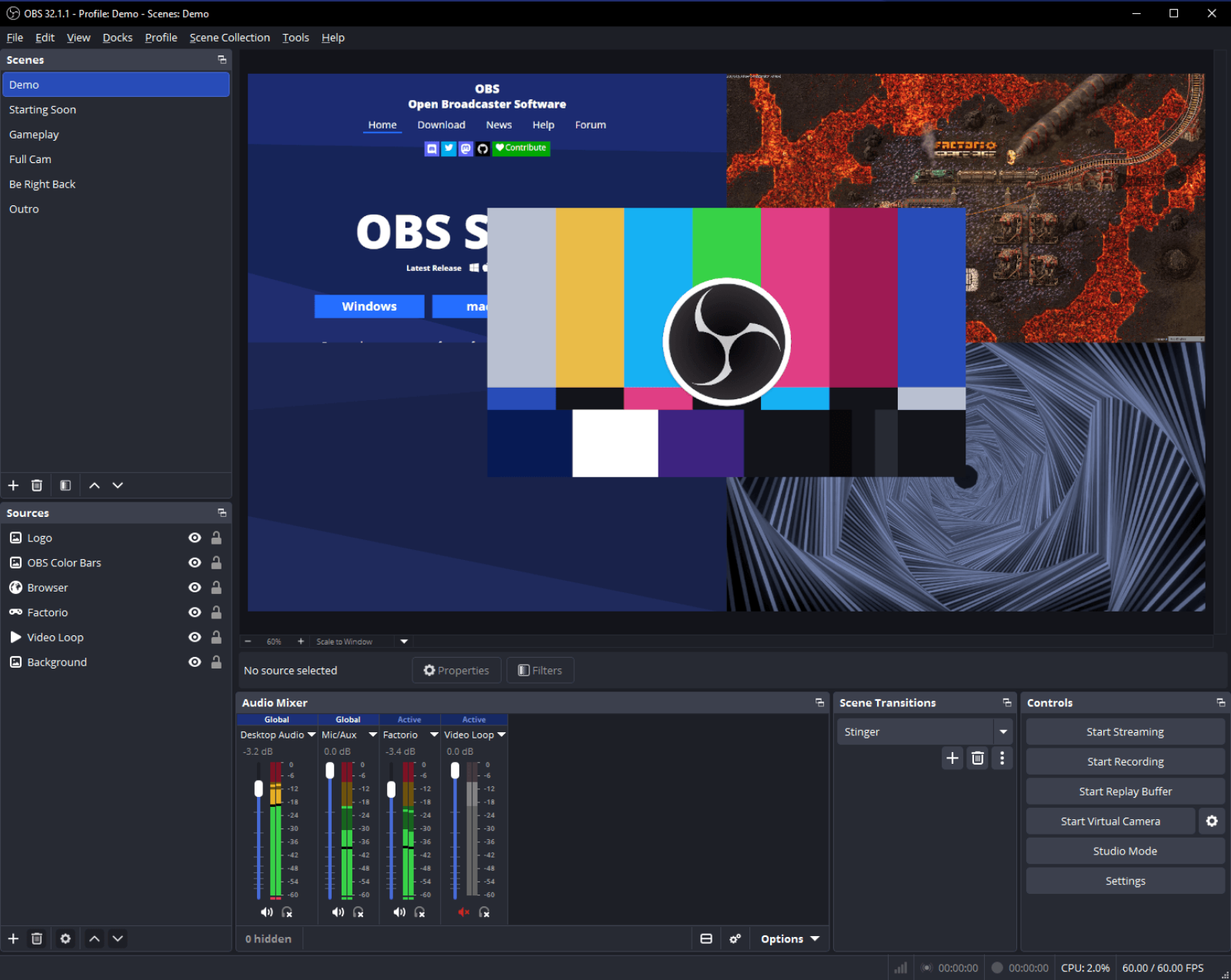
OBS earns its setup overhead when you need a composed layout or separate audio sources. The PipeWire capture guide documents its Linux display source, and the Linux OBS setup guide covers installation.
The official site image shows OBS 32.1.1, while the latest stable release is 32.2.2. The screen-drawing tools guide covers annotations for tutorials.
GPU Screen Recorder for game replay
The Flathub listing names AMD and Intel GPUs, plus NVIDIA, for X11 and Wayland capture. Your encoder choices still depend on the GPU and driver.
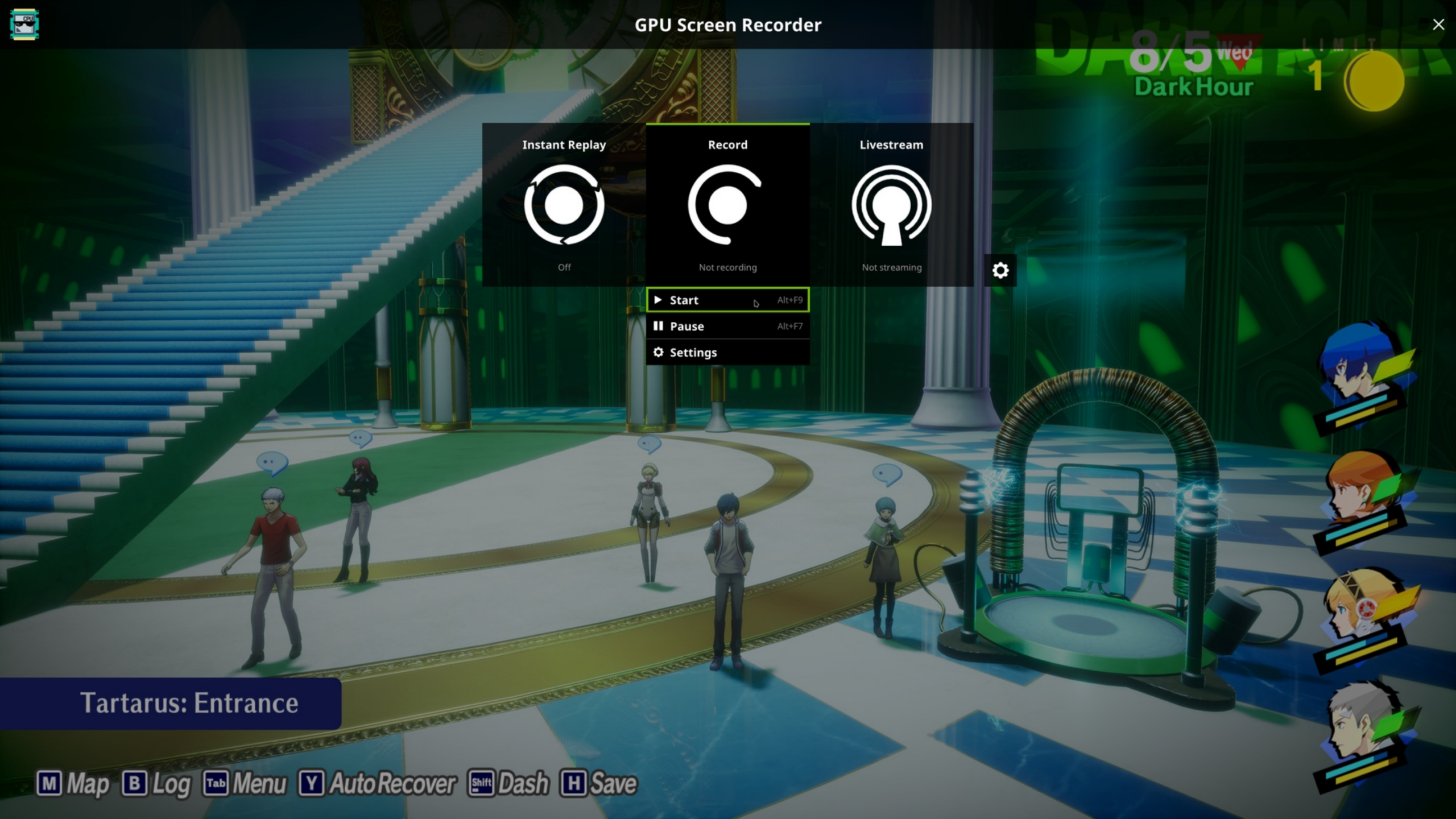
Its overlay separates replay from recording and streaming, with a rolling buffer for recent gameplay.
Kooha for minimal screen and audio capture
Kooha can record microphone and desktop audio while capturing a monitor or selected area. It saves WebM or MP4 output.
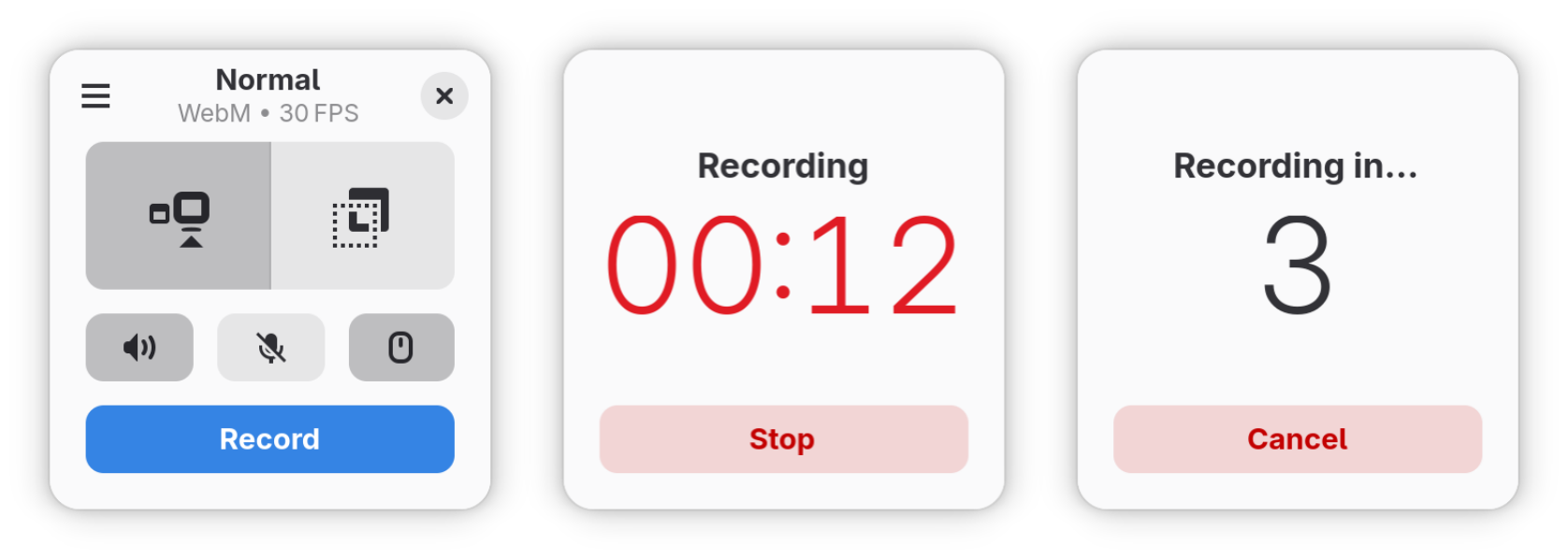
The Kooha project documentation lists PipeWire and an XDG desktop portal among its runtime requirements. Window capture and several encoders are experimental, so do not choose Kooha on the assumption that every source or hardware codec is stable.
Blue Recorder for a straightforward GNOME capture
Blue Recorder’s setup window pairs capture selection with microphone and speaker controls. Choose a full screen or window, with area capture available too.
Its current Flathub listing documents Wayland support for GNOME and WebM output in that session.
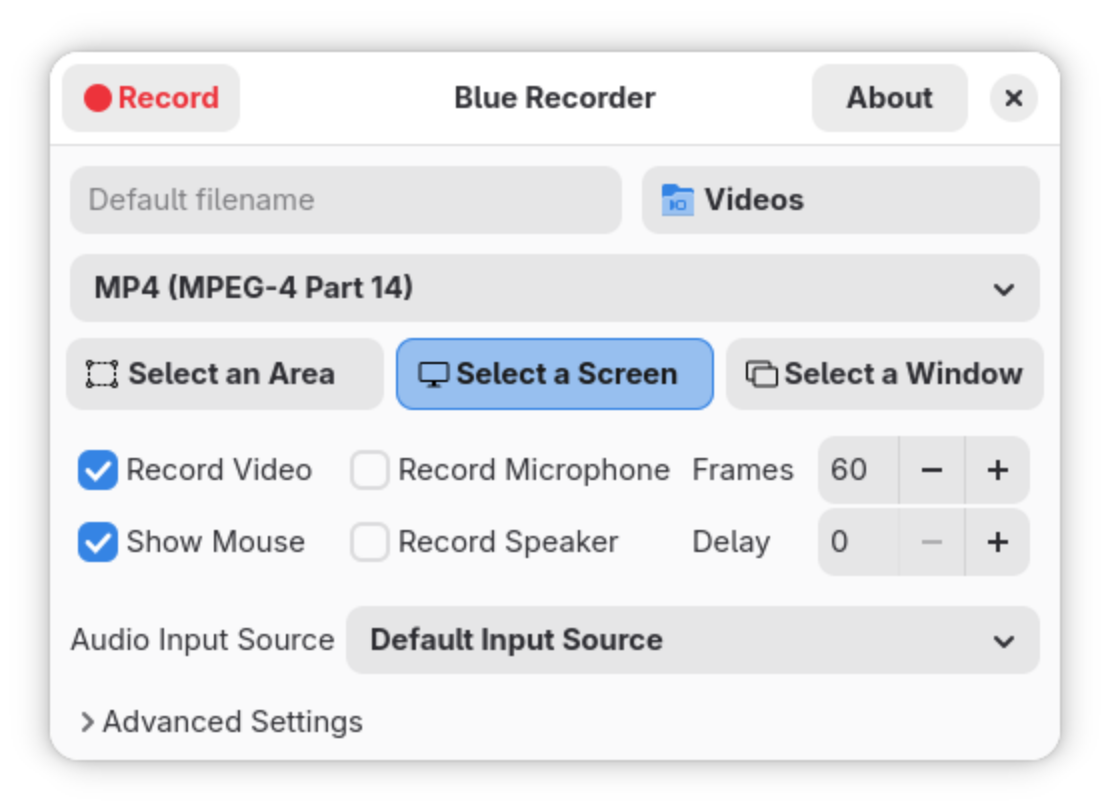
If you use KDE or another Wayland compositor, verify support before choosing Blue Recorder. The Blue Recorder installation guide covers setup on supported desktops.
SimpleScreenRecorder for detailed X11 controls
SimpleScreenRecorder records the full display or a selected region. It also offers OpenGL capture, with controls for frame rate and audio input.
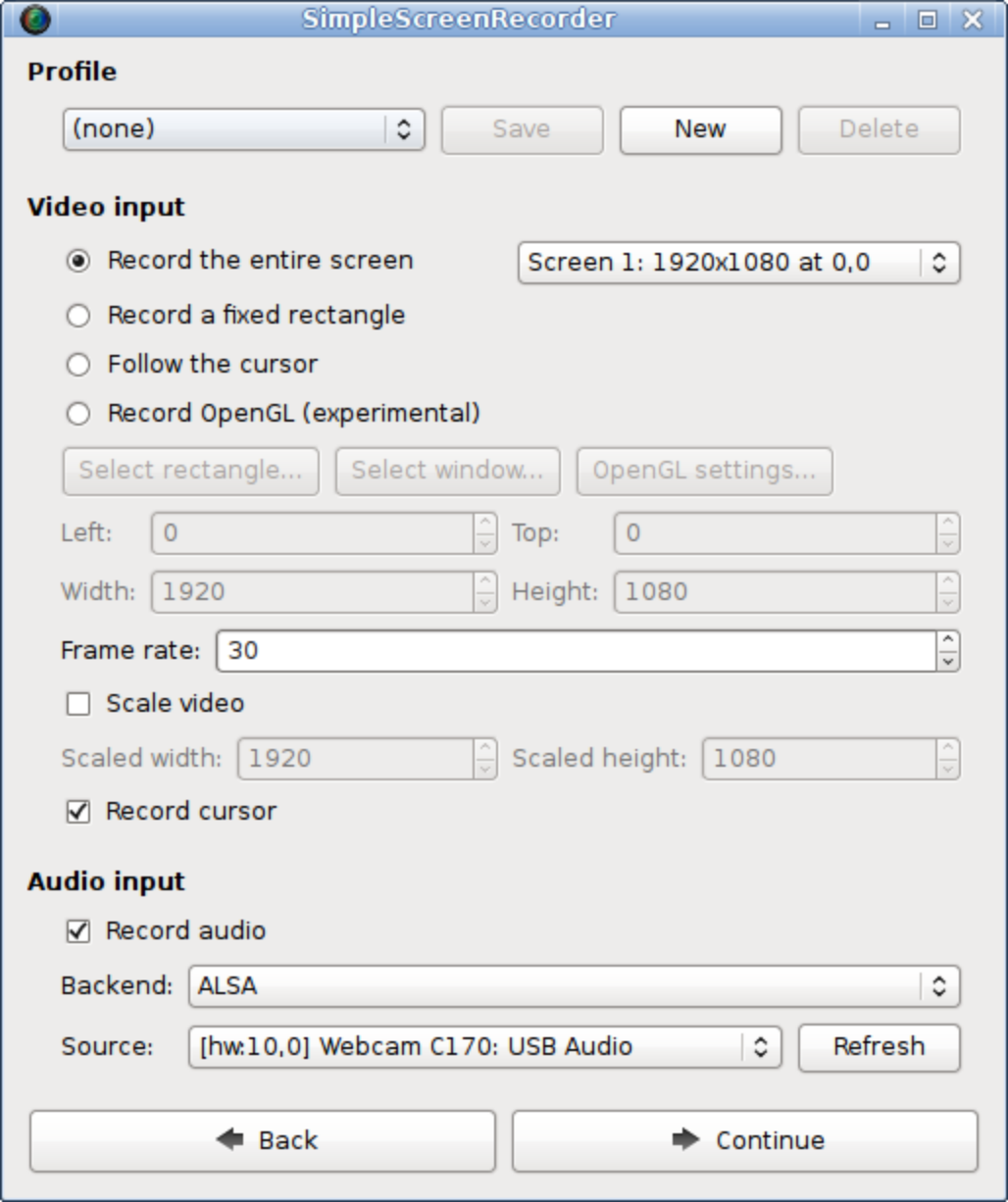
The project issue tracker says Wayland is unsupported, so use SimpleScreenRecorder only on X11. If VLC is already open, the VLC desktop-capture walkthrough covers that workflow.
vokoscreenNG for screen tutorials
vokoscreenNG offers screen capture with window and area modes. Its current X11 and Wayland profiles expose different audio and camera tools.
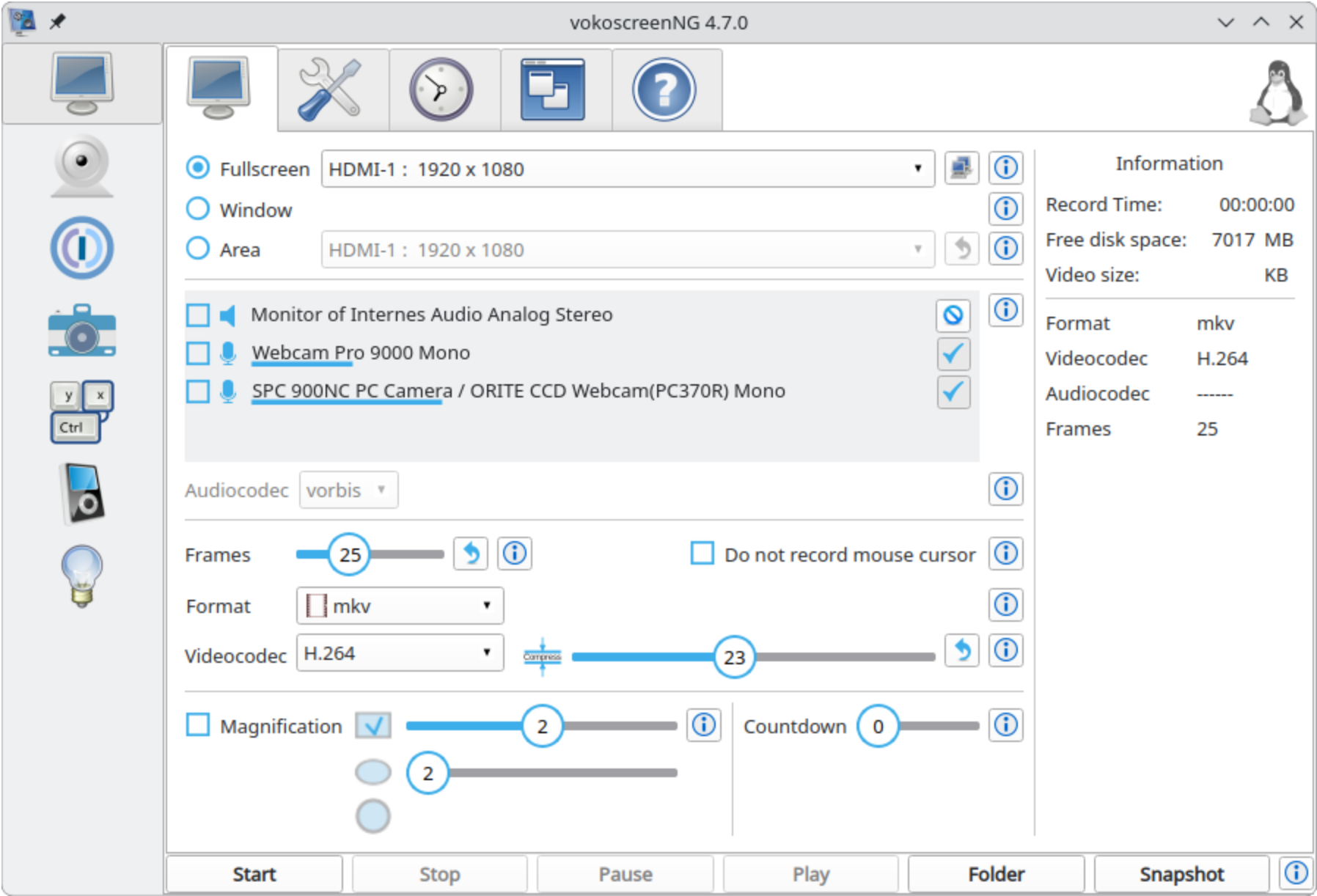
Choose the feature row for your active session before selecting an output format. The 4.10.0 release notes list changes to Wayland audio and camera inputs.
When recording starts but the picture or sound is missing
A GUI screen recorder with audio on Wayland depends on both app support and the compositor’s portal. If the source list is empty or the file is silent, check those inputs before changing codecs.
| What you see | Check first |
|---|---|
| Wayland source picker is empty | Confirm the desktop portal backend and PipeWire screen-cast path work for your compositor |
| Black frame in a Wayland session | Select the app’s PipeWire or portal capture source and grant the requested screen access |
| Video records but has no sound | Choose the microphone or desktop-audio source explicitly. They are separate inputs. |
| Area or window option is missing | Check the app’s feature list for your session. Some sources are experimental. |
For a Wayland recorder, the compositor and portal decide what source the app receives. A codec setting cannot repair a missing portal stream, and an audio track stays silent until the right input is selected.
A short test clip catches setup problems early
Before a long session, make a short sample with the same capture source and audio choices. Play it back to confirm the picture and sound, then verify the saved path and format.
- Record a few seconds with the intended screen or window selected.
- Play the file and check the beginning, movement and audio together.
- Confirm the save location and format before recording the full session.
If the clip needs edits, install Kdenlive or compare the Linux video editors. If a player rejects an HEVC recording, the HEVC-to-H.264 conversion guide covers that next step.
Linux screen recording questions
Wayland portal access and audio inputs differ by recorder.
Does Linux have a built-in screen recorder?
GNOME includes a built-in screencast tool that records the full screen or a selection and saves the video under Videos/Screencasts. Its documented workflow is for screen capture, not a separate audio mixer.
Which Linux screen recorder works with Wayland?
Wayland capture depends on your desktop. Check the app’s published support for that session before installing.
Can I record my microphone and desktop audio together?
Kooha lists microphone and desktop audio capture, and OBS Studio can mix separate audio sources. Select the inputs explicitly and make a short sample before recording a long session.
Does SimpleScreenRecorder work on Wayland?
The project’s issue tracker says non-X11 sessions such as Wayland are unsupported. Choose an app with documented support for your compositor instead.