

A Chrome download can look right and still be the wrong file if its architecture does not match Debian’s `amd64` or `arm64` result. I was surprised by how much turns on that short label in the terminal.
Matching the package to your system is the first step toward getting Google’s browser installed with APT. The package choice makes more sense once Chrome and Chromium are clearly separated.
Google Chrome and Chromium are different packages
Google Chrome is Google’s proprietary browser, while Chromium is its open-source upstream project. Debian provides Chromium in its own repositories, and Google’s package installs Chrome and configures Google’s source for updates.
| Browser | Package source | Choose it when |
|---|---|---|
| Google Chrome | Google’s official Debian package | You need Google’s branded browser and its bundled services |
| Chromium | Debian repositories | You want Debian’s Chromium build instead |
If you want Chrome specifically, download its Debian package from Google’s Chrome page, which lists Debian 10 or later and 64-bit Linux processors in its Linux requirements.
Check Debian and package architecture
Before downloading, check the operating system and the package architecture your system reports, then choose a matching option from Google’s Chrome download page.
cat /etc/os-release
dpkg --print-architecture

Debian reports amd64 on 64-bit Intel or AMD systems and arm64 on 64-bit ARM systems. Renaming a package cannot make a different architecture compatible.
If you need help checking the distribution release, follow our guide to checking an Ubuntu version for the same release-file method. For Debian, read the ID and VERSION_ID fields from the output above.
Install Google Chrome from Google’s package
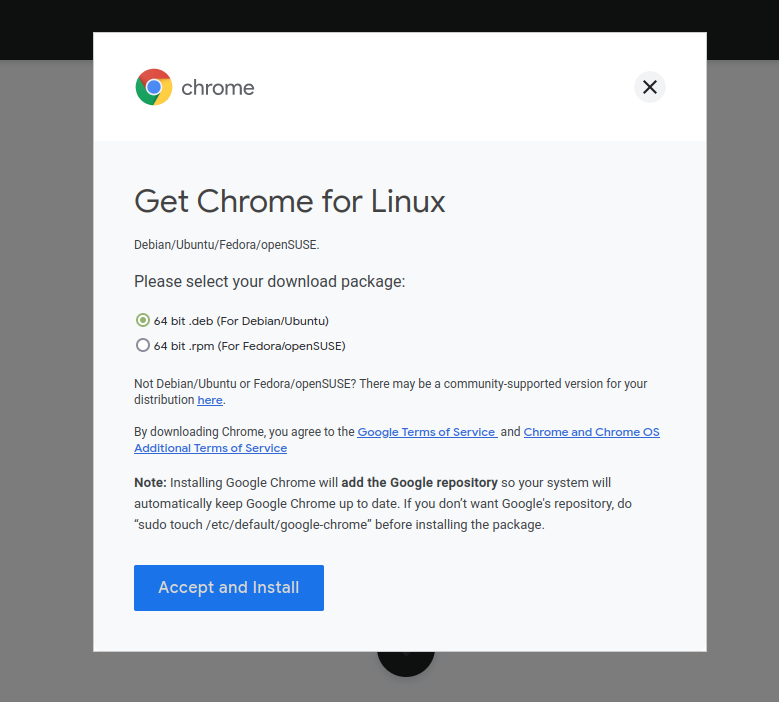
Use Google’s download page to select the Debian package that matches your architecture. The screenshot shows the Debian package choice, while Google’s current page remains the source for the available packages.
| Architecture reported by Debian | Google package choice |
|---|---|
| amd64 | 64-bit x86-64 Debian package |
| arm64 | 64-bit ARM Debian package |
1. Download the Debian package
Open Google’s Chrome download page and choose the Linux .deb package offered for your machine. Save the file in Downloads, then open a terminal in that directory.
2. Install the local .deb with APT
APT can install a local Debian package and fetch dependencies from configured repositories. From the directory containing the downloaded file, run the command below, replacing the filename only if Google gave it a different name.
sudo apt install ./google-chrome-stable_current_*.deb
The ./ prefix tells APT to treat the argument as a local file instead of searching the repositories for a package with that name. Debian’s package-management FAQ explains the tool hierarchy: APT resolves dependencies through dpkg, while dpkg reports missing dependencies for you to fix separately.
For a step-by-step explanation of local Debian package installation, see our guide to installing a .deb file with APT. The package name and architecture in the filename must match the download you saved.
3. Launch Chrome and check the installed version
After APT finishes, open Google Chrome from your desktop’s application menu. You can also start it from a terminal and ask the executable to print its version.
google-chrome --version
The version string confirms that the command resolves to an installed Chrome executable. If the desktop launcher does not appear, check whether the package installed before repeating the download or installation.
Fix package and launch errors
Package errors usually point to a mismatched file, unavailable dependency, or unfinished package configuration. Read the exact APT message first, because each case has a different repair.
- Wrong architecture: compare the file you downloaded with the output of dpkg –print-architecture, then download the matching option from Google. A package for amd64 cannot be installed on arm64, or the reverse.
- Missing dependencies after using dpkg: run sudo apt –fix-broken install to let APT resolve the package state, then retry the local-file installation with sudo apt install ./filename.deb.
- Package file not found: use cd to enter the directory containing the downloaded file, or give APT its full path. Confirm the filename with ls before running the install command.
- Chrome does not launch: run google-chrome –version in a terminal and read any displayed error. If another browser is more suitable, see how to install Brave on Linux or install Microsoft Edge on Linux.
Do not download a package from an unofficial mirror to work around a dependency or architecture error. If APT reports that a dependency cannot be installed, check the Debian release and enabled repositories before changing system sources.
Let APT handle Chrome updates
Google’s package installer registers its APT source, so APT can discover Chrome releases from Google. The current ARM64 package’s installation script creates a Google source file under Debian’s APT sources directory.
| Command | Effect |
|---|---|
| apt update | Refreshes package metadata from configured sources |
| apt upgrade google-chrome-stable | Installs an available Chrome package update |
sudo apt update
sudo apt upgrade google-chrome-stable
APT updates package metadata for all configured sources, then upgrades the named Chrome package if a newer version is available. To inspect installed packages before changing them, see how to list packages installed with APT.
Remove Chrome with APT
Remove the Chrome package when you no longer need it. APT removes the application while leaving its configuration files in place.
sudo apt remove google-chrome-stable
APT remove leaves system-wide package settings in place. APT purge removes those package settings too, while Chrome profile data in your home directory remains separate from the system package.
If APT reports packages that can be removed after Chrome is uninstalled, review its list before confirming. Our guide to removing packages with APT explains the difference between remove and purge.
Google Chrome on Debian FAQ
These answers cover the package choices and installation errors that are not part of the main procedure.
Can I install Google Chrome on Debian?
Yes. Google provides a Debian package for supported 64-bit Linux systems. Download the package that matches your system from Google’s official Chrome page, then install the local .deb file with APT.
Should I use dpkg or APT to install the Chrome package?
Use APT with the local .deb path for the first installation. APT can retrieve dependencies, while dpkg installs the file without resolving missing dependencies.
How do I update Google Chrome on Debian?
Run sudo apt update to refresh package metadata, then sudo apt upgrade google-chrome-stable to install an available Chrome package update.
How do I remove Google Chrome from Debian?
Run sudo apt remove google-chrome-stable. Use sudo apt purge google-chrome-stable if you also want to remove system-wide package configuration.
Once Chrome is installed, use APT to manage its package updates and remove it when you no longer need it.