
You cannot factory-reset a complete Ubuntu installation with one safe desktop command, but you can reset dconf preferences, remove selected packages, or reinstall Ubuntu when you need a fresh operating system.
That distinction matters because dconf reset -f / changes settings for the current user. It does not remove your home-directory files, reinstall Ubuntu, repair a broken package database, or erase software that stores its settings somewhere else.
Choose the reset that matches the problem
Start with the smallest reset that can solve the issue. A desktop that has the wrong theme, dock layout, keyboard shortcut, or GNOME preference needs a different remedy from an installation that no longer boots.
| What is wrong | What to do | What stays unchanged |
|---|---|---|
| GNOME or app preferences are broken | Back up dconf, then reset the relevant settings | Personal files and installed packages |
| You no longer want an application | Remove that package with apt | Other installed software and your documents |
| System files, boot, or several accounts are damaged | Back up data and reinstall Ubuntu | Only what you restore from the backup |
This is the important boundary behind the phrase “factory settings.” The dconf method is a desktop-settings reset, not a substitute for an operating-system reinstall.
Back up before changing dconf settings
dconf stores many GNOME and application preferences in a key-value database, and dumping it gives you a file to load later if the reset removes a setting you want to keep.
dconf dump / > dconf-backup.ini
Run the command as the desktop user whose preferences you want to preserve. Keep the resulting file somewhere outside your usual Downloads folder, or include it with a broader Timeshift backup and restore plan.
The dconf manual documents dump and load as the commands for exporting and importing settings. A snapshot tool and a dconf export solve different problems, so use both if you may need to recover system files as well as desktop preferences.
Reset Ubuntu desktop settings with dconf
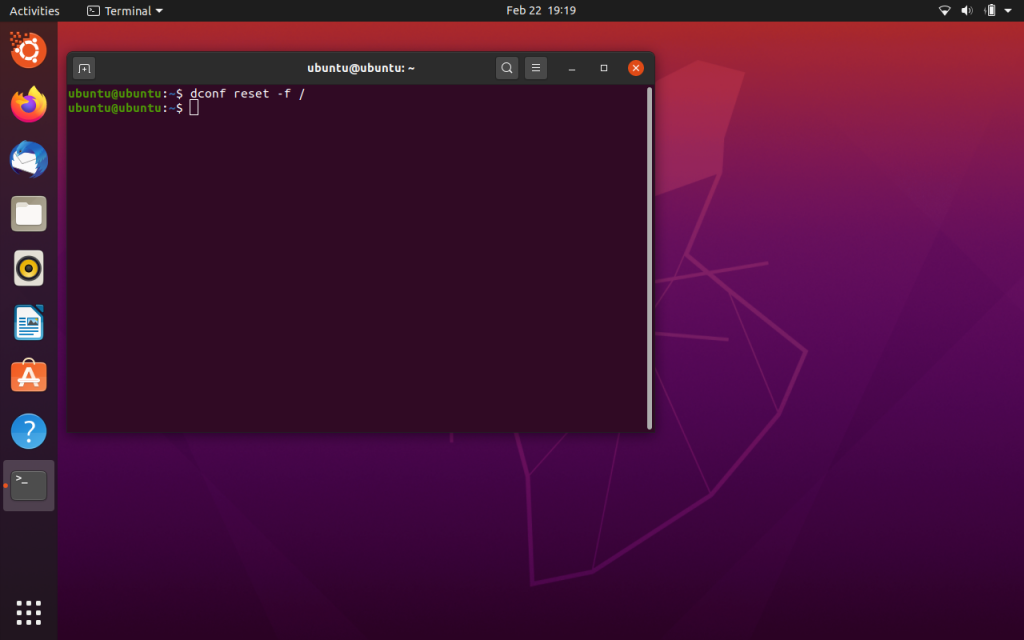
The following command resets the current user’s dconf database, where -f is required for a directory and / means every dconf path for that user.
dconf reset -f /
Close affected applications and sign out, then sign back in so GNOME and desktop extensions read their default values before you restore a wallpaper, dock preference, online account, or extension.
The reset does not delete documents, photos, downloads, or package files, and it cannot fix every desktop issue because an application may use another configuration store or retain a damaged package or extension.
The screenshot below shows a customized Ubuntu desktop before the reset, so you can spot the visible changes dconf affects, including shell layout and appearance settings.
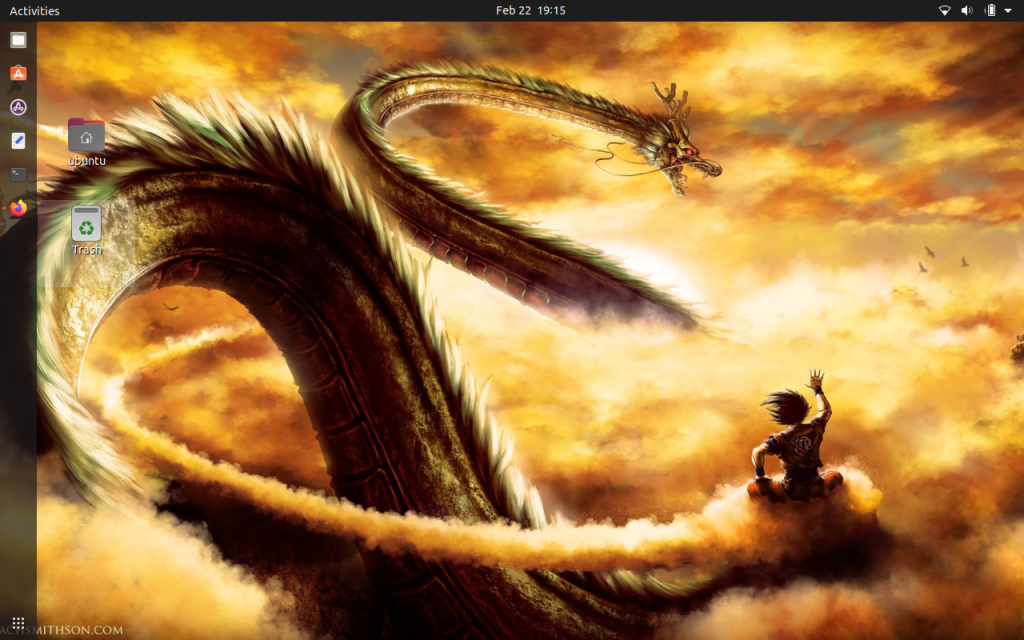
After you sign in again, compare the dock, wallpaper, shortcuts, and GNOME Tweaks changes with the defaults, then reset a narrower path when one shell customization is the only problem.
Reset only the settings you intend to change
Use a narrower dconf path when you know which component is responsible, especially if you have application preferences you do not want to rebuild.
dconf reset -f /org/gnome/shell/
This example targets GNOME Shell settings rather than the entire dconf database. Inspect and change desktop options with GNOME Tweaks when a graphical control is easier to understand than a database path.
Use the exact path only when you understand which desktop component owns it. Resetting a broad path can also remove extension settings and keyboard shortcuts that you expected to retain.
Restore your dconf backup if needed
If the reset removes settings you need, load the export as the same desktop user that created the file.
dconf load / < dconf-backup.ini
After loading the backup, sign out and back in, but do not mistake a dconf export for a system backup because it only contains settings that dconf manages.
This existing capture shows desktop preferences returning to their defaults, not every installed program, because dconf does not control every program.
When dconf is not enough
If the problem is a package, use the Ubuntu package manager to inspect installed software and uninstall a package with apt when one application is responsible.
If updates introduced the issue, check the package state with a careful Ubuntu update workflow, then reinstall only when system files, boot configuration, or multiple user accounts are affected and your backup is verified.
Verify the reset
Sign out and sign in again, then check the preference that motivated the reset. Confirm that your files are present and that applications you rely on still open before deleting the dconf-backup.ini file.
- Check that your documents and Downloads folder are unchanged.
- Open Settings and confirm the desktop preference returned to its default.
- Re-enable only the extensions or integrations you still want.
- Keep the dconf export until the desktop is stable.
Does dconf reset -f / delete my files?
No. It resets dconf settings for the current user. It does not delete documents, photos, downloads, or installed packages.
Does dconf reset -f / factory-reset Ubuntu?
No. It restores dconf-controlled preferences for the current user. Reinstall Ubuntu when you need to replace the operating system or recover from wider system damage.
How do I undo a dconf reset?
Create a backup first with dconf dump / > dconf-backup.ini. You can restore it with dconf load / < dconf-backup.ini, then sign out and sign back in.
Use dconf reset -f / when the issue is a current user’s desktop preferences. If the failure involves packages, boot, or system files, back up your data and choose a package repair or reinstall path instead.