
Nano opens from the terminal, and the two rows of caret keys along its bottom are the only manual it ships with. The caret means Ctrl, the M- prefix means Alt, and the rest of what you need stays on screen while you type.
I ran each keystroke here in nano 7.2, the build Ubuntu 24.04 LTS installs, and captured the status lines rather than retyping them. The bindings have shifted between releases, which is the trap when a walkthrough from an older year does not match the editor in front of you.
What nano is, and how its screen is laid out
Every file you open in nano gets the same four regions, and each one answers a question you will ask at least once. Nothing sits behind a menu.
The title line names the version and the file, with a star that appears once the buffer differs from what is on disk.
| Region | What it shows | What it changes for you |
|---|---|---|
| Title line | Version, filename, and a star for unsaved changes | The star is your warning that the edit is not written yet |
| Buffer | The file contents, one screenful at a time | Where you type, with no mode to enter |
| Status line | Prompts, confirmations, and failures | It reports a write count or names a write failure |
| Bottom two rows | The shortcut list for this build | The caret keys you will actually press |
That bar is sized to your window, so a narrow terminal prints five keys per row and a wide one prints a dozen.
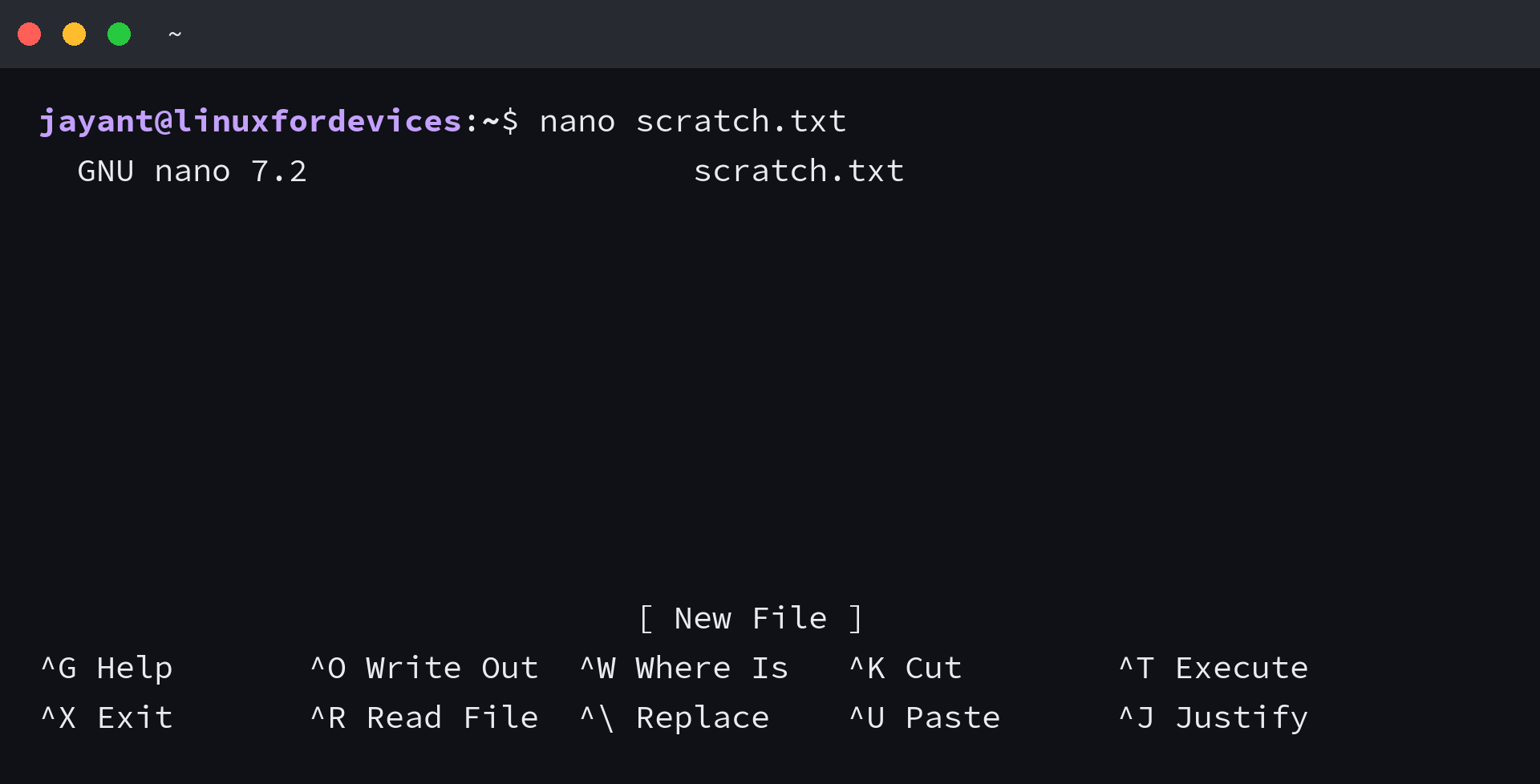
I opened a new buffer to capture that state, so the status line reports an empty file rather than a line count.
Nano is one of several editors that work without leaving the shell, and editing files from the terminal covers the field. If you are weighing it against the alternatives, nano against vim puts the two side by side, and the vim tutorial covers the other one in depth.
Install nano, or find out which version you already have
Nano ships with the base install on nearly every distribution, so the first useful command reports the build instead of changing it.
nano --version
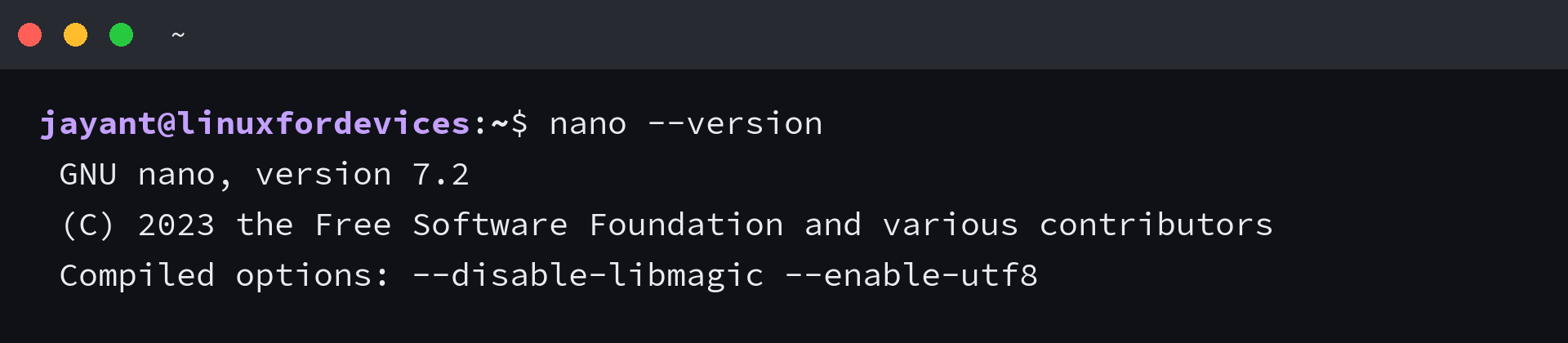
Debian and Ubuntu carry it as the package nano, and installing over an existing copy reports that the newest version is already in place.
sudo apt install nano
The number in that first line decides which keys work. Replace sits on Ctrl+backslash in 7.2 and on Alt+R in the cheatsheet for the current release, and the spell checker moved from F12 to a Ctrl then T sequence.
The keystrokes and status lines in this reference match that build. A rolling distribution or a source build can be a major version ahead, and the version line is the fastest way to find out.
Package names and installers differ across families, and package management on Linux collects the apt, dnf, and pacman forms.
Open a file, change a line, save it, and get back to the shell
The sequence is three keystrokes long, and the one in the middle is a confirmation that new users skip. Passing a filename opens that file, and leaving the filename out starts an empty buffer you can name at the first save.
Open or create the file
nano notes.txt
A line number on the command opens the same file with the cursor already parked there.
nano +3 notes.txt
The title line shows what you opened, which is how you confirm at a glance that the edit is landing in the intended file.
Write the change, then leave
Ctrl+O writes the buffer. Nano answers by asking where to write and prefilling the name you opened with, so the next key is Enter.
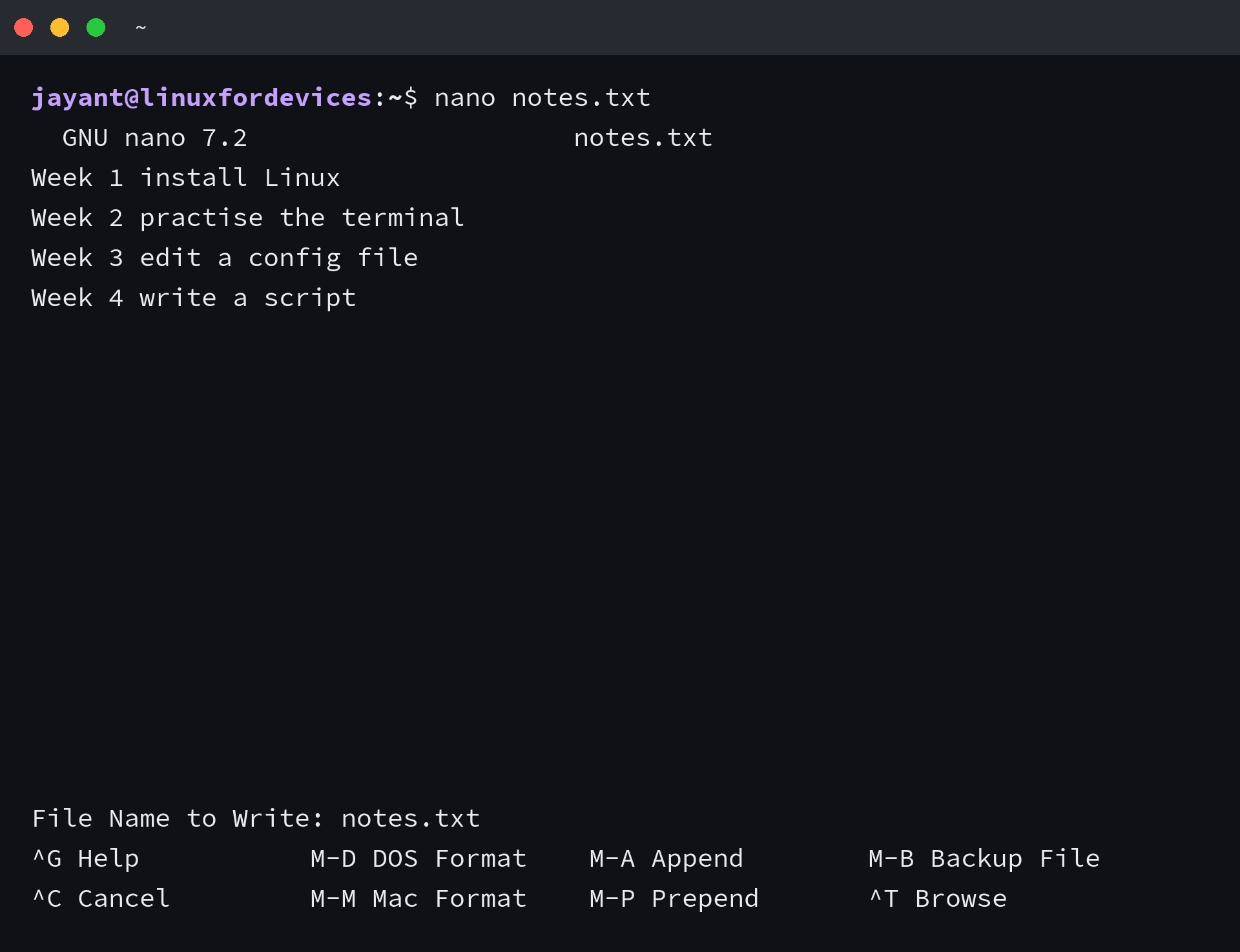
Skipping that Enter is where edits are lost. Ctrl+O followed straight by Ctrl+X leaves the buffer unwritten, and the exit prompt asks about saving all over again.
Ctrl+X closes the buffer, and when changes are pending it asks first, so N discards them and returns you to the shell.

Ctrl+S writes with no prompt at all, and the status line reports the line count when the write finishes.
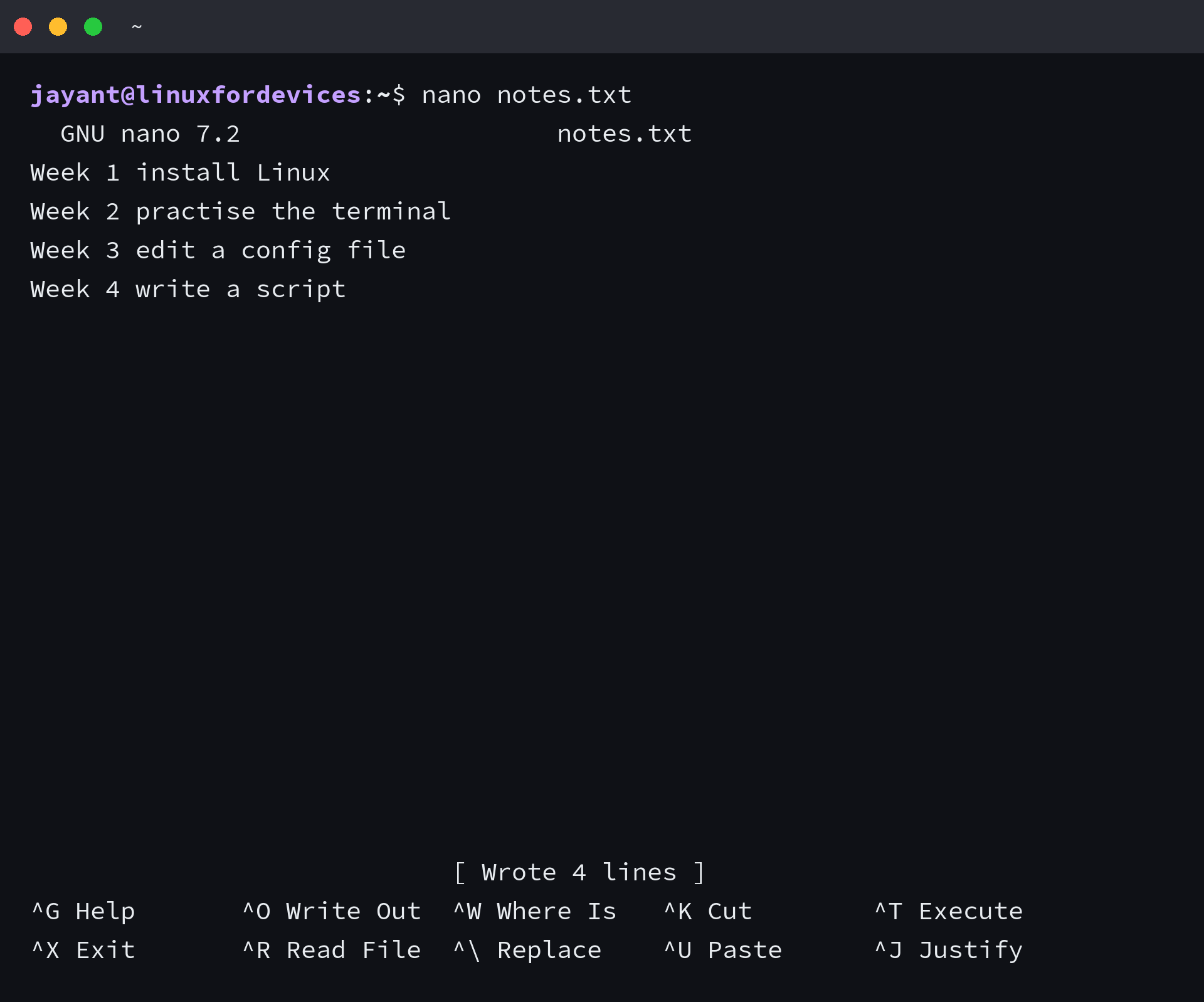
Reading the file back is the plainest confirmation that the write landed, and cat prints it without an editor.
cat notes.txt
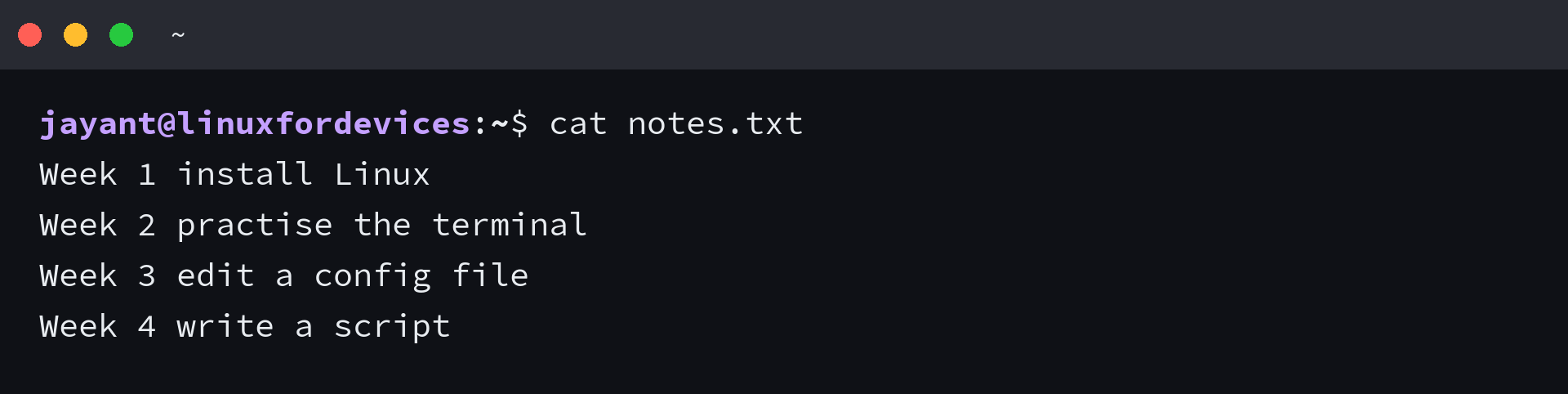
The cat and more commands cover the reading side, including the pager for files longer than a screen.
| What you want | Keys | What you see |
|---|---|---|
| Write and keep editing | Ctrl+O, then Enter | The status line reports the lines written |
| Write with no prompt | Ctrl+S | The same confirmation, with no filename question |
| Leave the editor | Ctrl+X | The shell prompt |
| Leave and discard the edit | Ctrl+X, then N | The shell prompt, file untouched |
| Start at a known line | nano +12 file | The cursor sitting on line 12 |
The shortcuts worth memorising, and the bar that lists them
In practice the bar names the keys that fit your window, which is why it reads as noise until the notation is decoded. Control-key sequences carry a caret, and the M- prefix means Alt, or Esc on a keyboard without one.
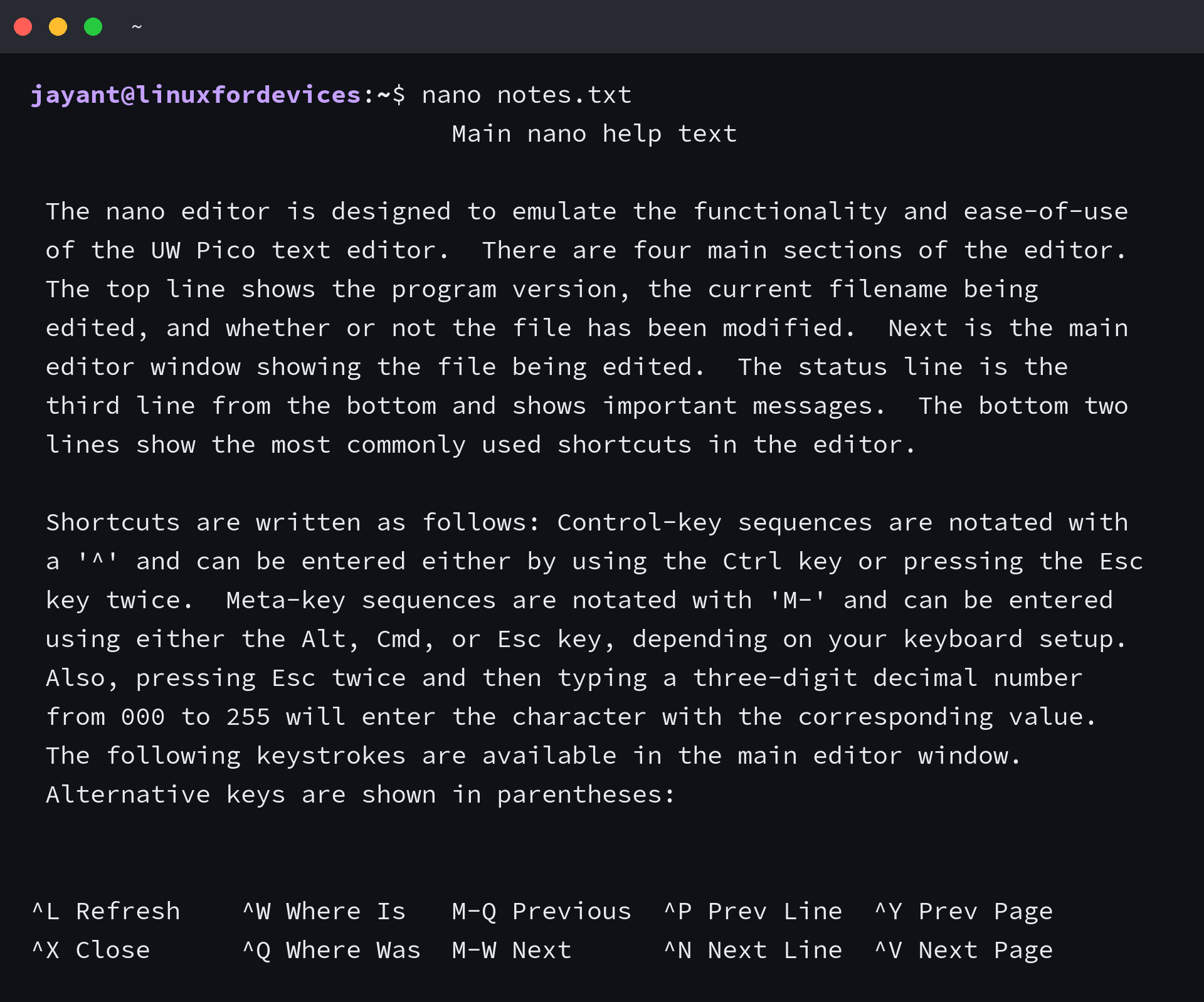
Press Ctrl+G and nano prints the full keystroke list for the build you are running, including everything the bar had no room for. The keys worth keeping in your head are grouped by job below.
| Job | Keys | What happens |
|---|---|---|
| Write the buffer | Ctrl+O, then Enter | Prompts for a name, prefilled with the open file |
| Write with no prompt | Ctrl+S | The status line reports the line count |
| Leave the editor | Ctrl+X | Asks about unsaved changes first |
| Read the keystroke list | Ctrl+G | Full list for the running build |
| Cut the current line | Ctrl+K | The line goes into the cutbuffer |
| Paste the cutbuffer | Ctrl+U | Inserts at the cursor |
| Copy instead of cutting | Alt+6 | Keeps the line where it is |
| Mark a region | Alt+A, then move | The marked text is highlighted |
| Undo the last action | Alt+U | Steps back one edit |
| Redo the last undone action | Alt+E | Steps forward again |
| Find text | Ctrl+W | Prompt opens on the status line |
| Replace text | Ctrl+backslash | Asks about each match, Alt+R on newer builds |
| Go to a line | Ctrl+/ or Alt+G | Accepts a line, and a column after a comma |
| Show the cursor position | Ctrl+C | Line, column, and percentage through the file |
| Count lines and words | Alt+D | Counts the buffer or the marked region |
| Toggle line numbers | Alt+N | Numbers appear in the left margin |
| Toggle soft wrap | Alt+S | Long lines stay on one row |
| Insert another file | Ctrl+R | Asks for a path and inserts at the cursor |
| Run a shell command | Ctrl+T | The command output lands in the buffer |
| Spell check the buffer | F12 | Needs hunspell or spell installed |
A second cut adds to the cutbuffer instead of replacing what is already there, so the text survives until the next cut or copy.
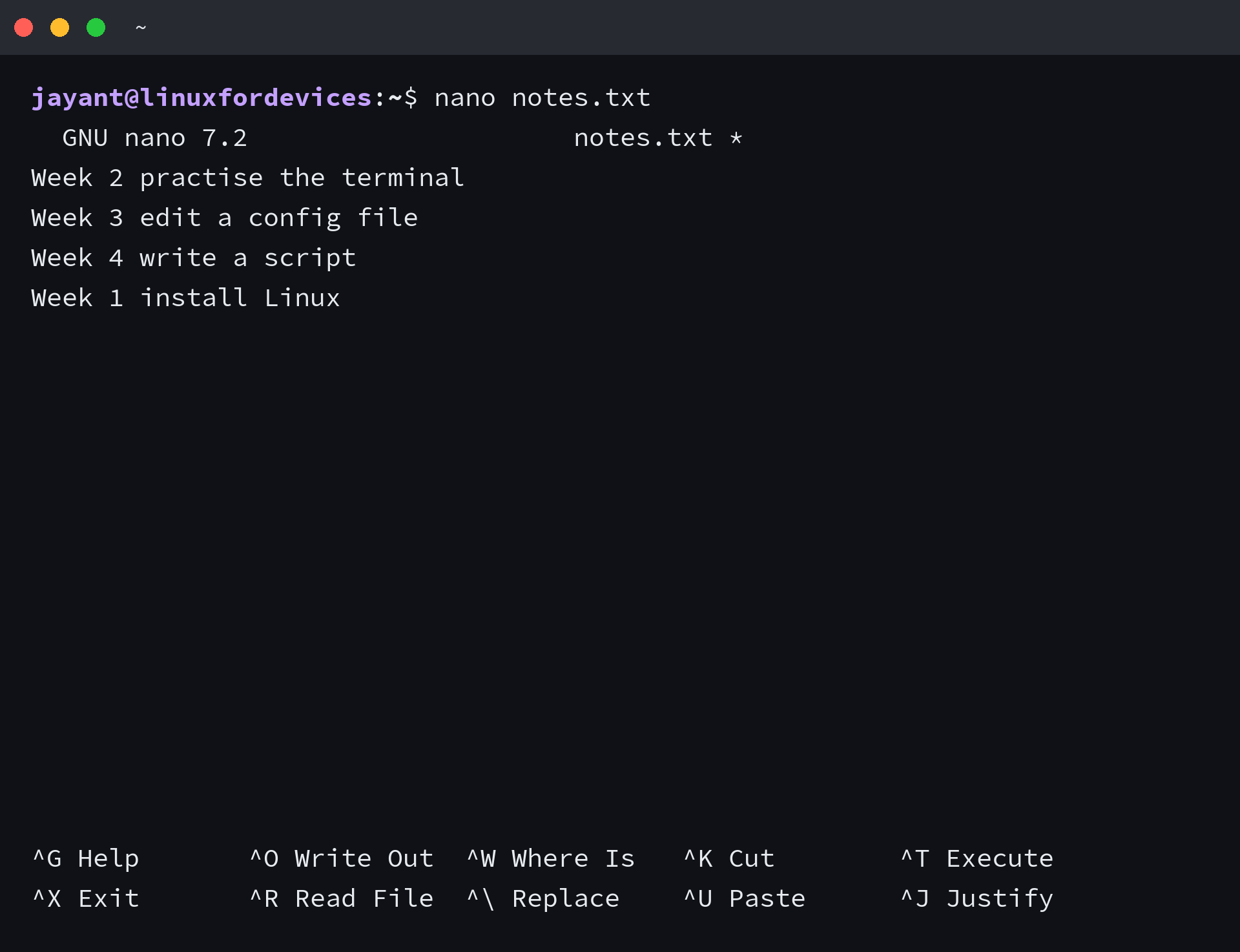
Alt+U steps back one action and Alt+E steps forward again, which undoes an accidental cut without closing the file.
Search, replace, and jump to a line
Finding text and replacing it use different keys, and both prompts appear on the status line rather than in a window. The search prompt takes a term, and the replacing session takes a term and its replacement.
Find a string
Ctrl+W opens the search prompt, and Enter accepts the term.
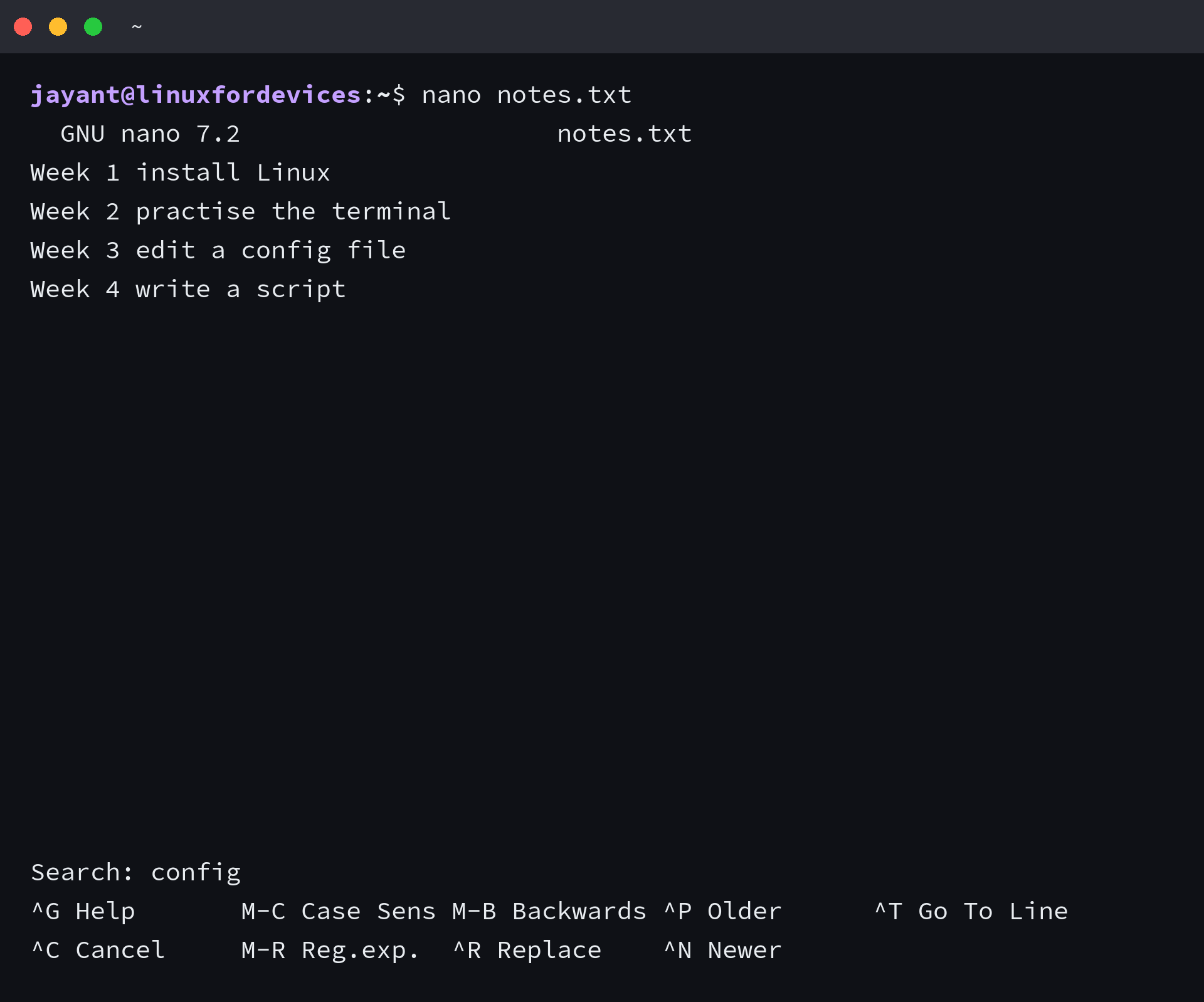
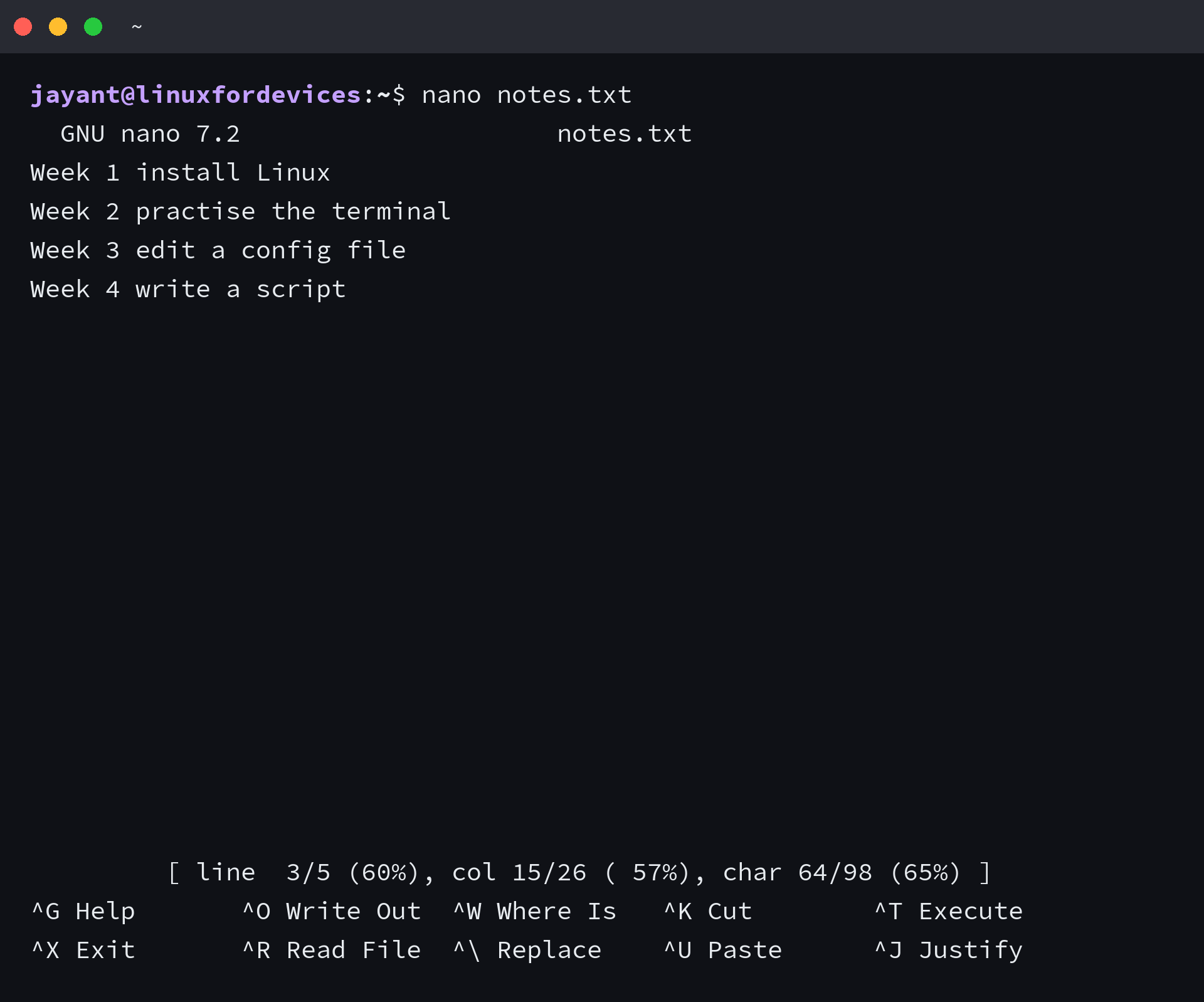
I searched the same file for config, and Ctrl+C reported line 3 and column 15. That position line is the fastest way to confirm a match.
Replace one instance or all of them
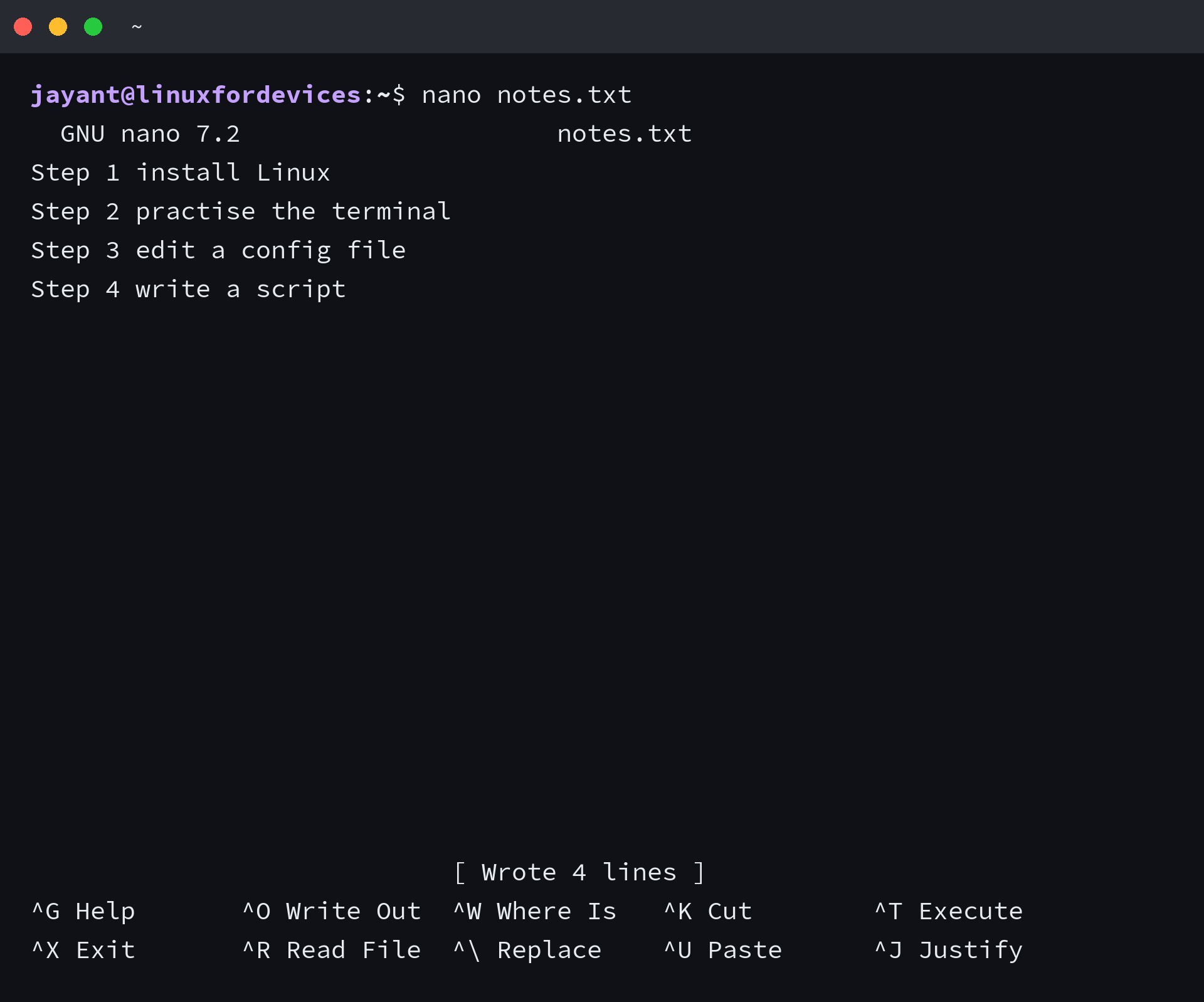
Ctrl+backslash starts a replacing session: the term, the replacement, then a prompt for each match. Recent releases list Alt+R for the same job.
That prompt takes Y for the current match, N to skip it, and A to replace the rest of the file.
Jump to a line
A line number on the command opens a file at that row, and a search tool finds the number when you do not know it.
grep -n config notes.txt
The number in front of the match is the one nano +3 expects, so the two commands work as a pair.
Make nano behave: line numbers, soft wrap, colors, and the spell checker
The options you toggle by hand live in a configuration file you write once, and the toggles keep working for a single session.
A nanorc with the settings you keep reaching for
Your own file sits at ~/.nanorc, and /etc/nanorc supplies the defaults for every user on the machine. Each line enables one option.
set linenumbers
set softwrap
set tabsize 4
set autoindent
set mouse
set backup
| Setting | What it changes |
|---|---|
| set linenumbers | Numbers every row in the left margin |
| set softwrap | Wraps long lines instead of scrolling sideways |
| set tabsize 4 | Sets the indent width for the Tab key |
| set autoindent | Starts a new line at the current indent |
| set mouse | Lets a click place the cursor when the terminal reports it |
| set backup | Keeps the previous version of a file on write |
Line numbers, soft wrap, and syntax colors also toggle for the current session on Alt+N, Alt+S, and Alt+Y, so you can try a setting before writing it down.
I ran nano with that file on the command line and the margin appeared on the first row.
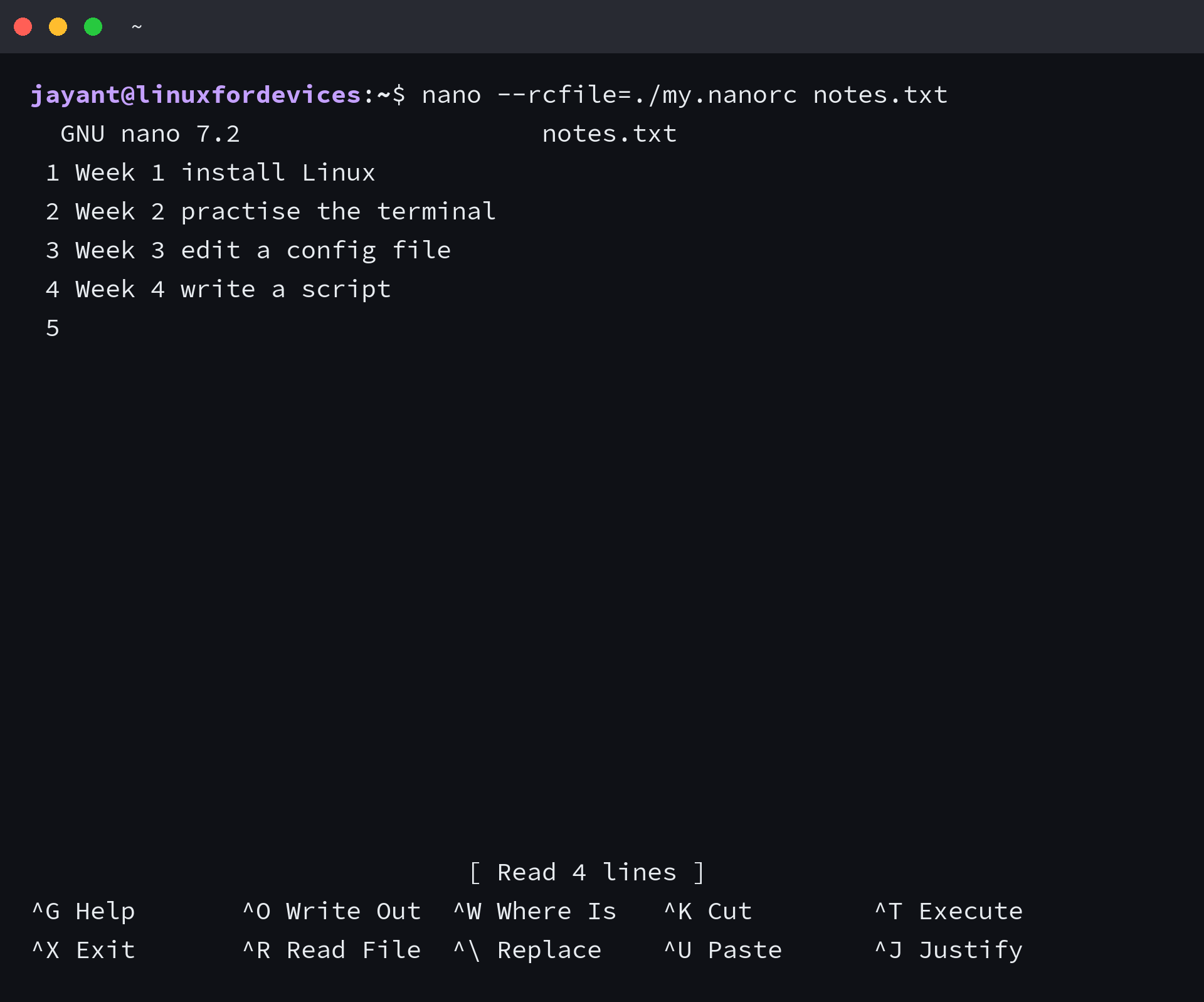
A different file can be read instead of your own, which is how a project ships its conventions: nano –rcfile=./my.nanorc notes.txt. The option takes a full path, so that file can live in a repository beside the code it configures.
A spell checker that starts
F12 runs the checker, and nano calls hunspell or spell underneath, which means the key does nothing on a system without either one.
sudo apt install hunspell hunspell-en-us
I installed hunspell and pressed F12 on a line with a misspelled word. Nano highlighted the word and asked for a replacement with a suggestion filled in.
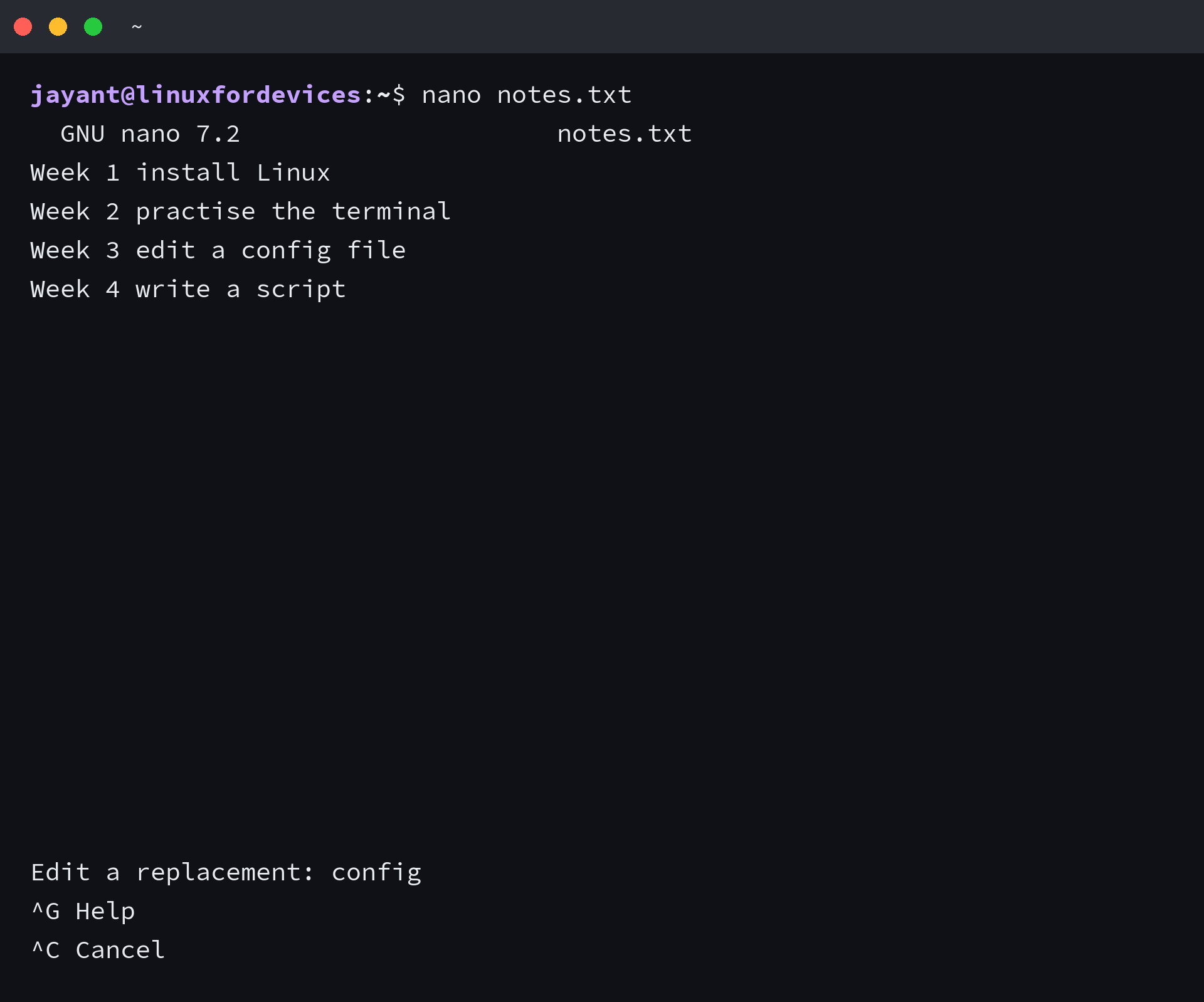
The checker walks the buffer word by word, and every misspelled word gets the same prompt until the pass ends. Cancel the pass with Ctrl+C when you want to stop partway.
Shell configuration follows the same idea, and the bashrc and bash profile files are the place to look when a setting will not stick.
When nano will not save your file
Each failure that costs work announces itself before the text is gone. Opening a root-owned file works because reading is permitted, and the write is where it stops.
A file your account cannot write
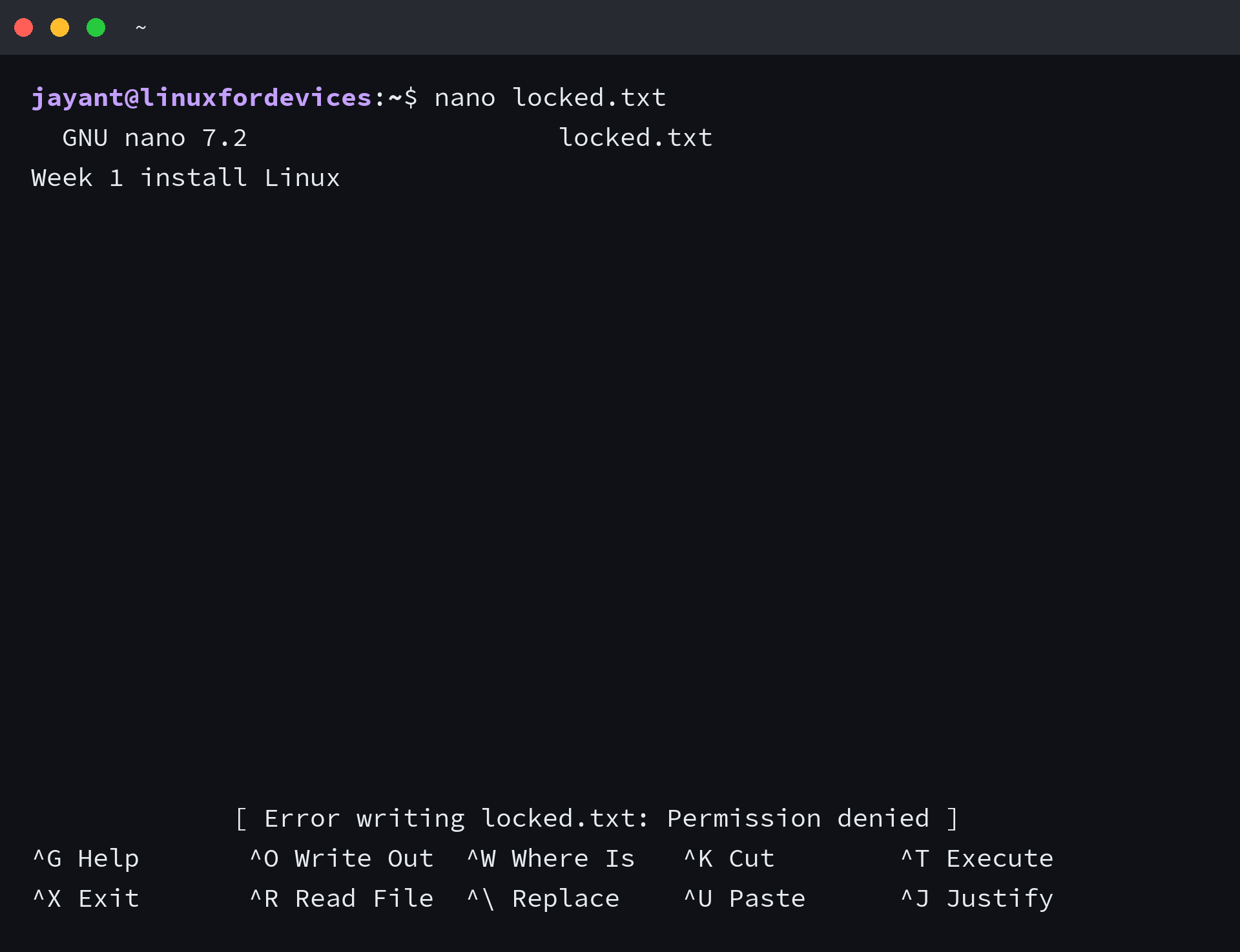
The status line reports Error writing locked.txt: Permission denied and the buffer stays open, so nothing you typed is lost yet.
There are two repairs: write the file with elevated rights, as in sudo nano /etc/hosts, or take ownership of it. The chmod and chown commands cover the first, and user and group permissions covers the model behind both.
The editor died with unsaved changes
When nano is killed by a hangup or a termination signal, it writes the buffer beside the original file with .save appended and prints where it went. In a session I ended with SIGTERM, nano reported the dump and left a save file holding the unwritten line.
Open that save file, then move the text back into place. It sits beside the original with .save appended, so nothing typed before the kill is lost.
A shortcut from an older tutorial does nothing
Keys moved between releases, and a walkthrough written for nano 4.8 can describe a bar your build no longer prints. The build in front of you answers for itself, since Ctrl+G lists its keys and the version line names it.
nano --version
Read the bar once, and the next release cannot surprise you
The two rows at the bottom are printed by the build in front of you, so they already account for every rename and every added key in your installation.
The habit is small: read those rows before reaching for a chart, and press Ctrl+G when a key you expected is missing. What the bar cannot carry between sessions is the shortlist of settings you keep toggling, so write that down once.
printf 'set linenumbers\nset softwrap\n' >> ~/.nanorc
Every file then opens with a numbered margin and wrapped lines, and the save key keeps working the way it did on the first file.
Frequently asked questions
How do you save and exit nano?
Press Ctrl+O, press Enter to accept the filename nano fills in, then press Ctrl+X. Ctrl+O writes the buffer and Ctrl+X closes it.
How do you exit nano without saving?
Press Ctrl+X, then N when nano asks about the modified buffer. The shell comes back and the file on disk keeps its previous contents.
What does the ^ symbol mean in nano?
It stands for the Ctrl key, so ^X means Ctrl+X. The M- prefix in the same bar stands for Alt, or Esc on a keyboard without an Alt key.
Why does a shortcut from a tutorial do nothing in my nano?
Bindings moved between releases. Press Ctrl+G to read the list of the build you are running, and the version line at the top names that build.
Does nano need hunspell for its spell checker?
Yes. The spell checker runs an external program, and nano calls hunspell or spell, so install one of them before pressing F12.
Where are nano’s settings stored?
In ~/.nanorc for your user, and in /etc/nanorc for the whole machine. The –rcfile option reads a different file instead.