
Leafpad is a small graphical editor for short notes and plain-text files. On a Linux desktop with Snap support, install the current Leafpad package with one command, then launch it from the app menu or terminal.
Install Leafpad from the Snap Store
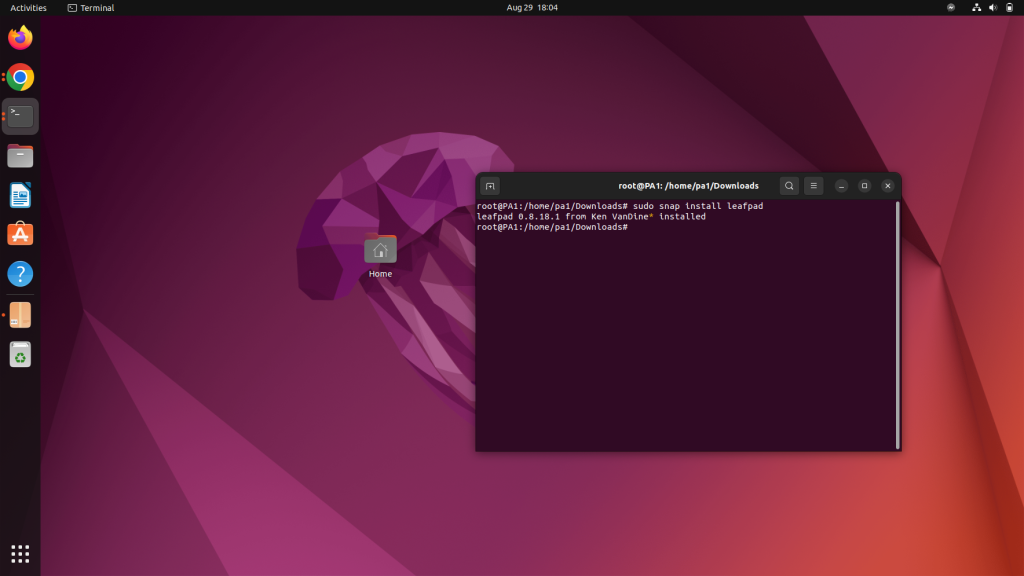
The Snap Store lists Leafpad 0.8.18.1 in its latest/stable channel and publishes the installation command below. This route is useful when your distribution no longer carries a native Leafpad package.
sudo snap install leafpad
When installation asks for your password, enter it and wait for Snap to finish adding the package. The retained capture shows the command completing.
Check that Snap is available first
Install and enable snapd from your distribution documentation before returning to the Leafpad command when the shell reports that snap is unavailable.
For Debian or Ubuntu systems that use apt, check your own repositories instead of assuming an older Leafpad package is still available, then use the current Snap package when you need Leafpad without an old archive or unverified repository.
Open Leafpad and save a file
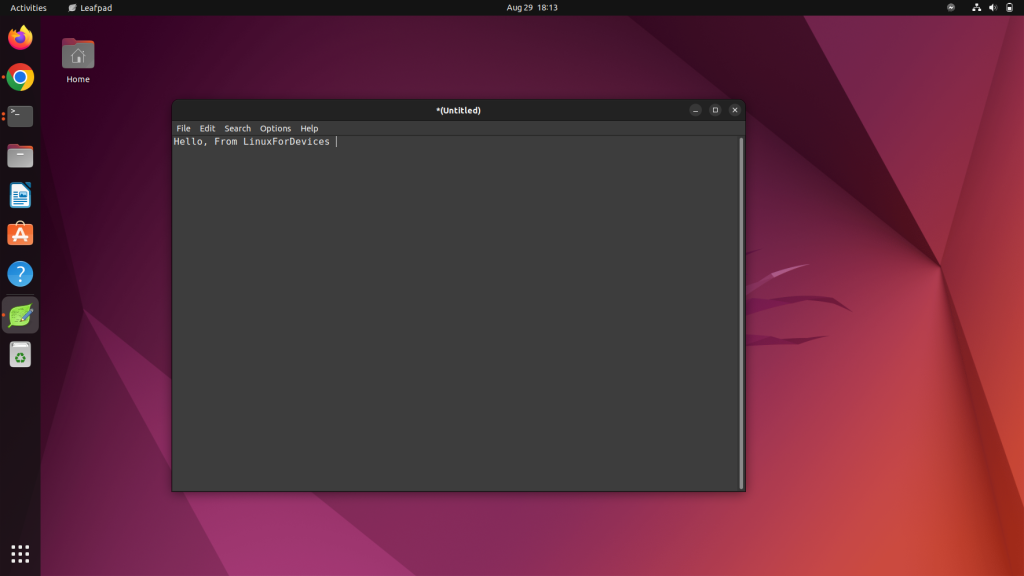
Start Leafpad from your desktop launcher, or run leafpad in a terminal after installation. Its window gives you a blank document, a menu bar, and the basic editing actions needed for plain text.
leafpad
Type a short line, then choose File and Save As to select a file name and location. If you are learning where user files belong, the Linux filesystem layout explains the directories you will encounter.
Use the menus for the small tasks Leafpad handles well
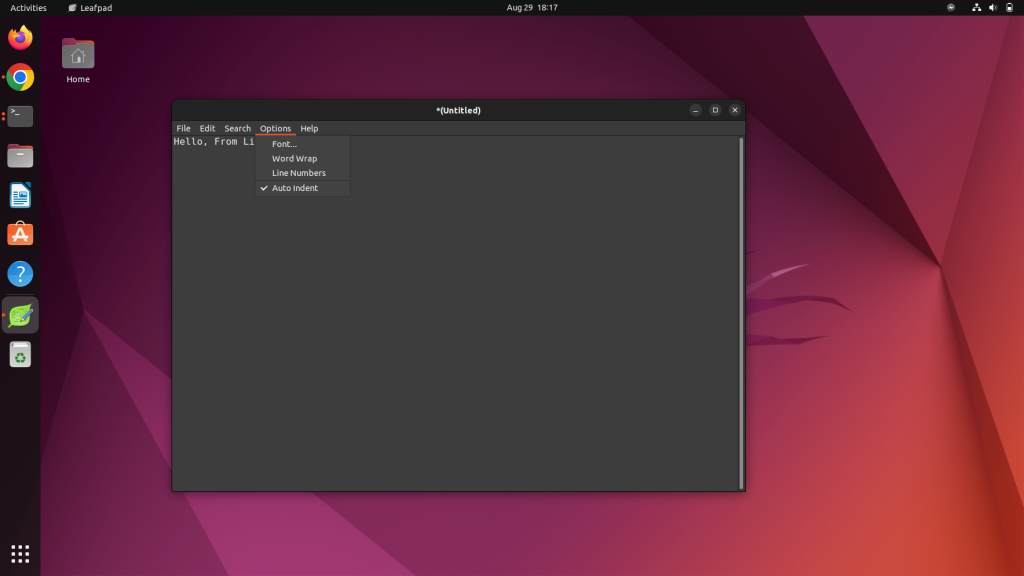
Leafpad keeps its controls in File, Edit, Search, Options, and Help. Use File for new documents, opening files, saving, and printing.
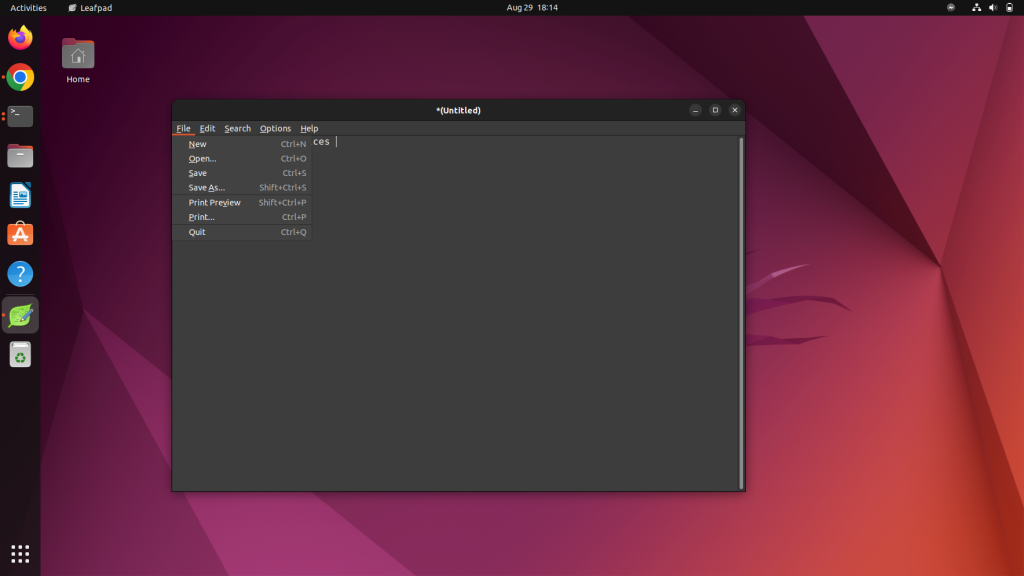
Use Edit for undo, redo, cut, copy, paste, and Select All. Search gives you find and replace, which is enough for correcting repeated text in a small document.
Options changes the display and editing behavior, including font selection, word wrap, line numbers, and auto indentation. These controls are visible in the retained Options capture.
Choose Leafpad when a graphical editor is enough
Leafpad is a good fit for a note, a small configuration file, or a plain-text draft when you want a graphical window and a short menu. It is not a code editor with project navigation, language tooling, or version-control integration.
Use a terminal editor when you need to edit files from a terminal, then move to turn Vim into an IDE or set up Vim completion when larger coding work needs those capabilities.
Older package-manager instructions
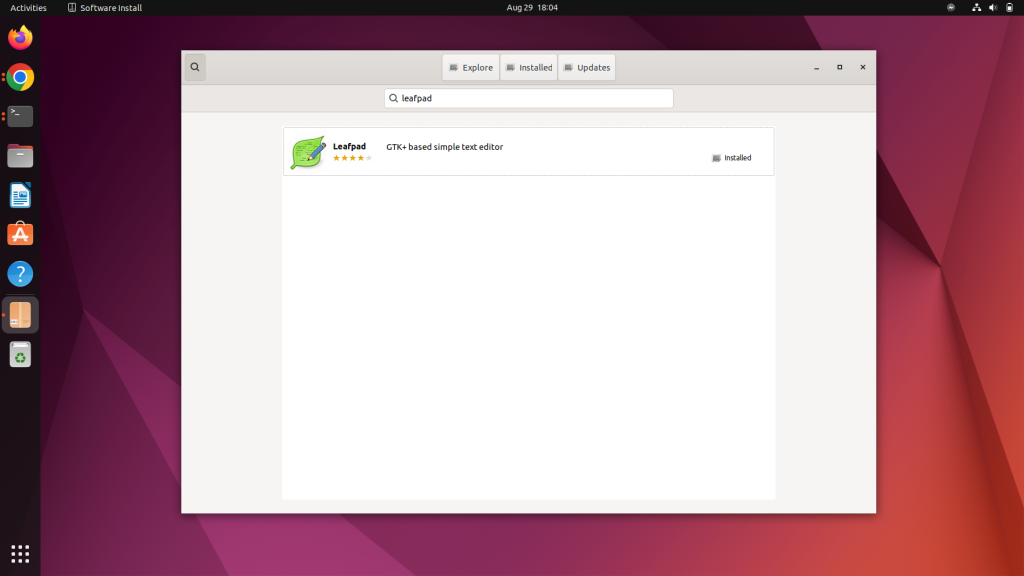
Because availability changes by distribution release, use your package manager search to check what your own repositories provide and prefer the documented Snap route when you need the Leafpad package itself.
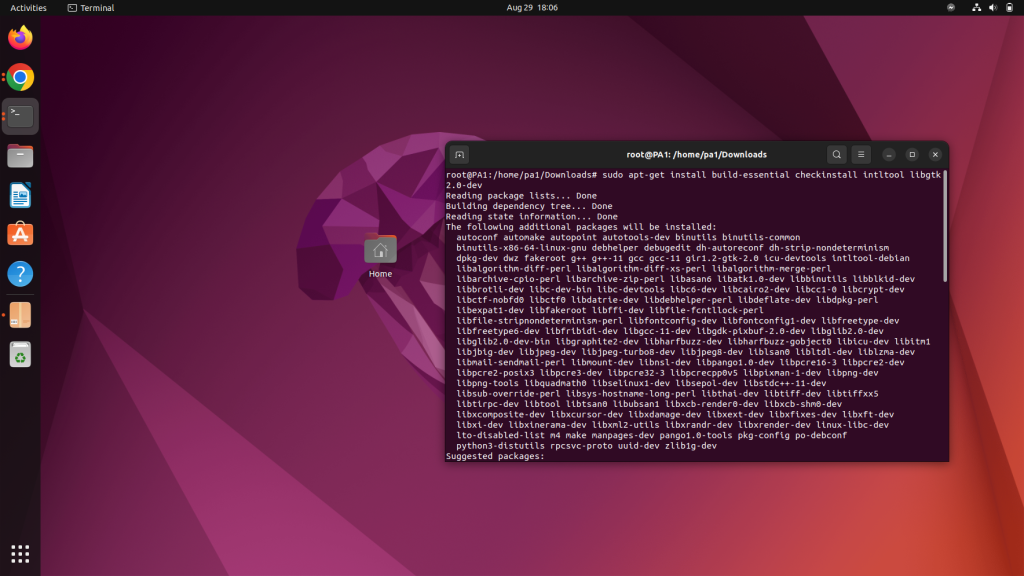
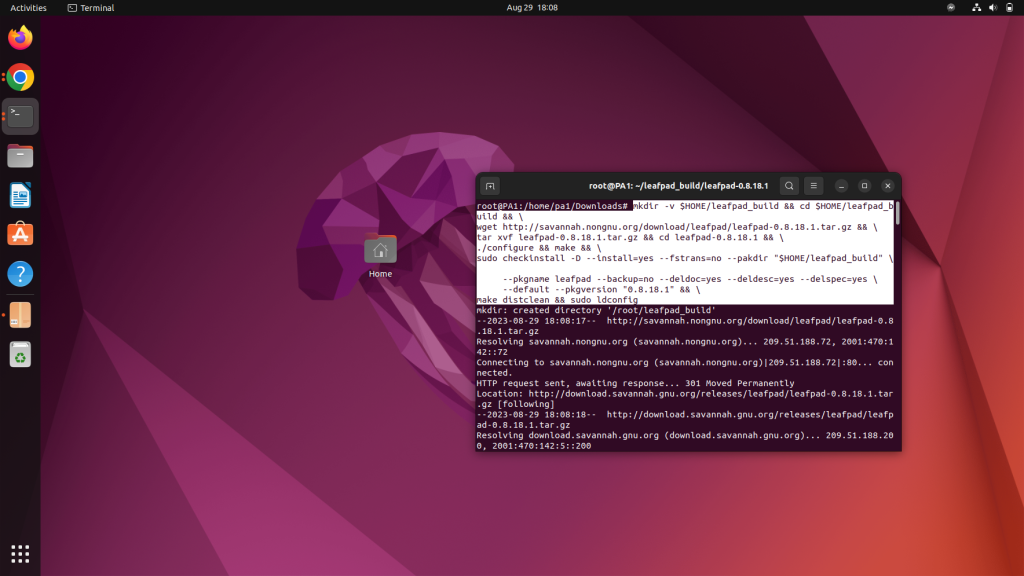
Keep the retained package, dependency, and source-build captures for a specific packaging or maintenance reason rather than using source builds as the default installation method.
Remove Leafpad
Remove the Snap package with the matching package manager command. This removes Leafpad while leaving your documents where you saved them.
sudo snap remove leafpad
What to do next
Save one small text file, reopen it, and confirm that its location makes sense before you use Leafpad for configuration work. If you later need a terminal-only editor, start with exit Vim without losing your work so you can leave an editing session safely.