

A single `report.log.gz` and a `logs.tar.gz` can both look like compressed files, but only one is an archive of directory paths. I couldn’t leave that distinction alone, because it decides which command gives you the file you meant to create.
Once the output’s shape is clear, you can match the command to keeping a source file or packaging a directory together. It comes down to what gzip does to a file.
What gzip does to a file
gzip compresses file data into a .gz stream, then removes the source after compression succeeds.
A .gz file stores one compressed stream, not a collection of directory paths.
Use tar first when the recipient needs several files or folders together, then let gzip compress that archive.
| Task | Command shape | Result |
|---|---|---|
| Compress one file | gzip report.log | report.log.gz replaces report.log |
| Keep the source | gzip -k report.log | Both files remain |
| Compress each file under a directory | gzip -r logs/ | Separate .gz files in the directory tree |
| Bundle paths and compress them | tar -czf logs.tar.gz logs/ | One archive, source paths remain |
GNU gzip uses DEFLATE for the compressed data. The GNU gzip manual describes its file and stream options, while the GNU tar manual covers archive creation.
Choose where the compressed bytes go
Before running gzip, decide whether you need the original file and where the compressed output should go. The default replaces the source only after compression succeeds.
gzip -kv access.log
The -k option keeps access.log, and -v prints the resulting size change. I ran this command on a 44-byte sample, and GNU gzip 1.12 reported an 11.4% reduction while creating access.log.gz.

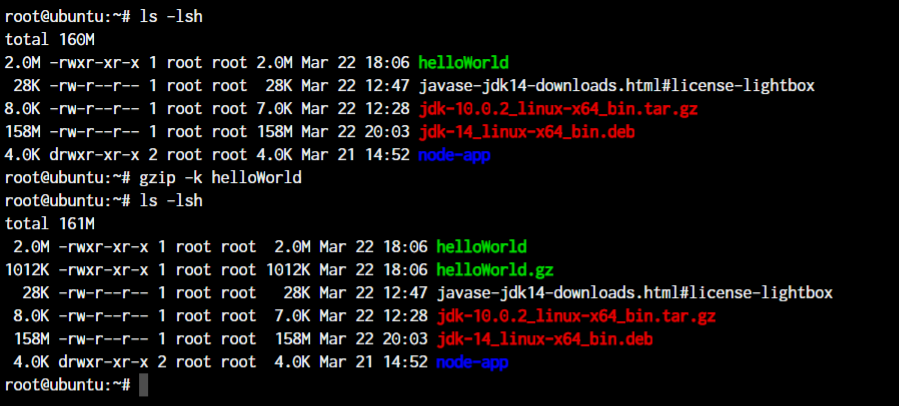
Use -c when a pipeline or redirection should receive the compressed bytes instead of replacing the named input.
gzip -c access.log > access.log.gz
printf 'streamed line\n' | gzip > stream.gz
With no filename, gzip reads standard input and writes to standard output. Redirection sends the compressed stream to a file.
| Form | Input | Source file |
|---|---|---|
| gzip file | Named file | Replaced after success |
| gzip -k file | Named file | Kept |
| gzip -c file | Named file | Kept, compressed bytes go to stdout |
| gzip with no filename | Standard input | No named source to replace |
Compress, restore and inspect files
Use gzip on a filename to create its .gz copy.
gzip -v access.log
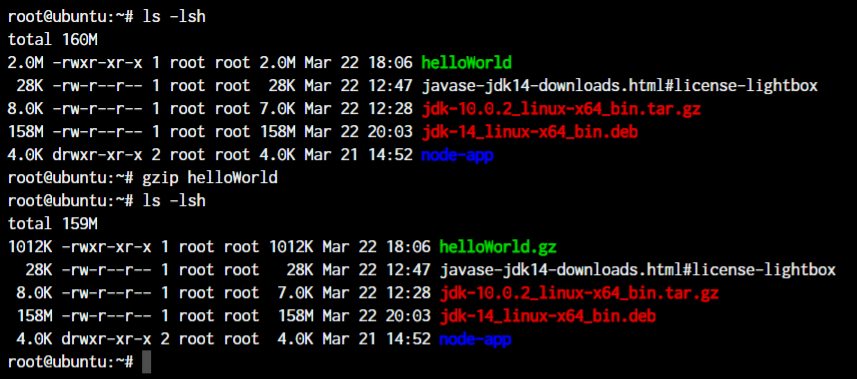
To restore the original filename, use -d or its command-name equivalent, gunzip. A successful restore removes the compressed input unless you add -k.
gzip -dv access.log.gz
gzip -dkv access.log.gz
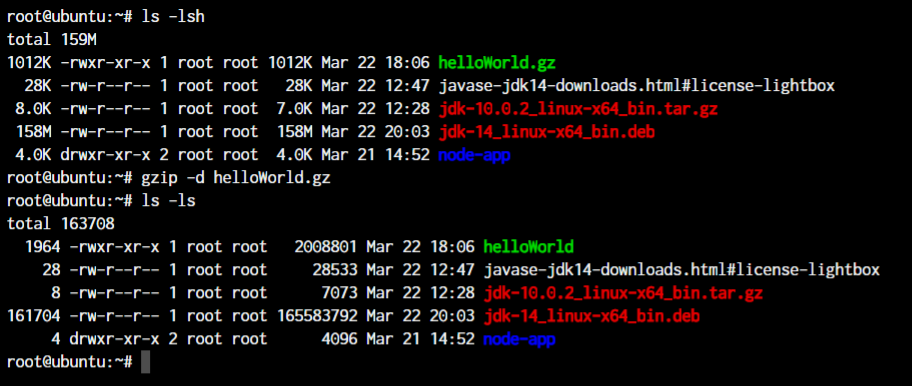
Add -k when the compressed input should remain after the restore.
gzip -dkv access.log.gz
Compress multiple files separately
Pass several filenames when each one should have its own compressed output. gzip reports each result separately with -v.
gzip -v first.log second.log

A negative percentage means that compressed output grew. gzip still appends .gz, so compare the reported sizes rather than assuming the file shrank.
Use -l to inspect the stored filename and size fields without extracting the file.
Use -t when you need gzip to read the full compressed stream and report whether it is intact.
gzip -lv access.log.gz
gzip -t access.log.gz
zcat access.log.gz | grep -n ERROR

A truncated stream fails instead. The error tells you gzip reached the end of the file before it could finish reading the compressed data.
gzip -t broken.log.gz

zcat writes decompressed data to standard output and leaves the archive in place. Pipe it to grep to inspect matching lines, or use the cat and more commands to read the resulting plain text.
Recursive compression does not make one archive
The -r option visits a directory tree and compresses eligible files separately.
It does not bundle their paths, and the source files are replaced as each compression succeeds.
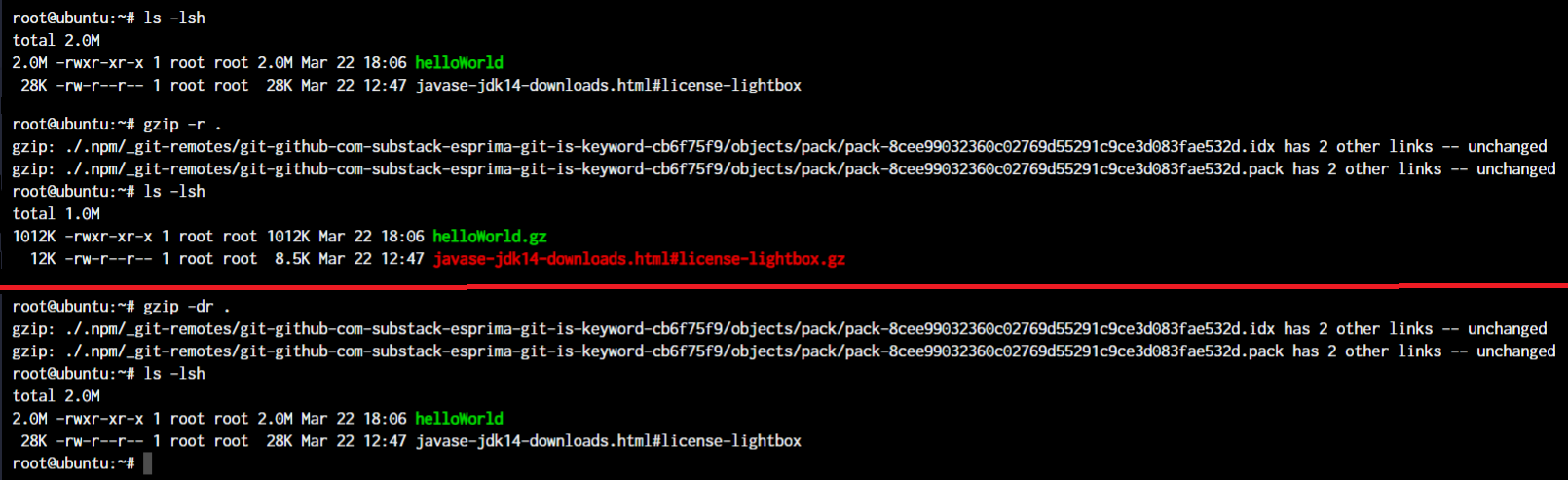
In my GNU gzip 1.12 test, recursive traversal left a symlink unchanged and reported “Too many levels of symbolic links.” The command still compressed the regular file it reached.
| Command | Output |
|---|---|
| gzip -r logs/ | Separate compressed files under logs/ |
| tar -czf logs.tar.gz logs/ | One compressed archive containing the paths |
GNU tar leaves the source directory in place. See the Linux tar command guide or learn to count files in a directory before processing it.
Check the destination before you overwrite it
gzip refuses to overwrite an existing output unless you force it. Decompression also stops when the restored filename already exists.
- Use -k to preserve the input during compression or decompression.
- Move an existing destination aside when you need the restored file.
- Use -f only when replacing the destination is intentional.
A tiny file can grow after compression because the gzip header and trailer add bytes. Check the resulting size when that distinction matters.
| Option | Behavior | Useful when |
|---|---|---|
| -1 | Faster compression, less compression effort | Speed matters more than a smaller output |
| -6 | Default level | Ordinary file compression |
| -9 | Slower compression, more effort to reduce size | You measure a useful reduction for your files |

GNU gzip describes -1 as the fastest level and -9 as the slowest. This screenshot shows only level 9, so it does not establish which level is faster for your own files.
For a directory sorted by size, use the Linux directory-size listing command. If the recipient needs a ZIP archive rather than .gz streams, use the zip and unzip commands.
Verify the archive before sharing it
Run gzip -t on the completed file before you send it or remove another copy.
gzip -t logs.tar.gz
A successful exit means gzip could read the stream to its end. It does not confirm that an archive contains the paths you intended, so list tar members separately with tar -tzf.
FAQ
Does gzip delete the original file?
By default, gzip replaces a regular input with its .gz output after compression succeeds. Use gzip -k to keep both files, or gzip -c with redirection to write compressed bytes elsewhere.
How do I compress a directory into one file?
Use tar -czf archive.tar.gz directory/. gzip -r compresses eligible files separately and does not bundle directory paths.
How can I test a gzip file without extracting it?
Run gzip -t filename.gz. It reads the compressed stream and returns a failure status if the data is incomplete or invalid.
Can gzip make a file larger?
Yes. A very small input can grow because gzip adds header and trailer data. Check the resulting size for your own file.