
A server you SSH into has its own idea about which editor you should use, and it rarely matches yours. Terminal based text editors come in two families, and the family decides how long your first edit takes.
Modal editors such as Vim give you a keystroke grammar that pays off across a long session and frustrates a short one. Modeless editors such as nano, ne and Emacs print their commands or take them through Ctrl and Alt, so writing a file stays within reach without memorising anything.
The editor families, and the four that cover them
Each of these four draws itself inside the terminal you already have open, which is what makes them usable over SSH and on a machine with no desktop.
What separates them is where the commands live. A modal editor hides them behind a grammar of single keys, and a modeless editor either prints them at the bottom of the screen or binds them to Ctrl and Alt.
| Editor | Command model | First save | Fits when |
|---|---|---|---|
| Vim | Modal, single keys used as a grammar | Esc, then :wq | You stay in the file long enough to learn the grammar |
| Emacs | Modeless, Ctrl and Alt chords | Ctrl+X, then Ctrl+S | You want files, shells, Git and mail in one program |
| nano | Modeless, commands printed on screen | Ctrl+O, then Ctrl+X | You edit a config file and move on |
| ne | Modeless, F9 menus plus Ctrl keys | Ctrl+S | You want nano’s key model with regular expressions and macros |
The choice comes down to what is already installed, how long you plan to stay in the file, and whether the session ends when you log out.
The modal split explains why so many first sessions go wrong. A letter you press to type text runs a command instead, so the editor looks broken until the exit sequence becomes muscle memory.
That is the argument for learning one of them properly instead of sampling four.
Check what the machine already has
The editor you cannot install is the one that decides the answer, so the check comes before the install. A single command reports which of the four are present.
It prints a path for each name it finds and nothing for the rest. The name to look for first is vi, because POSIX specifies it as the standard screen editor, and every conforming system ships something that answers to that name.
When the command answers with nothing at all, the machine shipped without any of them and the install below is the first step. A server that already runs vim or nano does not need the rest.
command -v vi vim nano emacs ne
Upstream releases move ahead of the packages a distribution ships, and the distance between the two decides whether a version number in a guide applies to your machine.
| Editor | Current upstream release | Packaged on Ubuntu 24.04 |
|---|---|---|
| Vim | 9.2, from the Vim download page | 9.1.0016 |
| nano | 9.2, released 2026-07-31, from the nano news page | 7.2 |
| Emacs | 31.1, released 2026-08-24, from the GNU Emacs page | 29.3, as emacs-nox |
| ne | 3.3.4, from the ne repository | 3.3.2 |
I compared both columns against the four projects’ own release pages and then against a Debian machine’s package database, and the packaged builds trail far enough to matter: nano arrives as 7.2 against 9.2 upstream, Emacs as 29.3 against 31.1, and vim as 9.1 against 9.2. I measured the installed footprint on that same machine, and the four are not in the same class.
nano and ne come in under 1 MB installed, vim about 4 MB, and the emacs-nox package about 44 MB before its shared support package.
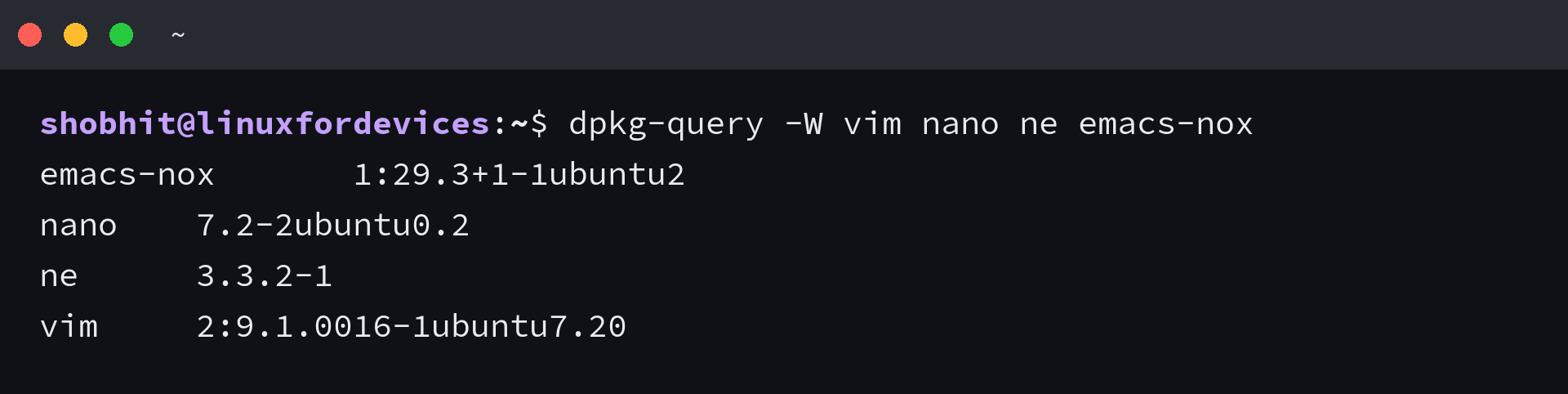
Installing the set on Debian or Ubuntu takes one command, and the Emacs package name is the part to get right. The plain emacs package pulls in the graphical stack a server does not need.
sudo apt install vim nano emacs-nox ne
The names differ elsewhere, so translate rather than copy. Debian and Ubuntu keep ne in the universe component, Arch holds nano in core while its ne package lives in the AUR, and Fedora carries ne as a package of its own.
How each one behaves once it is open
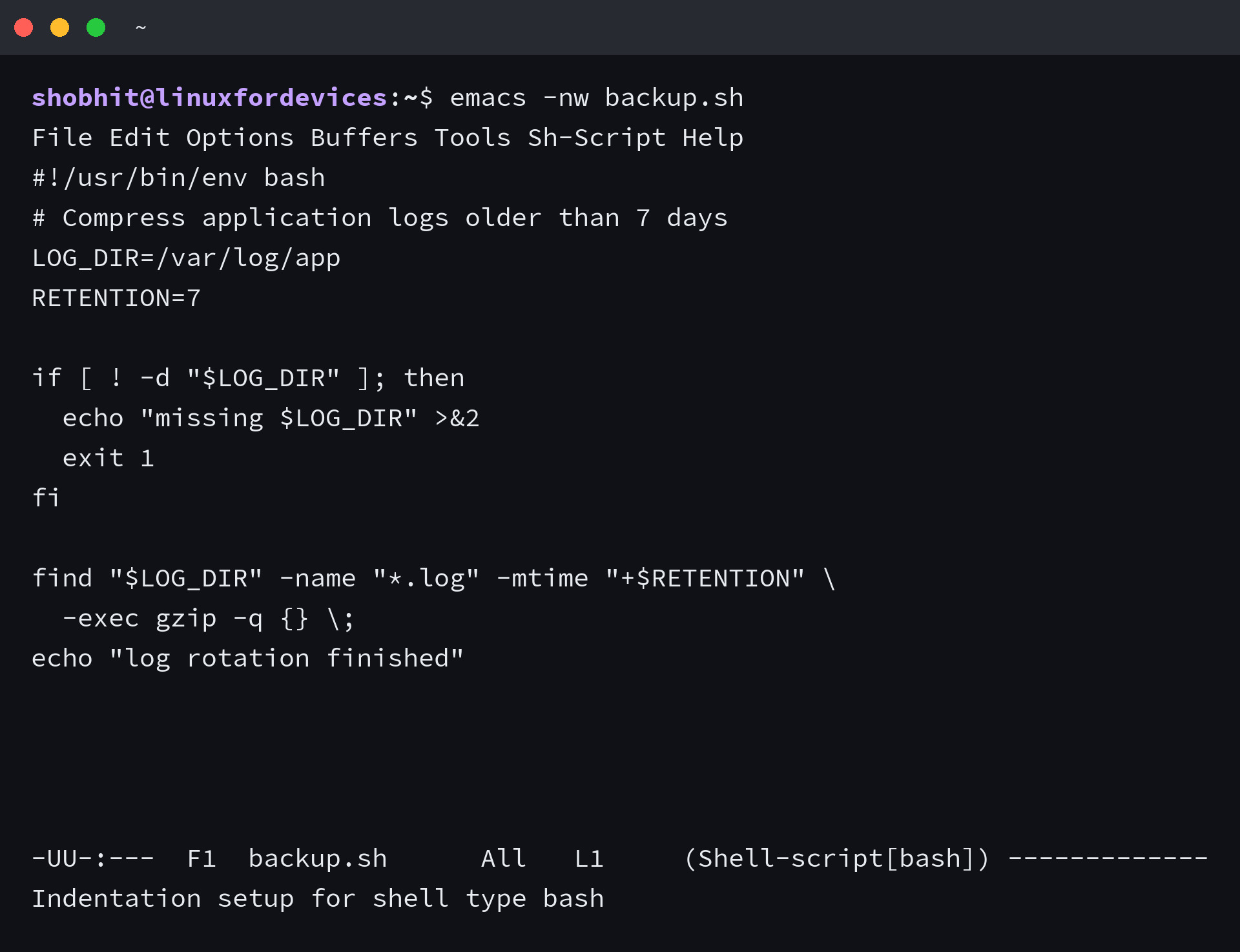
I opened the same 13-line shell script in all four editors and captured each session, running each editor in a fixed 76-column terminal so the frames line up. Each frame below is that session, with the command that produced it at the prompt, and the captures are plain text, so the color each editor applies to a shell script does not appear in them.
1. Vim
Vim opens in normal mode, so the first key you press is a command rather than a character of text.
That is also why the exit is the first thing worth learning. Esc returns to normal mode, then the command :wq writes the file and quits, and Esc followed by :q! quits without saving.
Insert mode is the other half of the model. Press i to start typing text, and Esc returns you to the state where every key in the table above works.
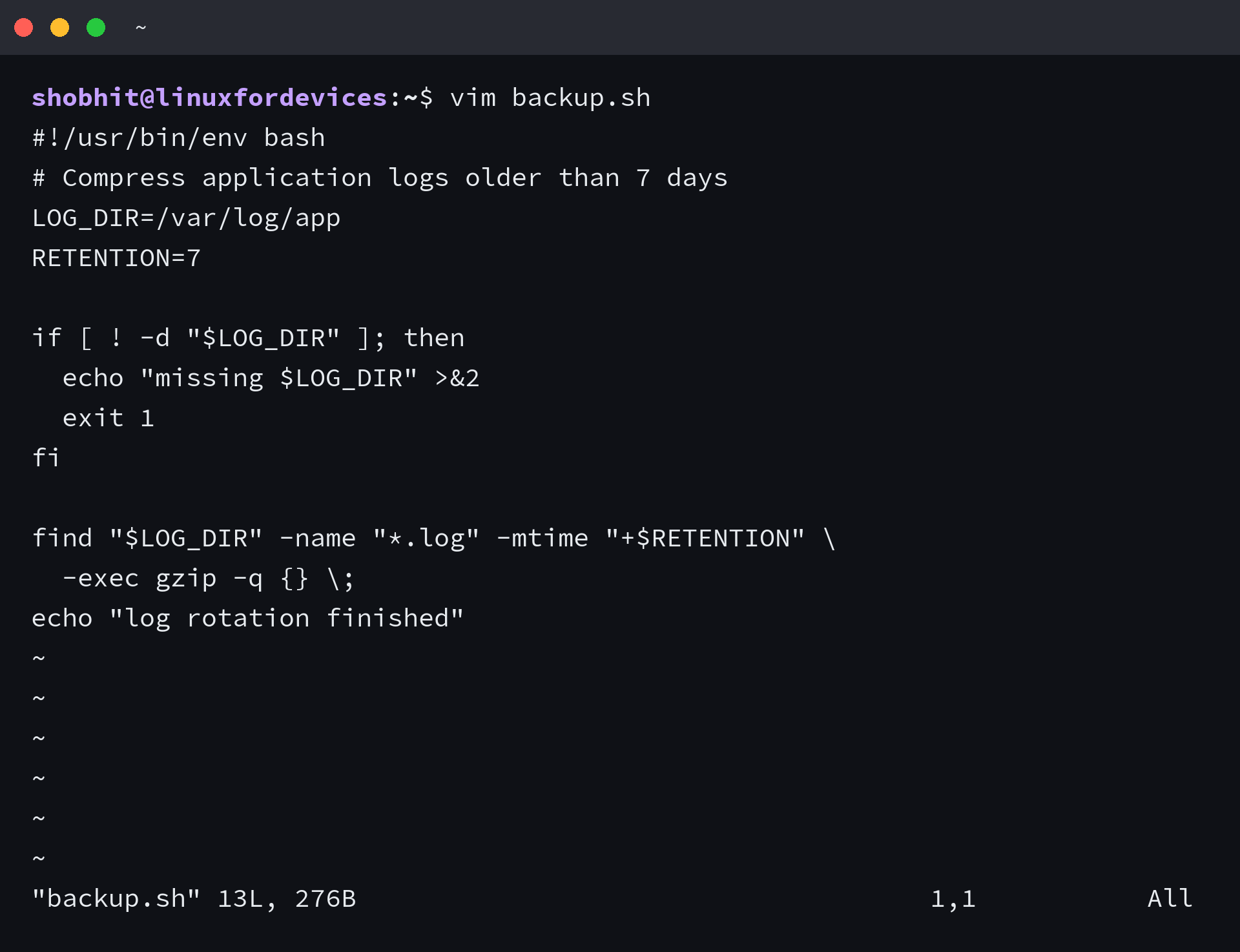
The status line reports the file name, the line count and the cursor position, and the tildes down the left mark lines past the end of the file.
Vim also ships a tutor, and running vimtutor opens a practice copy of a 972-line lesson file that the program itself times at about 30 minutes. When the exit command keeps going wrong, the walkthrough of quitting Vim covers the variants.
From there the Vim tutorial covers motions and operators, and turning Vim into an IDE is the path once plugins and language servers enter the picture.
2. Emacs
Emacs runs inside the terminal when you pass -nw, which is the flag that stops it looking for a graphical display. The menu bar still works in that mode.
Under the menu bar, the mode line names the file and the major mode it picked for it, and the line underneath reports what the last command did, which is where Emacs puts its answers.
The extension model is the difference from the other three. Packages from ELPA add anything from Git integration to mail and shells, and the TRAMP manual documents editing a remote file over SSH without installing Emacs on the server.
The cost is the install and the vocabulary. A first session spends more time learning key chords than editing, which is why the site keeps a separate Emacs beginner’s reference.
3. nano
nano prints its whole command set on screen, which is why it is the editor to open when you do not want to learn anything before changing one line.
Ctrl+O writes the buffer after confirming the file name, and Ctrl+X leaves, asking about unsaved changes on the way out. The title bar names the file, and the two rows at the bottom are the command reference.
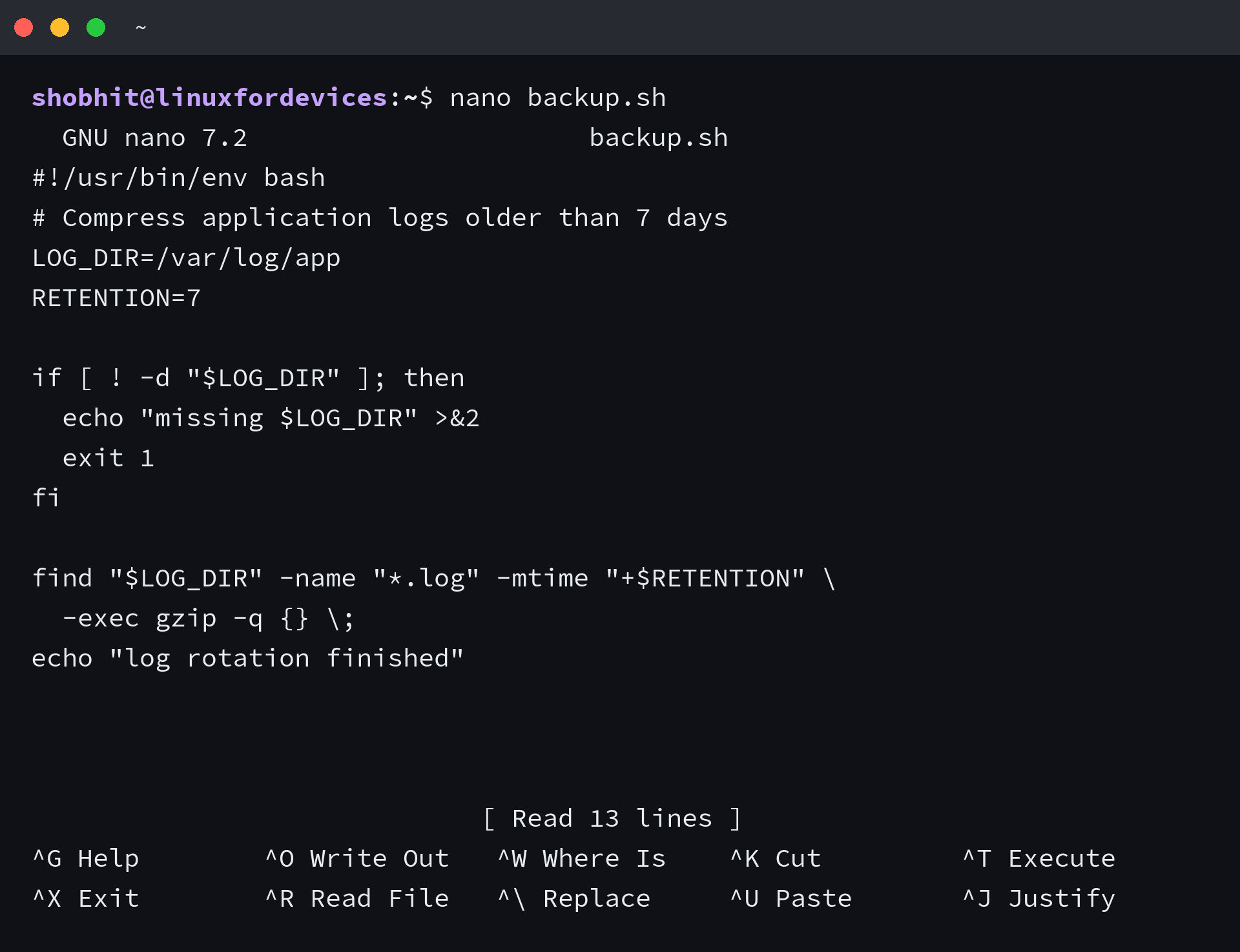
Syntax highlighting arrives from the 44 definitions in /usr/share/nano, which Debian and Ubuntu enable through the include line in /etc/nanorc. Options go in ~/.nanorc, and the nano editor guide walks through opening, editing and saving.
When you outgrow a visible key legend, the comparison of nano and Vim sets the two command models side by side.
4. ne
ne keeps the modeless key model and adds a menu bar that opens with F9, which is how it exposes file operations without a command language. I checked that menu in a live session, and it lists Open, Save and Save As, with File, Documents, Edit, Search, Macros and Navigation as the menu groups.
Ctrl+S saves, Ctrl+O opens, and the status line reports the cursor position and the percentage through the file instead of listing keys.
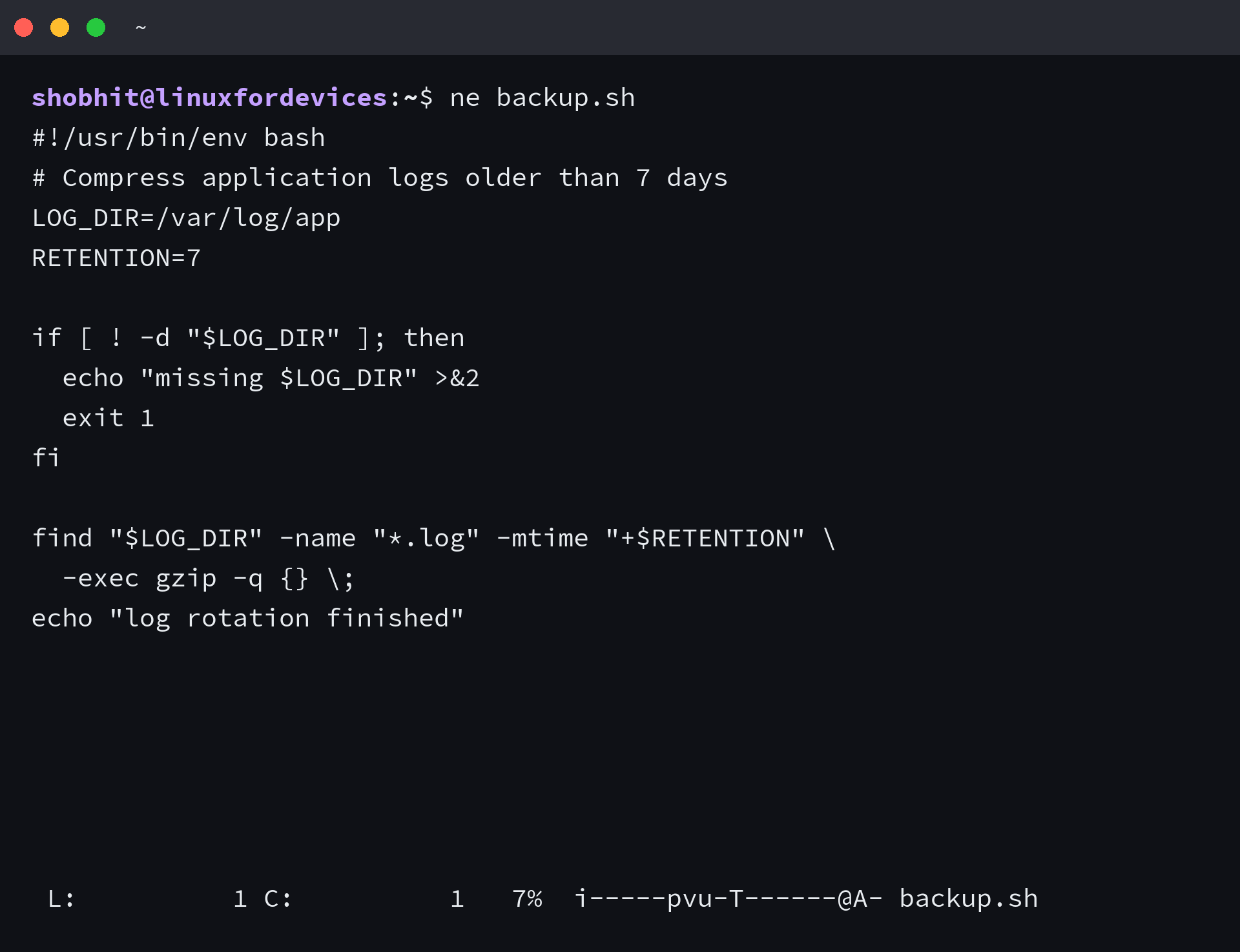
A packaging detail I found while checking versions: on the Ubuntu build of ne 3.3.2, running ne –version exits on a segmentation fault and prints nothing, while ne –help prints the version line. Upstream is 3.3.4.
The smaller community around it shows in the plugin options, because there are close to none.
Where the choice breaks
Each of the four stops being the right tool under conditions you can recognise before you open the file.
| Situation | What to reach for |
|---|---|
| A one-line change in a config file | nano, or vi when nano is missing |
| Several related edits with repeated transformations | Vim, with macros and search and replace |
| Reading a large log with no edits | less, which reads on demand instead of holding the file in a buffer |
| Editing over a slow connection | Edit locally and copy the file, or mount the remote tree with sshfs |
| A server with no package manager | vi, and the POSIX editor skills you already have |
| Plugins, Git and language servers inside the editor | Vim with a plugin manager, Emacs packages, or Neovim |
All four hold the file in memory, so a multi-gigabyte log you only need to read belongs in less, which is what I reach for when a log is only being read. A link slow enough to redraw the screen on every keystroke belongs in a local editor with the file copied over.
Keeping two installed is a normal arrangement rather than a compromise, because the choice is often made by the machine. On a host you do not administer, the package list is not yours to change, and the editor already installed is the one worth learning.
The pair I would put on a new server is nano and Vim, because they cover both sizes of edit for about 5 MB installed.
The guide to editing config files and the bash profile and bashrc walkthrough cover the files these editors open.
Open the file with the editor you can leave
The editor that keeps working for you is the one whose exit you remember when the terminal freezes you out, and that is a habit rather than a preference.
If you are deciding today, install the pair that covers both sizes of job. Then spend half an hour in the tutor so the modal grammar stops costing you keystrokes.
sudo apt install vim nano
vimtutor
Change the package manager for your distribution and the rest holds. nano covers the edit you will forget in an hour, and Vim covers the session that runs all afternoon.
Frequently asked questions
The questions below are the ones this decision raises after the install, answered for the terminal rather than for a desktop.
Which terminal text editor should a beginner start with?
Start with nano, because its commands stay on screen while you type. Move to Vim once you want motions, operators and macros, and use vimtutor as the on-ramp.
Is Vim or nano better for editing config files?
nano is the shorter path for a one-line change. Vim is better once the same edit repeats across a file, or when you need search and replace with regular expressions.
Can Emacs run inside a terminal with no graphical display?
Yes. The -nw flag keeps Emacs in the terminal, and the package named emacs-nox installs the build without the graphical stack that a server does not need.
What can I use when the server has no package manager?
vi. POSIX specifies it as the standard screen editor, so a stripped server still provides an editor under that name, and the keys carry across distributions.
Do I need Neovim if I am learning Vim?
No. Vim covers the editing model on its own. Neovim becomes worth the switch when you want Lua configuration and a modern plugin API, which the Neovim installation guide covers.