
Konsole’s split view puts two sessions side by side, making built-in panes the deciding point against GNOME Console. I’m glad this comparison treats a plain prompt and a split workspace as different needs.
Let the split-view question lead into the broader choice of what you expect from a terminal app. As you compare them, separate window controls from the commands you plan to run.
What a terminal emulator changes
A terminal emulator is the graphical application that displays a shell session and passes your keyboard input to it.
The emulator decides how you arrange sessions and how text appears, while the shell decides which commands and scripting features work. Changing the emulator does not change Bash into another shell.
| What you want to change | Look at | What stays separate |
|---|---|---|
| Tabs or split panes | Built-in window management | Shell syntax |
| GNOME or KDE integration | Desktop fit | Command behavior |
| Remote sessions | Secure Shell (SSH) and multiplexer support | Your remote host’s shell |
| Rendering and appearance | Fonts, colors, and graphics processing unit (GPU) support | Measured command speed |
A terminal multiplexer such as tmux is a separate program that can manage panes or persistent sessions inside a terminal. That distinction matters when you want a feature to survive a disconnect instead of merely splitting one desktop window.
Choose by the feature you need
Start with the job you want the emulator to do. I chose these five around workflow differences, not a speed ranking.
I found no shared workload test across these projects, so I compare their documented features instead of claiming one is faster.
- If you want a plain GNOME-integrated terminal, start with Console.
- If you use KDE Plasma and want profiles with tabs or split views, try Konsole.
- If you prefer keyboard control and configurable layouts, compare Kitty with WezTerm.
- If you want the emulator to stay focused and let another tool handle panes, consider Alacritty.
Your desktop points to the integration that may suit you, but it does not limit which shell commands you can run. If you are still choosing an environment, our KDE and Xfce comparison covers that separate decision.
GNOME Console fits a simple GNOME setup
Choose GNOME Console when you want a straightforward terminal for a GNOME desktop and do not need advanced session management. GNOME describes Console as a user-friendly terminal, and its project README positions GNOME Terminal and Tilix for more advanced command-line work.
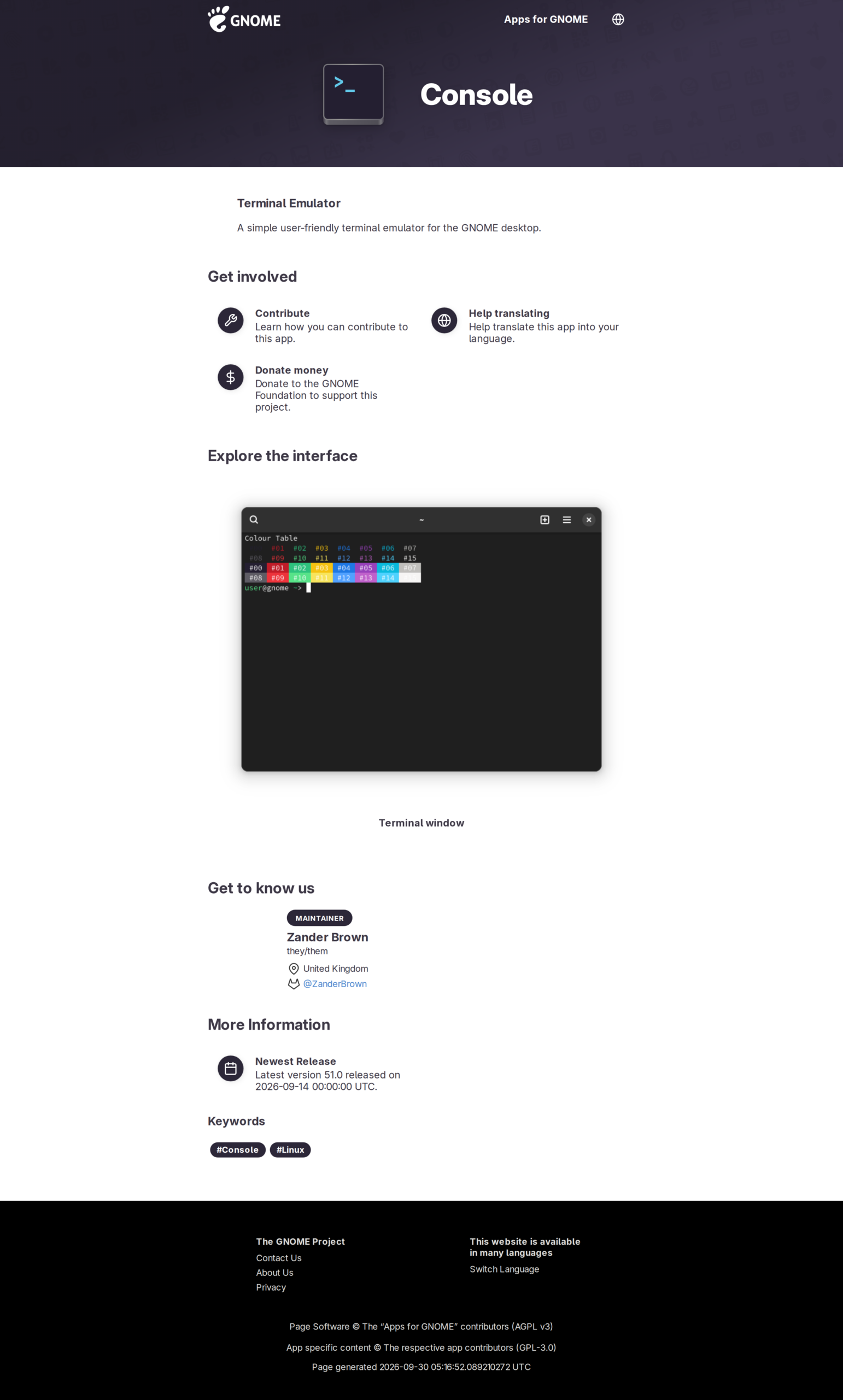
The page’s terminal screenshot shows a prompt and colored output, with search and new-tab controls in the header. The capture documents Console’s interface, while split layouts and persistent sessions need separate feature evidence.
Console is a good fit when the GNOME desktop already supplies the integration you want. If your terminal work centers on editing text, choose an editor separately from the emulator, as in our guide to terminal-based text editors for Linux.
Konsole adds profiles and split views
Konsole is a strong fit when you use KDE Plasma and want session controls in the terminal window. KDE lists tabs and multiple profiles. The same page documents search and saving output.
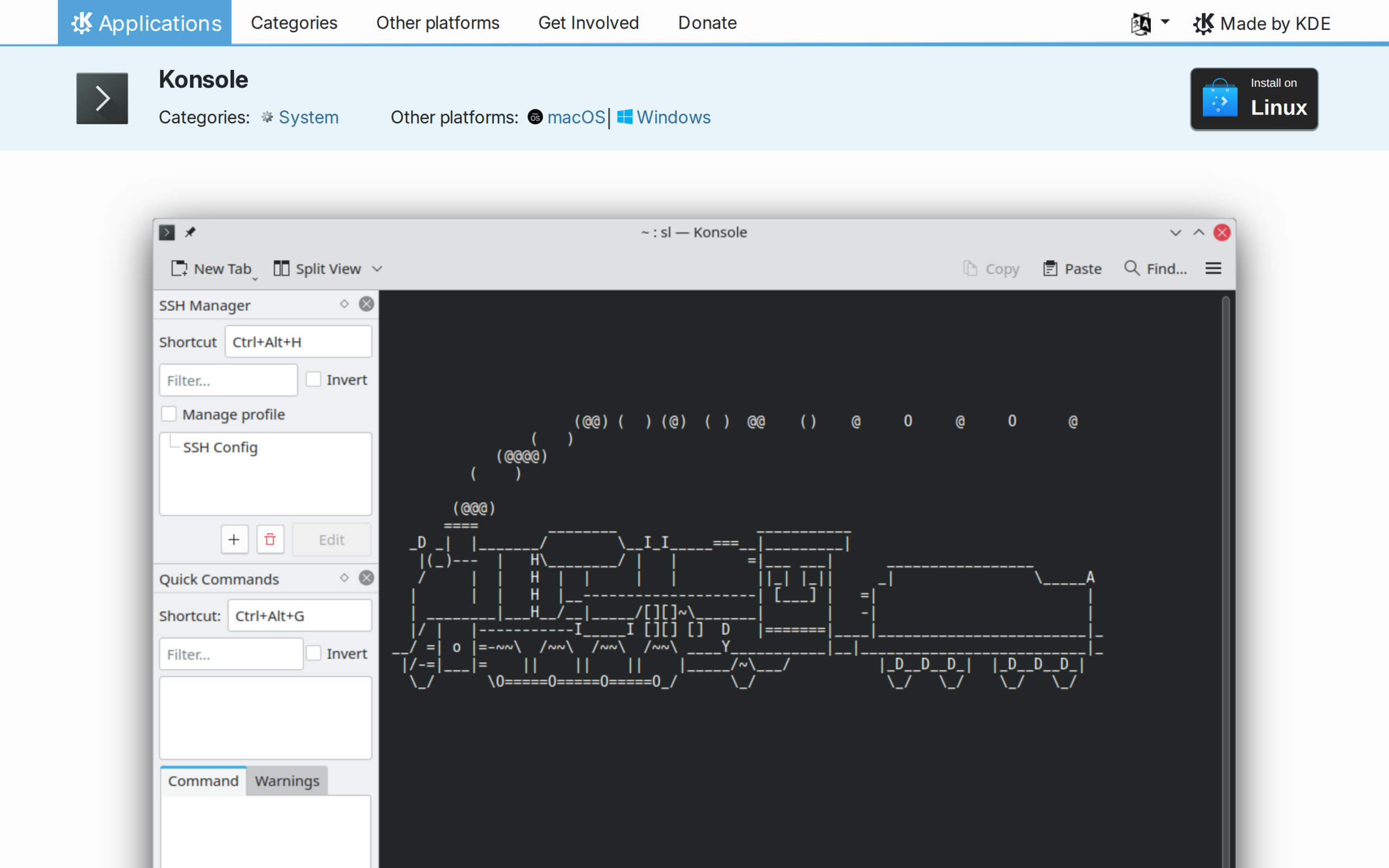
KDE’s command reference describes split view, and the page screenshot shows its toolbar control. The split places sessions side by side.
| Konsole control | Use it for |
|---|---|
| Profiles | Separate terminal preferences |
| Tabs | Keep another shell session in the same window |
| Split view | Watch one session while entering commands in another |
| Search | Find text in terminal output |
| Save output | Keep a copy of terminal output |
Konsole adds an interface for profiles and session layout. Choose it for KDE integration and built-in split views, rather than for a command-speed claim.
Kitty suits keyboard-led layouts
Kitty suits your workflow when you want keyboard-driven windows and configurable layouts inside the emulator, without reaching for the mouse. Its kittens add focused tasks such as image display or Unicode input.
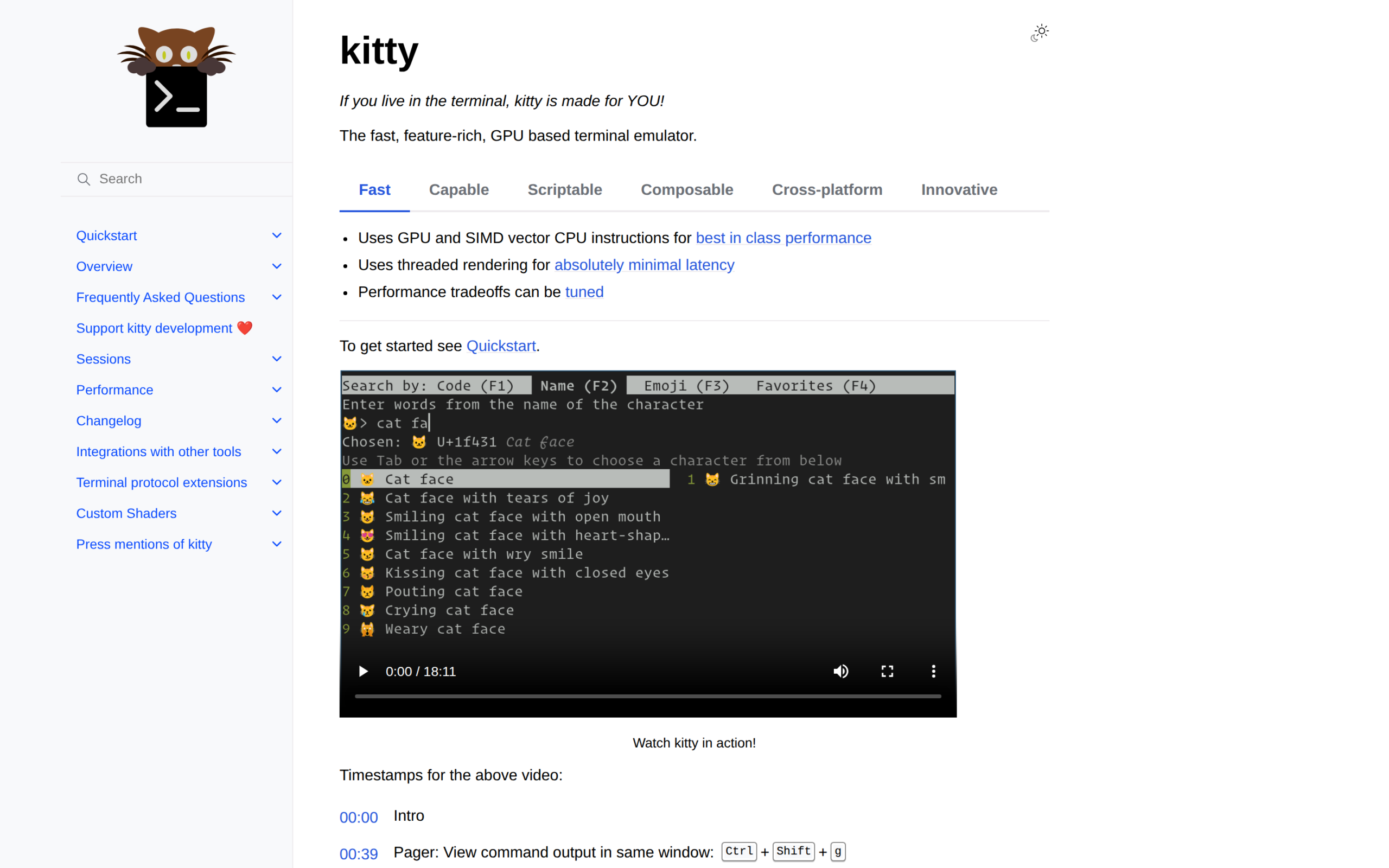
Kitty’s docs show Unicode search in the embedded demo. The manual also documents configurable layouts and the kitten framework, so the screenshot captures one example of Kitty’s extension model.
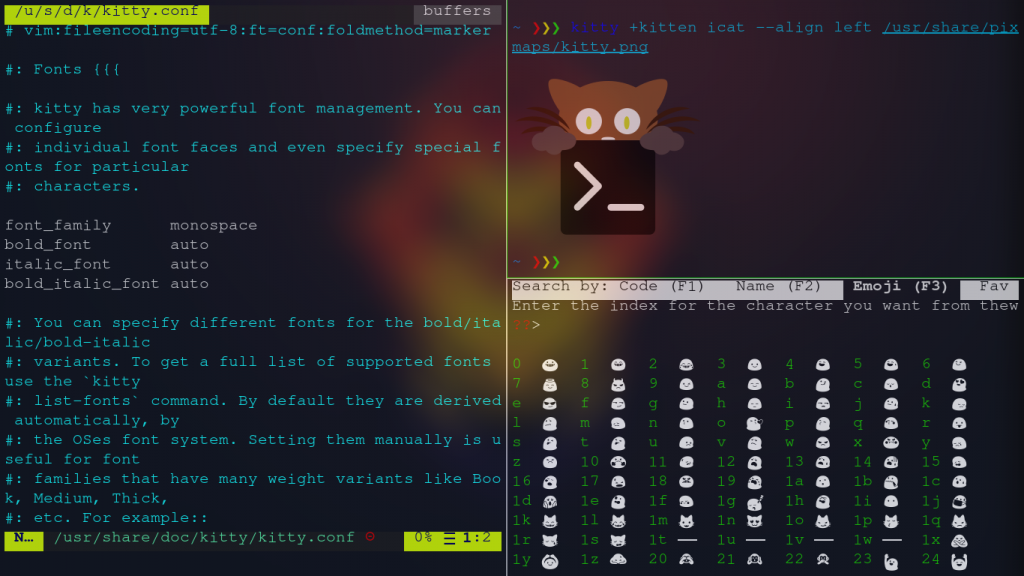
The split view puts a configuration editor beside Kitty’s image viewer and Unicode picker. It shows the range of tasks Kitty’s layouts can hold at once.
A kitten is a Kitty-specific program that extends the emulator with a focused task. A command that invokes one depends on Kitty and may behave differently in another terminal.
To change Kitty’s configuration, edit the file with your preferred editor. Our guide to editing files in Linux covers that step.
WezTerm joins local and remote panes
Choose WezTerm for local and remote layouts. Its feature documentation lists tabs and panes alongside SSH connections and remote multiplexing.
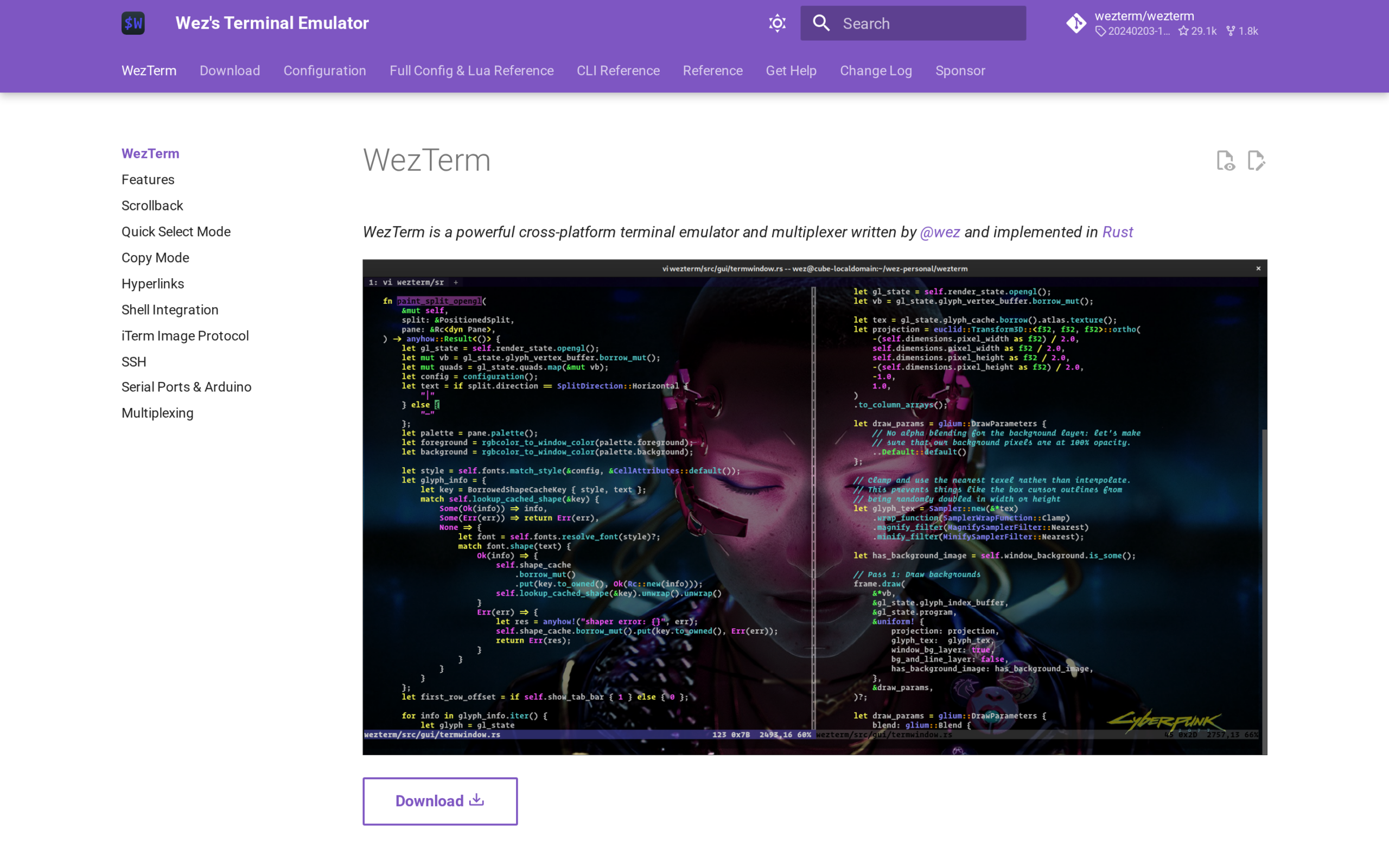
The home-page screenshot shows two panes with source code. It is an illustrative configuration.
The remote multiplexer support matters when your terminal window is also the place you manage sessions on another host. If you only need local tabs, the same remote controls add setup you may not use.
- Use local tabs and panes when you want several tasks grouped in one window.
- Use its remote multiplexer support when remote sessions belong in the same terminal workflow.
- Check the installation route before adopting the Flatpak, because its sandbox can limit some power-user functions.
WezTerm earns the extra setup when local and remote layouts are part of the same job. If you only need a local prompt, the remote controls may be more configuration than you need.
The Linux documentation lists an AppImage and distro-package install routes. Our guide to installing AppImages on Linux explains how to add an AppImage to your menu.
WezTerm’s Linux documentation warns that Flatpak sandboxing can limit some integrations, including process inspection for a pane. Use a native package when those host-level details matter to your workflow.
Alacritty keeps tabs and splits outside
Alacritty fits when you want a focused terminal and are comfortable letting another program manage tabs or panes. The project FAQ says those features belong to a window manager or terminal multiplexer rather than Alacritty itself.
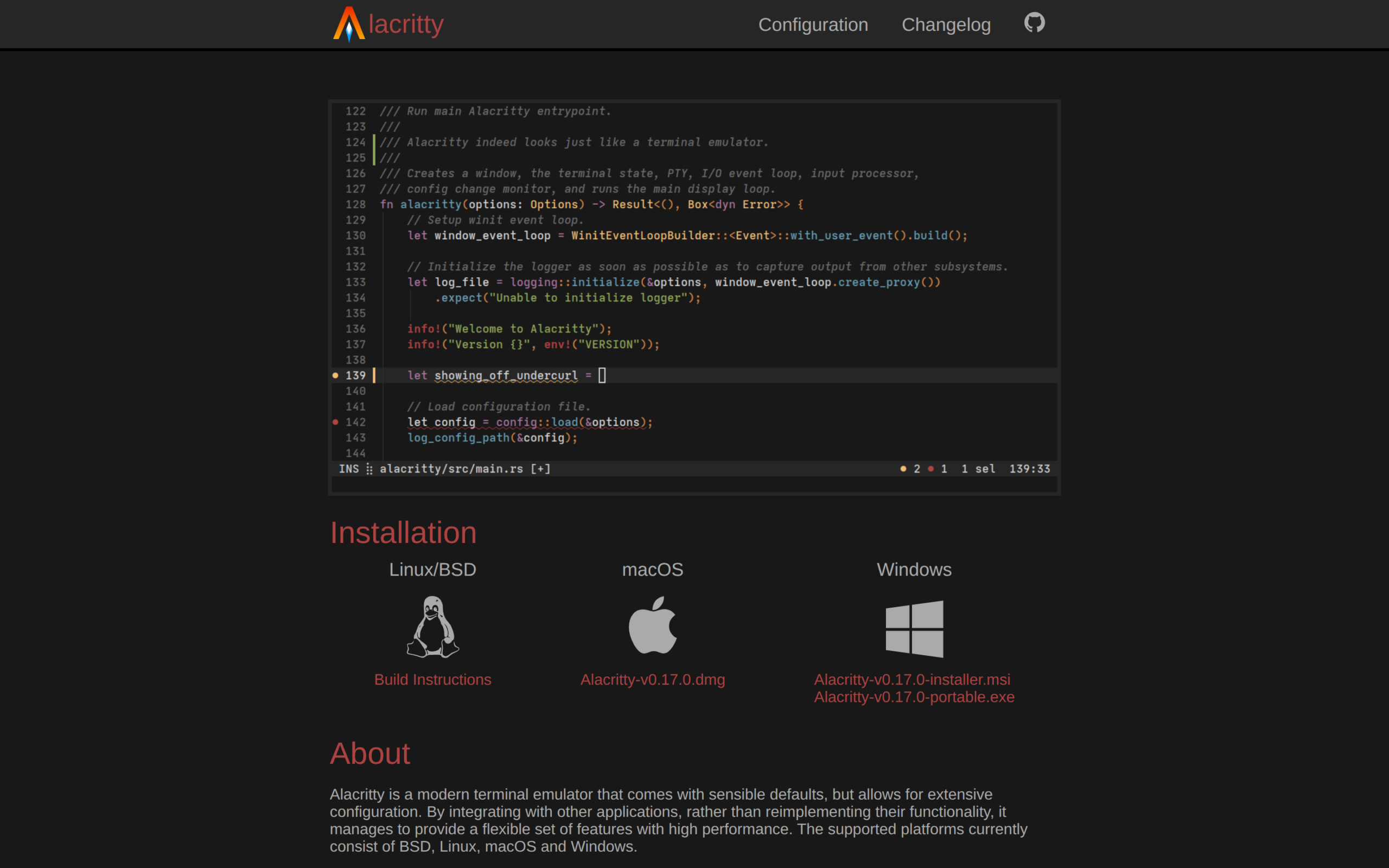
The official image shows Alacritty hosting a code editor, but it gives no throughput data. Alacritty’s project says benchmark results depend on workload, so treat GPU rendering as an implementation choice until you test your commands.
Alacritty’s configuration documentation lists supported file paths. Create the file there before customizing the terminal, and keep its settings separate from your shell configuration.
If your distribution offers a Debian package (DEB), our guide to installing DEB files on Ubuntu covers that package format.
A window manager arranges Alacritty alongside other applications, while a terminal multiplexer manages panes inside a terminal session. If neither is part of your setup, choose an emulator with built-in panes such as Kitty, Konsole or WezTerm.
Choose the feature you will use each day
If desktop integration will decide the choice, inspect the session variables your shell inherited. An unknown value means the shell did not receive that variable, so choose manually from your desktop’s settings.
printf 'Desktop: %s\nSession: %s\n' "${XDG_CURRENT_DESKTOP:-unknown}" "${XDG_SESSION_TYPE:-unknown}"
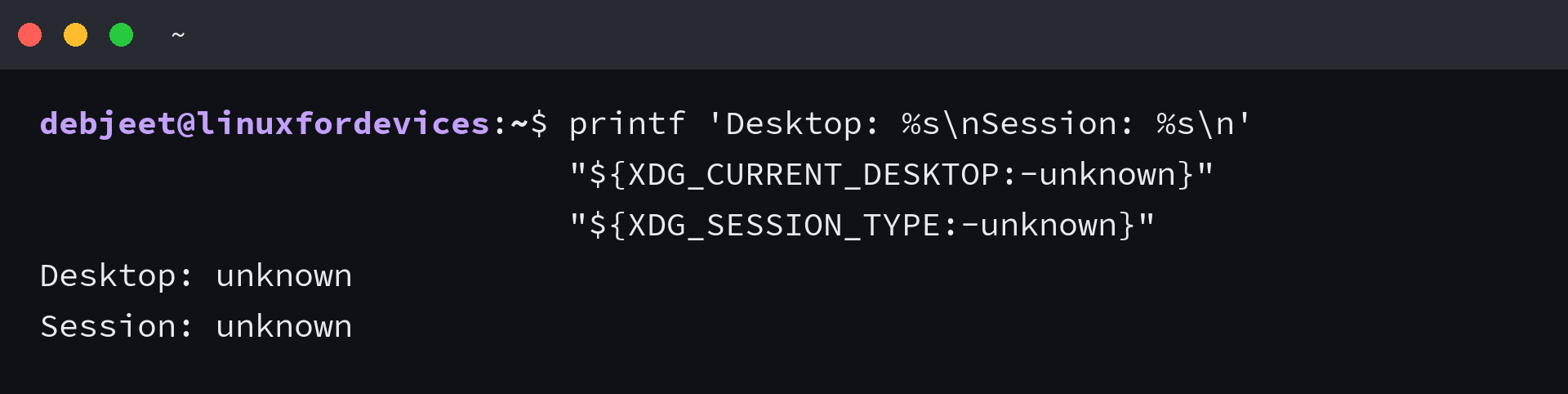
A terminal with fewer built-in controls can still fit when another tool already manages your sessions. Choose the feature that changes the next step in your daily workflow.
Linux terminal emulator questions
Can I use tmux with Alacritty?
Yes. Alacritty’s project explicitly leaves tabs and splits to a window manager or terminal multiplexer, and tmux can provide that separate session layer.
Does GPU rendering guarantee a faster terminal?
No. GPU rendering describes how the terminal draws output, not how it performs on every workload. Alacritty’s project says benchmarking depends on the workload, so test the commands you run rather than infer speed from a feature label.
Do terminal tabs keep a process running after disconnect?
Not by themselves in every terminal. If a process must survive a dropped connection, use a multiplexer designed for persistent sessions or verify the terminal’s remote-session behavior in its current documentation.