
A trailing `.` in `scp user@server:~/report.txt .` puts the download in your current directory. I was surprised how much meaning that small destination carries.
The command pairs a source with a destination, so reading those two operands tells you what gets copied. The host and colon in a remote path show how `scp` distinguishes it from a local one.
What scp does and what the colon means
scp copies files between local and remote computers through an SSH connection. In current OpenSSH, file data normally travels over SFTP through that connection, while the familiar command keeps the short source target form.
A remote path has a host before the colon, as in user@server:/path/to/file. A path without that host prefix belongs to the computer where you run the command, so the colon tells scp which operand is remote.
| Source | Destination | Direction |
|---|---|---|
| local path | user@server:/remote/path | upload to the server |
| user@server:/remote/path | local path | download from the server |
| user@server:/remote/path | otheruser@server2:/other/path | copy between two remote hosts |
What you need before copying
Install the OpenSSH client on the computer that runs scp and make sure the remote host accepts SSH connections. Ubuntu and Debian name this client package openssh-client, while other distributions use different package names.
- The remote host name or IP address and the SSH account name.
- Permission to read the source and write to the destination.
- A working SSH authentication method, such as an authorized key or an account password.
The remote computer does not normally need a separate scp command installed. Current OpenSSH scp uses the server’s SFTP subsystem through SSH, which is why an unavailable SFTP subsystem can block a transfer even when login works.
To install the client on Ubuntu or Debian, run:
sudo apt install openssh-client
Find the remote machine’s address with these Linux IP-address commands. Use the static IP setup guide when the host needs a stable LAN address.
Copy files in either direction
Run both directions from the computer that has the scp client, replacing the example account, host, and paths with values that exist on your machines.
Step 1: Upload a local file
Put the local file first and the remote destination second. This uploads the report into the remote account’s home directory.
scp ~/report.txt [email protected]:~/report.txt

A tilde after the colon refers to the remote account’s home directory rather than your local home directory.
Step 2: Download a remote file
Reverse the operands to bring a remote file to your current local directory, where the trailing dot means “here” and the remote account must be able to read the source file.
scp [email protected]:~/report.txt .
I ran scp with two local paths to confirm that this client handles a local-to-local copy, not to test SSH authentication or a remote server. Keep the host prefix and colon on the remote operand for an actual transfer.

Copy directories and choose SSH options
Use lowercase -r to copy a directory recursively because scp otherwise treats the directory as a file operand.
scp -r ~/scripts [email protected]:~/
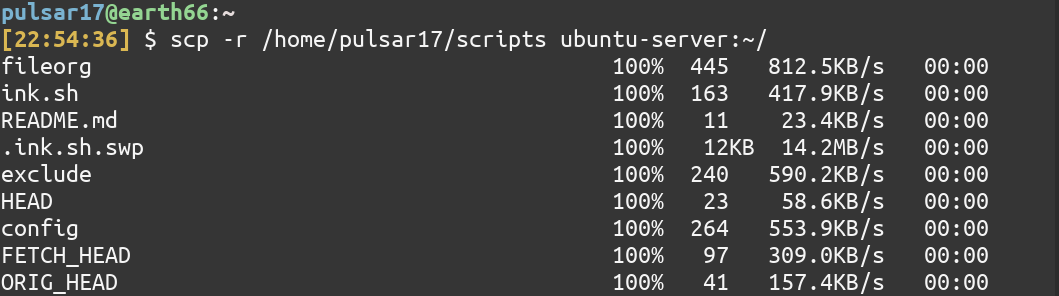
I kept this separate because the recursive flag changes what the source operand can represent. Leave -r out for a single file.
| Option | Effect | Example use |
|---|---|---|
| -P 2222 | Connect to SSH port 2222. The port flag is uppercase. | scp -P 2222 file.txt [email protected]:~/ |
| -i ~/.ssh/id_ed25519 | Select a private identity file. | Use when the server accepts that key. |
| -p | Preserve source modification and access times, plus file mode bits. | Use when destination metadata should match. |
| -C | Request compression during transfer. | Useful when data compresses and the link is constrained. |
Uppercase -P selects the SSH port while lowercase -p preserves file attributes. See the tar command examples to prepare a group of files as one archive before copying.
A host alias in ~/.ssh/config can hold the account and port, so scp can use that short name instead of repeating the address.
Host workbox
    HostName server.example.com
    User sam
    Port 2222

scp ~/report.txt workbox:~/report.txt

Use the nano editor walkthrough to edit a host entry. The retained quiet-mode image shows suppressed progress, so leave -q off while troubleshooting to keep SSH diagnostics visible.
Fix common scp failures
Start with the exact error and the operand that produced it. A colon in the wrong place can change a local-looking path into a remote specification.
| Symptom | Likely cause | What to try |
|---|---|---|
| Could not resolve hostname | Host name is misspelled or DNS cannot resolve it. | Check the host part before the colon, then test SSH with the same account and port. |
| Permission denied | SSH authentication failed, or the account cannot read or write the selected path. | Run SSH directly, then check the account and directory permissions separately. |
| No such file or directory | The source path does not exist, or a remote path was interpreted under another account. | Check the path on the side where it is located. Use an absolute path if tilde expansion is unclear. |
| Not a directory | A trailing colon or slash made the destination resolve differently than intended. | Write the remote form as user@host:/absolute/path and quote local paths containing spaces. |
| Connection timeout or refusal | The host is unreachable, SSH is stopped, or the port is filtered. | Confirm the address and SSH port with the server administrator. |
Do not put a login password in the command line. Use SSH’s interactive authentication or a configured key, and keep verbose output enabled while diagnosing. Quiet mode hides useful progress and messages.
When the destination directory belongs to another account, copying as your login user will not grant write permission there. Check the target path owner and permissions with the Linux chown command guide, then choose a destination that the SSH account can write to.
Keep the remote path unambiguous
When a transfer fails, first split the command at the colon and decide which machine owns each path. That small distinction narrows the next check to the host, account, source file, or destination permissions.
ssh -p 2222 [email protected]
Test the SSH connection with the same account and port before repeating a failed copy. Once login works, add the source and destination back to the scp command.
Frequently asked questions
These answers cover the two details that change how a copy behaves: which side is remote and which protocol the client uses.
What does scp do in Linux?
scp copies files between local and remote computers over an SSH connection. Current OpenSSH scp uses SFTP over SSH by default.
How do I copy a directory with scp?
Add the lowercase -r option before the source path, for example scp -r ~/scripts [email protected]:~/.
How do I specify a different SSH port?
Use uppercase -P followed by the port number, such as scp -P 2222 file.txt [email protected]:~/.
Can scp copy files between two remote hosts?
Yes. Use a remote host:path for both operands. OpenSSH can route the transfer through the local host with -3, which is the default behavior in current releases.