
Moving files between directories or machines calls for a way to copy them while keeping their directory structure. rsync is a file-copying utility that works locally or across a network and can synchronize a destination with a source.
In this piece, I’ll walk through copying a directory locally or over SSH and previewing the planned file list before transferring it.
TL;DR: Use rsync to Copy and Sync Files
Use rsync with a source and destination, then add archive mode for directory trees. Preview unfamiliar or destructive transfers before applying them.
- Local copy: rsync -av source/ destination/
- Remote copy over SSH: rsync -av source/ user@host:/path/
- Review the planned file list before applying the transfer.
- Read the source and destination paths in the command.
- Record the intended destination before reusing a command in a script.
- Keep an independent backup when recovery matters.
- Make repeat transfers safe before following the guide to automate recurring tasks with cron.
- Use the Linux SSH command guide for remote access details.
- Check free space with the Linux df command guide.
- Compare changed files with the site’s diff command tutorial.
What Is the rsync Command in Linux?
rsync is a file-copying utility that synchronizes files between locations on one machine or across a network. It compares source and destination data and can transfer only the changed portions of a file, which makes repeated transfers useful for backups and working copies.
The basic form is rsync followed by options, a source path and a destination path. The first path supplies files, and the second receives them.
Rsync does not combine edits made independently at both ends. Plan a separate workflow when files may change on both machines.
| Option | Effect |
|---|---|
| -a | Archive mode. Recurses into directories and preserves common attributes, including timestamps, permissions and symbolic links. |
| -v | Prints file names and transfer details. |
| Preview | Shows intended changes without copying or deleting files. |
| -P | Combines progress display with keeping partially transferred files. |
| Exclude | Skips paths matching the supplied rule. |
| Delete | Removes destination entries that are absent from the source. |
Itemized output marks which fields change, making it more detailed than a file list. A bandwidth cap limits throughput on a constrained connection, while the progress option shows current transfer activity. Keeping a partial file after interruption can help a retry, but verify the destination when the later run completes.
Archive mode recurses and preserves common permissions and timestamps. Add separate options for ACLs and extended attributes when needed. Check receiver privileges before relying on owner or group preservation.
A source symbolic link carries a target reference into the destination tree. Check that the referenced path resolves from the receiving tree.
I ran this preview against a small source and destination directory. The receipt records the complete output below, including the dry-run marker and successful exit status.
rsync -av --dry-run demo-source/ demo-dest/
sending incremental file list
notes.txt

sent 88 bytes  received 19 bytes  214.00 bytes/sec
total size is 11  speedup is 0.10 (DRY RUN)
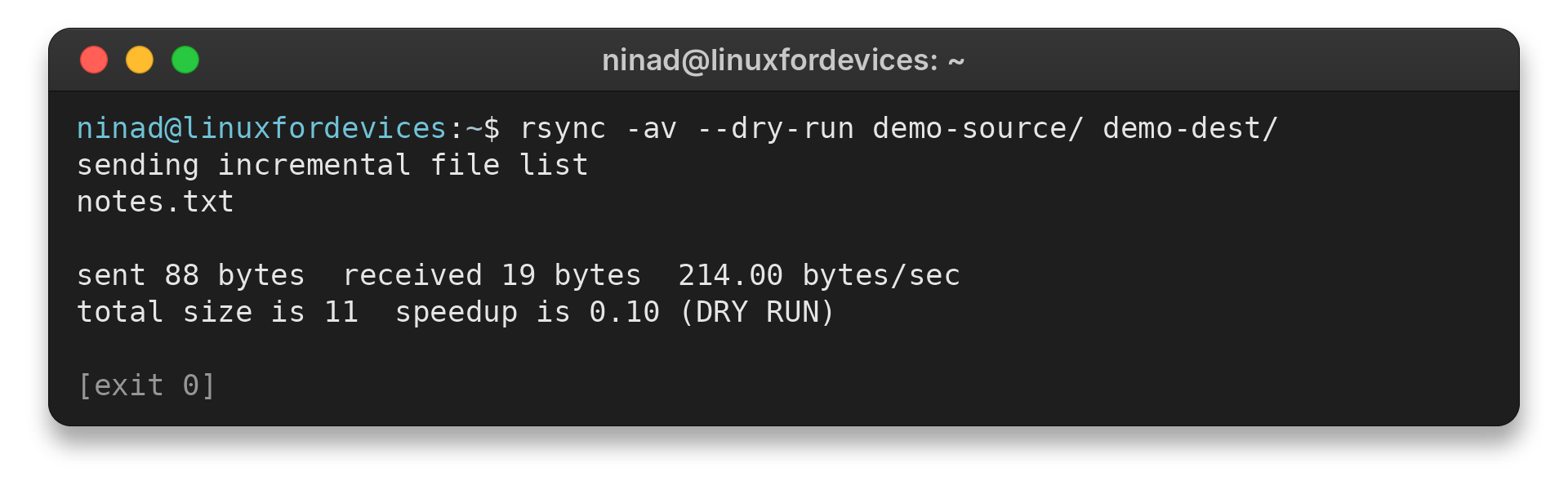
The output lists notes.txt and ends with a DRY RUN marker, while sent and received totals describe protocol traffic. Total size counts candidate file data, and speedup compares that size with exchanged bytes. This one-file test demonstrates the preview output.
How to Use rsync to Copy Files Step by Step
The examples cover a local directory, a remote host, exclusions and post-transfer checks. Replace placeholders with paths and account names for the machines in your environment.
Step 1: Check that rsync is available
Check whether your shell can find rsync before building a longer command. This read-only lookup does not install software or change files.
command -v rsync
A printed path identifies the executable available to that shell. When no path appears, install the rsync package through your distribution’s package manager and repeat the lookup. The Linux package-management guide explains package-tool differences and points to the distribution documentation for the current install command.
Step 2: Copy a local directory
Use archive mode to copy a directory tree while retaining common file attributes. Create or choose a destination you control.
rsync -av --dry-run /path/to/source/ /path/to/destination/
Quote paths containing spaces so the shell passes each as one argument. Unquoted whitespace splits a source or destination into separate arguments before rsync receives it. In a script, use absolute paths when the working directory may vary.
When the listed changes are right, repeat the command without preview mode to perform the copy. The trailing slash on source/ selects the directory’s contents. Without it, rsync selects the directory itself, which can add a directory level at the destination.
Check that the destination filesystem has room for the transferred data before a large copy. A full target can stop the transfer partway through. If partial files are retained, allow space for the unfinished file and verify it after the transfer completes.
Relative local paths start from the shell’s current working directory, not from the directory containing the source. If a script runs elsewhere, use an absolute path or set its working directory explicitly. That keeps the same command from selecting different files depending on how it was launched.
For a single file, an existing destination directory keeps the source filename under that directory. A file-to-file path can assign a different name. When a wildcard may match one file, ensure the intended directory exists or ends in a slash, or rsync can interpret that path as the destination filename.
Step 3: Transfer a directory over SSH
Both hosts need rsync, and the remote process uses the SSH account’s permissions. Relative remote paths start in that account’s home directory, so use an absolute path when the destination must be unambiguous. Check the remote version before relying on a newer option.
rsync -av --dry-run /path/to/source/ user@host:/path/to/destination/
To pull files instead, place the remote source before a local destination. A single-colon host path uses the remote-shell transport.
Rsync connects one local host to a remote host in each transfer. It cannot copy directly between two remote hosts. Run the command from one endpoint or stage the files locally first.
If SSH uses a different port, pass it through the remote-shell option, for example -e ‘ssh -p 2222’, and keep the SSH command in quotes so rsync passes it as one setting. Confirm the host and port before transferring. I keep the transport setting separate from the paths so the transfer direction stays clear.
Daemon transfers need a configured module and server settings. Use that mode only when the destination administrator has set up a module for the transfer.
Step 4: Exclude files you do not want to copy
Use the exclude option followed by a rule to omit matching paths from the transfer. A rule such as *.tmp skips temporary files with that suffix. Quote it so the shell passes the rule to rsync instead of expanding it against the current directory.
rsync -av --dry-run --exclude='*.tmp' /path/to/source/ /path/to/destination/
Check the file list for wanted items and excluded paths. Rules match relative paths, with a leading slash anchoring at the root and a trailing slash selecting directories. Keep repeated rules in a filter file with a short reason for each, and recheck included files after editing it.
Filter rules are evaluated in order. Put a narrow include before a broad exclude when selected paths must remain, then check the resulting list to confirm the rule applies as intended.
A filter file makes rules visible when a backup script changes hands. Store it beside the script so later runs use the same inclusion policy.
Step 5: Verify the completed copy
By default, rsync uses size and modification time to decide which files need an update. A content change that keeps both values may be skipped, while checksum mode compares both files’ contents before transfer. Use it when metadata is insufficient, then inspect the destination and test a restore from a separate backup.
rsync -av --dry-run /path/to/source/ /path/to/destination/
The protocol checksum helps detect corruption during a transfer, but it does not retain a previous version. Keep versioned backups when you need to recover older file contents.
The summary’s bytes-sent and bytes-received values describe protocol traffic, while total size is the file data considered for transfer. A successful exit means rsync did not report an error. In a script, check the status and retain error output, since a nonzero result can indicate a missing path or partial transfer.
What Should You Check Before Syncing?
Check source and destination paths, permissions and exclusions before adding an option. Each choice can change what reaches the destination.
| Situation | What to check | Safer next action |
|---|---|---|
| Destination has files not in source | The delete option removes destination-only entries. | Preview first. Keep deletion out when destination files must remain. |
| Source path ends in slash | Contents are selected rather than the directory container. | Check the resulting directory tree in the destination. |
| Remote host cannot connect | Account, host, SSH availability and port. | Test SSH access separately and verify the remote path. |
| Some files should be skipped | Whether exclude rules match the intended relative paths. | Run a dry run and review the included file list. |
| Permissions or ownership matter | Archive mode preserves common metadata, but owner/group changes may require privileges and metadata flags. | Check the destination account and required metadata before copying. |
Test with a sample tree first. Check permissions and ownership after copying. Files can match in content yet differ in metadata when the destination cannot preserve it.
A retry can compare a partial destination file and continue with remaining data. Omit partial-file handling when you prefer a later run to transfer the file again.
Progress output describes activity, while verbose output names files. Use progress for an interactive transfer and verbose output when you need a record of selected paths.
Rsync does not merge versions edited independently at both ends. A one-way run can replace a destination copy based on its comparison rules, so decide which location is authoritative before synchronizing shared documents. A tool designed for concurrent editing is a better fit when both copies can change.
Archive mode requests preservation of common permissions and timestamps, but destination permissions still matter. A non-owning account may copy file contents without setting the original owner or group. Test the account and filesystem against a sample tree when those attributes are part of the backup’s recovery requirements.
ACLs and extended attributes may need explicit preservation options. Their support depends on both filesystems and the privileges of the receiving process, so consult the manual and test restoring representative files. A backup intended for recovery must preserve the attributes that applications rely on, not only file bytes.
Preview output reflects the directory state when rsync reads it. Files changed after the preview can lead to a different result, so schedule active data copies during a quiet interval or use an application-consistent snapshot.
Exclusions affect backup coverage. A broad rule can omit a wanted subdirectory, and revising a filter later may leave older destination files that are no longer selected. Inspect both the command’s include list and the destination when you change filter rules.
A plain synchronization does not create dated versions of replaced files. Use a versioned backup method when recovery from an earlier edit or deletion matters. Retain a separate copy on a different storage location when the source and destination share the same device or failure risk.
A daemon connection uses a different path form from SSH. A double colon or an rsync URL addresses a daemon module, while a single colon with a host commonly uses a remote shell. For an ordinary account-to-account transfer, SSH avoids the need to configure a separate daemon module.
| Transfer need | Choice | Reason |
|---|---|---|
| Long interactive transfer | Show progress | Track activity while waiting. |
| Keep a partial file after interruption | Enable partial handling | Allow a retry to compare the unfinished destination file. |
| Concurrent edits on both machines | Use a synchronization tool designed to merge or coordinate edits | A one-way copy can replace the destination version. |
| Preserve ACLs or extended attributes | Check manual options and test a restore | Support depends on filesystem and receiver privileges. |
| Need earlier versions | Use versioned backups | Ordinary synchronization does not retain replaced file versions. |
The remove-source-files option deletes synchronized non-directory source files after transfer. Source directories remain, so this is not a direct substitute for moving an entire tree. Use it only for a deliberate file move and check that the destination is complete first.
Compression can reduce bytes sent for compressible data across a slow link, at the cost of CPU work. It adds little for already-compressed files or a fast local connection. Progress options help during long transfers without changing the selected source and destination.
Avoid adding elevated privileges automatically. Running rsync as another account changes which source files it can read and which ownerships it can preserve, so use only the permissions the transfer needs.
Conclusion: Preview Changes Before Syncing
Use rsync for local copies or SSH transfers. Keep the source and destination paths explicit, then verify important files from the receiving side.
The upstream rsync manual documents the full option set and remote connection forms.
FAQ
These answers cover common questions about rsync’s purpose and safe use.
What does the rsync command do in Linux?
It copies files locally or across a network and can synchronize a destination with a source, transferring changed data as needed.
How can I test an rsync command without copying files?
Use preview mode to list planned changes without performing the transfer.
Does rsync delete files from the destination?
Only when deletion is enabled. Review the planned removals and confirm both paths before transferring.