

Rename a file so its name begins with a dot and the default directory listing stops showing it. Nothing else about the file changes.
The dot is a naming convention that listing tools respect rather than a permission the kernel enforces, so one flag brings every hidden entry back into view.
What makes a file hidden in Linux
A hidden file is an ordinary file whose name begins with a dot, and the filesystem stores it the way it stores every other file. The hiding happens in the listing tools rather than in the storage layer.
I checked the attributes on a dot file and on a normal file sitting in the same directory, and the only flag either one carried was the extent flag that a modern filesystem sets on everything. No hidden bit exists for you to clear or set, so the convention travels with the name and a copied dot file keeps behaving the same way on another machine.
lsattr notes.txt .env
--------------e------- notes.txt
--------------e------- .env
Every directory also carries two dot entries of its own, and the manual describes those two as implied entries rather than files you created.
stat -c '%A %h %n' .
drwxrwxr-x 3 .
The number after the mode is the hard link count, and it starts at two because a directory links to itself and to its own parent entry. Each subdirectory adds one more link, and that is why the count above reads three.
The almost-all option exists so you can drop those two implied entries while keeping every dot file in the output.
What you need before the first command
A Linux shell with the GNU coreutils listing tools and findutils covers every command in the terminal sections, and both arrive with any mainstream distribution. The behaviour below is checked against coreutils 9.4 and findutils 4.9.0, the versions shipped in Ubuntu 24.04 and newer Debian releases.
| Tool | Version checked | What it contributes |
|---|---|---|
| ls, GNU coreutils | 9.4 | the -a, -A, -d, and long-format options |
| find, GNU findutils | 4.9.0 | -name and -type for a walk through a tree |
| a file manager | GNOME Files, Dolphin, or Thunar | Ctrl+H and the view menu toggle |
| zip and unzip, Info-ZIP | 3.0 | the encrypted archive used in the last section |
The file manager steps need a desktop session, and everything else runs over SSH on a machine with no graphical session at all.
Show hidden files in the terminal
Plain ls prints the entries whose names start with something other than a dot, which is the view that keeps your configuration files out of the way. The all option stops that filtering and prints every entry in the directory, including the two implied entries from the previous section.
ls
notes.txt

ls -a
.
..
.env
.gitconfig
.ssh
notes.txt

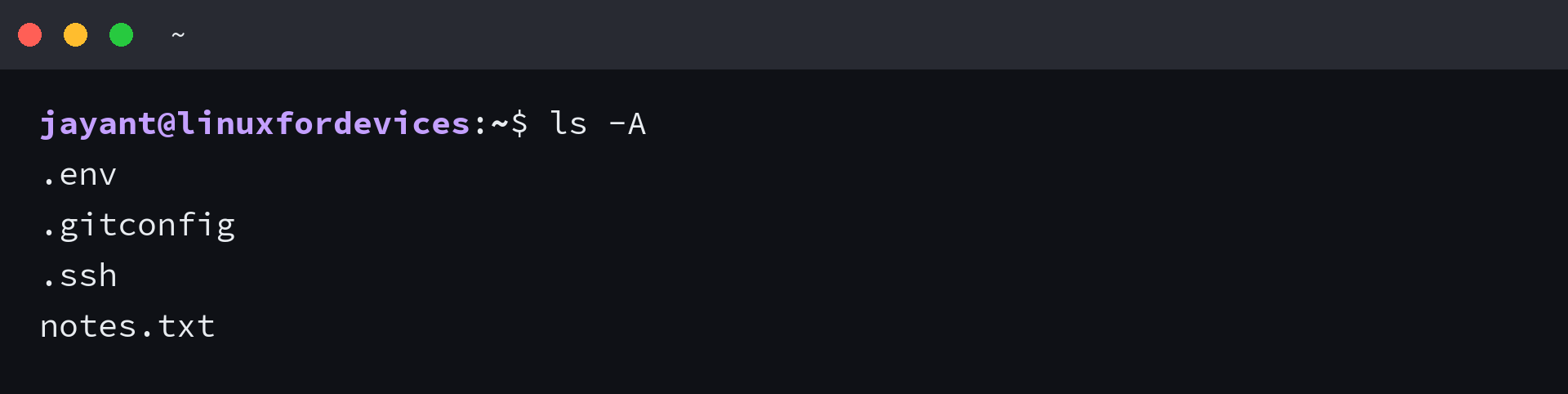
Almost-all gives you the same set without the implied entries, and it is the option I reach for when I want to read a listing instead of inspect the directory itself. Adding the long format puts the permissions, the owner, the size, and the timestamp beside each name.
ls -A
.env
.gitconfig
.ssh
notes.txt
| Command | What it lists | When to reach for it |
|---|---|---|
| ls | names that do not begin with a dot | the default view of a directory |
| ls -a | every entry plus the implied . and .. | inspecting the directory entries themselves |
| ls -A | every entry except . and .. | reading a listing without the two implied entries |
| ls -al | the same entries with permissions, owner, size, and date | checking what a dot file is and who owns it |
| ls -ltr | the long format sorted by modification time, oldest first | finding the dot file a program wrote last |
ls -al
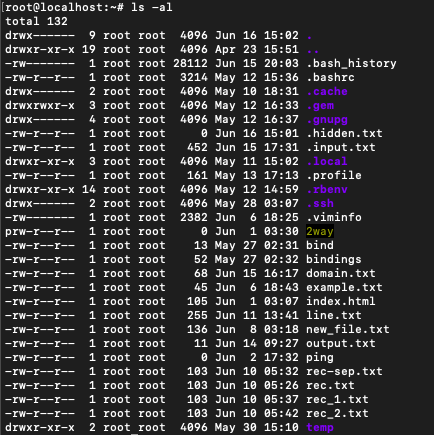
Sorting the same view by modification time is the quickest way to spot the file a program touched on its last run, and the ls sorting options cover the rest.
Only the hidden entries
No single option narrows a listing to dot entries, so the shell does that work by expanding a glob before ls receives the arguments. The almost-all option reads like it should help here, and the manual says the hide filter it accepts is overridden by the all options.
ls -A --hide='.ssh'
.env
.gitconfig
.ssh
notes.txt
I tried that filter on a listing and the entry I asked it to drop stayed in the output. The glob that circulates in forum answers is ls -d .* , and it keeps the two implied entries at the top of the output.
ls -d .*
.
..
.env
.gitconfig
.ssh
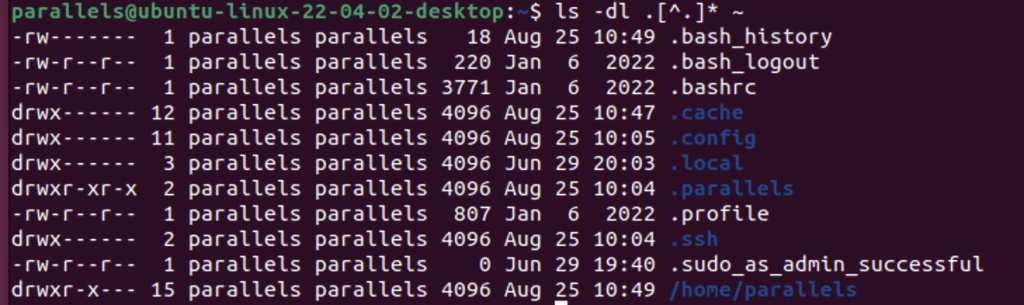
My filter of choice is ls -d .[!.]* . That glob matches a dot followed by a character which is not itself a dot, so the implied entries fall out of the result, and the -d flag keeps ls from listing the contents of every directory the glob happens to match.
ls -d .[!.]*
.env
.gitconfig
.ssh
![ls -d .[!.]* listing only the hidden files and directories](https://www.linuxfordevices.com/wp-content/uploads/2026/09/shot-hidden-only.png)
A widely upvoted variant is ls -ld .?* , and the extra dot in the middle drops the current-directory entry while keeping the parent one. The long format earns its place in that variant, because the first column separates a hidden file from a hidden directory at a glance.
ls -ld .?*
drwxrwxr-x 5 ubuntu ubuntu 4096 Sep 15 20:54 ..
-rw-rw-r-- 1 ubuntu ubuntu    0 Sep 15 20:54 .env
-rw-rw-r-- 1 ubuntu ubuntu    0 Sep 15 20:54 .gitconfig
drwxrwxr-x 2 ubuntu ubuntu 4096 Sep 15 20:54 .ssh
Find hidden files under a whole directory tree
The listing commands stop at the directory you point them at, and find keeps going. Give it the dot-name filter and a type, and the output is a plain list of paths, one line per match.
find . -name ".*" -type f
./.gitconfig
./.env
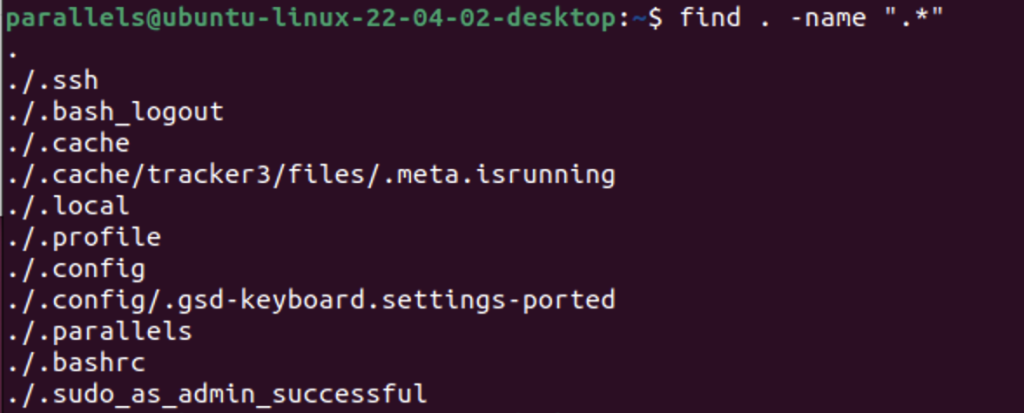
Changing the type to a directory reports the hidden directories, and the name filter also matches the directory the walk started from, which is why the output opens with a bare dot. The bare dot in that output is the starting directory testing itself before the walk descends rather than a failed match.
find . -name ".*" -type d
.
./.ssh

The dir command accepts the same glob when you want a compact listing instead of the long format.
dir -d .*
.  ..  .env  .gitconfig  .ssh

Show hidden files in the file manager
A desktop file manager hides the same entries and gives you a toggle for them, so this part needs no terminal at all.
- Open your file manager and navigate to the directory you are reading.
- Press Ctrl+H to show every hidden entry in that directory.
- Press Ctrl+H again to hide them, or use the view menu for the same toggle.
- In GNOME Files the toggle sits in the hamburger menu at the top right, labelled Show Hidden Files.
GNOME Files also reads a file named .hidden in a directory as a list of names to leave out of the view, which covers entries that do not begin with a dot. A single name per line does the job, and the effect stays inside that directory, so nested folders keep showing those names.
Create, hide, and unhide a file
Creating a hidden file is a naming decision, and the commands that create files accept a dot-prefixed name without complaint. A directory takes the same treatment, which is how a folder leaves the listing with no attribute set anywhere on it.
touch .private-notes.txt
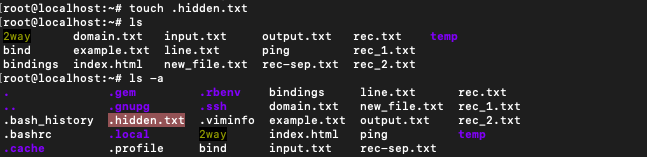
mkdir .backup
An existing file becomes hidden when you rename it with the mv command, and it comes back with the reverse rename. Cleanup commands deserve the same care, because the shell expands a plain star only to names that do not begin with a dot.
mv notes.txt .notes.txt
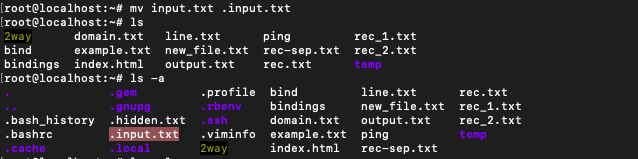
mv .notes.txt notes.txt
echo *
notes.txt
echo .[!.]*
.env .gitconfig .ssh
I ran the two expansions in one directory and the first one missed all three dot entries, which means a recursive delete with a wildcard skips every configuration file sitting beside the normal ones. The same directory kept both dot files after a wildcard cleanup and lost only the ordinary file, and that behaviour is a safety net and a trap in the same breath.
rm -rf *
after rm -rf *:
.env
.notes.txt
Do not run that line in a directory you care about as a demonstration, because the dot entries survive and everything else does not.
Where the dot stops protecting anything
A dot-prefixed name changes what a listing shows and nothing else, so anyone who can read the directory can list the file, copy it, or delete it. The permission bits decide that access, and the mode on a directory governs everything inside it.
mkdir -p .vault && chmod 700 .vault
Mode 700 gives the owner read, write, and execute, and leaves the group and everyone else with nothing at all. The execute bit on a directory is the one that lets a process enter it, so an outsider who hits the wall there gets a permission denied message rather than a directory listing.
ls -ld .vault
drwx------ 2 ubuntu ubuntu 4096 Sep 15 20:54 .vault
| Step | Who still sees the name | Who still reads the contents | Reach for it when |
|---|---|---|---|
| a dot prefix | anyone with directory access | anyone with file permission | the listing is the only problem |
| chmod 700 on a directory | the owner | the owner | other users share the machine |
| an encrypted archive | anyone running unzip -l | only someone with the password | the file leaves the machine |
Encryption is the step for a file that has to leave the machine, and the permission model stops helping once the file is on someone else’s disk. The password prompt asks for the phrase twice, so it needs an interactive terminal, and a pipeline or a scheduled command fails with a message about stderr not being a tty.
zip -e .secret.zip .private-notes.txt
The -P flag is the non-interactive form of that password, and it puts the secret on the command line where the process list can show it to other users.
unzip -l .secret.zip
Archive:  .secret.zip
  Length      Date    Time    Name
---------  ---------- -----   ----
        0  2026-09-15 20:54   .private-notes.txt
---------                     -------
        0                     1 file
That listing still prints the names inside the archive with the password nowhere in sight, because the header stays readable and the password guards the payload only. A wrong password ends the unpack command with exit status 82 and no output at all.
unzip -P wrongpass -p .secret.zip .private-notes.txt

Archive Manager does the same work in a desktop session, with the password field under the other options when you create the archive. Open the archive once and confirm the contents before you delete the original, because an encrypted shell around the wrong file protects nothing you wanted.
For archives you unpack later, the unzip workflow covers the multi-file case in more detail.
Read the dot files that steer your tools
Dot files are configuration that their programs read at startup, which is why the ones in your home directory do more work than the ones you create by accident. Start with the file your shell reads, then follow the lines it sources until the setting you are chasing changes what a command does.
ls -Al ~ | head
The bash startup files are the trail to follow from there.
How do I show hidden files in Linux?
Run ls -a to print every entry in a directory, including the names that begin with a dot. Run ls -A to leave the implied . and .. entries out of the same listing.
How do I hide a file in Linux?
Rename the file so its name begins with a dot, using the mv command or the rename field in your file manager. The contents and the permissions stay untouched.
Does hiding a file protect it in Linux?
No. A dot-prefixed name only keeps the file out of a default listing, and anyone with permission on the directory can reveal it with ls -a. Use a directory mode such as 700 or an encrypted archive when the file has to stay private.
How do I show only hidden files in Linux?
Run ls -d .[!.]* in the directory to list the dot entries without the . and .. entries. For a whole tree, run find . with the dot-name filter and the file type.
How do I find hidden files under a directory tree?
Run find . -name “.*” -type f to walk every level below the current directory and print the hidden files. Changing the type to d lists hidden directories instead.