
Install Shotcut from Flathub when you want a maintained desktop package across distributions. The official project also provides an AppImage and a Snap, so you can choose the route that fits how your Linux system handles updates.
Shotcut system requirements on Linux
Shotcut’s current FAQ lists 64-bit Linux with glibc 2.35 or later. It recommends at least 4 GB of RAM for standard-definition editing, 8 GB for HD, and 16 GB for 4K work.
The project also lists a 64-bit Intel or AMD processor, at least one 2 GHz core for SD, two for HD, and four for 4K. GPU acceleration needs a graphics driver with OpenGL 2.0 or later.
Choose an installation method
Flatpak is the clearest default when your distribution supports Flathub. It keeps Shotcut separate from your system packages and gives you one catalog command for installation and updates.
- Use Flatpak for a catalog-managed install that works across many distributions.
- Use the AppImage when you want one downloaded file that you can run without a package manager.
- Use Snap when snapd is already part of your desktop setup.
- Use your distribution repository when you prefer its package maintenance and accept that its Shotcut release can differ from upstream.
Install Shotcut with Flatpak
Add Flathub only when it is not already configured, then install the application ID published by Flathub. The command downloads the runtime components Shotcut needs and adds the app to your launcher.
flatpak remote-add --if-not-exists flathub https://flathub.org/repo/flathub.flatpakrepo
flatpak install flathub org.shotcut.Shotcut
Start the Flatpak from your desktop menu, or use the application ID below. Run the update command later when you want Flatpak to check for a newer Shotcut release.
flatpak run org.shotcut.Shotcut
flatpak update
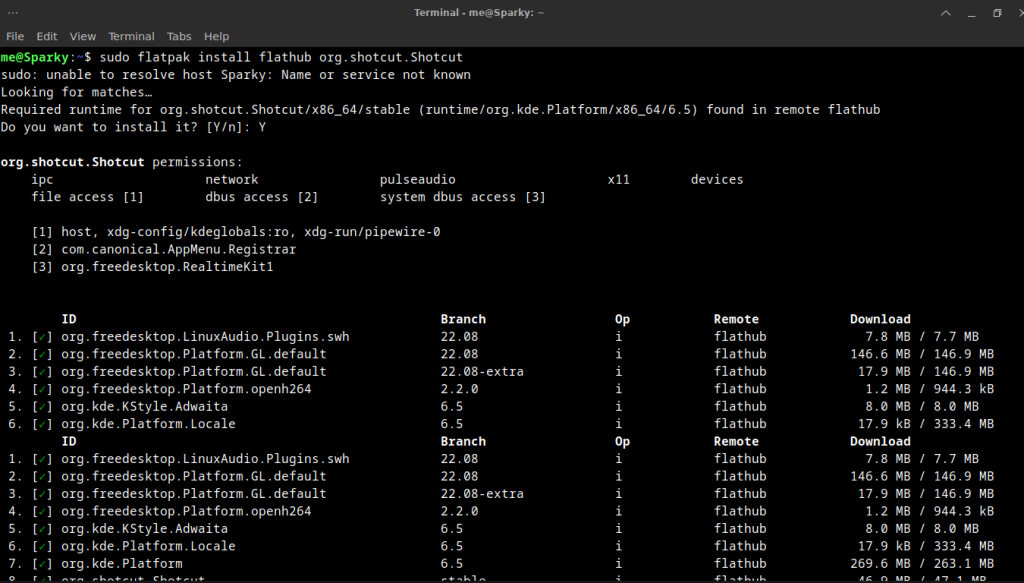
Flatpak uses the application ID to launch and update Shotcut. Check the published package name before you install from another catalog.
Run the Shotcut AppImage
Download the Linux AppImage from the official Shotcut download page and make it executable where your browser saved it. The wildcard accommodates the version in the filename.
cd ~/Downloads
chmod +x shotcut-linux-*.AppImage
./shotcut-linux-*.AppImage
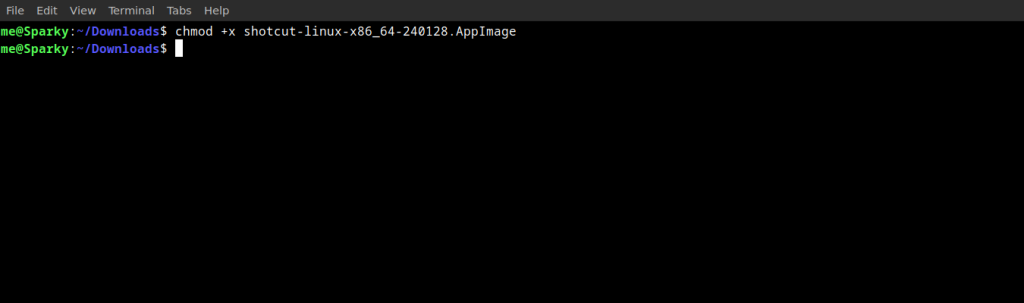
Keep the AppImage outside any folder you clear during downloads cleanup, then replace it with a newer upstream download when you want an update.
Install Shotcut with Snap
Use this command when snapd is installed and enabled on your system. Shotcut’s Snap uses classic confinement and has the same runtime requirements as the portable tar package.
sudo snap install shotcut --classic
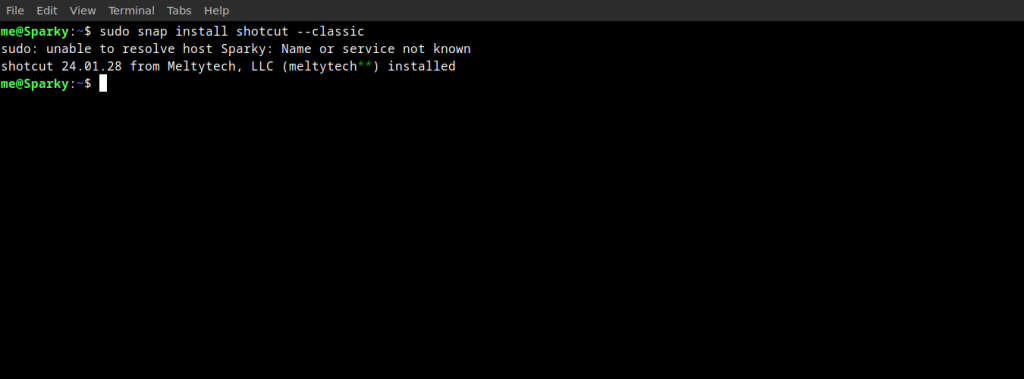
Launch it from your desktop menu or with shotcut in a terminal. Snap refreshes the package through its normal update service.
Verify that Shotcut starts
Open Shotcut from the desktop menu after installation. The start screen should offer a new project and a way to open an existing file.
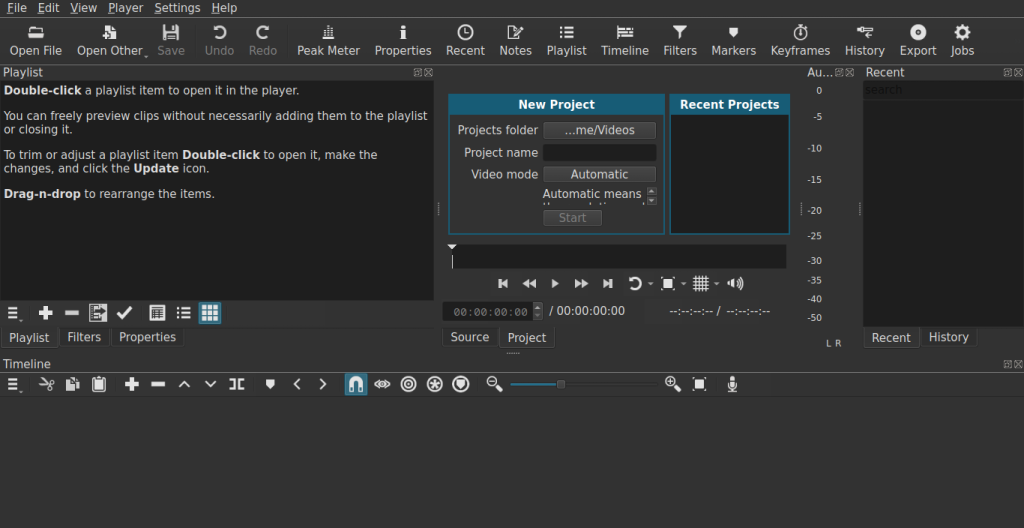
If the AppImage does not start, check its executable permission and download it again from Shotcut before changing system libraries. For Flatpak or Snap, update the package and read its launch output for a package-specific error.
Keep your installation useful
Package choice determines where updates arrive and where the application files live. Read about installing AppImages on Linux when you want to organize portable desktop software.
If you are comparing editors instead of installing one tool immediately, review Linux video editors and installing Kdenlive on Linux. For another creative application, see installing OpenToonz on Linux.
The same packaging decision applies to many desktop applications. Use this guide to choose between APT, Flatpak, Snap, and AppImage when you need a different installation route.
What are Shotcut system requirements on Linux?
Shotcut lists 64-bit Linux with glibc 2.35 or later. It recommends at least 4 GB of RAM for SD editing, 8 GB for HD, 16 GB for 4K, and OpenGL 2.0 or later for GPU acceleration.
Which Shotcut package should I use on Linux?
Use Flatpak when you want a catalog-managed package across distributions. Use the AppImage when you want one downloaded file, Snap when your system uses snapd, or your distribution repository when you prefer its package maintenance.
How do I start Shotcut after a Flatpak installation?
Run flatpak run org.shotcut.Shotcut in a terminal, or open Shotcut from the desktop menu.
Choose one package route, open Shotcut, and create a blank project before importing media. That confirms the editor starts before you move an existing edit into it.