

Czkawka finds duplicate files, empty folders, large files, similar images, and broken symbolic links. Install it through Flatpak, scan one directory at a time, then inspect each result before you remove anything.
Install Czkawka on Ubuntu and other Linux distributions
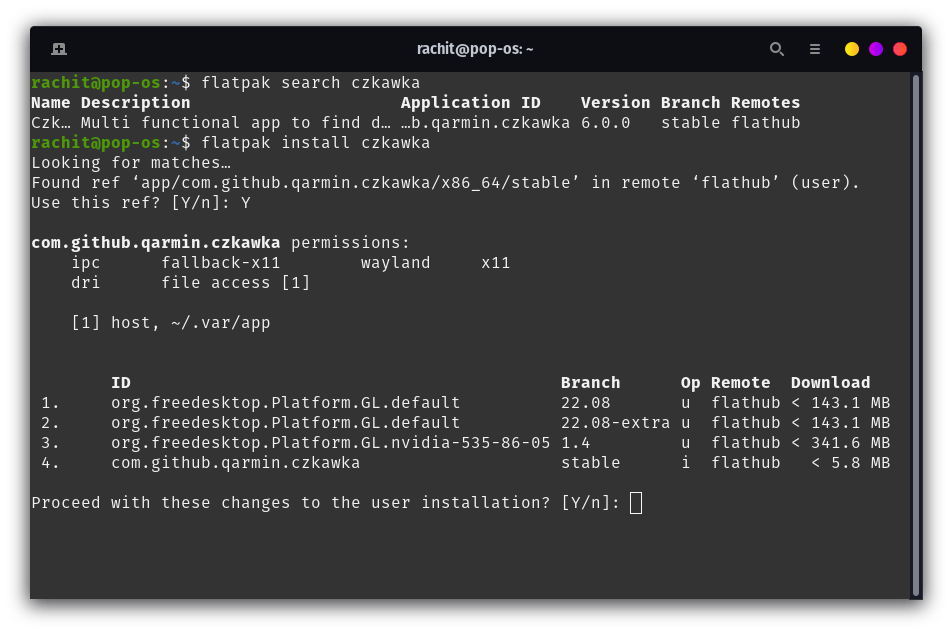
Flathub publishes Czkawka as com.github.qarmin.czkawka. This route works when Flatpak and the Flathub remote are already available, and Linux package management explains how distribution software sources fit together.
flatpak install flathub com.github.qarmin.czkawka
After the install finishes, start Czkawka from your desktop application menu and use its desktop interface for the scan and review steps below.
If you need the upstream build instead, Czkawka publishes Linux binaries in its GitHub releases. Download the binary that matches your architecture, make it executable, and keep it in a directory you control. Download a file with curl if you want to retrieve a release from the terminal.
Scan a folder before deleting duplicates
Open Duplicate Files, choose the folder under Included Directories, and select Hash as the check method when identical file contents matter. This mode compares file content before it groups its results.
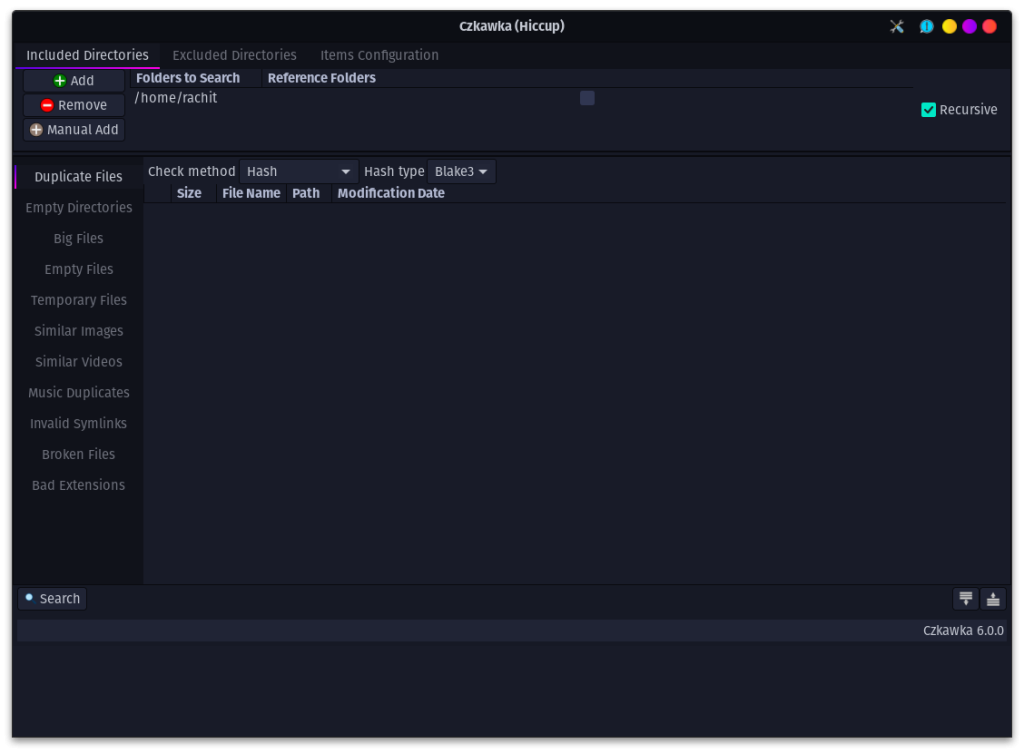
Start with Downloads, a project archive, or another folder you recognize. Do not begin at the root filesystem, because duplicate files in system paths can belong to packages or applications that expect them to remain in place. Understanding the Linux file system helps you separate personal data from system-managed locations.
Select Search after setting the folder and method. The retained result below shows the Duplicate Files mode, its Hash and Hash type controls, file paths, result groups, and the Select, Delete, Move, Save, Symlink, and Hardlink actions.
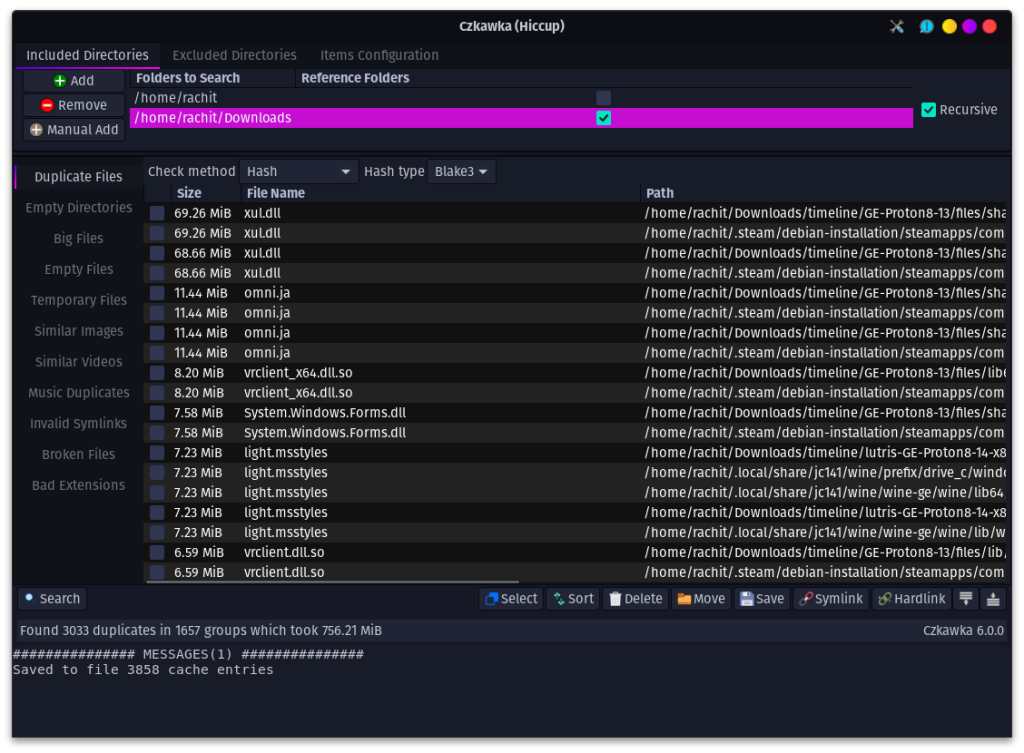
Open files from each group before you select a removal action. Keep one verified copy, especially for photos, archives, installers, and application files. Ranger gives you a terminal file-manager option when you want to inspect paths outside Czkawka.
Choose the Czkawka mode that matches the cleanup job
Czkawka has separate modes because files can look alike for different reasons. Pick the narrowest mode that answers your question before you scan.
| Mode | Use it when | Review before acting |
|---|---|---|
| Duplicate Files | You need files with matching content. | Keep one copy and confirm every selected path. |
| Empty Folders | You want to remove folders with no contents. | Check whether an application expects the folder. |
| Big Files | You need to identify what consumes storage. | Open the file or confirm its purpose first. |
| Similar Images | You have near-duplicate images rather than byte-identical copies. | Compare dimensions and image details. |
| Invalid Symlinks | A symbolic link points to a missing target. | Confirm the target is not temporarily unavailable. |
Measure free space before and after a cleanup so you can confirm that the files you removed made a difference. Check CPU, disk, and memory usage for a broader storage check, and use disk partitioning and filesystem management when a full filesystem points to a partitioning or capacity issue instead of duplicate files.
Use a review-first cleanup workflow
Run the scan, inspect each result group, keep one known-good copy, and then use Delete, Move, Symlink, or Hardlink only when you understand the consequence. File permissions can stop a removal or move, and chmod and chown explains why a path may be unavailable to your account.
Use Save to keep a record of a scan before you make changes to a large collection. A saved result gives you a reference if you need to revisit a selection or explain why a file moved.
How do you install Czkawka on Ubuntu?
Install Flatpak and enable the Flathub remote, then run flatpak install flathub com.github.qarmin.czkawka. Start Czkawka from the desktop application menu after the install completes.
Does Czkawka delete files automatically?
No. Czkawka shows result groups and gives you file actions such as Delete, Move, Symlink, and Hardlink. Inspect every group and keep one confirmed copy before you select an action.
Which Czkawka mode finds identical files?
Use Duplicate Files with Hash as the check method when you need files with matching contents. File names alone do not establish that two files contain the same data.
Scan one familiar folder first, then repeat the same review process where you store the largest collections. That keeps the cleanup reversible until you trust the result groups.