
Figma on Ubuntu works best through Figma-Linux, an unofficial desktop app that wraps the Figma web editor in its own window. Figma has no official Linux client, so this community project fills the gap with a launcher icon, a separate window and local font support. This guide shows how to install Figma on Ubuntu with a .deb file, snap, the PPA or an AppImage. It also covers Arch, Fedora, updates, fonts, Wayland and fixes for common errors.
Does Figma have an official app for Ubuntu?
No. Figma ships desktop apps for Windows and macOS, and the company has not announced a Linux client. Ubuntu users have two choices. They can open Figma in a browser, or they can install Figma-Linux, a community project that gives the web editor its own window and launcher icon. Figma-Linux is not made by Figma, so you still sign in with your normal Figma account and your design files stay in Figma’s cloud.
What is Figma-Linux?
Figma-Linux is an open-source Electron app maintained by Chugunov Roman and released under the GPL-2.0 license. The 0.11 series rewrote the interface with Svelte and added a community tab, multiple windows and themes. Version 0.11.4 moved the app from Electron 27 to Electron 30. Here is what you get on Ubuntu:
- A launcher icon and a window that is separate from your browser
- Tabs and multiple windows for different files
- Theme support
- Access to the fonts installed on your system
- A settings field for Chromium flags
How Figma-Linux works
Figma-Linux does not rebuild Figma. It loads the Figma web editor inside Electron, which bundles a Chromium engine with the app. Because of that, performance depends on your CPU, your graphics drivers and how much memory the design file needs. Large files that crawl in Chrome will crawl here too. The benefit is a clean window with its own taskbar entry and shortcuts, so Figma stops hiding among forty browser tabs.
Figma-Linux vs Figma in the browser
Both run the same editor, so the choice is about comfort:
- Figma-Linux: its own window and launcher icon, multiple windows, themes and a Chromium flags field.
- Browser: no install, always the newest Figma code and no third-party wrapper to maintain.
- Shared: the same account, the same cloud files and the same need for an internet connection.
If your team lives in Figma all day, the desktop wrapper saves clutter. If you open Figma once a week, a browser tab is enough.
Check your Ubuntu version and CPU type
Release builds on GitHub target 64-bit Intel and AMD machines. Confirm yours before downloading:
lsb_release -a
uname -m
The first command prints your Ubuntu release. The second should print x86_64. If you see aarch64 instead, check the releases page for a matching build before you install anything.
Prerequisites
Before you start, check these items:
- A current Ubuntu release such as 22.04, 24.04 or 26.04
- A user account with sudo access
- A free Figma account
- A working internet connection
- An updated package index, which you can refresh with sudo apt update
Which install method should you pick on Ubuntu?
Most readers should pick the .deb file. It gives you the newest release and installs cleanly with apt. The other methods trade freshness for convenience.
- .deb file: newest version, manual updates.
- Snap: one command and automatic updates. The stable channel was last refreshed in May 2024 and some users report GLIBC or “app outdated” errors. Our snaps in Linux guide covers how snap works.
- PPA: updates arrive through apt, but the package has been stuck at version 0.11.3. See how PPAs work in Ubuntu for the basics.
- AppImage: nothing gets installed system-wide and you need libfuse2t64 on newer Ubuntu releases.
How to install Figma on Ubuntu
Pick one of the four methods below. Do not stack them, because two copies of the app fight over the same launcher entry and config folder.
Install Figma-Linux with the .deb file
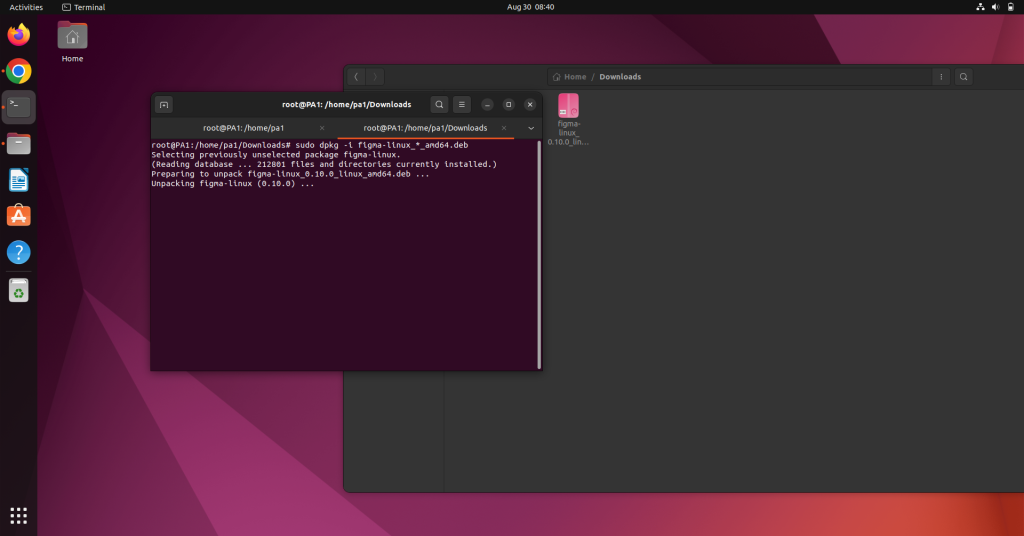
Open the Figma-Linux releases page on GitHub and download the .deb file for amd64. Then install it from the folder where it landed. If you need a refresher, read our guide on installing deb files on Ubuntu.
cd ~/Downloads
sudo apt install ./figma-linux_*.deb
Older guides tell you to install libgconf-2-4 first. That package left the Ubuntu repositories in 23.10, so that command fails on newer releases. Using apt with the ./ prefix lets apt resolve the dependencies by itself.
Install Figma-Linux with snap
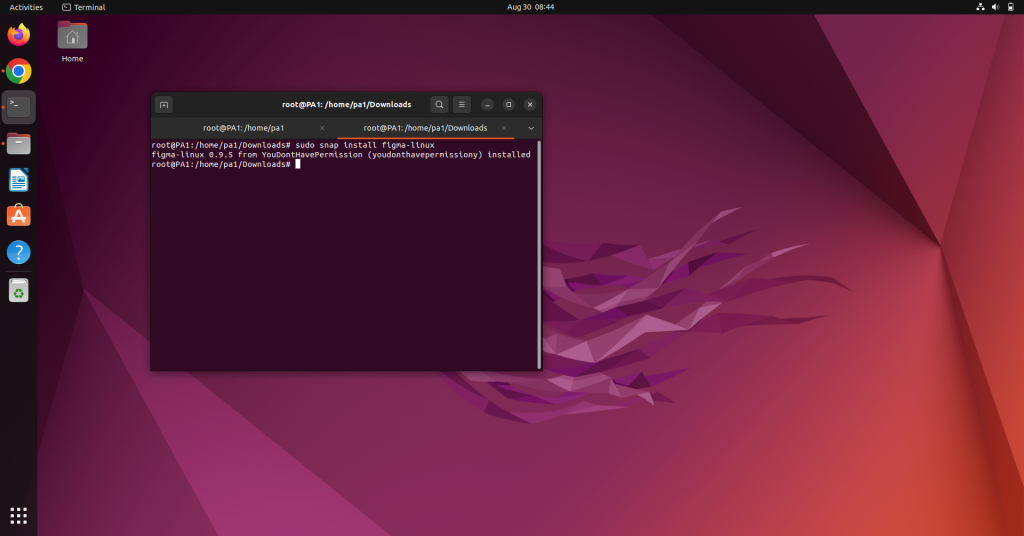
Snap is the shortest route. Run this command in a terminal:
sudo snap install figma-linux
Check the version with snap list figma-linux afterwards. If the app opens with an error about an outdated build or a missing GLIBC version, remove the snap and use the .deb file instead.
Install Figma-Linux from the PPA
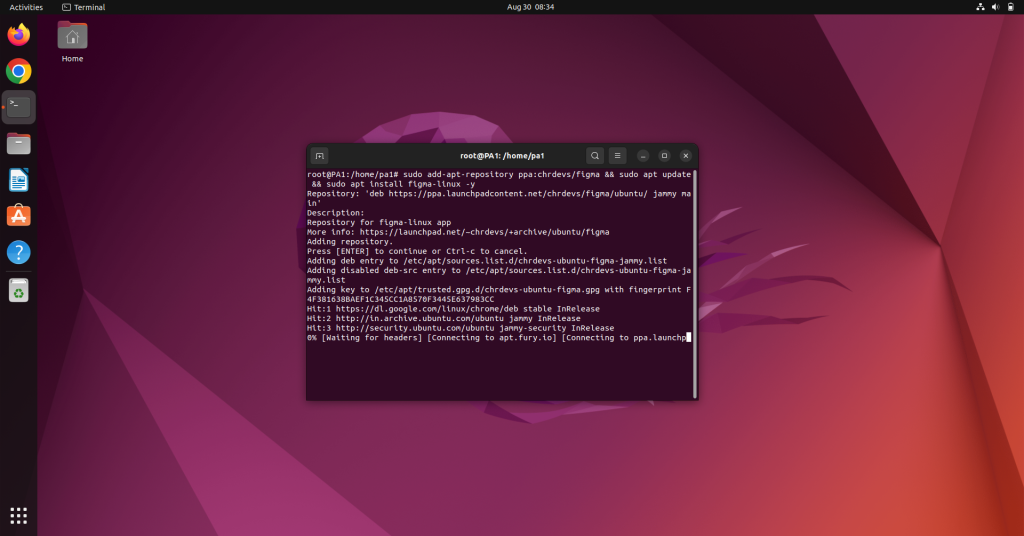
The PPA suits people who want apt to handle updates. Add it and install the package:
sudo add-apt-repository ppa:chrdevs/figma
sudo apt update
sudo apt install figma-linux
Expect version 0.11.3 here, which is older than the GitHub release. If an update ever breaks the app, with reports of a missing libffmpeg.so file, reinstall from the .deb file and run sudo apt-mark hold figma-linux so apt stops replacing it.
Install Figma-Linux as an AppImage
Download the AppImage from the same GitHub releases page. Ubuntu 24.04 and newer need the FUSE 2 library first. Our post on installing AppImages on Linux has more detail.
sudo apt install libfuse2t64
chmod +x figma-linux_*.AppImage
./figma-linux_*.AppImage
Run the file once with the -i flag if you want it to add itself to your application menu.
Install Figma-Linux on other distributions
The same GitHub releases page serves other distributions, so this guide covers them briefly.
Arch-based distributions
Arch users can install the binary package from the AUR with an AUR helper. Our pacman package manager guide explains the rest of the toolchain.
yay -S figma-linux-bin
Fedora and other RPM-based distributions
Download the .rpm file from the releases page and install it with dnf:
sudo dnf install ./figma-linux-*.rpm
A note on Flatpak
A Flatpak listing named io.github.Figma_Linux.figma_linux exists, but its Flathub repository was archived in December 2024 and the Flathub page no longer loads. Treat it as unmaintained and use one of the methods above.
Getting started with Figma-Linux on Ubuntu
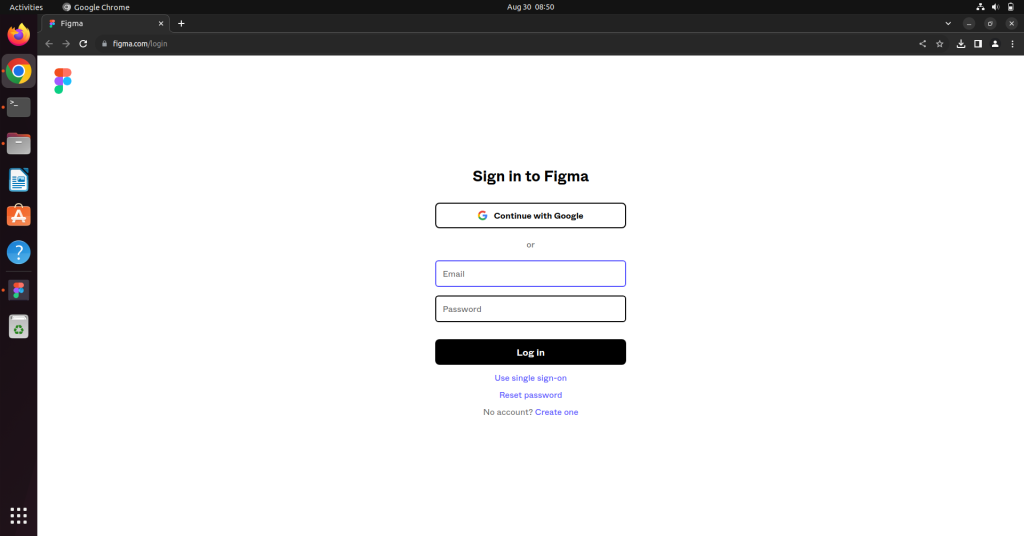
Launch the app from the Activities overview by searching for Figma. The first screen asks you to sign in.
Sign in to your Figma account
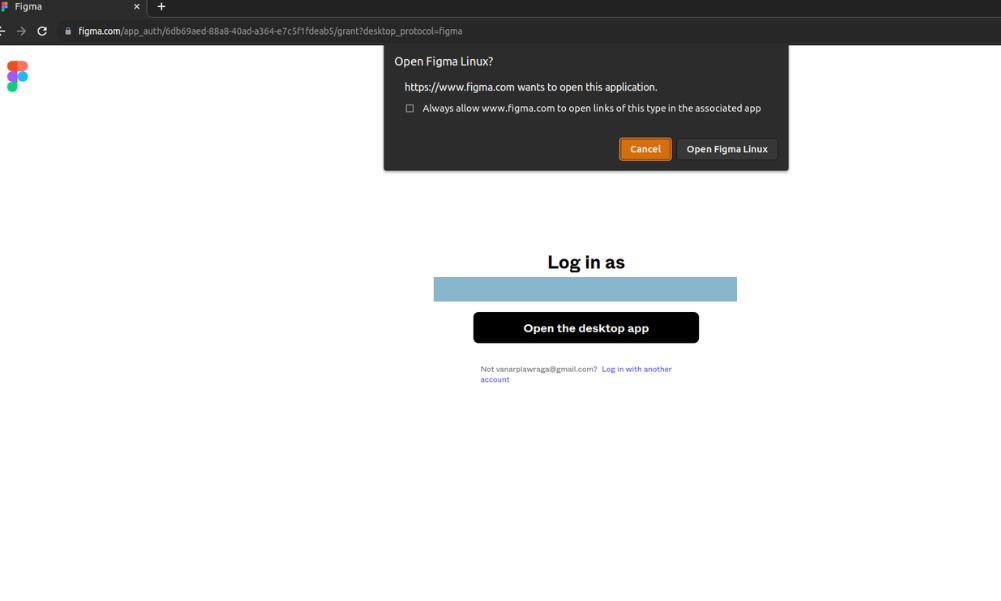
Click the login button. Figma-Linux opens your default browser, where you approve the sign-in. Then the browser hands you back to the desktop app.
Open the workspace
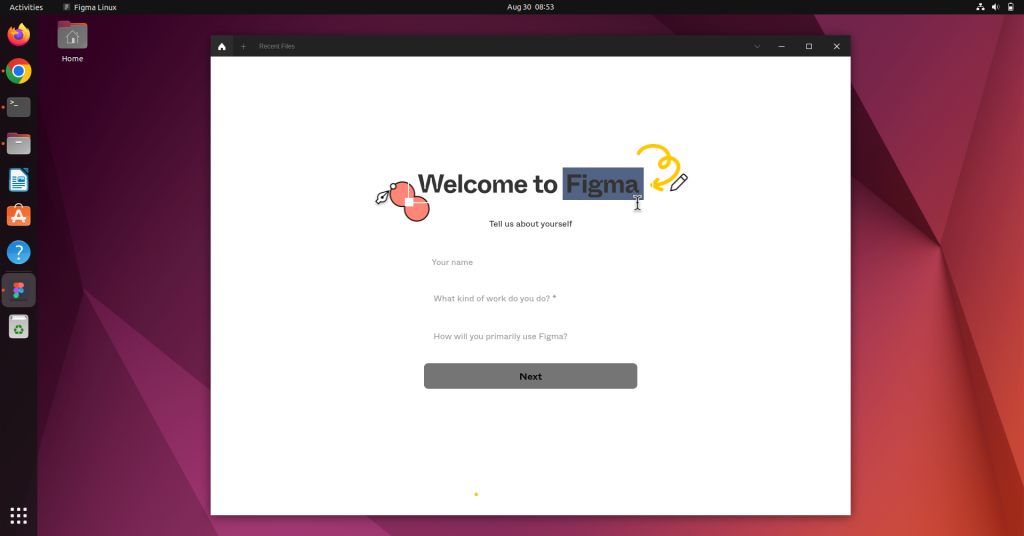
After sign-in you land on the welcome page with your recent files and teams. The editor looks the same as Figma in a browser, so the layers panel, frames and components sit where you expect them.
Use your local fonts in Figma on Ubuntu
Figma-Linux can read fonts installed on your system, which the browser version cannot do without a helper. Copy the font files into your user font folder and rebuild the font cache:
mkdir -p ~/.local/share/fonts
cp ~/Downloads/*.ttf ~/.local/share/fonts/
fc-cache -fv
Restart the app afterwards. The snap build runs inside a sandbox and may not see these fonts, so switch to the .deb file if they never appear.
Run Figma-Linux on Ubuntu 26.04 and Wayland
Ubuntu 26.04 LTS arrived in April 2026 and uses Wayland only. Figma-Linux is an Electron app, so it can show a blurry window or fail to start on some setups. The settings page has a field for Chromium flags. Try adding this one and restart the app:
--ozone-platform-hint=auto
If the window still misbehaves, test the .deb build before blaming the display server, since the snap build is the most common source of odd errors.
How to update Figma-Linux
Updates depend on how you installed it:
- .deb file or AppImage: download the newer file from GitHub and repeat the install command.
- Snap: run sudo snap refresh figma-linux.
- PPA: run sudo apt update && sudo apt upgrade.
- AUR: run yay -Syu.
To see the version you have, use snap list figma-linux for the snap or apt policy figma-linux for the .deb and PPA builds. The locate command in Linux can help you find a stray AppImage.
How to uninstall Figma-Linux
Use the command that matches your install method:
sudo snap remove figma-linux
sudo apt remove figma-linux
yay -R figma-linux-bin
sudo add-apt-repository --remove ppa:chrdevs/figma
The last line removes the PPA. Delete the AppImage file by hand if you used that route.
Troubleshooting Figma-Linux on Ubuntu
The .deb install fails with a dependency error
Run sudo apt install ./figma-linux_*.deb again with the ./ prefix. If you used dpkg -i earlier, run sudo apt -f install to repair the half-installed package.
The AppImage will not start
On Ubuntu 24.04 and newer the error usually points to a missing FUSE library. Install libfuse2t64 and run the file again.
The snap says the app is outdated
The snap stable channel has been stale since May 2024. Remove it with sudo snap remove figma-linux and install the .deb file.
The app opens a blank window
Update your graphics drivers first. Then add the Chromium flag from the Wayland section or try the .deb build instead of the snap.
Alternatives to Figma on Ubuntu
If Figma-Linux does not suit you, these tools run on Ubuntu too:
- Penpot: an open-source design and prototyping tool that runs in the browser and can be self-hosted.
- Inkscape: a desktop vector editor for icons and illustrations.
- Lunacy: a free design app that opens Sketch files and runs on Linux.
None of them read Figma files natively, so a team that shares Figma links should stay with Figma.
Use Figma in a browser as a fallback
The browser version of Figma runs in Chrome, Chromium or Firefox on Ubuntu with no install at all. It makes a good backup when Figma-Linux breaks after an update. Our guide on installing Chromium on Ubuntu shows how to set one up. Teams that already chat in Linux desktop apps may like our post on installing Discord on Linux too.
Key Takeaways
- Figma has no official Linux app. Figma-Linux is a free community wrapper released under the GPL-2.0 license.
- The .deb file from GitHub is the most reliable way to install Figma on Ubuntu today. The latest release at the time of writing is 0.11.5.
- Use sudo apt install ./file.deb instead of dpkg -i so apt fetches the dependencies for you.
- The snap and PPA builds trail behind the GitHub releases, so check the version after installing.
- Ubuntu 24.04 and newer need the libfuse2t64 package before an AppImage will run.
- Figma in a browser tab stays a solid fallback if the desktop app misbehaves.
Frequently asked questions
Is there an official Figma app for Ubuntu?
No. Figma only ships Windows and macOS apps. Figma-Linux is an unofficial wrapper that works on Ubuntu.
Is Figma-Linux safe to use?
It is open source under the GPL-2.0 license, so anyone can read the code. It is still a third-party app, so download it only from the official GitHub releases page.
Which method is best to install Figma on Ubuntu?
The .deb file from GitHub. It gives you the newest release and apt handles the dependencies.
Why does the AppImage fail on Ubuntu 24.04?
Ubuntu 24.04 and newer ship FUSE 3 by default. Install libfuse2t64 and the AppImage runs.
Does Figma-Linux cost anything?
The app is free. Your Figma plan decides what you can do inside it, and that billing stays with Figma.
Does Figma work offline on Ubuntu?
Treat Figma as an online tool. Figma-Linux loads the web editor, so it needs a connection to open and save files.
Can I install Figma-Linux and keep the browser version?
Yes. They do not conflict, and both use the same Figma account and files.