

Linux Mint normally connects to WiFi through NetworkManager. Choose a network from the desktop panel when you have access to Cinnamon, or use nmcli when you need a terminal workflow.
Both paths create a saved connection profile, so Mint can reconnect after the network becomes available again. If no wireless network appears, start by checking whether the adapter is detected before retrying the password.
Connect Linux Mint to WiFi from the desktop
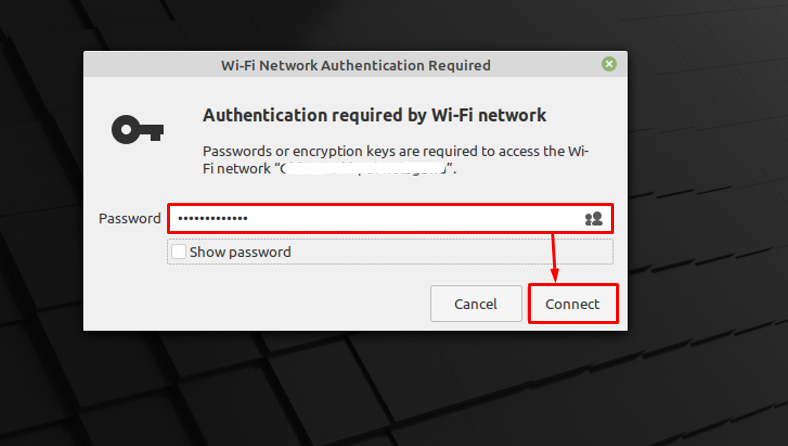
Select the network icon in the panel, then choose the WiFi network you want to join. Enter its password when Mint asks, and wait for the network icon to show an active connection.

The network list shows nearby access points that your adapter can see. Selecting an entry opens the password prompt for secured networks.
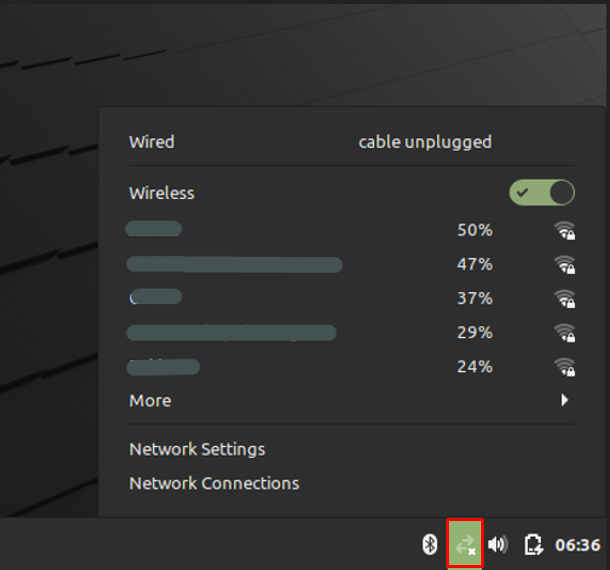
Check the WiFi name before entering the password, especially around apartment buildings, offices, and guest networks where similar names can appear.
Connect from the terminal with nmcli
Use nmcli, NetworkManager’s command-line client, when the desktop panel is unavailable or you need to inspect the adapter and connection state precisely.
nmcli device status
nmcli radio wifi on
nmcli device wifi list
The first command identifies the wireless interface and its state. The second enables WiFi if it is disabled, and the third lists access points that NetworkManager can currently see.
Connect with the SSID in quotes. Use the interactive password prompt rather than placing the password in shell history.
nmcli --ask device wifi connect "YOUR_WIFI_NAME"
NetworkManager creates or reuses a matching connection profile and activates it on a compatible WiFi device. The current NetworkManager reference documents this connection form and its WiFi rescan options.
If the network is hidden, specify its name while requesting a scan, then connect after it appears in the list.
nmcli device wifi rescan ssid "YOUR_WIFI_NAME"
nmcli device wifi list
nmcli --ask device wifi connect "YOUR_WIFI_NAME" hidden yes
Confirm that the connection works
A connected WiFi icon confirms the link to the access point, not that DNS is working. Check NetworkManager’s state, then test name resolution.
nmcli -t -f STATE general
ping -c 3 linuxfordevices.com
The expected NetworkManager state is connected. If the ping cannot resolve the hostname while WiFi is connected, inspect your Linux IP and DNS configuration before changing the wireless password.
When Linux Mint cannot see WiFi networks
If nmcli device status shows no WiFi device, the issue is below the saved-network layer. Check whether the adapter is disabled in hardware, blocked by airplane mode, or missing a driver.
Run the following command to see whether the system has blocked wireless radio access.
rfkill list
Unblock WiFi only when rfkill reports a soft block. If the adapter is missing instead, follow the WiFi adapter driver guide for the driver path rather than trying repeated connection commands.
Useful next steps
Once the connection works, keep the basic commands close. Connect to WiFi through the terminal expands the nmcli workflow, while restarting Linux networking helps when a saved profile is present but the service needs a fresh connection attempt.
If you are configuring a system rather than connecting one desktop, use the Ubuntu network configuration guide to understand the configuration layer behind NetworkManager.