

Compressed files on Linux come in several formats, such as .zip and .tar.gz, and each format is unpacked with its own command. A small Bash function called extract can check the file’s ending and run the right tool for you.
The guide explains which command each format needs, then shows you how to add that function to your .bashrc.
TL;DR
For a raw .gz file, run gzip -d. For a .tar.gz archive, run tar -xf. The extract function below routes common archive suffixes to the matching tool.
gzip -d -- report.gz
# or, for an archive containing paths:
tar -xf report.tar.gz
What a .gz file contains
A .gz file holds one compressed data stream. It does not by itself store a directory of files, so gzip -d restores a file while tar -xf unpacks a tar archive.
The extra .tar in a .tar.gz name marks a tar archive of one or more paths that gzip then compressed.
| File name | What it is | Command |
|---|---|---|
| report.gz | One gzip-compressed stream | gzip -d — report.gz |
| project.tar.gz or project.tgz | A tar archive compressed with gzip | tar -xf project.tar.gz |
| project.zip | A ZIP archive | unzip project.zip |
The word “unzip” is often used to mean unpack, but the unzip program handles ZIP archives. For a raw .gz file, use gzip or its gunzip counterpart.
How to add and use an extract command in Bash
This Bash function checks the filename suffix, quotes the path, and passes the archive to the matching extractor. It leaves overwrite decisions to the underlying tool instead of forcing replacement.
Step 1: Back up your Bash configuration
Save a copy of .bashrc before editing it. The test checks that the backup path is absent before cp writes to it.
test ! -e ~/.bashrc.bak && cp ~/.bashrc ~/.bashrc.bak
If the backup already exists, inspect it before choosing another destination. Do not replace a backup whose contents you still need.
Step 2: Add the function to .bashrc
Paste this function at the end of .bashrc. The tar cases come before the raw .gz case so a .tar.gz archive reaches tar instead of gzip.
extract() {
    if (( $# != 1 )); then
        printf 'Usage: extract FILE\n' >&2
        return 2
    fi

    local archive=$1
    if [[ ! -f $archive ]]; then
        printf 'Not a regular file: %s\n' "$archive" >&2
        return 2
    fi

    case $archive in
        *.tar.gz|*.tgz|*.tar.bz2|*.tbz2|*.tar.xz|*.txz|*.tar)
            tar -xf "$archive" ;;
        *.gz)
            gzip -d -- "$archive" ;;
        *.bz2)
            bzip2 -d -- "$archive" ;;
        *.xz)
            xz -d -- "$archive" ;;
        *.zip)
            unzip "$archive" ;;
        *)
            printf 'Unsupported archive suffix: %s\n' "$archive" >&2
            return 2 ;;
    esac
}
The function supports raw .gz, .bz2 and .xz files, tar archives with the listed compression suffixes, and .zip files. Those commands need gzip, bzip2, xz, tar or unzip available in your PATH for the selected branch.
Step 3: Load the function and extract a file
Reload Bash to define the function in the current terminal, then pass it one archive path. I ran it with raw .gz and .tar.gz inputs. Both branches returned exit status 0.
source ~/.bashrc
extract report.gz
The raw .gz branch calls gzip directly. This command decompresses the stream and prints the path created when the command succeeds.
gzip -d -- screenshot-demo/report.gz && printf 'Created: %s\n' screenshot-demo/report
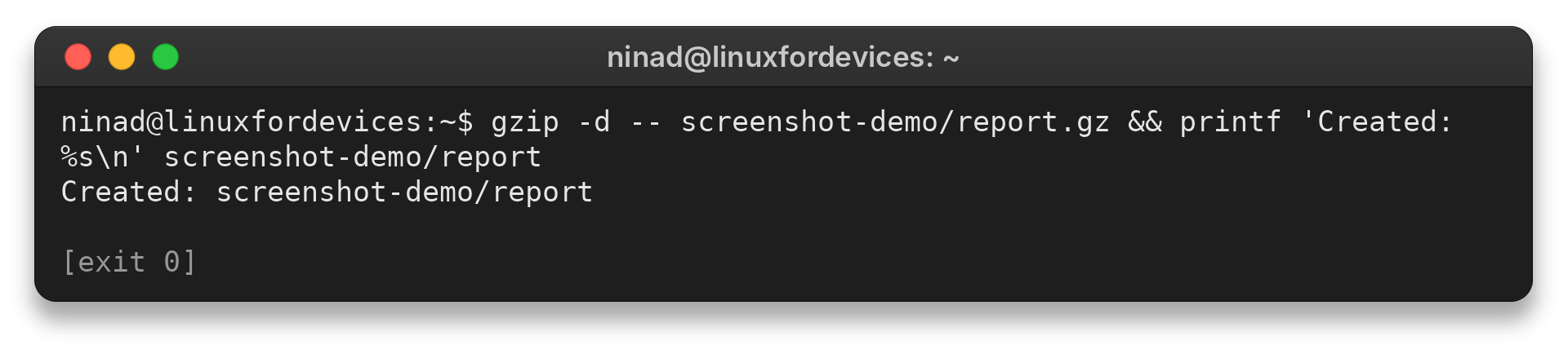
The screenshot shows the raw gzip case. With a bundled archive, pass its .tar.gz name to the function. tar restores the stored paths beneath the current directory.
Keep the .gz file and check extraction errors
By default, gzip -d removes the compressed input after successful decompression. Add -k when you need both copies, and test a gzip stream before extracting if the download may be incomplete.
gzip -t report.gz
gzip -dk report.gz
gzip -t checks the compressed data and returns a failure status when it is invalid or incomplete. With -k, gzip -d writes the uncompressed file and keeps report.gz. It does not force an existing output file to be replaced.
For a .tar.gz file, list its stored paths before extraction with tar -tf report.tar.gz. If gzip reports “not in gzip format,” the suffix may not match the file’s actual data. The gzip format error guide shows how to check that case.
For a compressed text file that you only need to read, zcat report.gz prints its contents without creating a decompressed copy. A gzip command reference covers additional options, while the tar guide explains listing, selecting and extracting archive members.
Conclusion
Match the tool to the file’s structure: gzip -d restores a raw .gz stream, while tar -xf restores the paths inside a tar archive. Check the name and contents before extracting files you did not create.
- Raw .gz file: gzip -d — file.gz
- Gzip file to keep: gzip -dk file.gz
- .tar.gz archive: tar -xf archive.tar.gz
- ZIP archive: unzip archive.zip
For ZIP files, see the Linux zip and unzip guide. The .Z file guide covers the older compress format, which this function deliberately does not claim to handle.
Frequently asked questions
These answers cover the difference between gzip files, tar archives and ZIP files.
How do I unzip a .gz file in Linux?
Run gzip -d file.gz or gunzip file.gz. The command decompresses the stream and removes the .gz input after success by default.
How do I extract a .tar.gz file in Linux?
Run tar -xf archive.tar.gz. GNU tar recognizes gzip-compressed archives from their data and extracts the stored paths.
How can I keep the original .gz file?
Use gzip -dk file.gz. The -k option keeps the compressed input while gzip writes the decompressed file.
Can unzip extract a .gz file?
The unzip command is for ZIP archives. Use gzip -d or gunzip for a raw .gz file, and tar -xf for a .tar.gz archive.