

ProtonPlus on Linux installs Proton, Wine, DXVK and VKD3D without touching Steam’s settings menu at all. Built with GTK4 and libadwaita, ProtonPlus now manages Steam, Lutris, Heroic Games Launcher, Bottles, Faugus Launcher and WineZGUI from one window and can edit per-game launch options directly. Anyone using Heroic or Lutris without Steam installed can pull in every Proton fork they need through this single app.
What is ProtonPlus?
If you have heard about or used ProtonUp-QT, then this tool is pretty much a similar tool, but it is built using the GTK toolkit which is primarily used in the GNOME suite of applications instead of the QT framework of the KDE suite.
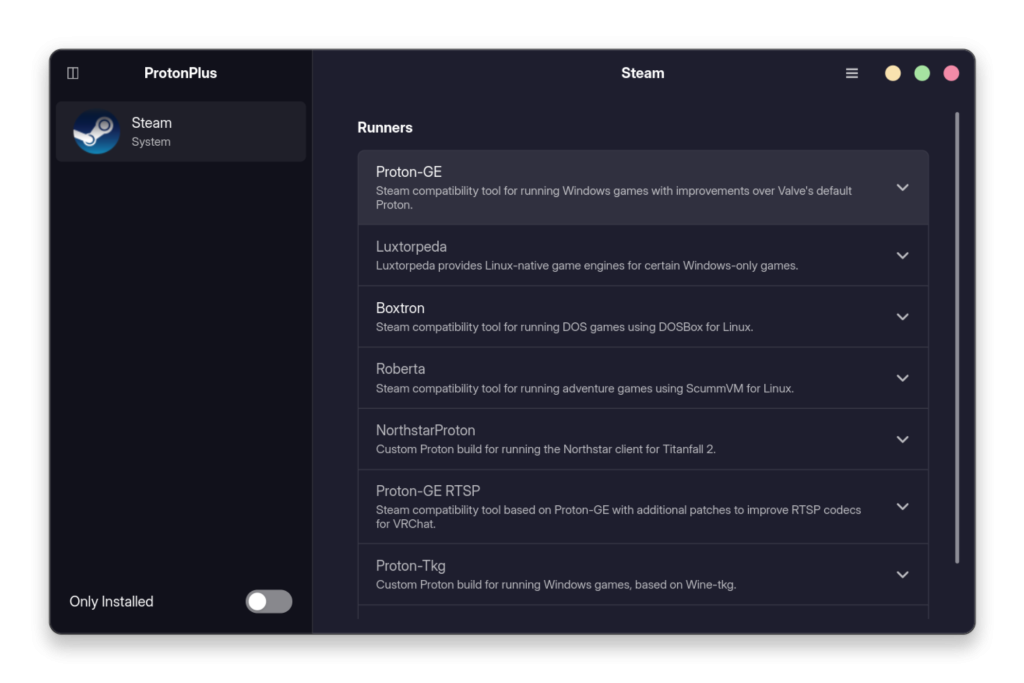
As you can see, not only Proton and its forks are available to install in this app, many other compatibility layer such as Luxtotpeda’s compatibility layer for game engines, Boxtron’s compatibility tool for DOSBox, and others which allow CR support for games. This is so much more than the Protonup-QT tool and arguably with a much better Interface. This tool also allows you to install older versions of the different compatibility layer with a few clicks.
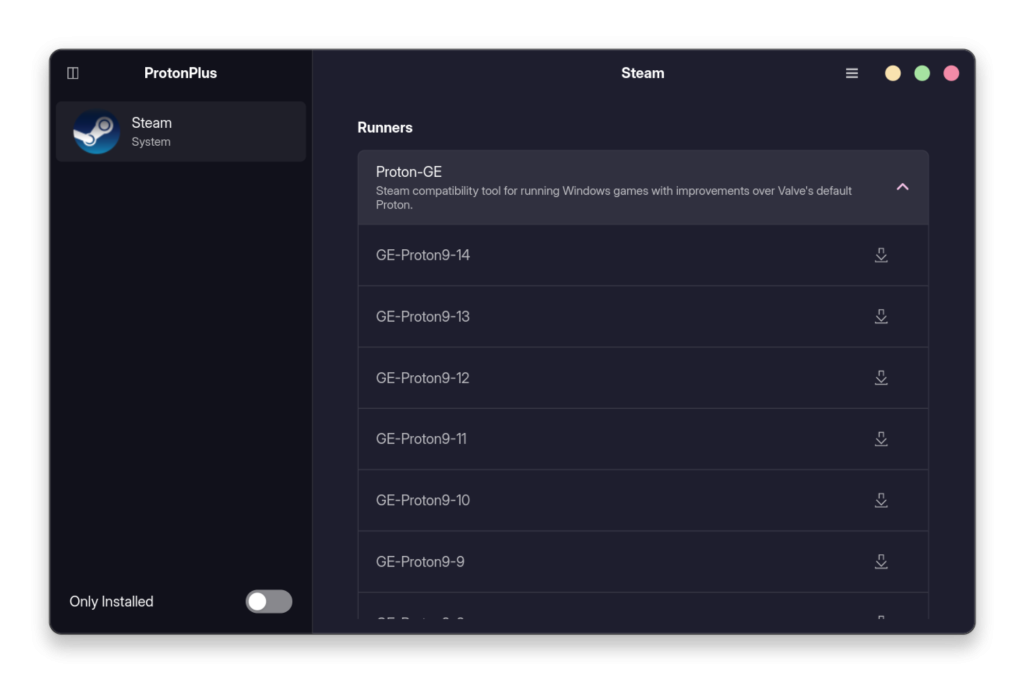
On the left side, you can see the different game launchers you have installed on your system, and you can add different compatibility layers for the different launchers as well. On my PC as only Steam is installed, so only that shows up, but if you have other launchers like Heroic or Lutris, they show up as well.
Supported launchers and compatibility tools (2026)
ProtonPlus has grown well past a simple installer. It now builds hardware-aware releases for x86-64 and ARM64 and ships a command-line interface plus an entire games and launch-options manager, covered below.
It also talks to six launchers: Steam, Faugus Launcher, Lutris, Heroic Games Launcher, Bottles and WineZGUI, each supported through their system package and Flatpak build. On the tools side it covers Proton-GE, Proton-CachyOS, DW-Proton, Proton-EM, Proton-Tkg, Steam Tinker Launch, Luxtorpeda, Boxtron and Roberta for Proton and its wrappers.
Wine users get Wine-Vanilla, Wine-Staging, Wine-Staging-Tkg and Wine-Proton, while the graphics side covers several DXVK builds (including the GPL+Async variant from Ph42oN) plus VKD3D-Proton and VKD3D-Lutris. Every tool release is filtered by CPU architecture, so ProtonPlus only offers builds your x86-64 or ARM64 hardware and instruction set can actually run.
Managing Steam games and launch options
A page added in mid-2025 lets you browse every Steam game in your library, sort and filter the list and switch the Proton or Wine build used per title without opening Steam itself. Each entry links straight out to ProtonDB so you can check community compatibility reports before switching anything.
The launch options editor previews the exact command line it will apply before you save it and keeps any custom flags or unrecognized options intact during single-game and mass edits. That matters if you already hand-tune flags like PROTON_ENABLE_NVAPI=1 for one title, since earlier tools sometimes stripped values they didn’t recognize.
Command-line and automation support
Everything ProtonPlus does in its window is also reachable from a terminal. The CLI can list installed launchers and install, update or remove compatibility tools without opening the GUI, useful for a scripted first-boot setup on a new handheld.
ProtonPlus also added scheduled background updates alongside the CLI, so a fresh install stays current with almost no manual upkeep.
Personalizing ProtonPlus: themes, gamepad and MangoHud
ProtonPlus ships four themes (Adwaita, Breeze, SteamOS and OLED) so the window matches your desktop or your handheld’s display instead of forcing GNOME’s default look on every distro. Full gamepad navigation with contextual hints and optional haptics means the whole app is usable from a controller in SteamOS Gaming Mode, no keyboard needed.
A built-in MangoHud editor covers the overlay’s visual, performance and metrics presets, so tuning your FPS counter no longer means hand-editing a config file. ProtonPlus can also create Steam shortcuts directly and prompt for the restart Steam needs to see a new compatibility tool, including the SteamOS Gaming Mode restart flow on a Deck.
Installing ProtonPlus on Linux
So installing this application is really easy on every Linux distribution as ProtonPlus is available as a Flatpak packaging format. If you are not aware about Flatpaks then you should know that it’s a new way of installing applications on Linux and is usually more secure because it is sandboxed from your system. Its commands can be run on every Linux distribution, and you don’t have to remember different package managers, just remember Flatpak! Anyway, just make sure that Flatpak is installed and enabled on your distribution and then type the following commands in your Terminal window:
flatpak install flathub com.vysp3r.ProtonPlus
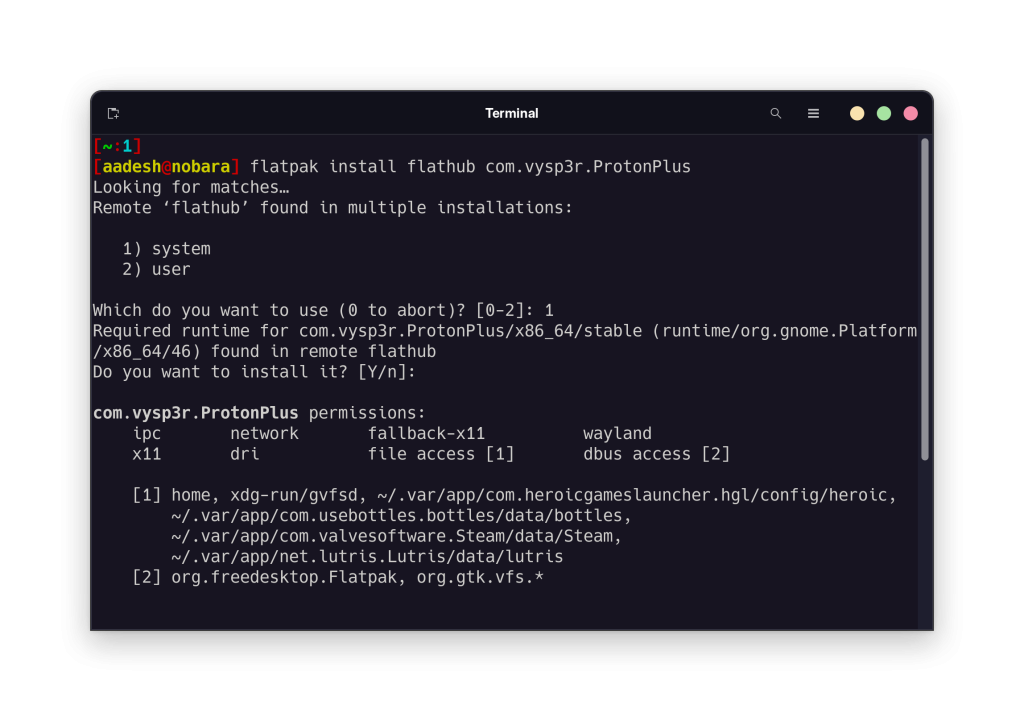
Although Flatpak is the recommended method, If you are using Fedora, then you can also add a COPR repository and install the ProtonPlus app from there as well. Just open a Terminal window on Fedora and type the following command:
sudo dnf -y copr enable wehagy/protonplus
sudo dnf install protonplus
If you are on Arch Linux or any Arch Linux based distribution such as Manjaro or Endeavour OS, you can use the AUR helper such as yay or paru to install ProtonPlus on your system. Just open a Terminal window and type the following command:
yay -S protonplus
Other distro packages
Community packagers now maintain builds for NixOS through nixpkgs, Ubuntu through Pacstall, openSUSE through OBS, Void Linux’s official repository and a Gentoo overlay, though the developer still lists Flathub as the main install path since community builds update on their own schedule.
ProtonPlus vs ProtonUp-Qt: which one to pick
Community reaction has been split along desktop lines rather than features. GamingOnLinux readers who cover both tools note that ProtonPlus added its Steam game list and per-title Proton switching before ProtonUp-Qt caught up with a similar page.
KDE and other Qt-desktop users in the same comment thread said they will stick with ProtonUp-Qt purely because GTK’s Adwaita styling looks out of place outside GNOME, not because ProtonPlus does less.
If your desktop already runs GTK apps comfortably, Adwaita styling and a Steam Deck-ready gamepad mode make ProtonPlus the more complete pick today. QT and KDE users who theme their whole desktop around Qt still get identical Proton and Wine management from ProtonUp-Qt without the visual mismatch.
Key takeaways
- ProtonPlus manages Proton, Wine, DXVK and VKD3D across Steam, Faugus Launcher, Lutris, Heroic, Bottles and WineZGUI
- Flathub is the primary install method, with Fedora COPR, AUR, NixOS, Pacstall, OBS, Void and Gentoo packages available too
- A dedicated Steam games page lets you switch Proton versions and edit launch options per title
- The CLI installs, updates and removes tools without opening the GUI
- Gamepad navigation and SteamOS, Breeze, OLED and Adwaita themes make it Deck-friendly
- A built-in MangoHud editor removes the need to hand-edit overlay config files
- GTA V Online remains unplayable on Linux and Steam Deck due to BattlEye anti-cheat
Frequently asked questions
Is ProtonPlus safe to install on Linux?
Yes. It is open source under the GPL-3.0 license, distributed through Flathub with a Medium Risk sandboxing rating, with its source publicly auditable on GitHub.
Does ProtonPlus work on the Steam Deck?
Yes, it runs through Flatpak on SteamOS, supports gamepad navigation and includes a SteamOS theme and guided Gaming Mode restart flow.
Can I use ProtonPlus without Steam installed?
Yes. It manages compatibility tools for Heroic Games Launcher, Lutris, Bottles, Faugus Launcher and WineZGUI independently of Steam.
What is the difference between ProtonPlus and ProtonUp-Qt?
Both install Proton and Wine forks. ProtonPlus uses GTK4 with a Steam games manager and gamepad support, while ProtonUp-Qt uses Qt and suits KDE-themed desktops better.
Why is GTA Online not working after installing Proton through ProtonPlus?
GTA Online added BattlEye kernel anti-cheat in 2024, which blocks Linux and Steam Deck entirely. No compatibility tool can bypass this, since it is a Rockstar-side restriction.
Can ProtonPlus install Proton-GE automatically?
Yes, Proton-GE, Proton-CachyOS and several other community Proton builds install with a few clicks from the Tools list, with updates delivered in the background.
Conclusion
Installing compatibility layers no longer means memorizing separate commands for every distro. ProtonPlus keeps them one Flatpak update away, whether you’re at a desktop or holding a Deck.