
At a Linux terminal, the right password command depends on whose account needs a change. passwd updates the password for your account or for another account when you name it.
I’ll explain which passwd command to use for your own account or another user’s, and how to handle password-change errors and related tasks.
TL;DR: Change a Linux User Password
Run passwd to change the current account password, or run sudo passwd username to set another account’s password with administrative rights.
- Use passwd without a username for your own account.
- Use sudo passwd username for another account when your user can run sudo.
- Use sudo passwd root to set the root account password.
What Does passwd Change?
passwd changes the authentication password associated with a local Linux account. Linux stores password hashes and password-aging data separately from the account’s basic name and home-directory record, so do not edit /etc/passwd to change a login password.
A password hash is a one-way representation used during authentication, rather than the original password text. The exact policy that accepts or rejects a new password is controlled by the distribution’s authentication configuration, often through PAM, the Pluggable Authentication Modules framework.
For local accounts, passwd changes the protected password hash in /etc/shadow, while /etc/passwd holds basic account details such as login name and home directory.
Network directory accounts may use a different password-change route than local passwd, so follow the administrator’s identity-service instructions.
The optional username is the account being changed. Ordinary users can change their own password, while an administrator can set another user’s password.
How to Change a User Password in Linux Step by Step
Choose the command based on which account should receive the new password. Password entry is interactive and hidden on screen, so type carefully and follow the prompts from your distribution.
Step 1: Change your own password
Open a terminal in your logged-in account and run the command with no username. This keeps the target unambiguous and lets passwd apply the normal self-service check.
passwd
Enter your current password when prompted, then enter the new password twice. Password characters stay hidden during entry, which is normal.
The current-password check confirms the self-service change. An administrator can reset another account without knowing its old password.
Step 2: Set another user’s password
Use sudo before passwd and supply the target login name. The sudo prompt authenticates you. The new-password prompts set credentials for the named account.
sudo passwd username
Replace username with the account’s actual login name. If you are already working in a root shell, omit sudo and run passwd username instead.
If sudo denies this reset, ask an authorized administrator to handle it rather than trying another account name.
Step 3: Change the root password
To set root’s password from a sudo-enabled account, name root as the target. This changes root’s password, not the administrator’s own password.
sudo passwd root
Ubuntu disables direct root login by default and uses sudo for administration. Setting a root password does not guarantee that SSH permits root login.
For routine administration, use a named account with narrowly granted sudo permissions, and check the distribution’s remote-login policy before relying on root over SSH.
Password Change Errors and Related Tasks
passwd handles password changes, while expiry and lock options change related account states. Choose the narrow operation that matches the task, and avoid using an account lock as a substitute for disabling every authentication method.
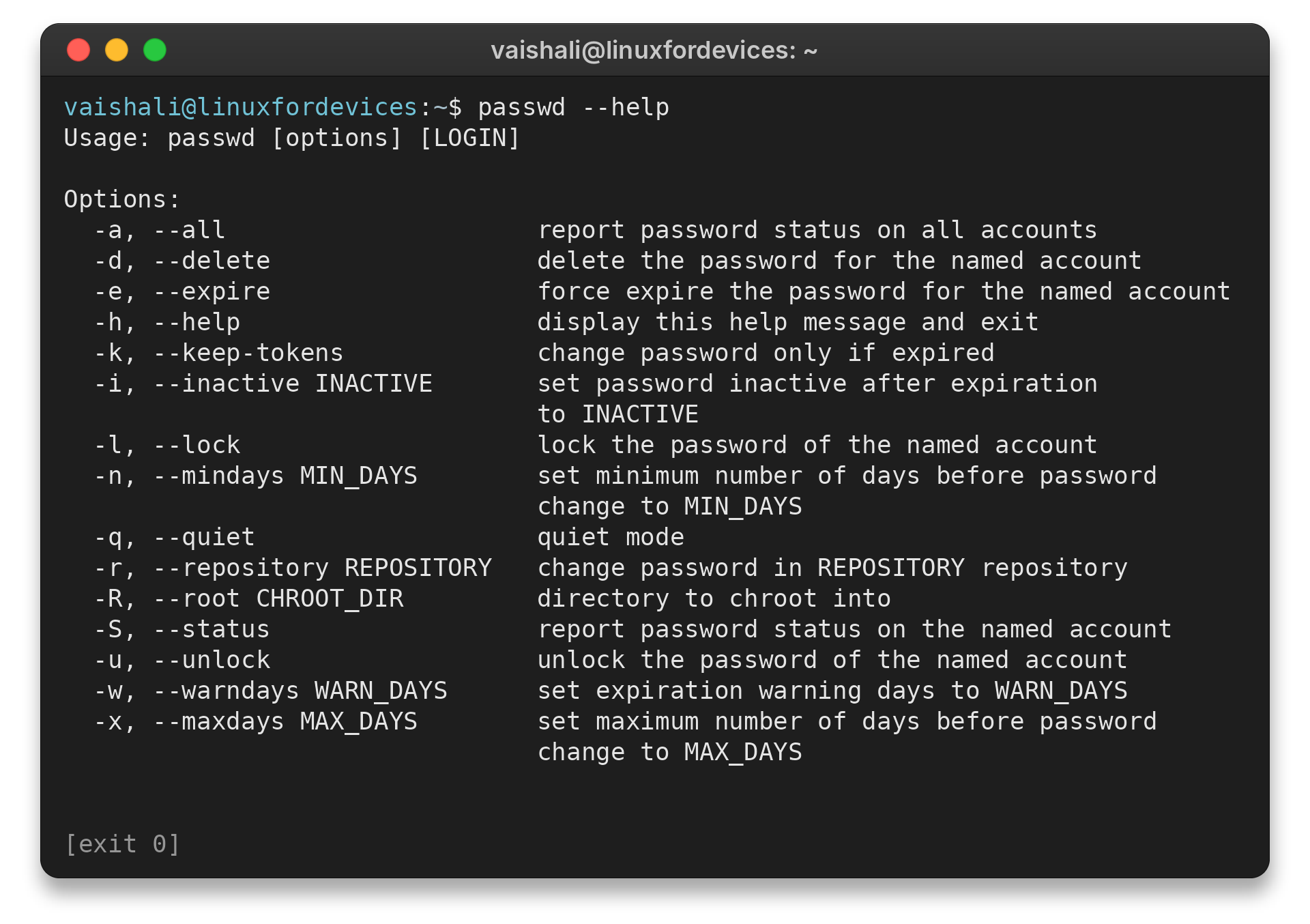
To check which options this installed passwd supports without changing an account, run:
passwd --help
vaishali@linuxfordevices:~$ passwd --help
Usage: passwd [options] [LOGIN]

Options:
  -a, --all                     report password status on all accounts
  -d, --delete                  delete the password for the named account
  -e, --expire                  force expire the password for the named account
  -h, --help                    display this help message and exit
  -k, --keep-tokens             change password only if expired
  -i, --inactive INACTIVE       set password inactive after expiration
                                to INACTIVE
  -l, --lock                    lock the password of the named account
  -n, --mindays MIN_DAYS        set minimum number of days before password
                                change to MIN_DAYS
  -q, --quiet                   quiet mode
  -r, --repository REPOSITORY   change password in REPOSITORY repository
  -R, --root CHROOT_DIR         directory to chroot into
  -S, --status                  report password status on the named account
  -u, --unlock                  unlock the password of the named account
  -w, --warndays WARN_DAYS      set expiration warning days to WARN_DAYS
  -x, --maxdays MAX_DAYS        set maximum number of days before password
                                change to MAX_DAYS
The output lists local option spellings and describes the account actions available in this environment. The screenshot shows the same help command and output.
| Situation | What to do | What it changes |
|---|---|---|
| Require a change at next login | sudo passwd --expire username | Marks the password expired so the user must replace it at login |
| Lock password authentication | sudo passwd --lock username | Locks the password credential |
| Inspect password status | sudo passwd --status username | Displays password status information |
A password lock does not disable the entire account because an SSH key may still permit login, so check the host’s access policy before treating a lock as full access revocation.
A rejected password may violate local quality rules or aging restrictions. Requirements differ by distribution and PAM configuration, so follow the specific error and local policy rather than a universal character formula.
A good password should be unique to its account and hard to guess. A password manager can generate and store a longer password without requiring a fixed mix of character types.
Password aging is separate from choosing a replacement. The chage utility displays and changes aging values such as minimum and maximum password age, while passwd options cover common expiry and lock actions. Read the local man pages before changing a production policy.
When you forget your current password, ask an administrator with sudo to reset it with sudo passwd username. If you do not have that access, use the machine’s supported recovery process.
If sudo reports that you are not allowed to run the command, the reset needs an authorized administrator.
For user-management context, see the LinuxForDevices guide to managing users, groups, and permissions in Linux and the guide to the useradd command. To understand the privilege prefix, read about the sudo command in Linux.
Conclusion: Use passwd for the Right Account
Use passwd for your own account and sudo passwd username for another account. Use expiry or lock options only when you intend to change those states rather than set a new password.
For option details, consult the passwd manual page or run man passwd on the system you administer.
FAQ
These answers cover the two common questions about account ownership and hidden password entry.
Can I change another user’s password without knowing their current password?
Yes, an authorized root user or user with sudo privileges can set a new password for another account without entering that account’s old password. The target user is identified in the passwd command.
Why does the terminal show nothing when I type a password?
passwd hides password input so it is not displayed on screen. Type the password and press Enter even though no characters or masking symbols appear.