

date prints the clock, and the argument after the plus sign decides which shape that clock comes out in. I ran date +%F on a UTC machine and got 2026-09-16, where the bare command printed Wed Sep 16 17:43:13 UTC 2026.
That switch also produces the epoch number a script compares against and the ISO timestamp a log parser expects. Which clock the value is read from, and which process owns that clock when you try to move it, are separate questions from formatting it.
What the date command prints before you give it a format
With no argument, the command prints the current date and time in a layout the locale decides, and that layout is a setting on the machine rather than a fixed part of the command.
date
date +'%Y-%m-%d %H:%M'
date -Iseconds
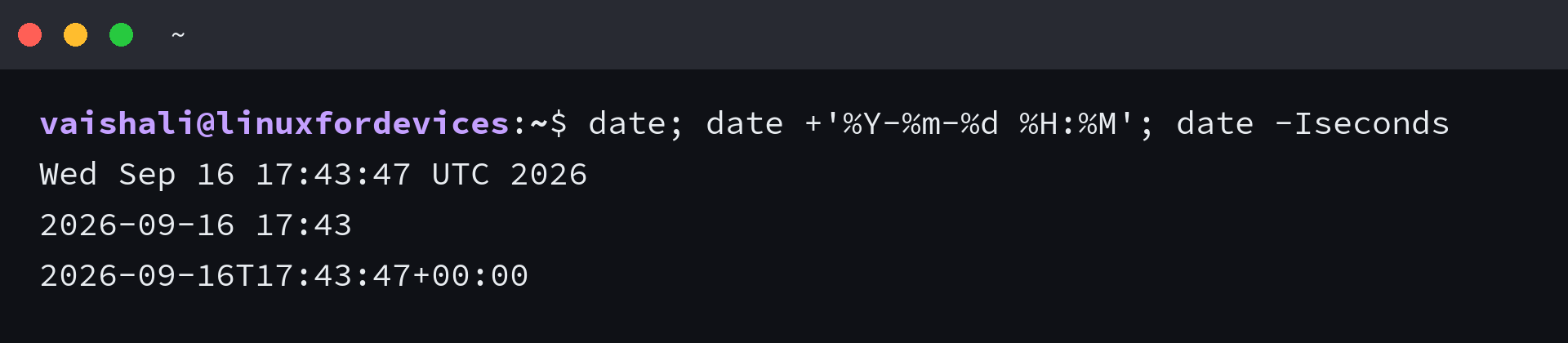
All three calls read the same clock, so the difference between them comes from the argument alone. I ran the bare command and the two formatted calls back to back, and the seconds matched while the shapes did not.
That split matters, because the format string is where all the control lives. When a script needs a timestamp it can sort or compare as text, the locale layout is useless and the format argument is the entire solution.
Format the output with the + argument
Once the plus sign is in place, the format string is built from a percent sign and a letter, and every other character passes through untouched. The output column below is what each specifier printed when I ran it on this machine.
| Specifier | Prints | Output from this machine |
|---|---|---|
| %F | Date in ISO 8601 order | 2026-09-16 |
| %Y-%m-%d | The same date, spelled out | 2026-09-16 |
| %T | Time as HH:MM:SS | 17:43:13 |
| %H:%M | Hour and minute | 17:43 |
| %A %-d %B %Y | Weekday, day, month, year | Wednesday 16 September 2026 |
| %s | Seconds since the epoch | 1789580593 |
| %N | Nanoseconds | 907630209 |
| %z and %:z | Numeric offset from UTC | +0000 and +00:00 |
| %Z | Time zone abbreviation | UTC |
| %V %G | ISO week number and week-based year | 38 2026 |
The letters other software already understands are the ones worth using, and a handful of flags produce those shapes without assembling them by hand.
date -Iseconds
date -R
date --rfc-3339=seconds
The first is ISO 8601 with the offset attached, which is what a database column or an API field expects. The second is RFC 5322, the shape an email header carries, and the third sits between them with a space instead of a T.
Padding is the detail the letters hide. Fields are zero-padded by default, and a hyphen in front of a letter removes the padding, so %-d prints 16 in September where %d prints 06 in June.
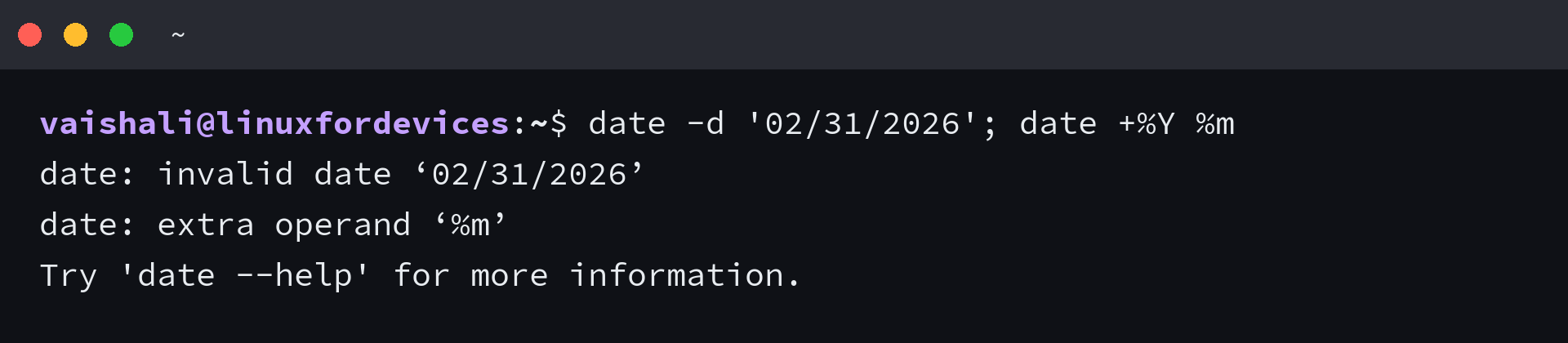
A format string containing a space needs quotes, because the shell hands the command two arguments and the second half comes back as an extra operand.
Print the same instant in another time zone
The command reads the system clock in the local zone unless you say otherwise. A single flag switches the answer to Coordinated Universal Time, and an environment variable picks any named zone for one call.
date -u
TZ=America/New_York date
TZ=Asia/Kolkata date +'%F %T %Z'
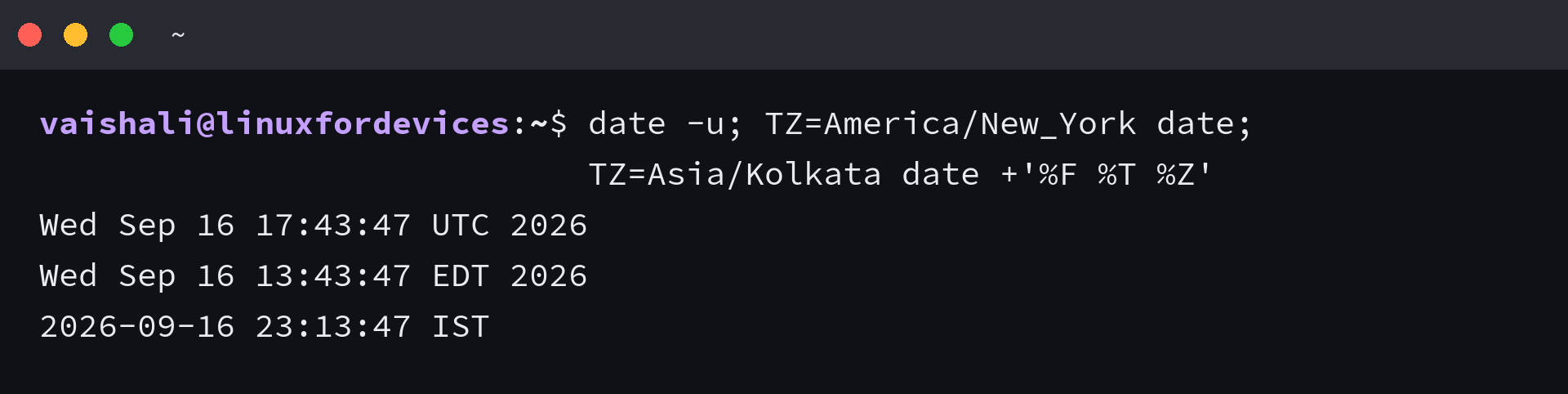
The variable applies to that one process, so a call can look at a zone you do not live in without touching the machine’s setting. Inside a date string the same idea is spelled differently, because the zone has to travel with the phrase it belongs to.
date -d 'TZ="America/Los_Angeles" 09:00 next Fri'
That answers Fri Sep 18 16:00:00 UTC 2026, which is 09:00 Pacific on the same day. The output stays in the local zone because only the input was given a different one, which is worth knowing before you assume the format string changed the answer.
A TZ prefix never changes what the machine believes the time is. I checked the default call straight after the zone-prefixed one and the local answer had not moved, so making that permanent is a system setting, and changing the timezone on a Linux host walks through the zone list and the timedatectl call that writes it.
Convert between epoch seconds and readable dates
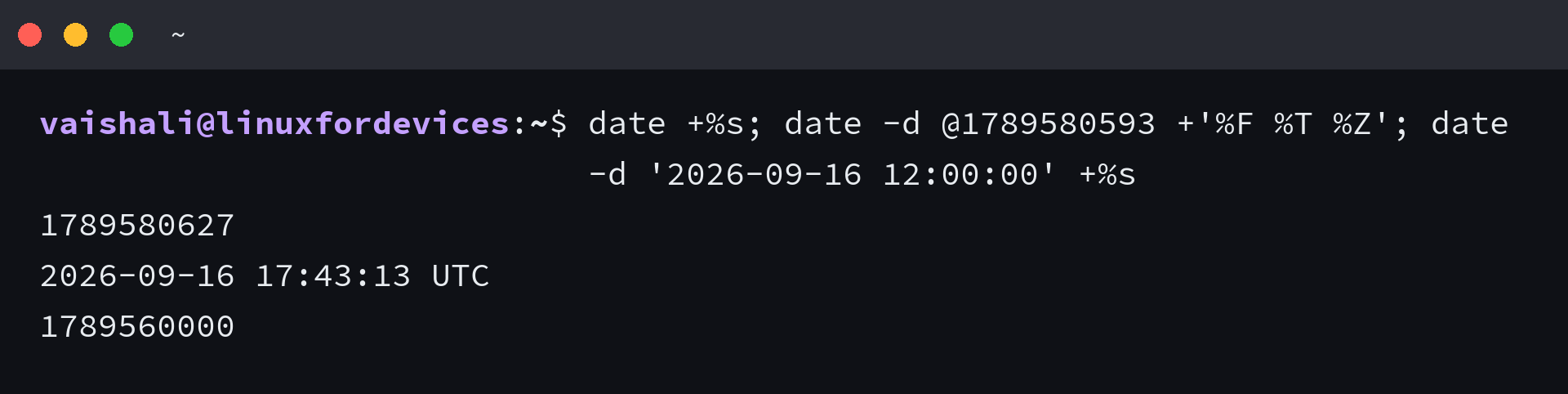
Scripts, databases and API payloads carry time as a count of seconds since 1970-01-01 UTC, so this conversion runs in both directions and the syntax differs depending on which way you are going.
date +%s
date -d @1789580593 +'%F %T %Z'
date -d '2026-09-16 12:00:00' +%s
| Task | Command | Result |
|---|---|---|
| Read the clock as a number | date +%s | 1789580593 |
| Turn seconds into a date | date -d @1789580593 | 2026-09-16 17:43:13 UTC |
| Turn a date into seconds | date -d ‘2026-09-16 12:00:00’ +%s | 1789560000 |
| Date with no time part | date -d ‘2026-09-16’ +%s | 1789516800 |
| Values before the epoch | date -d @-1 | Wed Dec 31 23:59:59 UTC 1969 |
| The 32-bit ceiling | date -d @2147483647 | Tue Jan 19 03:14:07 UTC 2038 |
The at sign tells the command it is looking at a count rather than a phrase. Without it, a bare number is read as a malformed date string, and the error message talks about an invalid date rather than an invalid number.
A date with no time part means midnight, and midnight in the local zone is not midnight in UTC. I compared the two counts for the same calendar day and they differ by the offset, so add the offset you mean or run the conversion with -u to fix the reference point.
Values above 2147483647 need a 64-bit field, and a system that stores timestamps in 32 bits reads that number as a date in 1901. Filtering log entries by a date range is where that failure tends to surface first, because it looks like a filter returning nothing.
Give date a value instead of the clock
The date string parser accepts far more than a calendar date. Relative wording, arithmetic and a zone all work inside the same argument, and the result is printed rather than applied unless you also ask for the clock to change.
Relative phrases and arithmetic
date -d '2 weeks ago' +%F
date -d '+3 days' +%F
date -d 'next friday' +%F
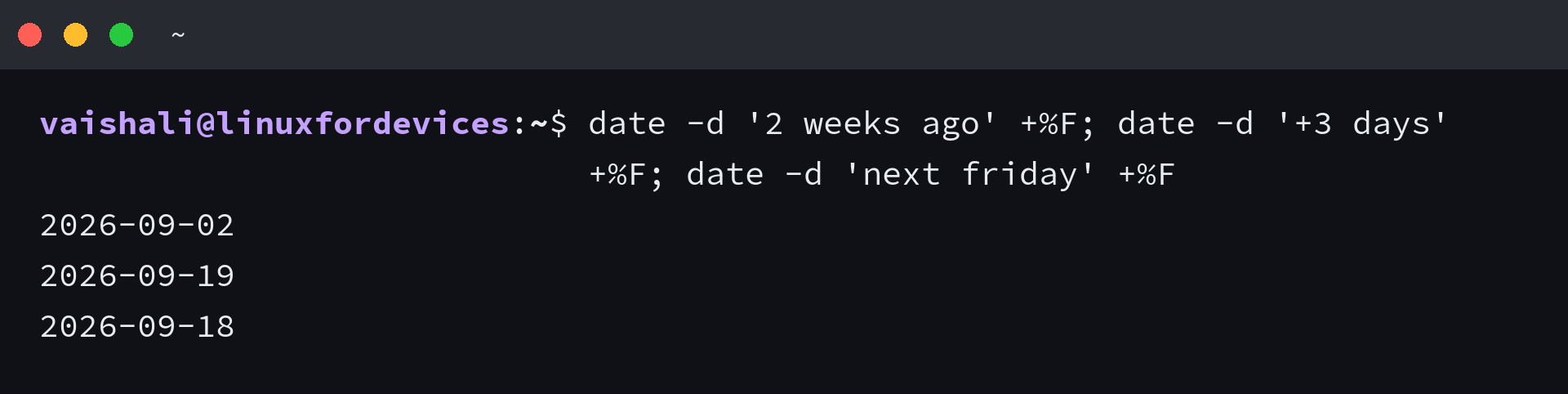
The plural is optional on a unit, so 2 day and 2 days both parse, which is why older notes get away with either. I tried first day of next month, which other date tools accept, and the GNU parser rejected it with invalid date because the grammar is a fixed list.
Month arithmetic is the trap that catches a working script later, because adding one month to 2026-01-31 returns 2026-03-03. The day count carries past the end of February instead of clamping to it.
date -d '2026-01-31 +1 month' -I
date -d "$(date +%Y-%m-01) +1 month -1 day" -I
Anchoring to the first of the month and subtracting a day gives the last day of the current month, which is the shape a retention window or a billing cutoff needs.
Timestamps that are already stored
Not every value comes from the clock, and not every timestamp lives in the text of a file. The reference flag reads a file’s modification time, and the file flag reads a date string from each line, which is enough to process a list without writing a loop.
date -r notes.txt
date -f dates.txt +'%F'
date -d @$(stat -c %Y notes.txt) +'%F %T'
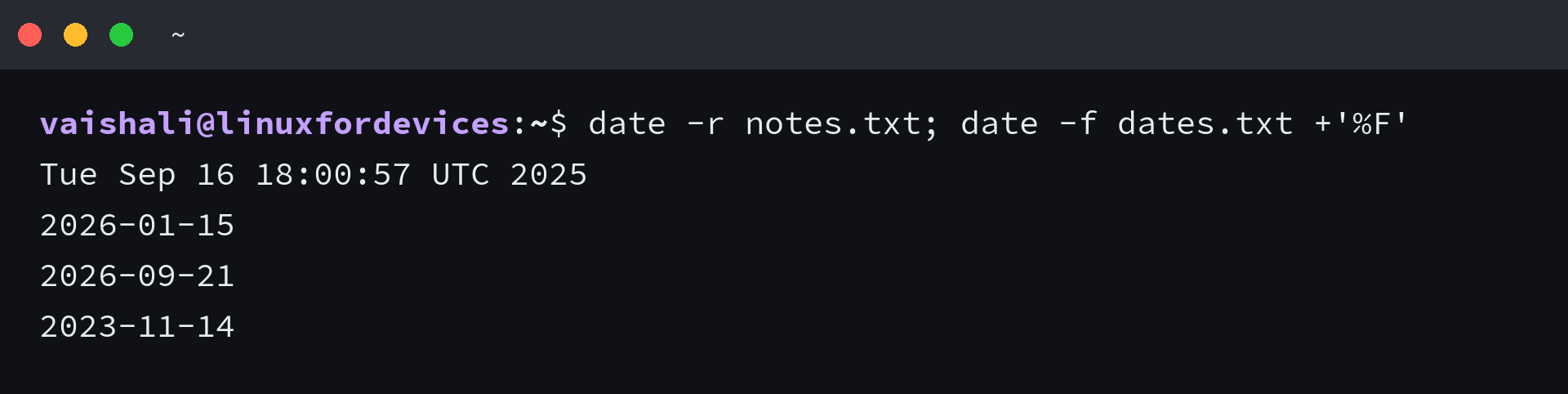
The reference flag reads metadata rather than content, so a file whose text mentions dates is not a source unless you point the parser at those lines yourself. When the modification time is all you need as a number, stat prints it and the at sign turns it back into a date.
The timestamps in a directory listing come from that same metadata, and reading a listing sorted by time explains which column you are looking at before you convert it.
Put the date in a filename, a log line or a variable
The recipe behind dated filenames, log prefixes and build stamps is one command substitution inside a quoted string. The substitution runs when the line executes, so the value is the time of that call rather than the time the script started.
echo "backup-$(date +%F).tar.gz"
printf '%s starting\n' "$(date +'%FT%T%:z')"
- Quote the format string whenever it contains a space, or the shell splits it into two arguments.
- Keep colons out of filenames. The date and the compact time both work on every filesystem, and the full time field with colons does not.
- Prefer the offset with a colon when the value lands in a log another tool parses.
- Expand the substitution with echo before it reaches a command that deletes or overwrites anything.
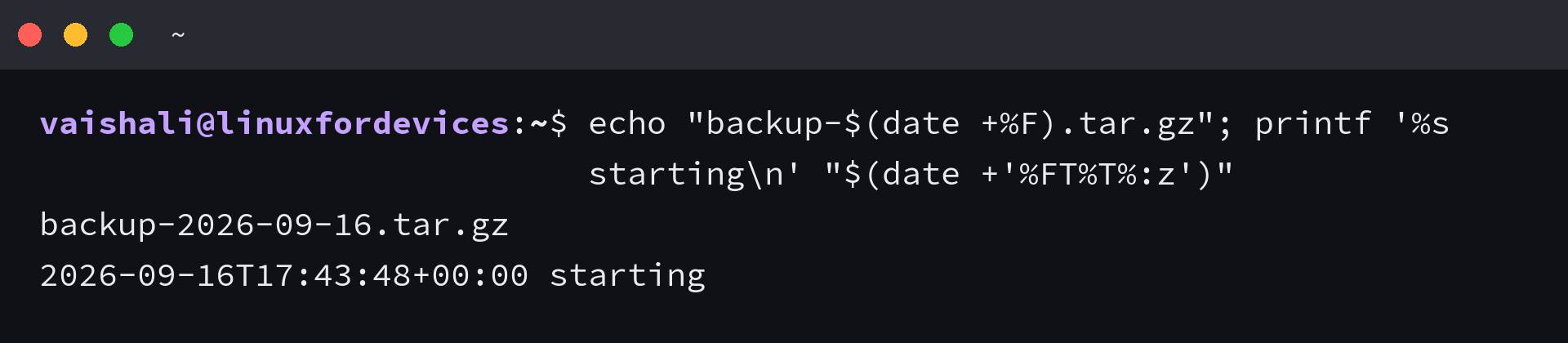
Inside a loop the same substitution is evaluated on each pass, so a stamp captured once before the loop gives every iteration the same value and every output file the same name. That is the failure where a shell for loop overwrites its own results, and it shows up as a directory holding a single file.
A scheduled job names its output the same way, and the crontab reference covers the field that decides when the stamp changes. Shell history stores its own timestamp separately, which is why history sorted by date can disagree with the times inside the commands.
Set the clock when the NTP service owns it
Moving the clock is two commands on a modern system. The first one refuses without privileges, and each refusal names a different obstacle, which is why they are worth reading rather than skipping past.
date -s '2026-01-01 12:00:00'
timedatectl set-time 12:00:00
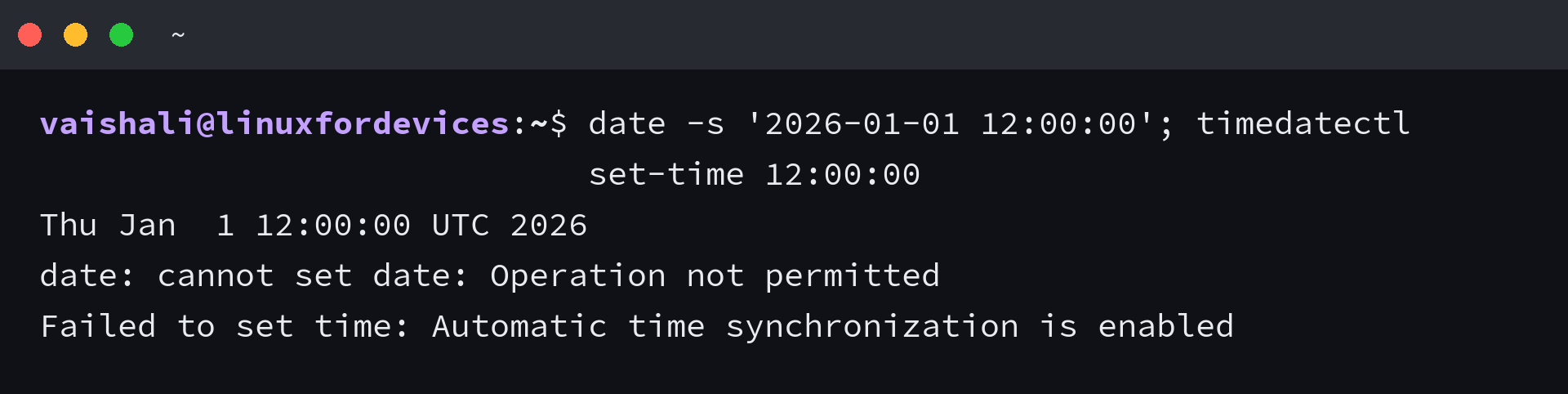
The set flag printed the requested value and then failed with a permission error. I ran it as a normal user, and the error arrived after the parsed value rather than instead of it, so the string was fine and only the privilege was missing.
On a systemd machine the clock has an owner, and the timedatectl command moves the system clock while updating the hardware clock with it, which is why its status output names the service holding time in sync.
| Goal | Command | What stands in the way |
|---|---|---|
| Read the clock owner and sync state | timedatectl status | nothing |
| Set the clock by hand | timedatectl set-time “2026-09-16 18:00:00” | an active synchronization service, then root |
| Hand the clock back to the network | timedatectl set-ntp true | root |
| List the known zone names | timedatectl list-timezones | nothing |
| Change the zone instead of the time | timedatectl set-timezone Asia/Kolkata | root |
The synchronization service is the reason the set call stops early. While it is active, a manual change would be overwritten within seconds, so the command reports that automatic synchronization is enabled rather than pretending the write failed.
Keeping the hardware clock in UTC avoids a class of surprises, because a local-time hardware clock follows zone changes and daylight saving. That mismatch is what produces a clock that disagrees between Linux and Windows on a machine that boots two systems.
Setting a clock by hand is a recovery step rather than routine. Once the time is right, configuring NTP on Debian puts a machine back on a schedule, and on a distribution with a guided tool, setting date and time in Kali Linux shows the same decision through a desktop.
Check the clock before you build on it
A machine with a drifted clock still formats a clean ISO timestamp, which is the part worth carrying away. Nothing in the output warns you that the source was wrong.
timedatectl
On a server without systemd, the uptime and date pair gives you the same read from the other side, because a clock set at boot and never corrected shows up as an uptime that started at an odd hour.
Frequently asked questions
How do I print a date in YYYY-MM-DD format in Linux?
date +%F prints it. The short flag date -I gives the same shape, and date +%Y-%m-%d spells out the same specifiers when you need to change one field.
How do I convert epoch seconds to a readable date?
date -d @1789580593 reads the number as seconds since 1970-01-01 UTC and prints it in the local zone. Add -u for UTC, or a format string to choose the output.
Does date -s change the system clock permanently?
Only with root privileges, and only while nothing else owns the clock. On a systemd machine an active synchronization service refuses the change, and timedatectl set-time is the supported path because it also writes the hardware clock.
Can I set the timezone with the date command?
A TZ prefix changes the zone for that one call and nothing else. The system zone is a timedatectl setting, changed with timedatectl set-timezone.
Why does date +%Y %m fail with an extra operand?
The shell splits the unquoted space into two arguments, so the command sees a second operand. Quote the whole format string as date +’%Y %m’.