

An Epic or GOG game is visible in your library, and the Heroic install path is the next piece to pin down. What interests me is the distinction between owning a game and managing its Linux launch.
Look at the Epic or GOG games in your account. Then see how Heroic handles that library.
What Heroic does for Epic and GOG games
Heroic Games Launcher is an open-source desktop app for connecting your Epic Games Store (EGS), GOG, and Amazon Prime Games libraries, then managing their downloads on Linux.
| Store | Heroic’s connection |
|---|---|
| Epic Games Store | Epic library through the Legendary backend. |
| GOG | GOG library through Heroic’s gogdl implementation. |
| Amazon Prime Games | An additional supported library through Nile. |
The upstream Heroic README names Legendary for Epic, gogdl for GOG, and Nile for Amazon Games. A game remains tied to the store account that bought or claimed it.
A store account and Linux compatibility are separate questions. If you want to compare launcher workflows, read the LinuxForDevices guide to using Lutris to play games on Linux.
What you need before installing Heroic
The package choice affects how you update Heroic, not which games your accounts expose. Its current downloads page recommends Flatpak for Linux, and also links to distribution packages and an AppImage.
- An Epic or GOG account with access to the games you want to install. Heroic can connect to both accounts.
- A package source you can update later. If Flathub is not enabled, follow the LinuxForDevices guide to set up Flatpak on Linux.
- Enough free disk space for the game files and a storage folder Heroic can access.
Flatpak runs Heroic in a sandbox, so a game folder on another drive may need an explicit permission. The upstream Linux Quick Start Guide explains folder access and how to grant permission to a specific location.
Choose where the game files should live before the first install. Heroic lets you select the installation folder and compatibility prefix separately.
Install Heroic and get a game ready
Heroic’s Linux downloads page marks Flatpak as recommended. I chose it as the default path here because the project names it as its recommended Linux package.
Step 1: Install Heroic from an official source
The screenshot shows the Linux choices on Heroic’s official downloads page. Flatpak is marked recommended, and the AppImage card offers a separate download route.
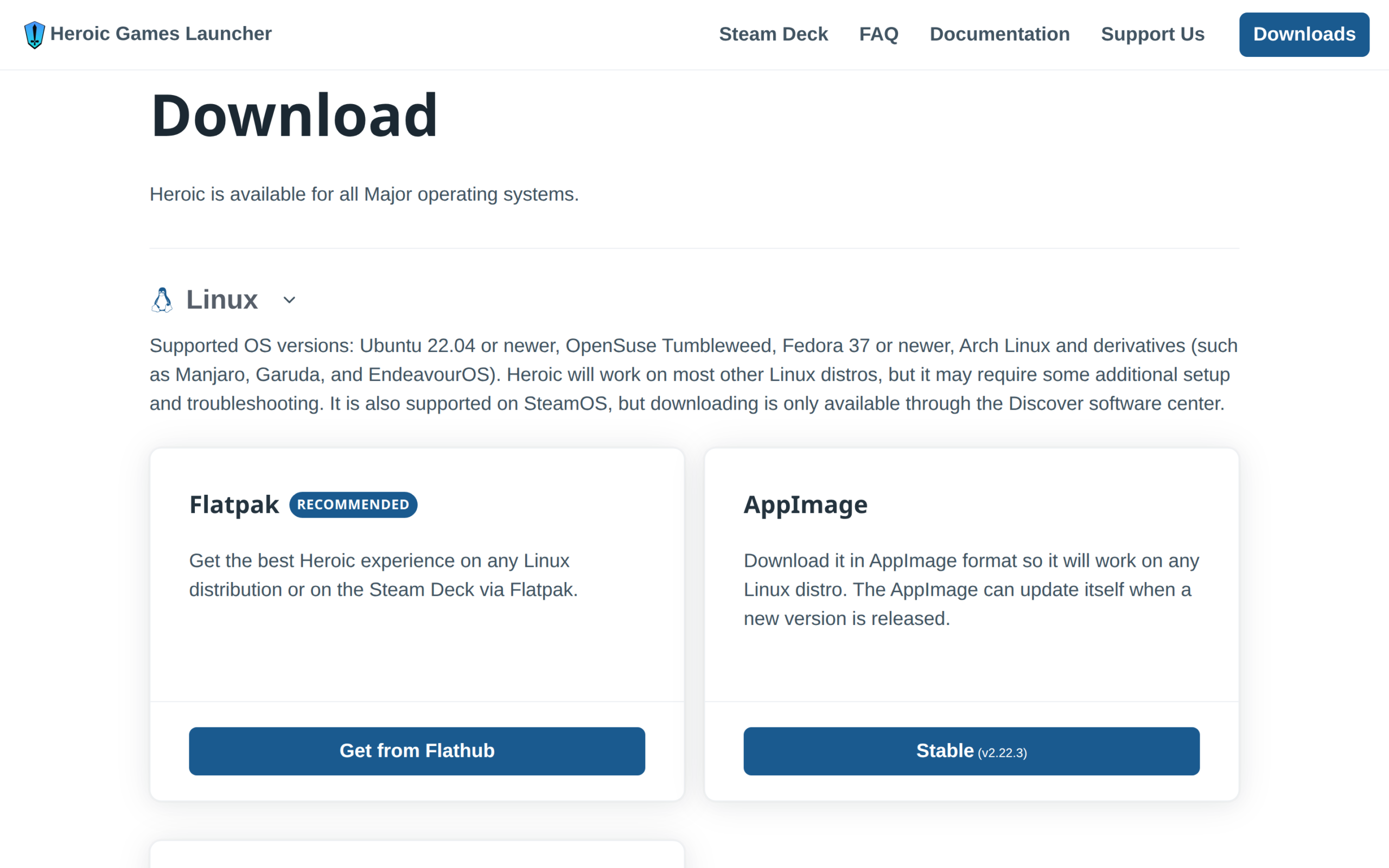
With Flathub configured, install Heroic with its app ID:
flatpak install flathub com.heroicgameslauncher.hgl
Debian and Ubuntu users can download the .deb from the latest Heroic release. Fedora has an .rpm package, while Arch’s stable package is heroic-games-launcher-bin in the Arch User Repository (AUR).
For AppImage, use the official download and follow the LinuxForDevices instructions to install an AppImage on Linux. Keep Heroic on the same package source when updating, so you do not open a second install by mistake.
The command names both the Flathub remote and Heroic’s published app ID. Add Flathub first when that remote is missing.
Step 2: Sign in to Epic or GOG
Heroic’s Log In view lets you choose Epic Games Store or GOG, then sends account authorization to the selected store. Return to Heroic when sign-in finishes.
According to the official Heroic FAQ, the app keeps an authorization token so it can list, download, and launch games for the connected account.
The FAQ says the store handles authorization and Heroic keeps the token needed to manage your library. It also says optional usage analytics are off by default.
That token does not transfer a purchase between stores. If both accounts are linked, check that the title appears under the store where you own or claimed it.
Step 3: Choose the game folder and prefix
Open a game from the library and start its installation. Review the destination folder and prefix before confirming.
A Wine prefix acts like a separate Windows drive, keeping a game’s dependencies and settings apart from its downloaded files. Heroic tracks the installation folder and prefix as two choices, so changing the prefix does not move the main game files.
That split is why the folder and prefix need separate checks when you troubleshoot or move a game.
A Windows game’s local saves may live inside its prefix, while a native Linux title can use its own data folder. Cloud-save behavior depends on the store and game.
For a Flatpak install, confirm Heroic can read the game folder and write to its prefix before you download, using the upstream guide’s instructions for granting access to one location.
Heroic can create a Steam shortcut manually after a game is installed, or add future installs automatically from its settings. If Steam itself is not set up, use the LinuxForDevices guide to install Steam on Linux.
Step 4: Choose a compatibility tool for the game
Native Linux titles use Linux libraries, while Heroic can manage Wine or Proton for Windows games.
For a non-Flatpak install, the current Heroic README says no additional Wine dependencies are required when its default UMU path is enabled.
Heroic’s Wine Manager can download alternate builds for a title that needs one. A separate runner is not a prerequisite for every game.
Start with the game’s selected runtime. Change it when the game’s support notes call for another build.
Heroic’s official FAQ says Proton was designed for Steam, so results outside Steam vary. A different runner can help one game and break another.
The LinuxForDevices guide to ProtonUp-Qt covers managing Proton builds for Steam.
When a game installs but will not launch
A completed download does not prove that the runtime can start a game, so match the symptom to the next check before reinstalling Heroic.
| Symptom | Next check |
|---|---|
| Flatpak cannot see a game folder on another drive | Choose an accessible folder or grant Heroic access to that specific location through Flatseal. |
| A native Linux game reports a missing library | The Heroic FAQ suggests trying Use Steam Runtime in that game’s settings when Steam Runtime is installed. |
| A Windows game opens and exits or hangs | Review the selected runtime and compare reports for that title on ProtonDB. Reports describe specific setups, not a guarantee for yours. |
| The prefix path is missing or inaccessible | Check the selected prefix in the game’s settings. A closed issue report titled “Wine prefix is not being generated for each game install causing failure to launch” records one case, not a general current defect. |
Heroic can manage downloads and launch settings, but it cannot make every Windows game compatible with Linux. The game’s build and runtime still affect the result.
Check each game’s support before a large download
Look up the exact title on ProtonDB and compare reports for the Linux distribution and runtime you plan to use. A report helps you judge the risk, but it cannot promise the same result on a different setup.
If Heroic came from Flathub, update it through Flatpak when a launcher fix is available:
flatpak update com.heroicgameslauncher.hgl
This updates Heroic, not a game’s Linux support. For a .deb, .rpm, AUR package, or AppImage, update it through the same source you used to install it.
Heroic Games Launcher questions
What is Heroic Games Launcher?
Heroic Games Launcher is an open-source app for installing and managing games from Epic Games Store, GOG, and Amazon Prime Games on Linux, Windows, and macOS.
Will every Epic or GOG game run on Linux through Heroic?
No. Heroic connects the store and configures a launch, but each game’s Linux build, compatibility layer, and runtime affect whether it runs.
Do I need Wine or Proton to use Heroic?
Native Linux games do not need Wine or Proton. Windows games need a compatibility layer, and Heroic’s FAQ says Proton results outside Steam vary.
Where are Heroic games and saves stored?
Heroic exposes separate choices for a game’s installation folder and prefix. Windows game saves may be inside the prefix, while native games can use another data folder and cloud-save behavior depends on the game and store.
How do I update Heroic on Linux?
Update Heroic through the source you installed: Flatpak, your distribution package manager, the AUR, or the official AppImage download route.
Is Heroic Games Launcher safe to use?
Heroic is open-source software under GPL-3.0 and its official project site links to its source and downloads. Use the official project or Flathub package rather than an unknown installer.