

You have `~/.bashrc` open beside `~/.profile`, and neither filename tells you which one shaped the terminal you just started. I couldn’t resist digging into how Bash chooses between them, because the answer depends on the kind of shell it opened.
Getting that choice right helps explain why an alias appears in one terminal but a PATH change does not. Start with the two properties Bash uses to classify a shell session.
Bash startup files follow the shell mode
Bash chooses startup behavior from two separate properties. A login shell processes login configuration, while an interactive shell reads commands from a person and prepares a prompt.
| Shell mode | What starts it | Per-user startup file |
|---|---|---|
| Interactive login | A login shell with a prompt | The first readable login file, then .bashrc only if that file sources it |
| Interactive non-login | A Bash prompt opened inside an existing session | ~/.bashrc |
| Non-interactive login | A command started with Bash’s login option | The first readable login file |
| Non-interactive non-login | A script or command started with Bash | BASH_ENV when set, otherwise no personal profile or .bashrc by default |
An interactive login shell has both properties, while a command can use login startup without a prompt.
The file names in the table refer to your personal startup files, while distributions can add system-wide configuration too.
Which login file does Bash choose?
A login Bash first reads /etc/profile when that file exists. It then reads only the first readable file in this order.
- ~/.bash_profile
- ~/.bash_login
- ~/.profile
If ~/.bash_profile is readable, Bash does not continue to ~/.bash_login or ~/.profile. A missing .bash_profile is not an error when ~/.profile is the login file you have.
Names that begin with a dot are hidden in ordinary directory listings. The hidden files in Linux guide shows how to display them.
The original .bashrc search image also shows /etc/skel/.bashrc. That path is a template location used when accounts are created, not the personal file Bash reads for your current user. See the useradd command for the account-creation side.
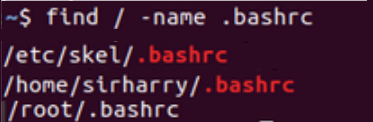
Bash follows the file order documented in the Bash Reference Manual startup-file section. A profile file does not run because its name looks like a profile. The shell must start in a mode that reads it.
Check the shell mode and available files
Run the same check under four option combinations. The login-shell flag comes from shopt, and the i flag in $- marks an interactive shell.
for mode in -lc -c -lic -ic; do
  bash "$mode" 'printf "login=%s interactive=%s\n" "$(shopt -q login_shell && echo yes || echo no)" "$([[ $- == *i* ]] && echo yes || echo no)"' 2>/dev/null
done
The output lists login/non-interactive, non-login/non-interactive, login/interactive, then non-login/interactive. I ran all four combinations, and each reports the two properties independently.
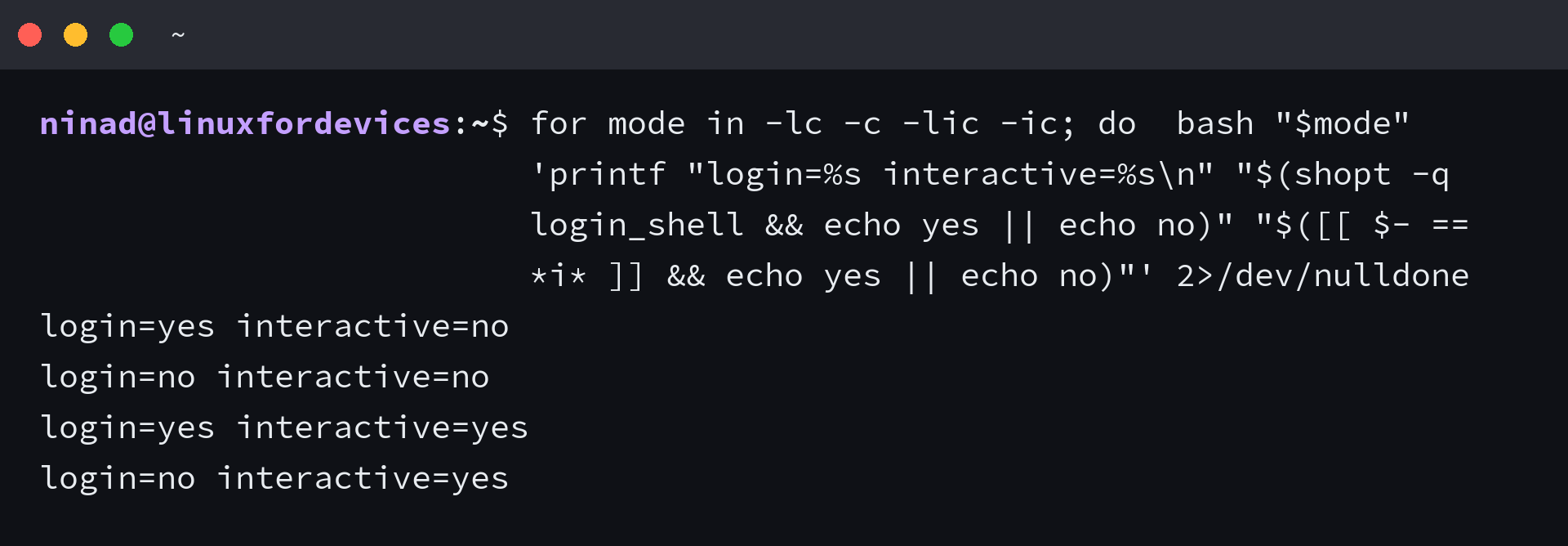
The redirection hides terminal-control warnings caused by forcing interactive mode inside a command. It does not change the values the test prints.
To list the login files your account can read, run this in Bash.
for file in ~/.bash_profile ~/.bash_login ~/.profile ~/.bashrc; do
  if [ -r "$file" ]; then printf '%s\n' "$file"; fi
done
The order in this command makes it straightforward to compare the names, but Bash itself selects only the first readable login file. The last path is the separate interactive-shell configuration.
Put interactive settings in .bashrc
Use .bashrc for changes that belong to interactive Bash prompts. The existing screenshot shows an interactive guard and history controls, both tied to a shell where you type commands.
| Setting | Usual home | Reason |
|---|---|---|
| Aliases and shell functions | ~/.bashrc | Available in interactive shells that read this file |
| Prompt and interactive history behavior | ~/.bashrc | Controls the prompt and command-line session |
| Login environment such as PATH | ~/.profile or ~/.bash_profile | Read when Bash starts as a login shell |
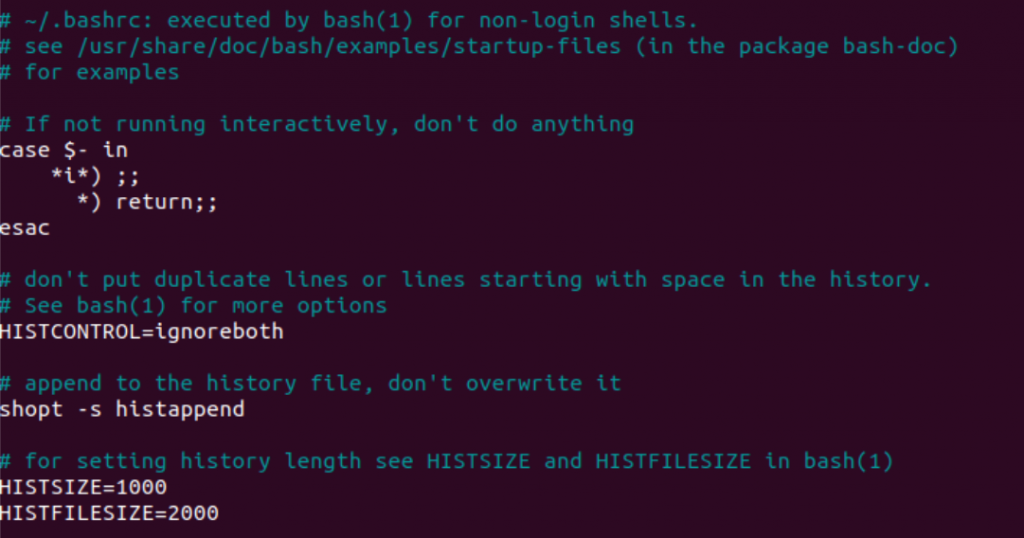
A PATH change in .bashrc can reach login shells only when the selected login file also loads .bashrc. The history settings shown here have their own follow-up in the guide to the Bash history file.
When you need to change the file, edit it in nano or use the site’s guide to edit a file from the terminal.
Load .bashrc from a login file when needed
If login shells should get the same aliases and prompt settings as interactive non-login shells, the selected login file can source .bashrc. Add this guarded block to the login file Bash actually reads.
if [ -f ~/.bashrc ]; then
  . ~/.bashrc
fi
The file check avoids an error when .bashrc is absent. Read your current profile first, because some distributions already add this link between the files.
Apply changes to the shell you already opened
Sourcing a file runs its commands in the current shell. Starting a new login shell runs the login-file selection again.
| Changed file | To use the change now | What it tests |
|---|---|---|
| ~/.bashrc | Run source ~/.bashrc | Applies interactive settings in this shell |
| ~/.profile or ~/.bash_profile | Start a new login shell | Runs the login startup chain from its beginning |
source ~/.bashrc
This updates the shell where you run the command. It does not make a new terminal tab a login shell, and it does not change the environment of applications that were already running.
When a setting does not appear
Start by checking whether the shell is a login shell or an interactive one.
| Symptom | Check |
|---|---|
| .bash_profile changes do not appear in a terminal | The terminal may start an interactive non-login shell, which reads .bashrc instead. |
| .profile stops running after .bash_profile is added | Bash reads the first existing login file only. Source .profile from .bash_profile if both configurations are needed. |
| An alias is missing in a script | Non-interactive Bash does not read .bashrc by default. BASH_ENV is a separate startup hook for scripts. |
| A PATH change appears twice | Check whether both the login file and .bashrc append the same directory. |
Remote Bash starts have a separate exception. The Bash manual says the shell may read .bashrc when a remote shell daemon launches a non-interactive Bash process, which is not a rule for every SSH command.
For a saved shell script that you run as a command, see how to run a shell script in Linux. Its startup environment comes from the process that launches it unless Bash receives a separate startup setting.
Check PATH in a login shell
A login-only PATH change should be checked in a login shell, not an ordinary command shell. This command shows the PATH value after Bash reads its login configuration.
bash -lc 'printf "%s\n" "$PATH"'
Bashrc and Bash profile FAQ
Does Bash always load .bashrc for a login shell?
No. Bash reads .bashrc automatically for an interactive non-login shell. A login shell reads it only when the selected login file sources it.
Why is .bash_profile missing on Linux?
Bash does not require a file with that name when another readable login file exists. It checks .bash_profile, then .bash_login, then .profile.
Can I use .profile for Bash settings?
Yes. Bash reads .profile as its third login-file choice when neither .bash_profile nor .bash_login is readable. Keep interactive-only aliases and prompt settings in .bashrc.