

A file or directory can need a different group recorded for it while keeping its current owner and permission bits. The chgrp command changes the group ownership of the paths you specify.
I’ll show how to use chgrp with a named group or a reference file and how to check the resulting group.
TL;DR: Change a File’s Group with chgrp
Use chgrp GROUP FILE to change a file’s group ownership, then inspect the result with ls -l FILE.
- Use --reference=FILE to take the target group from a known file.
What Is the chgrp Command?
chgrp assigns a group name or numeric group ID to each supplied filesystem path.
In a long-listing entry such as -rw-r—– 1 maya editors 2048 report.txt, maya is the user owner and editors is the group owner. The group column is the value chgrp targets.
The chown command guide covers changing the user owner as well, and the chmod command guide explains the separate permission bits.
| Command | Field changed |
|---|---|
| chgrp editors report.txt | Group only |
| chown maya:editors report.txt | User and group |
| chmod g+r report.txt | Group read permission |
For account membership, see the Linux group membership guide.
How to Change a File Group with chgrp Step by Step
The steps cover individual paths, shell-selected names, recursive trees, and a reference-file form.
Step 1: Check the group and current ownership
Use id to inspect current-session groups, getent group GROUP to confirm a target-group record, and ls -l FILE to inspect a path’s current owner and group. Each check answers a different question.
ls -l demo-report.txt
-rw-rw-r-- 1 ubuntu ubuntu 23 Nov 16 19:53 demo-report.txt
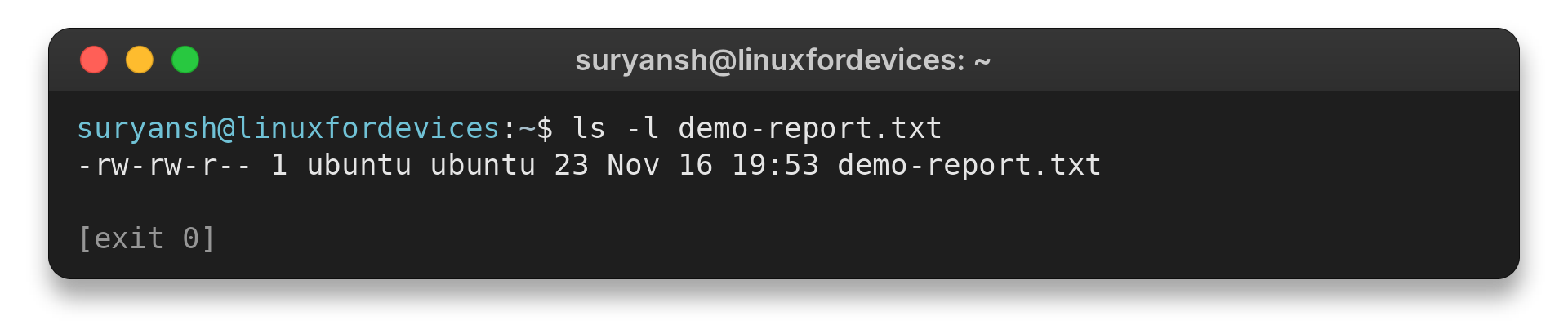
Access also depends on mode bits and the credentials of the process opening the path. Check those separately when the displayed group looks right but an operation still fails.
I ran chgrp --version and saw GNU coreutils 9.4. Checking the version is a harmless way to identify which implementation’s help and behavior to consult.
chgrp --version
The captured output was:
chgrp (GNU coreutils) 9.4
Copyright (C) 2023 Free Software Foundation, Inc.
License GPLv3+: GNU GPL version 3 or later <https://gnu.org/licenses/gpl.html>.
This is free software: you are free to change and redistribute it.
There is NO WARRANTY, to the extent permitted by law.

Written by David MacKenzie and Jim Meyering.
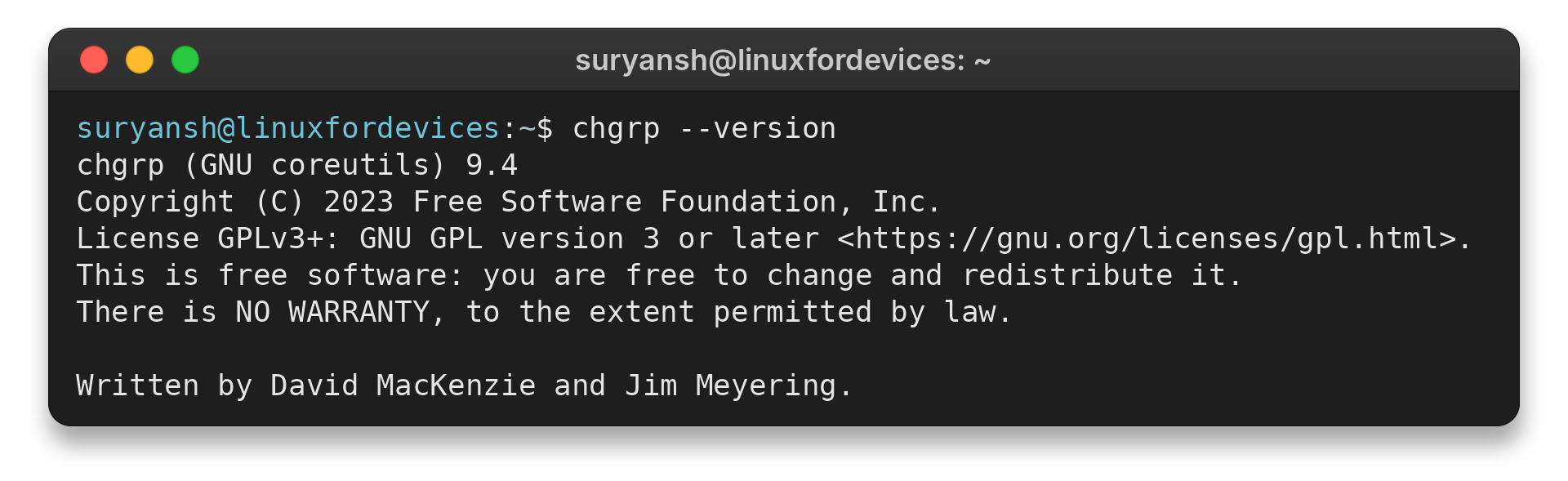
This identifies the GNU implementation on the machine where the command ran. Other systems may ship a different implementation, so check its local manual for option details.
Step 2: Change one file or several paths
For a small task, keep the intended path names visible in the command.
chgrp editors report.txt
chgrp editors report.txt summary.txt archive/
Options come before the group operand, and the group comes before the paths. The shell passes each expanded path as an argument, so quote a name with spaces as one argument. If a path begins with a hyphen, use — before the group and path operands to mark the end of option parsing.
chgrp -- editors --draft.txt
Wildcards are expanded by the shell before chgrp receives the command. A wildcard can select many matching files at once, so preview the matches with printf ‘%s\n’ file* or list the directory first.
Replace editors and the example paths with values that exist on your host. A command without output commonly completes without a diagnostic.
The group operand can be a name such as editors or a numeric group ID accepted by GNU chgrp. Names are readable in a shell history, while IDs can be useful when a script receives them from a verified local configuration. Check the destination host before reusing an ID.
Every path in one invocation receives the same requested group. Split the work when destinations need different groups, and quote names with spaces.
After a group change, check active group credentials and parent-directory search permissions if access remains unavailable.
GNU documentation says that permission to set an arbitrary group, rather than a group of which the user is a member, depends on the system. Check membership with id and inspect the target with getent group GROUP. Use privilege only when authorized and when the path is correct.
chgrp editors "Q1 report.txt" "Q2 report.txt" archive/
For a large selection, a find preview lets you inspect the exact names before passing them to chgrp. Keep the selection rule narrow enough to review the targets.
Relative paths are interpreted from the shell’s current working directory. If a script may start in different directories, use an explicit path or set and verify its working directory before calling chgrp.
For a path with a leading hyphen, the end-of-options marker protects the path from being parsed as a flag. Shell quoting has a different job: it keeps spaces and wildcard characters inside one argument or prevents wildcard expansion. Use both techniques when a filename requires them, and confirm the resulting argument list before any bulk ownership change.
For commands built from another program’s output, consider how spaces, newlines, and unusual filename characters reach the shell. Avoid concatenating untrusted names into shell text.
| Option | What it reports | When it helps |
|---|---|---|
| -v, --verbose | A diagnostic for every operand | Audit paths processed |
| -c, --changes | A diagnostic only when the group changes | Review effective changes |
| -f, --silent | Suppresses error messages | Quiet scripts after error handling |
GNU’s -f option silences error messages about files whose group cannot be changed. GNU still uses a nonzero exit status when an error occurs. A script should check that status and review paths after a bulk operation.
Choose reporting flags for the job rather than stacking them by habit. Verbose output records each operand, while changes-only output omits unchanged entries. Quiet mode can hide useful diagnostics, so pair it with deliberate exit-status handling.
After a bulk command, inspect representative destinations and check its exit status. This verifies that the command’s result matches the intended change.
Step 3: Apply the change to a directory tree
The following command uses a directory operand with GNU’s recursive option.
chgrp -R editors project/
In common shells such as Bash, the expression project/* normally skips names beginning with a dot. Passing the directory itself to recursive chgrp avoids relying on that shell expansion and includes hidden entries in the traversal.
GNU chgrp defaults to -P with recursive changes, so it does not traverse symbolic links. -H follows a command-line directory link, while -L follows directory links found during the walk. Following links can lead outside the intended tree, and GNU warns that a user who can alter the tree during traversal may introduce an unintended target.
If more than one recursive traversal mode appears in the command, GNU’s help says the final one takes effect. Choose one mode explicitly so the command’s link behavior is clear to the next person reading it.
Step 4: Copy a group from a reference file
GNU’s --reference=FILE form uses a source file in place of a named group operand.
chgrp --reference=template.conf new.conf
chgrp -R --reference=template.conf project/
A symbolic-link reference uses the target file’s group, according to GNU’s manual. Use one reference for several destinations only when their intended group policy matches. Confirm that the reference file is the right template before applying it to a tree.
When verbose output says the group was retained, the file already matched the requested value, so no update was necessary. This message is useful in a mixed batch because it separates changed paths from paths that already met the goal. Review it alongside failure diagnostics rather than treating every line as a change.
Step 5: Verify the resulting group
Run ls -ld DIRECTORY for the directory itself and ls -l DIRECTORY for its direct contents. For a recursive check, use a targeted find query that reports group ownership for descendants.
ls -ld project/
find project/ -printf '%G %p\n'
Compare each listed value with the requested group before relying on the command’s exit status alone.
The numeric format is useful when names are unavailable or when a report needs an unambiguous identifier. A name is clear in routine administration, but it still depends on the system resolving that name to the intended group. Pick one format for a check and use it consistently across the command and the verification output.
For a single directory, ls -ld reports the directory entry itself, whereas ls -l DIRECTORY reports its immediate contents. Use the recursive form when existing descendants are included in the task.
The find format %G prints the numeric group ID and %p prints each path. If names are more useful to the reviewer, %g prints the group name when the system can resolve it. Select one representation that can be compared consistently with the target group.
chgrp Edge Cases and Errors
Many surprises come from a target that is invalid, an account that lacks permission, a symbolic link, or an assumption that ownership automatically grants access. I passed an unsupported option to check what a spelling mistake looks like: the command returned exit status 1 and printed an unrecognized-option message.
chgrp --definitely-invalid-option
chgrp: unrecognized option '--definitely-invalid-option'
Try 'chgrp --help' for more information.

The diagnostic points to option parsing, not group membership or file permissions. Check spelling and capitalization, then consult chgrp --help before retrying a command that changes ownership.
For an authorized change, take a final look at each path and its requested group before running a bulk command. Review verbose diagnostics or the exit status afterward, then inspect representative files and directories rather than assuming every operand succeeded.
A missing target group has a different signal. getent group GROUP returns a record when the name is present in the configured group database.
I checked a deliberately absent name with getent group jd-no-such-group-20261116. It returned no record and exit status 2. Confirm spelling and the host’s configured identity source before treating this as an authorization refusal.
- Invalid group: check whether getent group GROUP returns a record, then verify spelling and the host’s identity configuration.
- Operation not permitted: inspect the target and current identity with id. GNU documents that permission to set an arbitrary group depends on the system and the caller’s authority.
- Group retained: the requested group may already match. Read the current value with ls -l before deciding whether another action is needed.
- Group changed but access still fails: review mode bits and search permission on parent directories with ls -l, then consult the chmod guide.
A new group membership may not appear in an already-running login session, so confirm the active groups before diagnosing a refusal.
For a directory shared by a team, separate the immediate ownership task from the policy for files created later. GNU documents that a directory’s setgid bit can make new files inherit its group on many systems. Check the directory mode when planning future files and inspect existing descendants when the task includes entries already present.
A shared directory can need both a carefully chosen mode and a group assignment when existing and future files have different requirements.
The Linux symbolic links guide explains link targets. Outside recursive traversal, GNU follows a supplied symlink by default. The -h option requests acting on the link itself where supported.
GNU’s --preserve-root option makes recursive chgrp fail if the target is the root directory. GNU documents --no-preserve-root as the default, so scripts that might receive a broad path should use an explicit safeguard and validate their input before they run.
Use the Linux groups and permissions guide for the surrounding access model.
Conclusion: Check the Group Before Changing Access
Choose an explicit operand for one file or a reviewed directory for recursive work. Use the related guides when the task also requires changing its owner or permission mode.
For the related tasks, see the LinuxForDevices guides to changing file ownership with chown, adding users to groups, and setting access bits with chmod.
FAQ
These answers address common questions about changing group ownership in Linux.
What does the chgrp command do?
It changes the group ownership recorded for one or more files or directories. It does not change the user owner or permission bits.
How do I change a directory group recursively?
Use chgrp -R GROUP DIRECTORY after checking the target tree. GNU chgrp does not follow symlinks during recursive traversal by default.
Why does chgrp say Operation not permitted?
The current user, group membership, filesystem, or system policy may not permit the requested change. Check the target and your groups with id, then consult the host’s rules.
What is the difference between chgrp and chown?
chgrp changes only the group. chown can change the user owner and can also set a group.
Will new files inherit the directory group?
Not from chgrp alone. On Linux, a directory’s setgid bit can make new files and subdirectories inherit that directory’s group.