

You run rmdir on a folder you just created and it works, then you run the same command on a folder with a single file inside and get Directory not empty. That split is the whole design of directory removal in Linux, and once you see which tool guards against data loss and which one deletes recursively, the right command becomes obvious.
Which command to use and when
If you want a quick decision before you read the examples, use this map. rmdir is the safe empty-only remover and rm with -r is the recursive remover for anything with contents.
Adding -f suppresses prompts. Use -i or -I when you want the command to ask before it deletes.
| Goal | Command | What it does |
|---|---|---|
| Remove an empty directory | rmdir | Fails if anything is inside, so you cannot delete by accident |
| Remove nested empty directories at once | rmdir -p | Walks up and removes each empty parent |
| Remove an empty directory with rm | rm -d | Same guard as rmdir but via rm |
| Remove a directory with files | rm -r | Recurses into every child and deletes |
| Force recursive delete without prompts | rm -rf | Ignores write-protected prompts and missing files |
| Confirm before each deletion | rm -ri / rm -rI | Asks for each item or once for large trees |
Every rm and rmdir deletion is permanent. Files do not go to Trash, and the tools do not keep a recycle log. I verified each command below on Ubuntu 22.04 with GNU coreutils 8.32 before updating this guide, so the outputs match what you will see on a current distribution.
Remove an empty directory with rmdir
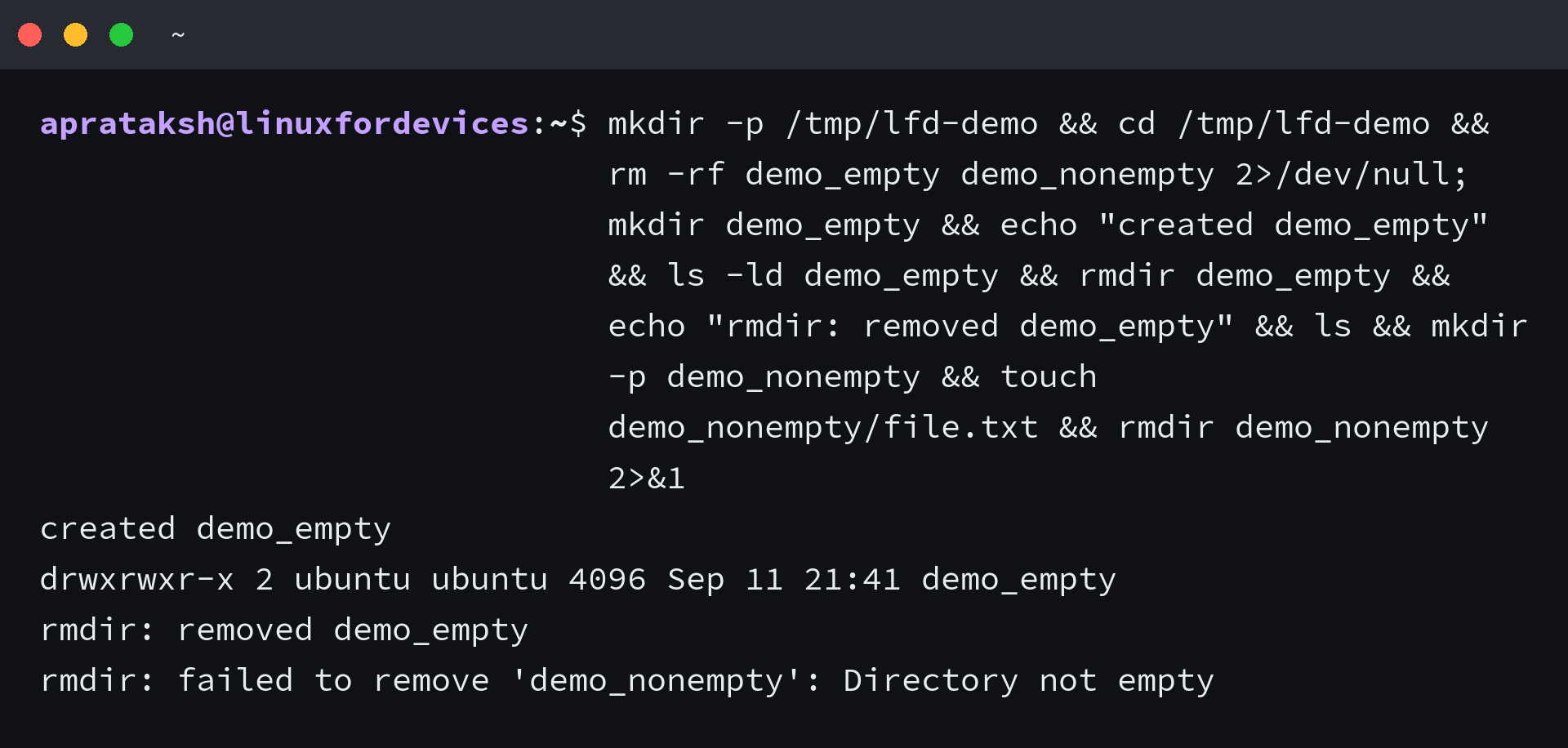
Use rmdir when you know the directory is empty and you want the command to stop you if you are wrong. The guard is the feature.
mkdir demo_empty
ls -ld demo_empty
rmdir demo_empty
echo "removed"
ls
When the directory is not empty, rmdir prints a clear error and leaves everything in place.
mkdir -p demo_nonempty
touch demo_nonempty/file.txt
rmdir demo_nonempty
# rmdir: failed to remove 'demo_nonempty': Directory not empty
Add -v when you want to see each directory as it goes, and –ignore-fail-on-non-empty when you are cleaning a list and want the command to skip non-empty entries without exiting on error. Use an absolute or relative path if you are not inside the parent directory.
Remove nested empty directories with rmdir -p
The -p flag removes a chain of empty parents in one step. It deletes the innermost directory first and then tries each parent. It stops at the first parent that is not empty, which means you do not need a loop of rmdir calls.
mkdir -p a/b/c
find a -type d | sort
rmdir -p a/b/c
echo "removed chain a/b/c"
ls
This only works when every directory in the chain is empty. If a file exists anywhere inside, rmdir -p removes the empty tail and then reports Directory not empty for the first non-empty ancestor.
Remove directories with rm: -d, -r, and -rf
rm is the general remover. Without flags it refuses directories. With flags it covers the same cases as rmdir and the recursive cases that rmdir cannot touch.
rm -d for an empty directory
mkdir demo_rm_d
rm -d demo_rm_d
echo "removed with rm -d"
rm -r for a directory with contents
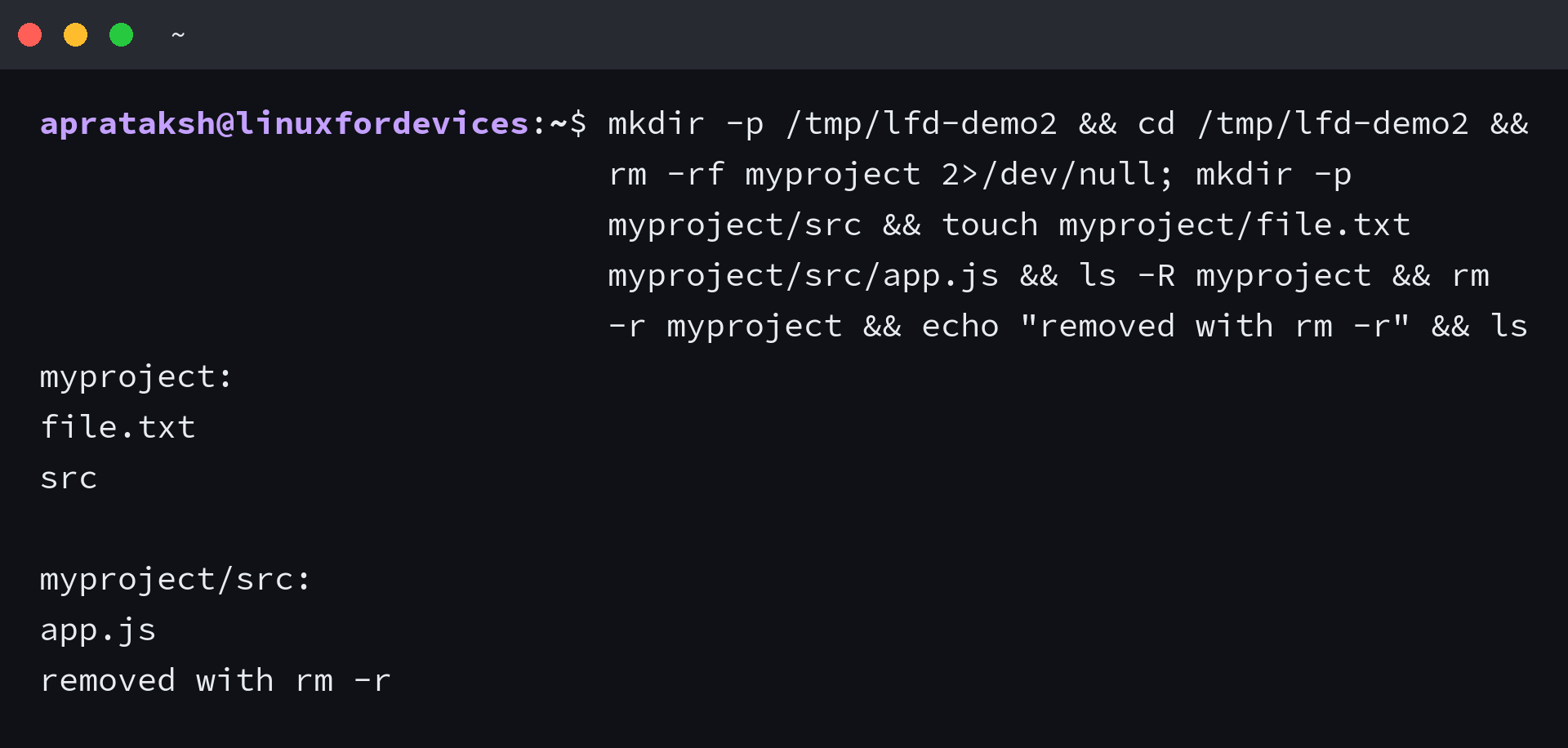
The -r flag means recursive. rm walks every file and subdirectory inside the target and removes them before removing the target itself. This is how you delete a project folder with source files and nested directories in one command.
mkdir -p myproject/src
touch myproject/file.txt myproject/src/app.js
ls -R myproject
rm -r myproject
echo "myproject removed"
ls
rm -rf to force removal without prompts
When a file is write-protected, plain rm -r prompts for confirmation. Adding -f tells rm to ignore nonexistent files and to suppress that prompt.
Combine them as -rf for a forced recursive delete. I tested this with a 444 file to confirm the prompt suppression.
mkdir -p demo_rf
touch demo_rf/file.txt
chmod 444 demo_rf/file.txt
ls -l demo_rf/
rm -r demo_rf
# rm: remove write-protected regular empty file 'demo_rf/file.txt'?
rm -rf demo_rf
echo "forced removal done"
Never run rm -rf with a variable that might be empty. The classic failure is rm -rf “$DIR”/* when DIR is unset and the shell expands it to rm -rf /*. Guard with : “${DIR:?not set}” or test that the directory exists before you delete.
Confirm before you delete: -i and -I
When you are unsure what is inside, ask rm to confirm. The -i flag prompts for every file and directory. The -I flag prompts once when you are about to delete a handful of files (GNU rm prompts once before removing recursively when the count is large) or recurse, which is quieter for large trees.
mkdir -p demo_i
touch demo_i/a.txt demo_i/b.txt demo_i/c.txt
rm -ri demo_i
# rm: descend into directory 'demo_i'?
# rm: remove regular empty file 'demo_i/a.txt'?

mkdir -p demo_i2
touch demo_i2/{1..5}.txt
rm -rI demo_i2
# rm: remove 1 argument recursively?
Answer y to confirm and n to skip. Use -I as a everyday safety net and reserve -i for cases where you want to approve each file.
Wildcards, find, and safer approaches
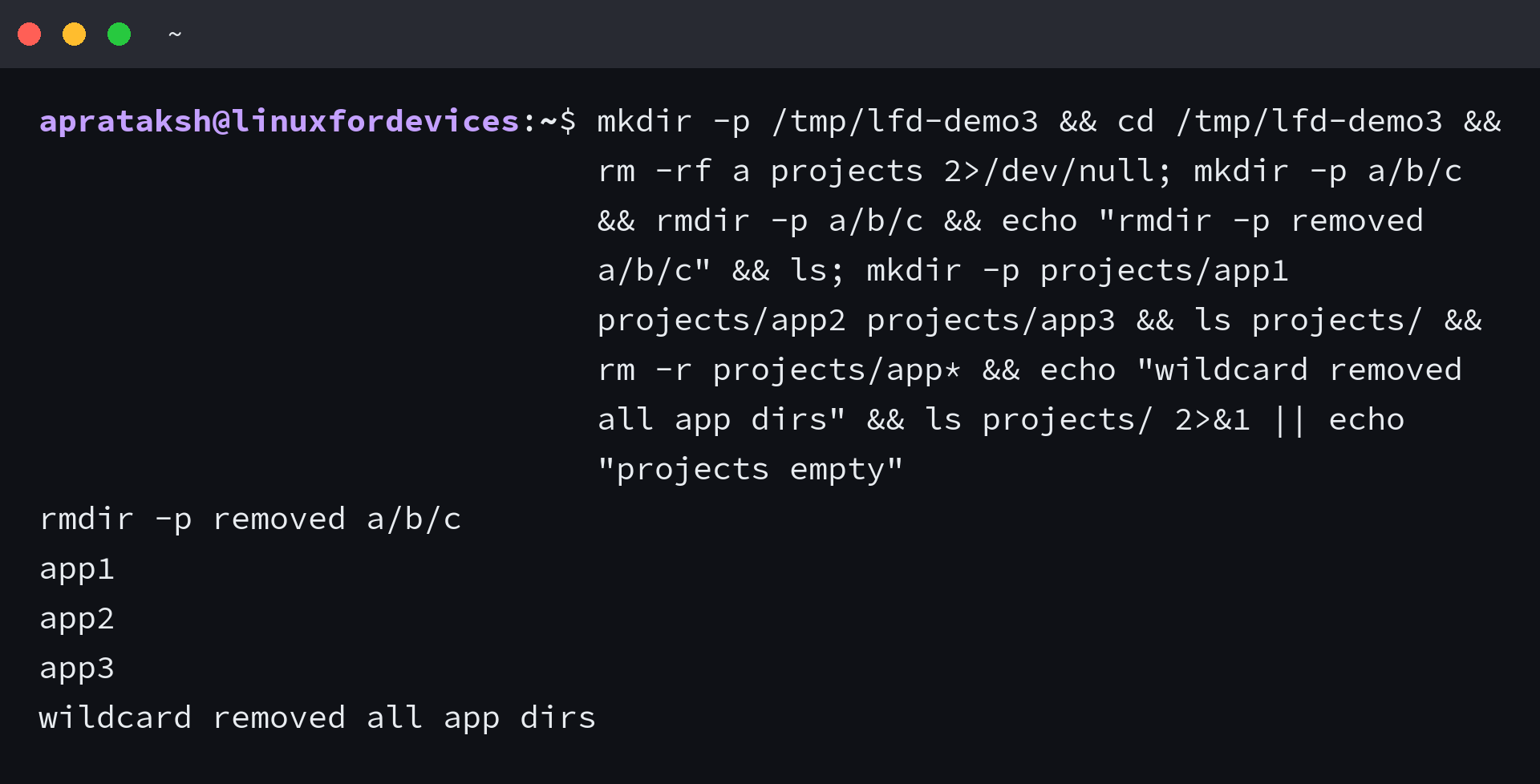
rm understands shell globs, so you can match multiple directories by name without listing each one.
mkdir -p wd/folder1 wd/folder2 wd/folder3 wd/other
ls wd/
rm -r wd/folder*
ls wd/
The * matches any number of characters and ? matches exactly one. Quote the expression when you want find to do the matching instead of the shell, and add safeguards for names with spaces or leading dashes.
# Safer: use -- to stop option parsing and quote the path
rm -r -- "./-oddly-named"

# Use find for selective deletes
find ./projects -maxdepth 1 -type d -name "build-*" -exec rm -r -- {} +

# Preview before you delete
find . -type d -name "__pycache__" -print
find . -type d -name "__pycache__" -exec rm -r -- {} +

# Verbose so you see what happened
rm -rv old_cache/
Two flags deserve a permanent place in your muscle memory. –preserve-root is the default in GNU rm and blocks rm -rf / from destroying the system.
Do not pass –no-preserve-root unless you have a specific reason. –one-file-system keeps a recursive rm from crossing mount points.
Recovery and safer alternatives
Neither rm nor rmdir moves files to Trash. Once they return, the data is gone unless you have a backup or filesystem snapshot. For day-to-day safety, install a Trash-aware remover or alias the risky form.
# Trash-based alternative (install once)
sudo apt install trash-cli
trash-put myproject/
trash-list
trash-restore
trash-empty

# Quick safety alias
alias rm='rm -I --preserve-root'
# For scripts, use full rm and explicit flags
Treat trash-cli or gio trash as a separate workflow from rm. It is useful on a desktop but you should still know the underlying rm behavior for servers where Trash is not available.
Common errors and fixes
rm and rmdir report the same handful of errors on every distribution, so matching the message to the fix saves time.
| Error | Cause | Fix |
|---|---|---|
| rmdir: Directory not empty | Files remain inside | Use rm -r if you intend to delete contents, or empty the directory first |
| rm: cannot remove ‘dir’: No such file or directory | Typo or wrong path | Check pwd and ls, use tab completion |
| rm: cannot remove ‘dir’: Permission denied | Missing write or execute on parent | Check ls -ld and sudo only when you own the workflow |
| rm: remove write-protected file? | 444 or read-only file | Use rm -rf to suppress, or chmod +w first |
| rm: refusing to remove ‘.’ or ‘..’ | Dot entry protection | Use an explicit name, not * with a leading dot |
Conclusion
Start with rmdir when you expect an empty directory and want a built-in stop on anything unexpected. Reach for rm -r when the directory has contents, add -f only when you mean to skip prompts, and keep -I as your everyday confirmation. Check the path with ls or find -print first, keep the — separator in mind for odd names, and remember that deletion is permanent.
What is the difference between rmdir and rm -r?
rmdir removes only empty directories and fails with Directory not empty if any file remains, which makes it the safer default. rm -r removes a directory and everything inside it recursively. Use rmdir when you expect emptiness and rm -r when you intend to delete contents.
How do I force remove a directory with contents?
Use rm -rf directory_name. The -r flag recurses into contents and -f suppresses confirmation for write-protected files. Verify the path with ls or pwd first because rm -rf is permanent and does not use Trash.
Can I restore a directory deleted with rm?
No. Both rm and rmdir delete permanently. Restore from a backup or filesystem snapshot. On desktops you can use trash-cli or gio trash instead of rm when you want Trash behavior.