
A small change to a file is only useful if you can save it, and you may also need to leave the original unchanged. Vim is a text editor whose keys do different jobs depending on whether you are entering text or issuing commands.
I’ll show you how to make and save or discard a small edit in Vim, then how to display line numbers.
TL;DR
Vim starts in Normal mode, where keys act as commands. Press i to type, then Esc to return to Normal mode.
- Open a file with vim filename.
- Press i, type your edit, then press Esc.
- Type :wq and press Enter to save and quit.
- Use :q! and press Enter to discard changes and quit.
What Vim does while you edit
Vim is a modal text editor: the keys you press do different jobs depending on the current mode. A buffer is the text Vim holds while you edit. Writing the buffer saves it to a file.
| Mode | What the keys do | How to enter it |
|---|---|---|
| Normal | Move around and issue editing commands | Press Esc |
| Insert | Enter text into the buffer | Press i from Normal mode |
| Ex command line | Run a command such as save, quit or search | Press : from Normal mode, then Enter to run it |
Vim opens in Normal mode. That is why typing a letter can move the cursor or run an edit instead of adding that letter to the file. If the editor’s response surprises you, press Esc once or twice before trying another command.
Edit and save a file in Vim step by step
This sequence takes a file from opening to a saved change. The commands in the examples are entered in a terminal or at Vim’s command line as described in each step.
Step 1: Open a file
Give Vim the path you want to edit. If that path does not name an existing file, Vim opens a new buffer that can be written there.
vim notes.txt

The status line marks this as a new file. Press i to start inserting text. Press Esc to return to Normal mode before using movement or save commands.
Step 2: Enter text in Insert mode
From Normal mode, press i and type a line. The text goes into the buffer at the cursor. Press Esc when you have finished typing so Vim reads the next keys as commands.

The bottom-left — INSERT — label identifies the mode. Text you type now enters the buffer.
| Key | Action |
|---|---|
| i | Insert before the cursor |
| a | Insert after the cursor |
| Esc | Return to Normal mode |
These commands are case-sensitive. Lowercase i starts Insert mode. Uppercase I inserts at the start of the line.
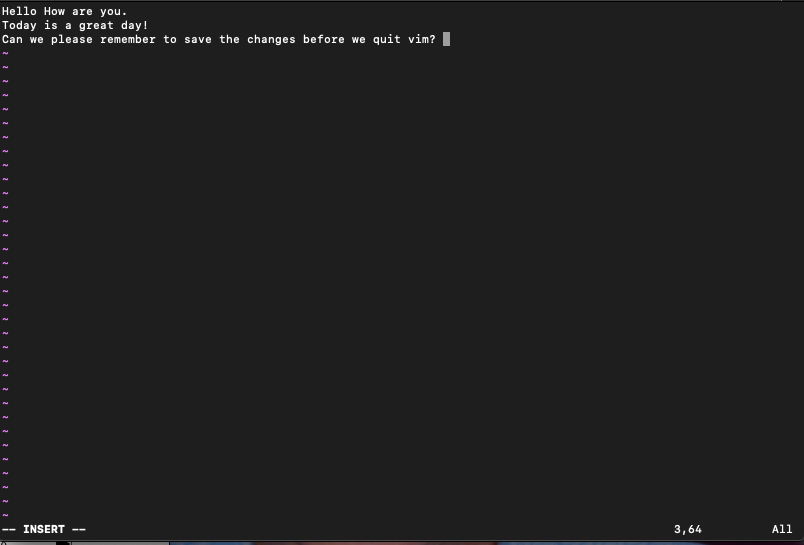
This screen shows text in the buffer with the Insert mode indicator still visible. Press Esc before trying a Normal-mode motion or save command.
Step 3: Move and make a small edit
Normal-mode motions move the cursor without switching to Insert mode. Use the arrow keys if that is more familiar, or use these keys from the Vim manual.
| Key | Movement |
|---|---|
| h, j, k, l | Left, down, up, right |
| w, b | Forward or back by a word |
| 0, $ | Start or end of the current line |
| gg, G | First or last line of the file |
To remove the current line, place the cursor on it and press dd in Normal mode. Press u to undo that change. These are buffer edits, so you still need to write the file to keep them after quitting.

The displayed buffer has one fewer line. Press u immediately after a deletion to restore the last edit.
Step 4: Save or quit without saving
From Normal mode, press colon, type the Ex command, and press Enter. Vim then writes the buffer or closes the editor according to the command.
| Command | Result |
|---|---|
| :w | Write changes and stay in Vim |
| :wq | Write changes and quit |
| :q | Quit if there are no unsaved changes |
| :q! | Discard unsaved changes and quit |
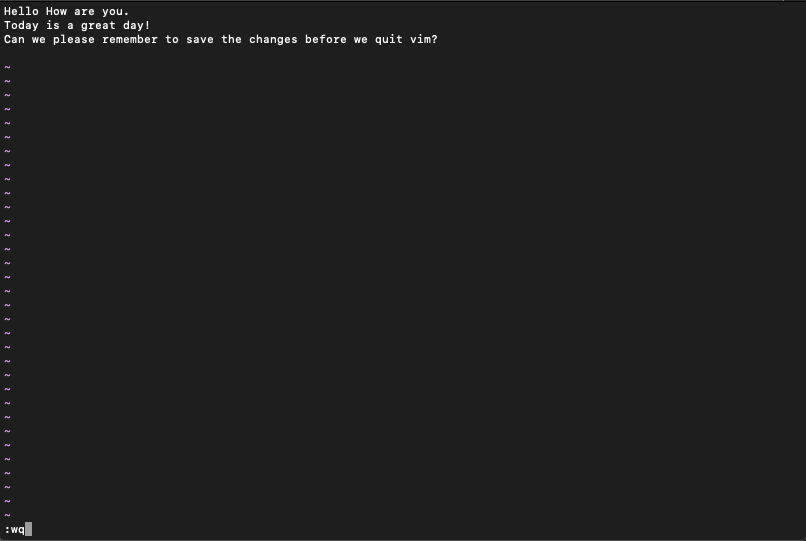
The command line shows :wq ready to run. Press Enter to write the file and quit.
I used Vim’s Ex commands in a batch run to create and save a two-line demo file. The saved file contained these lines:
cat vim-tutorial-demo.txt
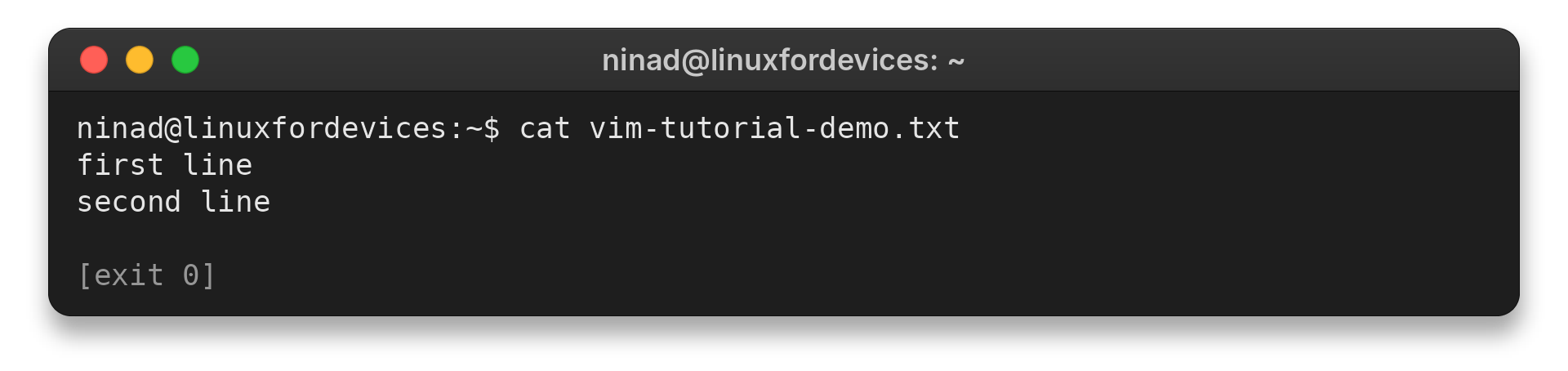
The terminal output is the saved file, read back after Vim exited.
The output confirms that the file contains both lines after the write. That verifies the contents after Vim closed. In a regular editing session, :wq writes the buffer and quits Vim.
Step 5: Search the file and show line numbers
Press Esc to enter Normal mode. Type /word and press Enter to search forward for that match. Press n to move to the next match and N to move to the previous one.
/word
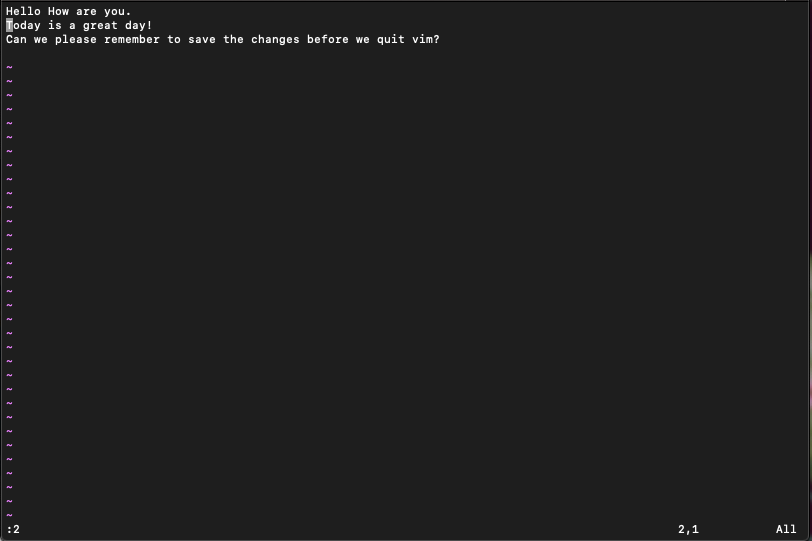
To show absolute line numbers in the current Vim session, enter :set number. Enter :2 and press Enter to jump to line two.
The command line in this screen shows :2 typed, with the cursor on line two. Press Enter to run the jump.
The option is not permanent. Vim’s user manual explains how to place startup options in a vimrc file.
When Vim will not save or quit
Vim refuses a plain :q when the buffer has changes that have not been written. The prompt protects those edits from being discarded by mistake.
| What you want | What to enter |
|---|---|
| Keep the edit and close Vim | Press Esc, then :wq and Enter |
| Keep the edit but continue working | Press Esc, then :w and Enter |
| Discard the edit and close Vim | Press Esc, then :q! and Enter |
| Cancel the current mode or command | Press Esc |
Choose the force-quit command only when you mean to discard the current unsaved buffer. If a key appears as text instead of a command, Vim is in Insert mode. Press Esc, then enter the command again.
Common errors with Vim
When a letter moves the cursor instead of appearing in the file, return to Insert mode before typing. An unsaved-change warning means you must choose whether to keep or discard the buffer.
- Keys act as commands: press i to enter Insert mode.
- Vim will not quit with unsaved changes: use :wq to save, or :q! to discard.
Conclusion
Vim includes an interactive lesson called vimtutor. Run it in a terminal when you want guided practice, then use Vim’s user manual for the next topic.
vimtutor
Inside Vim, enter :help user-manual for the structured manual, or :help followed by a topic for a reference lookup. For the next practical tasks, see how to exit Vim without saving, replace text in Vim, or search and replace in Vim.
Once the Normal and Insert modes feel distinct, Vim’s commands become a small sequence: move, edit, return to Normal mode, then write or quit. Keep the :wq and :q! choices separate, because one saves the buffer and the other discards it.
For another way to edit from a shell, compare terminal-based text editors, read how to edit a file in the Linux terminal, or try editing files with Nano.
How do I start Vim?
Run vim followed by a file name, such as vim notes.txt. Vim opens the file in Normal mode.
How do I save and exit Vim?
Press Esc, type :wq, and press Enter to write the buffer and quit.
How do I show line numbers in Vim?
Press Esc, enter :set number, and press Enter. This changes the current session; put the option in your vimrc to apply it at startup.
How do I open Vim’s built-in tutorial?
Run vimtutor in a terminal to start the interactive lesson.