
A download script may need to use a particular type of IP address each time it runs. Wget can restrict a request to IPv4 or IPv6, or try one family first while leaving the other available.
This article shows how to check both families and choose between a one-request option and a setting that applies to later commands.
TL;DR: Force Wget to use IPv4 or IPv6
Use -4 or –inet4-only to restrict one Wget run to IPv4, and -6 or –inet6-only to restrict it to IPv6.
- For one transfer, put the family flag before the URL: wget -4 https://example.com/file.
- For a diagnostic request that does not save the page, add –spider.
- To make a choice persistent for one account, set inet4_only = on or inet6_only = on in ~/.wgetrc.
Choose one family at a time. A forced-family request does not switch to the other family when DNS or routing for the selected one fails.
What do IPv4 and IPv6 options change in Wget?
They limit which IP address family Wget may use for the connection. IPv4 addresses use the older 32-bit format, while IPv6 addresses use a longer 128-bit format. A hostname can publish either family or both.
DNS commonly returns an A record for IPv4 and an AAAA record for IPv6. Wget resolves the hostname, then attempts an address permitted by its settings. The family flag changes that selection.
This changes address selection, not the remote server, DNS records, or local routes.
| Option | Effect | Use it when |
|---|---|---|
| -4, –inet4-only | Use IPv4 addresses only | You need an IPv4-only request or test |
| -6, –inet6-only | Use IPv6 addresses only | You need an IPv6-only request or test |
| –prefer-family=IPv4 | Prefer IPv4, without excluding IPv6 | You want a preference, not a restriction |
| –prefer-family=IPv6 | Prefer IPv6, without excluding IPv4 | You want IPv6 tried first where available |
Preference leaves the other family available. The inet4-only and inet6-only options exclude it, so use them only when that restriction is intended.
These flags also work in scripts and scheduled jobs. For a broader tool choice, see our Wget and curl comparison.
How to force Wget to use one address family
Run the family-specific option, read the address Wget connects to, then choose whether to save a default.
Step 1: Confirm Wget is installed
Check that Wget is available before diagnosing network behavior. The version option also prints build details.
#!/bin/sh
exec wget --version
Run the saved file with this command:
bash wget_version.sh
aadesh@linuxfordevices:~$ bash wget_version.sh
GNU Wget 1.21.4 built on linux-gnu.

-cares +digest -gpgme +https +ipv6 +iri +large-file -metalink +nls
+ntlm +opie +psl +ssl/openssl

Wgetrc:
    /etc/wgetrc (system)
Locale:
    /usr/share/locale
Compile:
    gcc -DHAVE_CONFIG_H -DSYSTEM_WGETRC="/etc/wgetrc"
    -DLOCALEDIR="/usr/share/locale" -I. -I../../src -I../lib
    -I../../lib -Wdate-time -D_FORTIFY_SOURCE=3 -DHAVE_LIBSSL -DNDEBUG
    -g -O2 -fno-omit-frame-pointer -mno-omit-leaf-frame-pointer
    -ffile-prefix-map=/build/wget-5oDYv8/wget-1.21.4=. -flto=auto
    -ffat-lto-objects -fstack-protector-strong -fstack-clash-protection
    -Wformat -Werror=format-security -mbranch-protection=standard
    -fdebug-prefix-map=/build/wget-5oDYv8/wget-1.21.4=/usr/src/wget-1.21.4-1ubuntu4.5
    -DNO_SSLv2 -D_FILE_OFFSET_BITS=64 -g -Wall
Link:
    gcc -DHAVE_LIBSSL -DNDEBUG -g -O2 -fno-omit-frame-pointer
    -mno-omit-leaf-frame-pointer
    -ffile-prefix-map=/build/wget-5oDYv8/wget-1.21.4=. -flto=auto
    -ffat-lto-objects -fstack-protector-strong -fstack-clash-protection
    -Wformat -Werror=format-security -mbranch-protection=standard
    -fdebug-prefix-map=/build/wget-5oDYv8/wget-1.21.4=/usr/src/wget-1.21.4-1ubuntu4.5
    -DNO_SSLv2 -D_FILE_OFFSET_BITS=64 -g -Wall -Wl,-Bsymbolic-functions
    -flto=auto -ffat-lto-objects -Wl,-z,relro -Wl,-z,now -lpcre2-8
    -luuid -lidn2 -lssl -lcrypto -lz -lpsl ../lib/libgnu.a

Copyright (C) 2015 Free Software Foundation, Inc.
License GPLv3+: GNU GPL version 3 or later
<http://www.gnu.org/licenses/gpl.html>.
This is free software: you are free to change and redistribute it.
There is NO WARRANTY, to the extent permitted by law.

Originally written by Hrvoje Niksic <[email protected]>.
Please send bug reports and questions to <[email protected]>.

[exit 0]
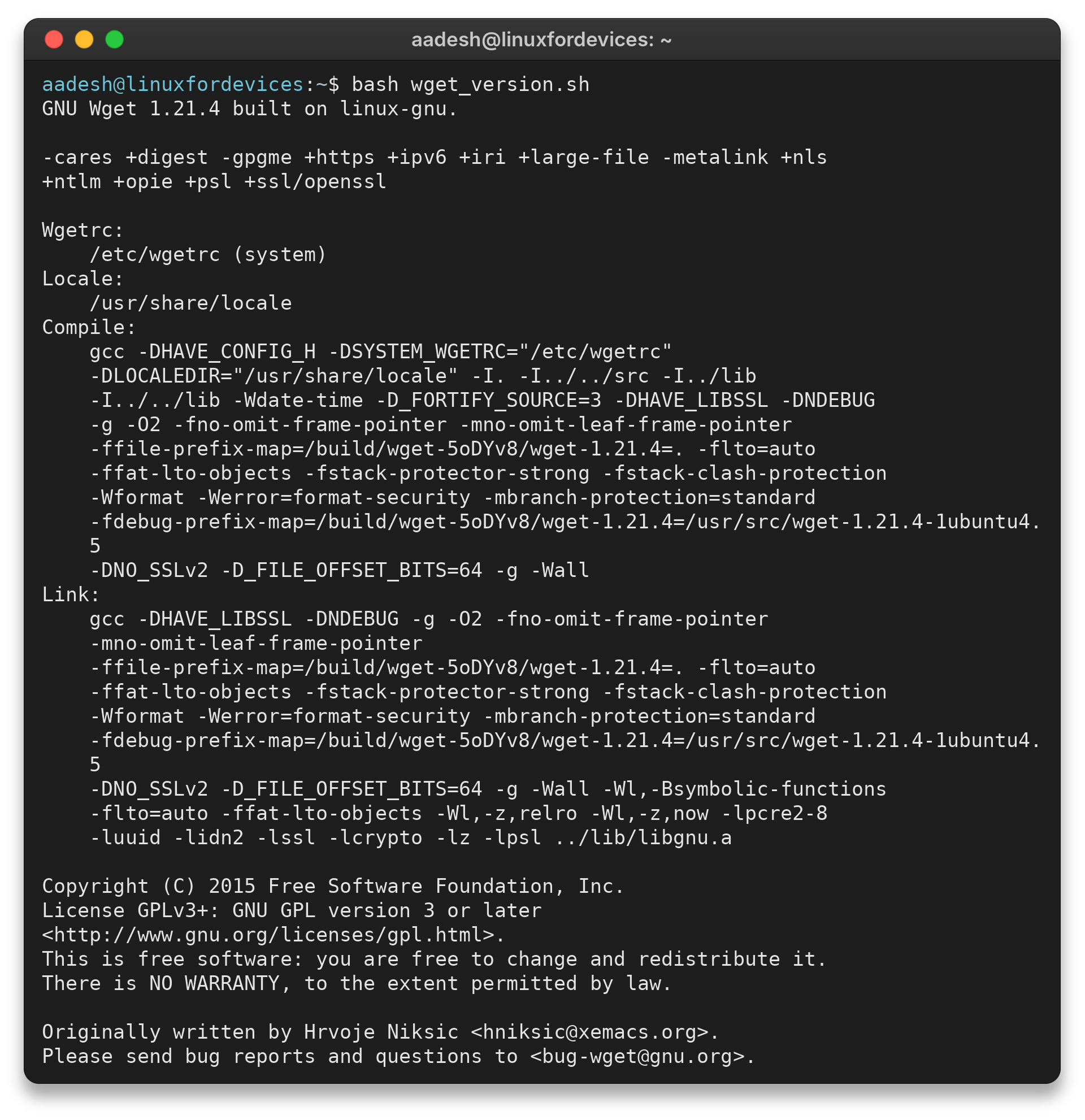
This output identifies GNU Wget 1.21.4 and marks IPv6 support with +ipv6. A different installed release can show a different feature set.
If Wget is missing, install the wget package with your distribution’s package manager.
Step 2: Make a one-request IPv4 check
Save wget_ipv4_spider.sh to check the URL over IPv4 without downloading its contents.
#!/bin/sh
exec wget --inet4-only --spider --tries=1 --timeout=8 https://example.com/
Run the named file from its directory:
bash wget_ipv4_spider.sh
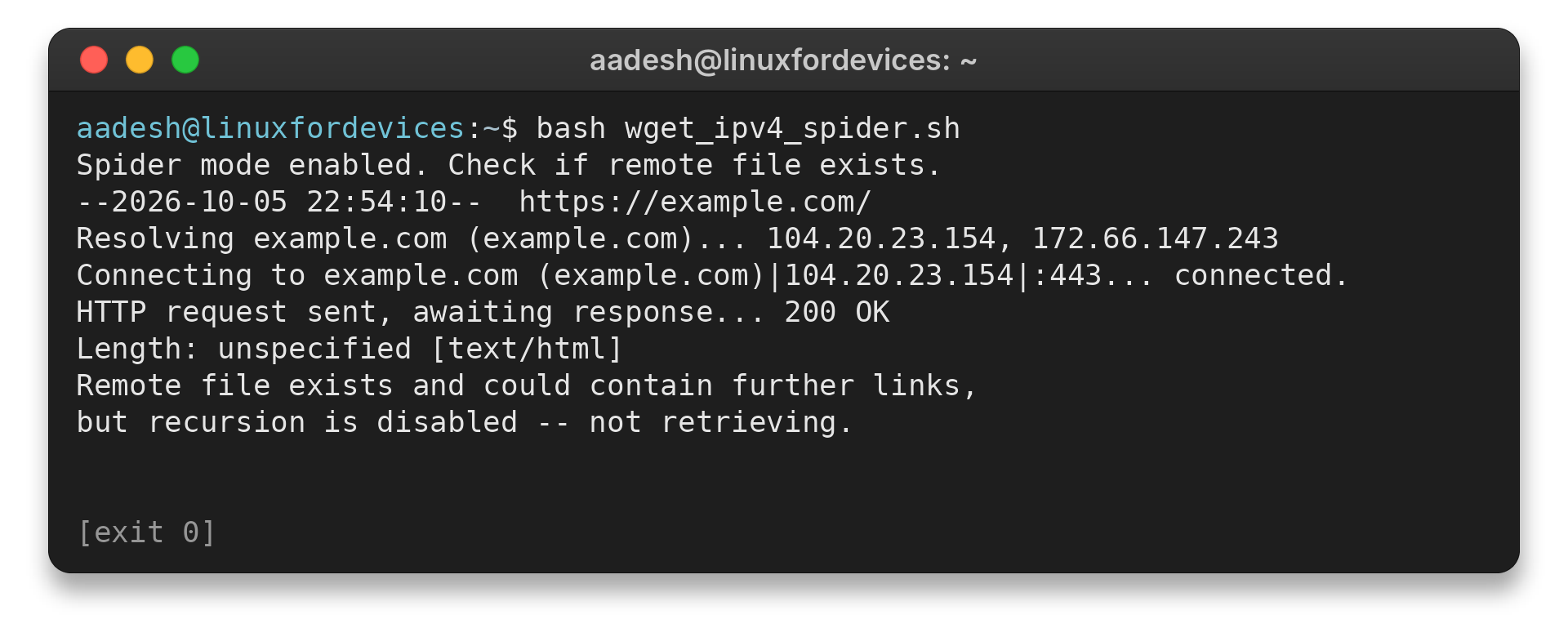
I ran that file. Wget resolved IPv4 addresses, connected to one over HTTPS, received 200 OK, and exited with status 0. The “Connecting to” line shows the family used for the request.
aadesh@linuxfordevices:~$ bash wget_ipv4_spider.sh
Spider mode enabled. Check if remote file exists.
--2026-10-05 22:54:10--  https://example.com/
Resolving example.com (example.com)... 104.20.23.154, 172.66.147.243
Connecting to example.com (example.com)|104.20.23.154|:443... connected.
HTTP request sent, awaiting response... 200 OK
Length: unspecified
Remote file exists and could contain further links,
but recursion is disabled -- not retrieving.
[exit 0]
Spider mode makes a request without retrieving the response body. A successful status confirms the endpoint responded, not that the file will download.
Use the file’s URL for a final check. A host root may respond while a file path returns 404 or requires authentication.
Spider mode does not check the file size or whether the destination is writable. Remove –spider to retrieve the file.
Step 3: Run the equivalent IPv6 request
Save the IPv6 check as wget_ipv6_spider.sh. It uses the same URL, attempt limit, timeout, and check-only mode as the IPv4 example, changing only the address family.
#!/bin/sh
exec wget --inet6-only --spider --tries=1 --timeout=8 https://example.com/
Run the file with:
bash wget_ipv6_spider.sh
aadesh@linuxfordevices:~$ bash wget_ipv6_spider.sh
Spider mode enabled. Check if remote file exists.
--2026-10-05 23:01:06--  https://example.com/
Resolving example.com (example.com)... 2606:4700:10::6814:179a, 2606:4700:10::ac42:93f3
Connecting to example.com (example.com)|2606:4700:10::6814:179a|:443... failed: Network is unreachable.
Connecting to example.com (example.com)|2606:4700:10::ac42:93f3|:443... failed: Network is unreachable.
[exit 4]
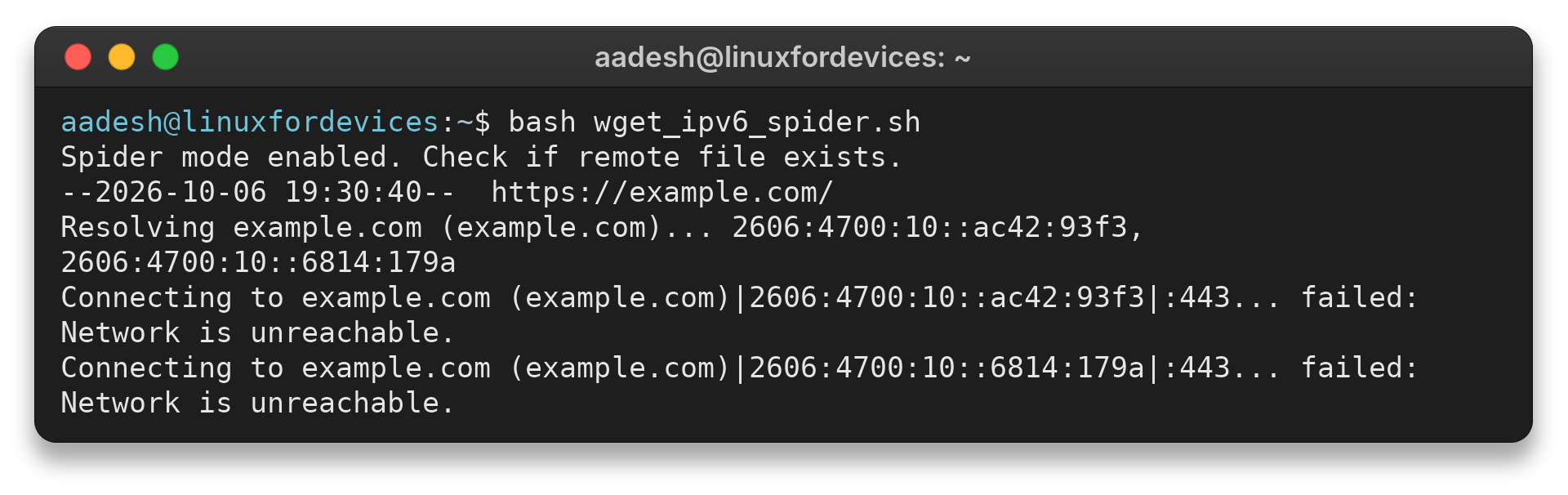
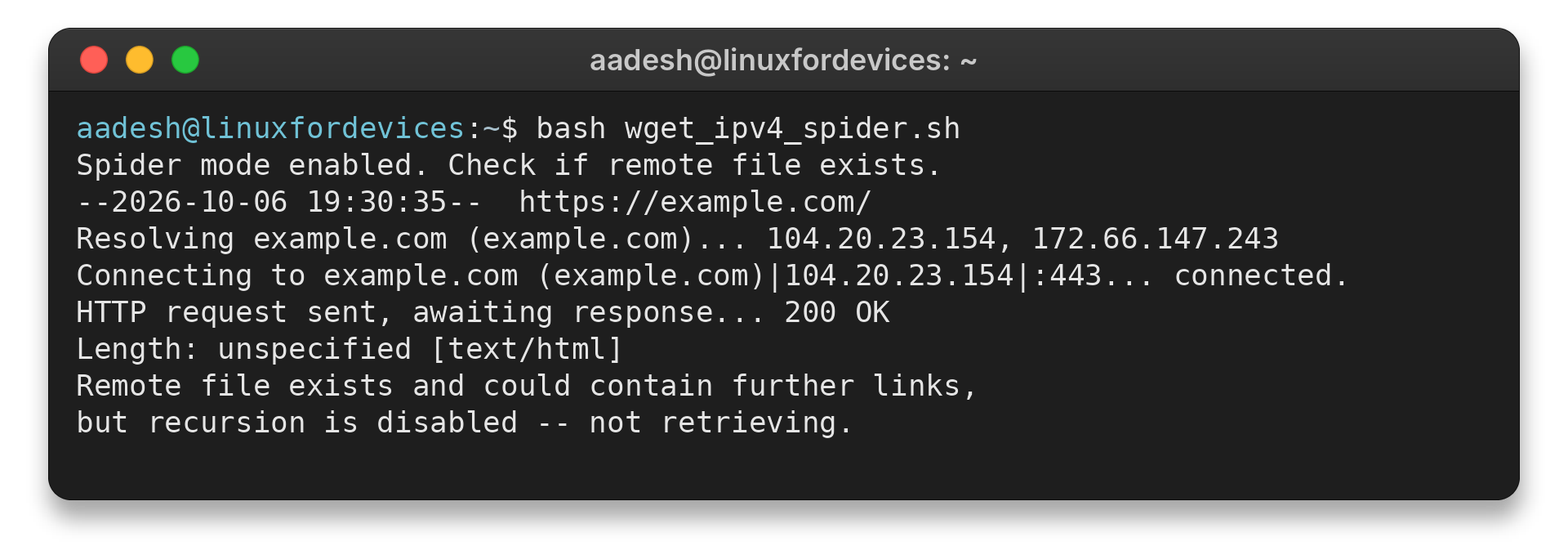
The IPv6 test resolved two AAAA addresses, but Wget could not connect to either and exited with status 4. That result points to an unavailable IPv6 route for this request. The retained screenshot below shows an earlier successful example, not this check.
Step 4: Choose a preference or save a forced default
If you want Wget to try a family first but keep the other family available, use –prefer-family. Save this script as wget_prefer_ipv4.sh to see which address Wget selects when both are returned.
#!/bin/sh
exec wget --prefer-family=IPv4 --spider --tries=1 --timeout=8 https://example.com/
Run it with:
bash wget_prefer_ipv4.sh
aadesh@linuxfordevices:~$ bash wget_prefer_ipv4.sh
Spider mode enabled. Check if remote file exists.
--2026-10-05 23:03:14--  https://example.com/
Resolving example.com (example.com)... 104.20.23.154, 172.66.147.243, 2606:4700:10::6814:179a, ...
Connecting to example.com (example.com)|104.20.23.154|:443... connected.
HTTP request sent, awaiting response... 200 OK
Length: unspecified
Remote file exists and could contain further links,
but recursion is disabled -- not retrieving.
[exit 0]
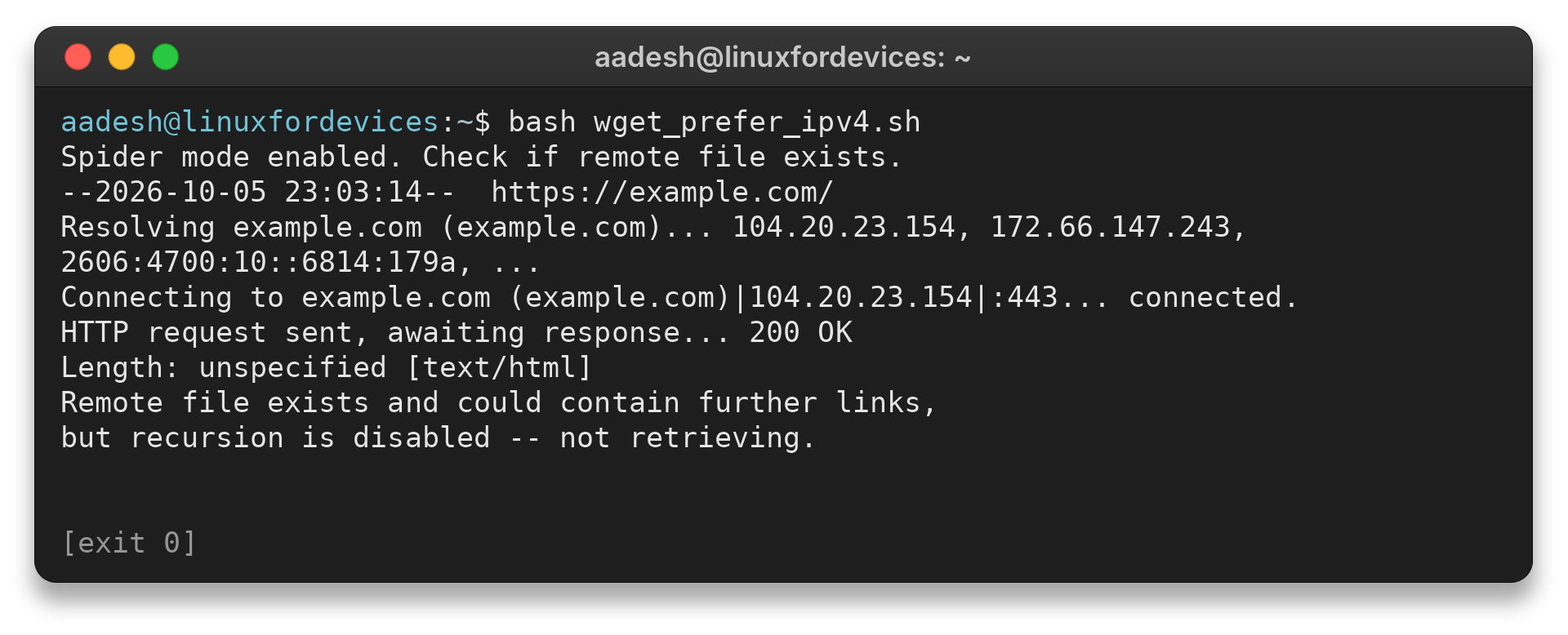
This output shows both IPv4 and IPv6 records in the resolution line, then an IPv4 connection. Unlike –inet4-only, the preference option does not exclude IPv6 when IPv4 is unavailable.
For a persistent forced default, add the matching directive to ~/.wgetrc. This setting forces IPv4 for the user:
inet4_only = on
inet6_only = off
To persist IPv6, reverse the values: set inet4_only = off and inet6_only = on. Keep only one forced-family directive enabled. The GNU Wget manual lists ~/.wgetrc as a user startup file and /etc/wgetrc as a system-wide configuration file.
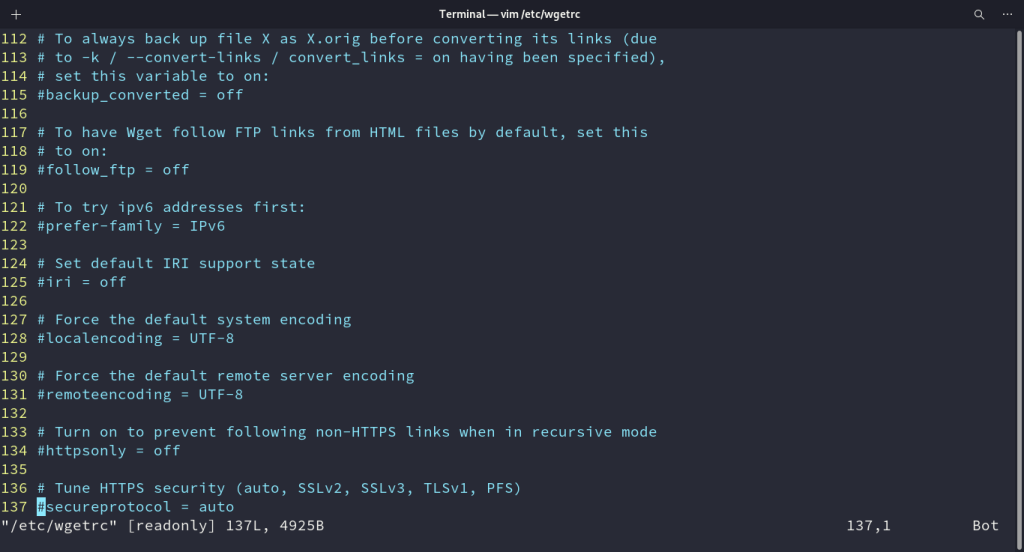
After saving a default, run the spider check without a family flag. Its connection address should match the saved choice. Remove a conflicting setting and repeat the check if it does not.
A one-off family option is clearer for a single download because it leaves unrelated Wget commands unchanged. This also avoids hidden account defaults in scripts copied between users, where a personal startup file may not be visible from the command itself.
What if Wget still cannot connect?
When Wget reports that it is resolving a hostname, that line is about name lookup. A later connection line identifies the address it actually tried. Seeing several addresses after “Resolving” does not mean the transfer used every address shown.
Read the “Connecting to” line to confirm the family of the selected connection. A DNS failure happens before a remote connection exists. “Network is unreachable” points to the local route or upstream path.
A connected line followed by a certificate error means the TCP connection reached a peer, but HTTPS validation failed. An HTTP response such as 404 means the server answered and the requested resource was not found. These failures need different fixes, so changing the address family will not address an incorrect URL or certificate problem.
The –bind-address option selects the local address used for an outgoing connection. By contrast, –inet4-only and –inet6-only constrain the remote address family. Use binding when a host has several local addresses and the request must leave through one specific source address.
A machine can have IPv4 addresses but no usable IPv6 route. Use a family flag to test the remote path, and –bind-address only when you need a specific local source address.
Wget cannot make an IPv6-only URL reachable over IPv4. If a hostname has no A record, an IPv4-only request has no address to use. Fix DNS or choose another endpoint rather than extending the timeout.
| What you see | What it suggests | Next check |
|---|---|---|
| No address associated with hostname | The name did not provide an address usable by the forced family | Check whether the hostname has an A or AAAA record for the selected family |
| Network is unreachable | The system has no usable route for that family | Check the host’s IPv4 or IPv6 route and upstream network support |
| Connection timed out | A route may exist, but the peer or a firewall did not answer in time | Retry with a sensible timeout and compare the other family |
| Certificate or HTTP error | The connection reached a later TLS or HTTP stage | Investigate the certificate, URL, server response or proxy rather than DNS family selection |
An A record maps a hostname to IPv4, and an AAAA record maps it to IPv6. If a forced IPv6 request reports no address, check the AAAA record first. If it resolves an address but reports an unreachable network, DNS worked and the route is the next suspect.
An –inet6-only failure can come from missing IPv6 connectivity or a hostname without an IPv6 address. When –inet4-only succeeds and –inet6-only fails, compare DNS data, routes, firewall rules, and service reachability for each family.
- Changing DNS on Linux covers hostname lookup checks.
- Linux network configuration covers interface and route checks.
Remove a forced setting from ~/.wgetrc when it no longer applies, then use the traceroute guide to inspect the network path if needed.
Common errors when forcing Wget to use an IP family
A forced family can expose a DNS or routing problem, but it cannot repair it. Check the stage where the request stops before changing Wget settings.
- If Wget finds no address, check for an A record with IPv4 or an AAAA record with IPv6.
- If it resolves an address but reports “Network is unreachable,” check the route and upstream support for that family.
- If it connects but reports a certificate or HTTP error, investigate TLS or the requested URL instead of changing the address family.
A persistent inet4_only or inet6_only setting continues to affect later Wget commands, so remove it when you no longer want that default. Rerun the spider command to confirm the “Resolving” and “Connecting to” lines.
Conclusion: Keep the family choice scoped
Use -4 or -6 when one Wget command must use a specific address family. Choose –prefer-family when you only want one family tried first, and save a forced setting in wgetrc only when it should apply to future commands too.
The address in Wget’s connection line tells you which family it reached. If the selected family fails, check its DNS record and route before changing the downloader’s default.
For the next step, see the GNU Wget manual, our guide to downloading files with curl, or the article on restarting networking on Ubuntu.
FAQ
These answers cover the common Wget address-family choices.
How do I force Wget to use IPv4?
Run wget -4 URL or wget –inet4-only URL. The option restricts that invocation to IPv4.
How do I force Wget to use IPv6?
Run wget -6 URL or wget –inet6-only URL. The machine needs an IPv6 route and the hostname must resolve to an IPv6 address.
How do I make Wget use IPv4 by default?
Set inet4_only = on and inet6_only = off in the user’s ~/.wgetrc file. Set the reverse values to force IPv6.
What is the difference between –prefer-family and –inet4-only?
–prefer-family changes which family Wget tries first while keeping the other available. –inet4-only excludes IPv6 for that request.