
Linux can list a directory along with entries inside its subdirectories, and that output can extend farther than you need. The tree command displays directories as an indented tree, and its -L option caps how deep that display goes.
I’ll explain what recursive listing means, then show how to cap a tree listing’s depth.
TL;DR
Use tree with the -L option when a recursive directory view needs a depth limit. The standard ls -R option walks subdirectories without a maximum-depth setting.
- Run tree -L 2 PATH to show a tree through two levels below the starting directory.
- Use ls -R when the full recursive listing is wanted, grouped by directory.
- Choose find when the job needs matching paths or filename filters instead of a tree display.
What Does Recursive Listing Mean in Linux?
A recursive file listing is useful when the directory tree is too large to inspect one folder at a time. Different tools present the result as directory groups, an indented tree, or matching paths.
In GNU Coreutils, uppercase -R adds recursive directory traversal.
ls -R depth-demo
depth-demo:
README.md
docs
src
tests

depth-demo/docs:
cli.md
images
reference.txt

depth-demo/docs/images:
diagram.svg

depth-demo/src:
tree_demo.py

depth-demo/tests:
test_tree_demo.py
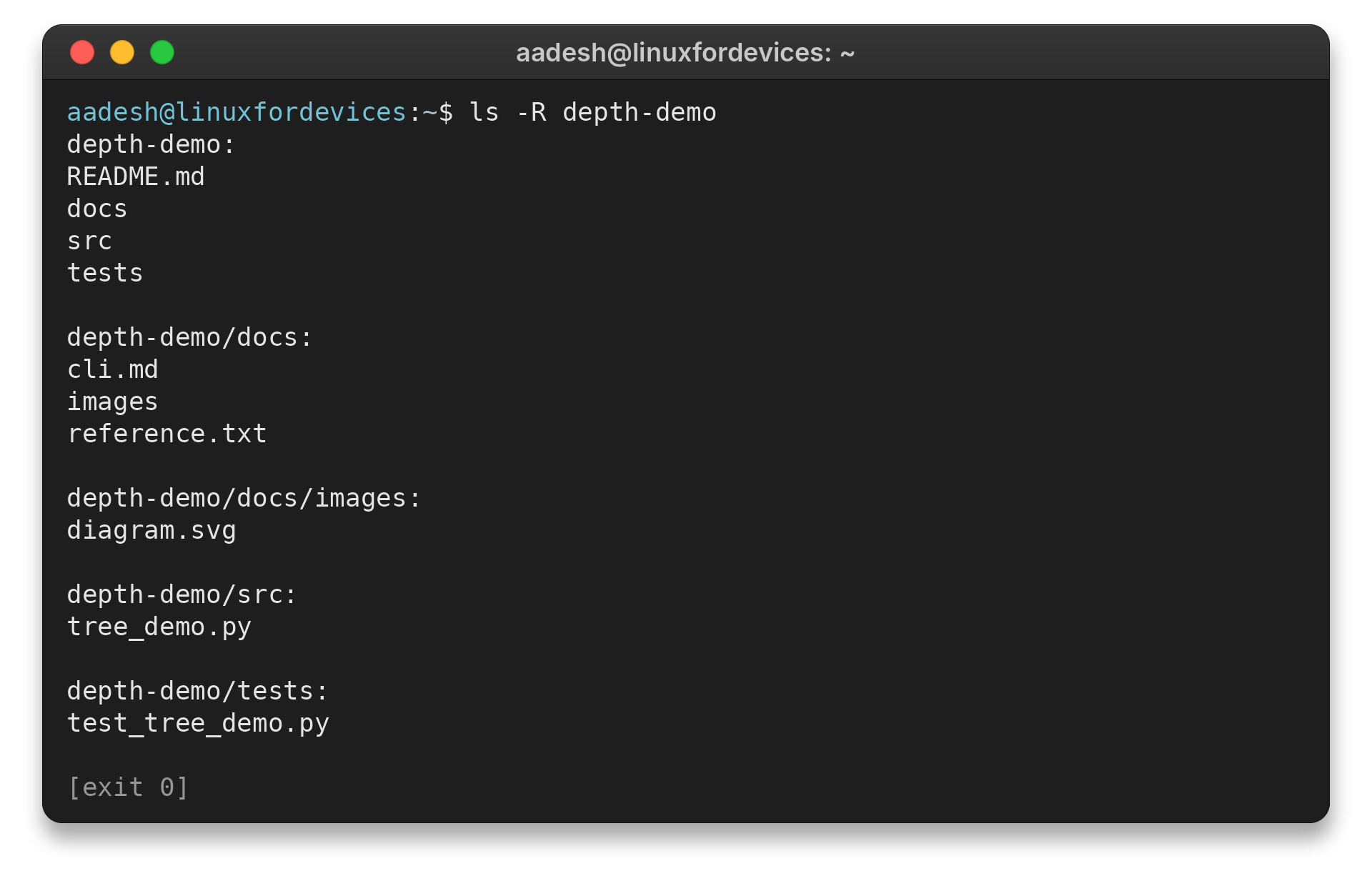
Each terminal heading identifies the path above its entries.
The site’s Linux ls command guide covers broader behavior. Its tree command guide explains the separate utility.
Shell globs encode a fixed number of directory levels, so a changed layout requires editing the expression and dot-prefixed names may be omitted.
Use uppercase -A with -R to include dot-prefixed names but omit current-directory and parent-directory markers. Lowercase -a includes both markers.
Lowercase -r changes the display order rather than the directory walk.
To keep ls at one directory, leave out -R and give it the path to inspect. This lists immediate entries when nested contents are not relevant.
ls depth-demo
| Command | Output shape | Use it for |
|---|---|---|
| ls -R PATH | Directory headings with entries underneath | A complete recursive listing |
| tree -L N PATH | Indented branches capped at a chosen depth | A compact directory map |
| find PATH -name NAME | Matching paths, one result per line | Finding entries by a condition |
On tree 2.1.1, uppercase -R repeats the listing when it reaches the depth boundary.
How to Limit a Tree Listing’s Depth
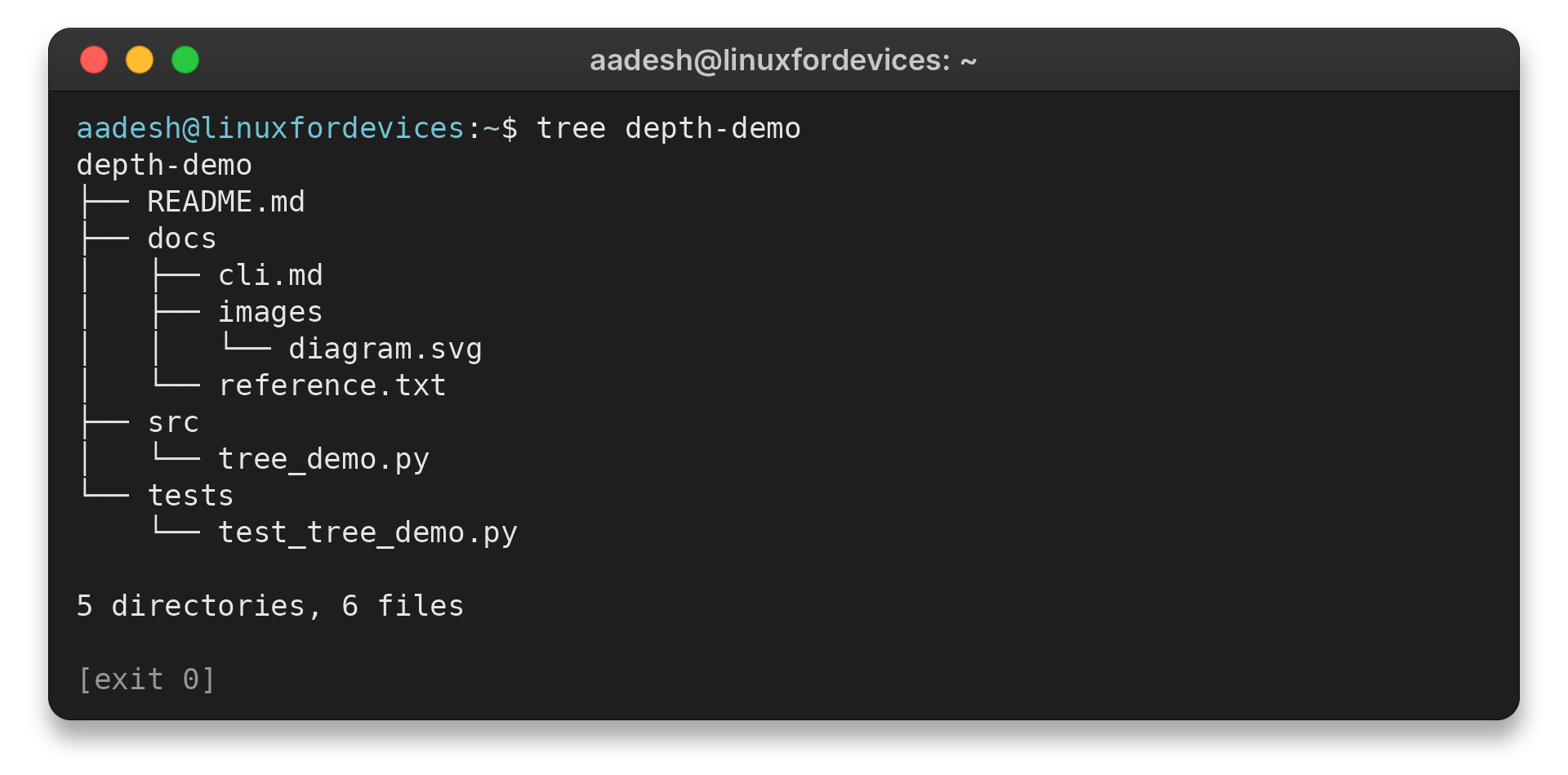
The same depth-demo directory is used for both tree captures. I built one nested file so the difference between the two outputs is concrete.
Step 1: Inspect the directory tree
Run tree with the target path to see its current depth. This gives you a baseline before deciding how much of the hierarchy belongs in the listing.
tree depth-demo
depth-demo
├── README.md
├── docs
│   ├── cli.md
│   ├── images
│   │   └── diagram.svg
│   └── reference.txt
├── src
│   └── tree_demo.py
└── tests
    └── test_tree_demo.py

5 directories, 6 files
Step 2: Set the maximum display depth
Add -L followed by a positive integer, as in the command below.
tree -L 2 depth-demo
depth-demo
├── README.md
├── docs
│   ├── cli.md
│   ├── images
│   └── reference.txt
├── src
│   └── tree_demo.py
└── tests
    └── test_tree_demo.py

5 directories, 5 files
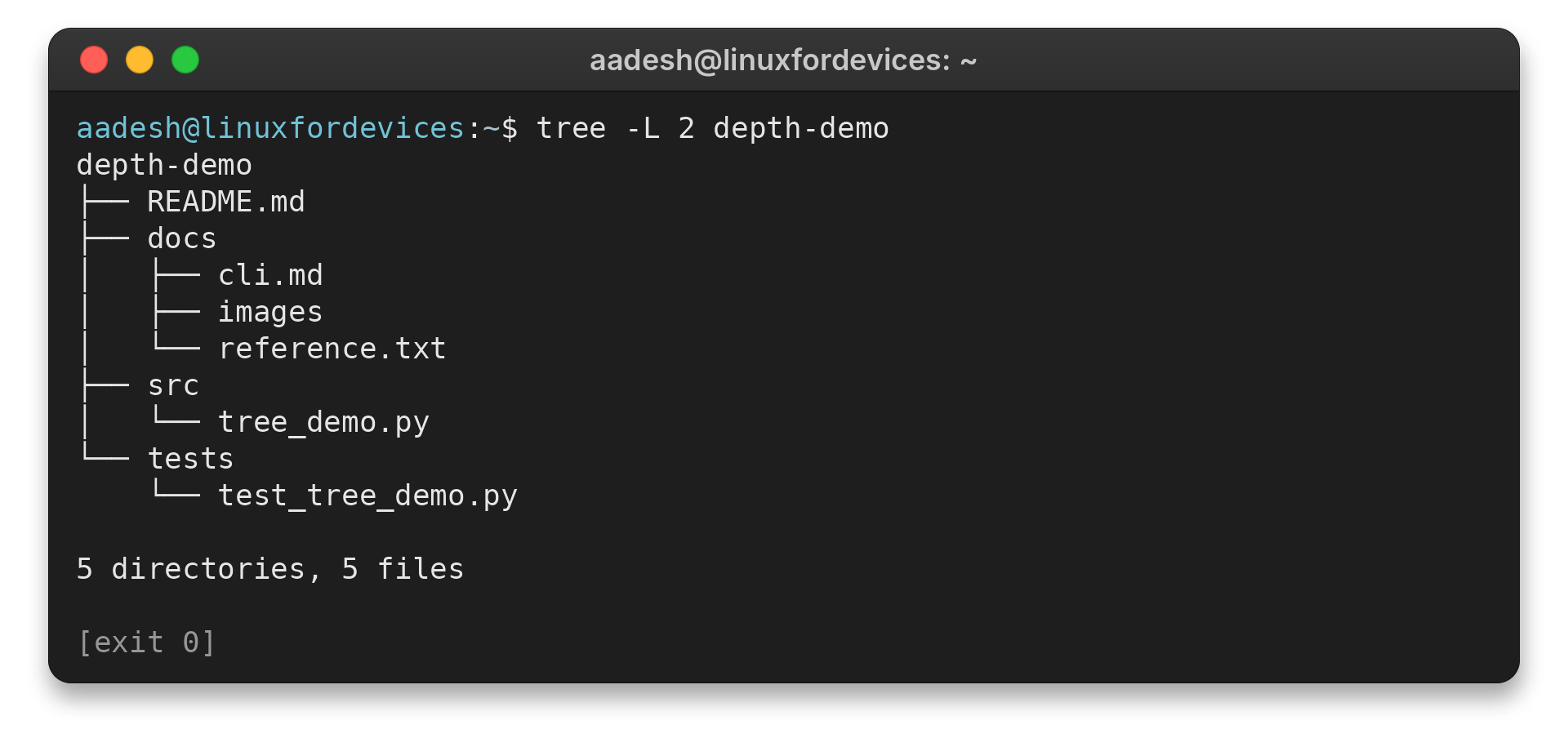
Start with a small value when you need a quick map. The example shows why: docs/images appears, while its child diagram.svg is below the visible range. Raise the value when that file is needed, or inspect the images directory directly when unrelated branches are noise.
When output stays long, check for many direct entries in one directory. The depth option does not limit those entries. Narrow the path or use a predicate to select names.
- When the target remains hidden, note its last visible parent before changing the cap.
- If two branches need different detail, run separate tree commands with each branch as its root because one -L value applies across the listing.
Step 3: Choose the directory to inspect
Start at the specific branch when unrelated directories would clutter the view.
tree -L 2 depth-demo/src
Tree accepts multiple directory arguments together for a comparison of branches under the same limit.
When the next task is filtering by filename or type, use the site’s find command guide instead of making the tree view deeper.
Edge Cases When Capping a Tree Listing
Tree options answer separate questions about which entries appear. The comparison below distinguishes presentation choices from depth and filename filters.
| Need | Command | What changes |
|---|---|---|
| Only directories | tree -d -L 2 depth-demo | Files are left out while directory branches remain |
| Include dot-prefixed entries | tree -a -L 2 depth-demo | Hidden entries appear in the bounded tree |
| Find a path by condition | find depth-demo -maxdepth 2 -name ‘*.py’ -print | Matching paths are printed instead of a tree diagram |
tree -d -L 2 depth-demo
tree -a -L 2 depth-demo
Tree normally omits dot-prefixed entries. Add -a to show names such as .env or .gitignore when configuration files are relevant. Avoid copying sensitive values from those files into logs.
The -d switch displays directory entries without files, which can clarify the branch structure when filenames are irrelevant.
Directory permissions can make the same command return different results for two users. Read access lets a process list names, and execute access lets it traverse the directory. When access fails partway through a tree, inspect the path named in the error because raising the requested depth cannot restore access.
Search by path or name with find
Choose find when you need paths for an automated step rather than a visual hierarchy.
find depth-demo -maxdepth 2 -name '*.py' -print
depth-demo/tests/test_tree_demo.py
depth-demo/src/tree_demo.py

Use -maxdepth 1 for the starting directory and its immediate entries. Increase the number to include deeper descendants.
Use -iname when case may vary, and quote ‘*.py’ so the shell passes the wildcard to find unchanged. For example, -iname ‘*.py’ also matches .PY and .Py. Add -type f to exclude matching directory names from the results.
By default, find writes newline-delimited paths, which can be ambiguous when a filename itself contains a newline. For scripts, use null-delimited output with a consumer that recognizes null separators.
For repeatable jobs, set the working directory or pass an absolute search path so relative-path resolution is predictable.
Depth limits bound the search, and name or type predicates choose which entries qualify.
Tree 2.1.1’s --filelimit N skips opening a directory whose entry count exceeds N. The resulting view may omit its descendants. Use it only when skipping those branches is acceptable.
Tree normally leaves symbolic-link targets out of the listing. The next paragraph explains when the lowercase option changes that behavior.
On tree 2.1.1, lowercase -l follows symbolic links. Use it only when linked contents belong in the view. GNU find uses uppercase -L to follow links, while tree uses -L for depth.
I ran tree --version and tree --help here and confirmed the installed v2.1.1 accepts -L for a depth limit. Check the help output on your own system before using examples from a different implementation.
Install tree if it is missing
The tree utility is separate from GNU ls. If it is absent, check your distribution’s documentation for the package name and installation steps. Then verify the command’s version and help before relying on a specific option.
# Debian or Ubuntu
sudo apt install tree

# Fedora
sudo dnf install tree

# Arch Linux
sudo pacman -S tree
These commands change installed packages and may need administrator approval. I did not run them on this host. If package installation is restricted, consult your distribution’s documentation or ask an administrator.
The Linux hidden-files guide explains why dot-prefixed names are omitted by default in ordinary listings. For filtering or excluding directories with find, see the guide to excluding directories.
Conclusion: Use Tree for a Depth Limit
For a large project, begin at the smallest subdirectory that answers the question because the same depth can still show many sibling entries. The manuals below cover related options for changing the output.
- Read the GNU Coreutils file-selection manual for recursive ls behavior.
- Check the tree manual for depth and display options.
- Use the GNU Findutils manual for path searches and predicates.
FAQ
These answers cover choices that come up after setting the depth limit.
Does tree -L limit the number of files in each directory?
No. It limits how far the tree view descends, not the count of children. A directory with many direct entries can still make terminal output long.
How can I show only directories in the limited tree?
Add the -d option, as in tree -d -L 2 PATH. It omits file entries while keeping directory names within the selected depth.
Will a depth-limited tree include hidden files?
Use -a to include dot-prefixed entries at the visible levels. It does not increase the chosen depth. Hidden-name inclusion and traversal depth are separate controls.
How do I stop ls from recursing into subdirectories?
Run ls PATH without uppercase -R, or remove that flag from the command or alias. In GNU ls, lowercase -r reverses sort order instead of recursing.
What if tree is not installed?
Check the package documentation for your Linux distribution. Use find if matching paths are enough, but it will not draw the same branch view.