
Your Ubuntu VM is running, and now you want it to work with VMware rather than just boot inside it. open-vm-tools adds the guest-side software that lets Ubuntu communicate with the host.
The installation changes files and services inside Ubuntu, so you’ll need sudo access in the virtual machine. You’ll find the right install path for your setup below, along with checks that show whether the tools are running.
Choose the Ubuntu guest-tools package
open-vm-tools is VMware’s open-source guest software, installed inside Ubuntu to let the host communicate with the virtual machine. The core service reports guest information and handles requests for graceful shutdown.
Use Ubuntu’s packages rather than a VMware Tools disc installer. Broadcom recommends distribution-provided open-vm-tools, which receives updates through Ubuntu’s package manager.
| Guest setup | Package to install | What it adds |
|---|---|---|
| Ubuntu Server without a graphical desktop | open-vm-tools | Core guest services without X desktop dependencies. |
| Ubuntu with a graphical desktop | open-vm-tools-desktop | Desktop integration and the core package as a dependency. |
The desktop add-on supports features such as resizing the guest display and exchanging clipboard text where the VMware product supports them. Installing it doesn’t override settings disabled on the host.
Open a terminal inside the Ubuntu guest
Run the commands in Ubuntu with a sudo-capable account and access to its configured repositories, not in a terminal on the VMware host.
If you’re unsure which release the guest uses, check your Ubuntu version before changing repositories. The release reported by this command belongs to the system where you run it.
lsb_release -a
Use the package built for that Ubuntu release rather than downloading a package from another release. A desktop add-on is unnecessary on a headless server, even when you connect to that server through a graphical VMware console.
Install and verify open-vm-tools
Refresh the package index, then choose the server or desktop command below. Apt resolves dependencies for the guest, so review its proposed changes before accepting the installation.
1. Refresh the Ubuntu package index
Open the guest terminal and refresh apt’s list of available packages. This downloads repository metadata without upgrading installed applications.
sudo apt update
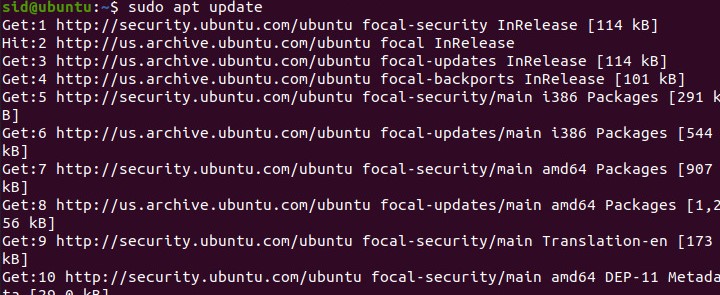
Wait for the command to finish before installing guest tools. If apt reports a repository or network error, resolve that error before relying on the candidate package list.
2. Install the package for your guest
For Ubuntu Server without a desktop, install the core package. You don’t need to attach a VMware Tools disc or install a compiler for this route.
sudo apt install open-vm-tools

The package-list messages show apt preparing the installation, not a running guest service. Let apt finish and return to the shell prompt before checking the service.
For Ubuntu Desktop, use the desktop package instead. Its dependency on open-vm-tools means the same command also installs the core service if it is missing.
sudo apt install open-vm-tools-desktop
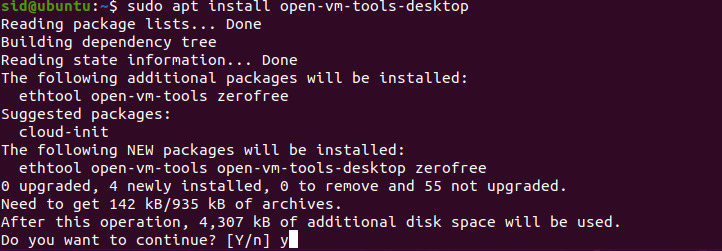
Enter Y only after reviewing the proposed package changes. If apt says the package is already installed, continue to the service and session checks rather than trying a second installer.
3. Start a fresh desktop session
If you installed the desktop add-on while logged into a graphical desktop, save your work and log out, then log back in. Ubuntu’s package includes a VMware User Agent autostart entry that launches with the desktop session.
The core system service and the desktop user agent have different jobs. A running core service alone doesn’t establish that clipboard exchange or display resizing is available in your session.
4. Check the installed package and service
Query the core package, then inspect its system service to distinguish files installed by apt from a guest agent that is running.
dpkg-query -W -f='${Status} ${Version}\n' open-vm-tools
systemctl status open-vm-tools.service --no-pager
The package status install ok installed means dpkg considers the package installed. In the service report, active (running) means the daemon is running, while a failed state needs diagnosis.
For the desktop branch, also query the add-on, or list installed packages with apt to compare the guest’s package inventory.
dpkg-query -W -f='${Status} ${Version}\n' open-vm-tools-desktop
Fix missing packages or desktop integration
Diagnose the failing layer before reinstalling anything. Apt can install the packages even when a VMware host feature is disabled or unavailable.
| Symptom | What to check |
|---|---|
| Unable to locate package, or no installation candidate | Read the errors from sudo apt update and confirm the guest release and repository configuration. Avoid adding a third-party repository before resolving those errors. |
| Unit open-vm-tools.service could not be found | Check whether open-vm-tools is installed in this guest. The desktop package alone should pull it in as a dependency. |
| Service is failed or inactive | Inspect its status message and journal. An unmet VMware virtualization condition differs from a daemon crash. |
| Display resizing or clipboard exchange fails | Confirm open-vm-tools-desktop is installed and start a fresh graphical session. Then check support and guest-integration settings for your VMware product. |
| Install VMware Tools grayed out | That host menu controls disc-based installation. Ubuntu’s apt installation works independently of the menu. |
Ubuntu’s open-vm-tools service includes ConditionVirtualization=vmware, so systemd can skip it on a different hypervisor. Check the detected environment and service messages inside the guest.
systemd-detect-virt
journalctl -u open-vm-tools.service -b --no-pager
A VMware guest should be detected as vmware. If you see another hypervisor, confirm that you opened the intended guest rather than bypassing the service condition.
Use the Ubuntu service list to locate the unit. After fixing its reported error, restart the service and check its state again.
Broadcom documents drag-and-drop for Workstation and Fusion, but not vSphere, so check your VMware product’s supported features before treating missing drag-and-drop as an installation failure.
Keep guest tools under Ubuntu’s package manager
Let apt manage guest-tool updates alongside Ubuntu packages. The installed version and the repository candidate can differ, so inspect both before deciding that an upgrade is missing.
apt-cache policy open-vm-tools open-vm-tools-desktop
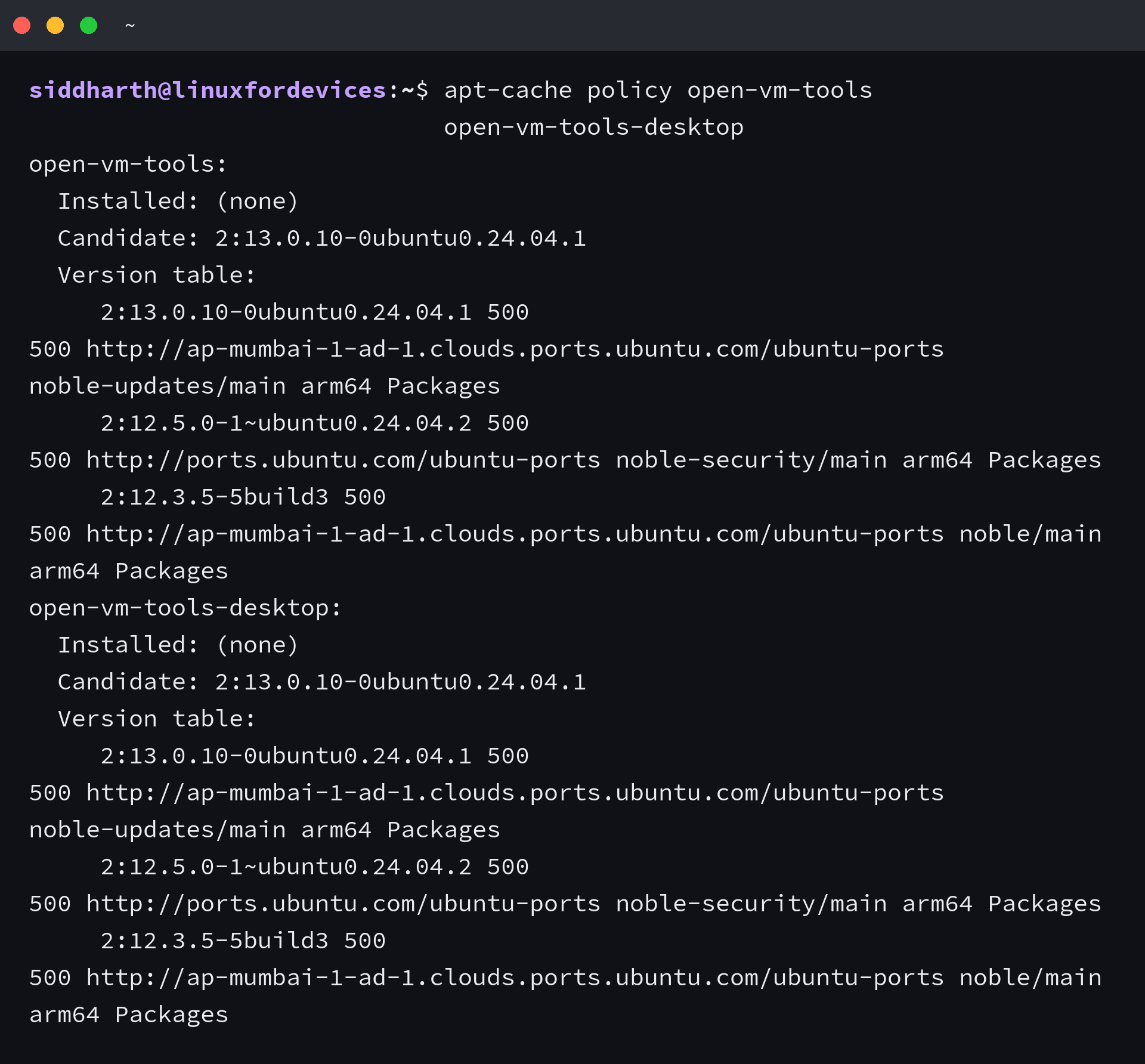
Installed shows what is on the system, while Candidate names the version apt would select from the configured repositories. A candidate alongside Installed: (none) means the package is available but not installed.
If you need to remove the tools, remove the apt packages rather than deleting their service files. Keep the core package when you still need VMware guest management.
VMware Tools questions
VMware’s management labels describe who maintains the tools, while Ubuntu controls package installation. The distinction also explains why a host-side upgrade button may not apply to open-vm-tools.
Should I install VMware Tools from an ISO on Ubuntu?
Use open-vm-tools from Ubuntu’s repositories for supported Ubuntu guests. Broadcom recommends the distribution package rather than the disc-based installer.
Does open-vm-tools require a reboot?
A full reboot is not an unconditional step in the apt installation. Start a fresh graphical session for the desktop add-on, and reboot when Ubuntu requests it for an update.
What does Guest managed mean in vSphere?
Guest managed or 3rdParty/unmanaged means you maintain open-vm-tools through Ubuntu’s package manager rather than through vCenter. Broadcom states that this label does not itself mean the guest tools are unsupported.
Do I need to rebuild VMware drivers after a kernel update?
The open-vm-tools project documents that its Linux drivers are supplied by the Linux kernel. Keep Ubuntu’s kernel and guest-tools packages maintained through apt rather than running a separate driver-build procedure.