
Linux Mint is a popular, free, and open-source software distribution based on Ubuntu and Debian. The purpose of Linux Mint is to produce a modern, elegant, and comfortable operating system that is both powerful and easy to use. It offers tons of features, making it very user-friendly for users who have never tried Linux before. Each of the three flavors of Linux Mint—Cinnamon, MATE, and Xfce—offers a different desktop environment.
Also check: Ubuntu Mate vs. Ubuntu – Which One Should You Go With?
It doesn’t matter what desktop environment you’re using, it’s always easy to switch to a new desktop environment. In this tutorial, we will take a look at Cinnamon vs MATE to make it easier for you to choose the best one for you.
What is Cinnamon?
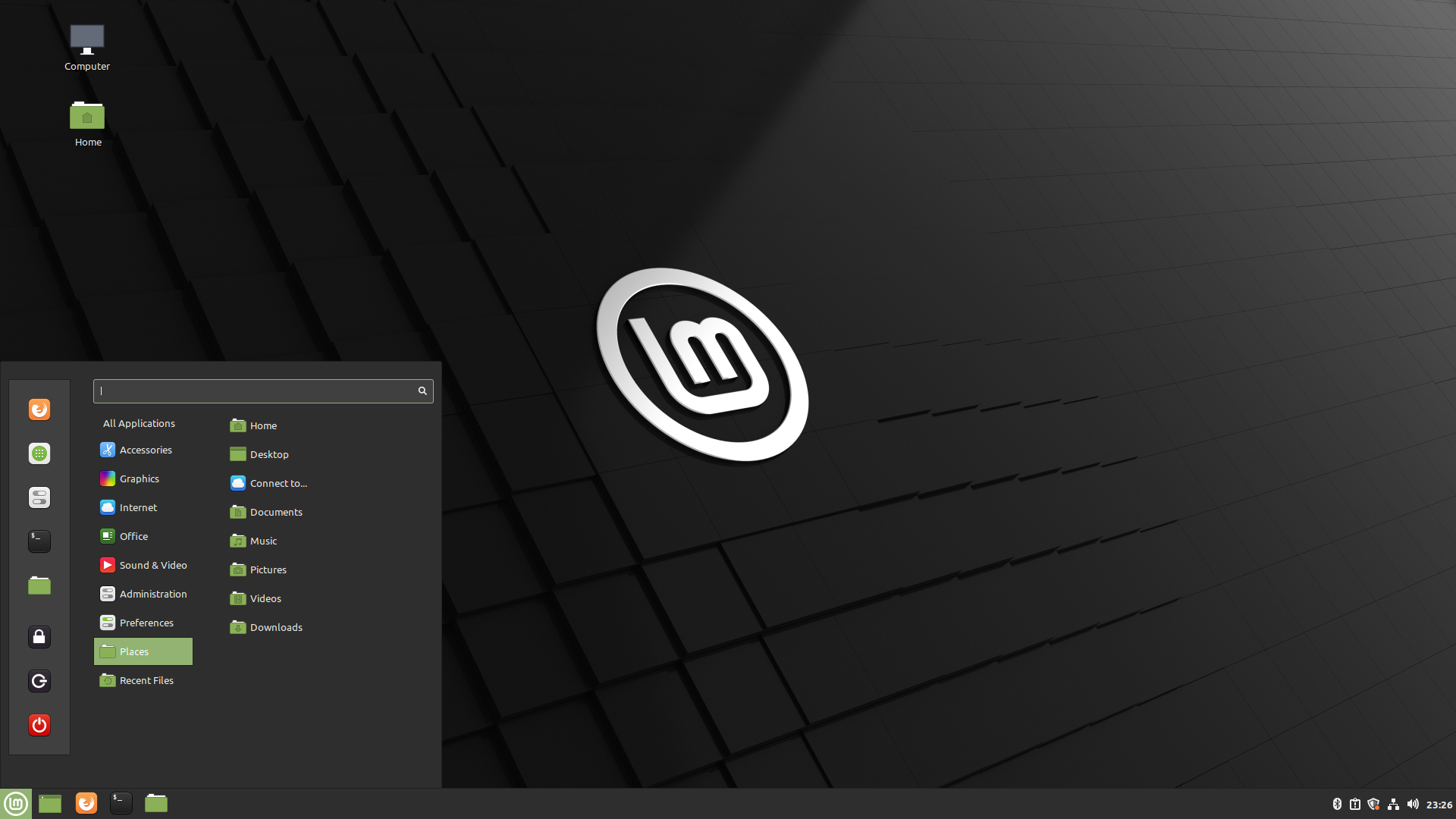
Cinnamon is a Linux desktop environment that was primarily created for Linux Mint in response to the controversy surrounding GNOME. The developers of Linux Mint forked GNOME 3 and combined its core features with some tweaks to create the current Cinnamon desktop environment. It’s a free and open-source project for the X Window System.
What is MATE?
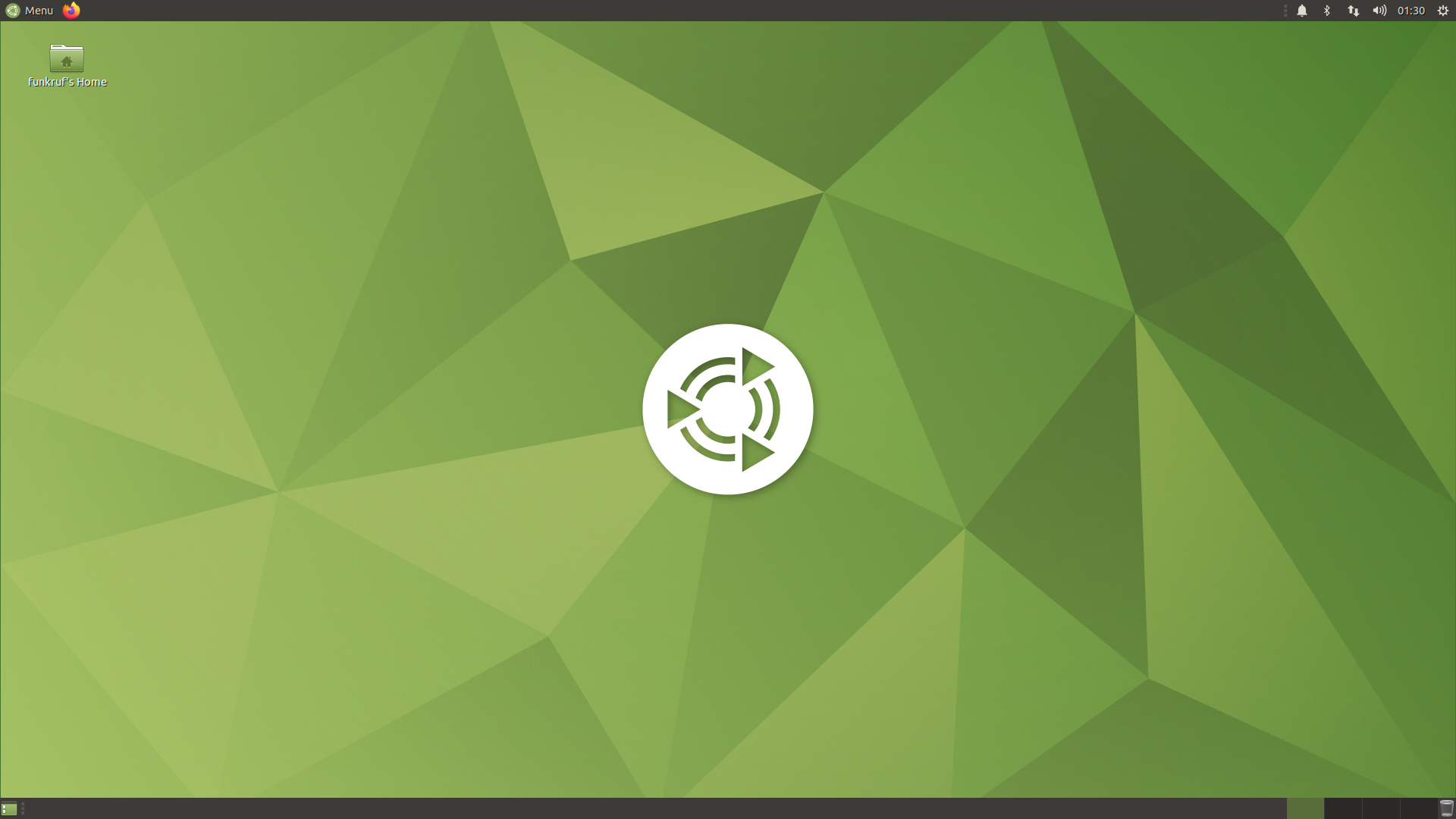
The MATE desktop environment is the continuation of GNOME 2. It is free and open source, and available for a wider range of Linux distros. Similar to Cinnamon, MATE is a product of GNOME’s contentious transition from GNOME 2 to GNOME 3. MATE provides a user-friendly and appealing desktop environment using traditional metaphors. It offers all the conventional metaphors to Linux users. The MATE desktop is also a recognized addition to Linux Mint.
Linux Mint Cinnamon vs MATE
Like any desktop environment, Cinnamon and Mate also attempt to provide a few essential features while also incorporating new ones. Although each has its own software libraries and features, you can still find many similarities between the two because they are both the outcomes of the contentious GNOME redesign.
However, Cinnamon is based on the modern GNOME 3 desktop environment, while MATE is based on GNOME 2.
Cinnamon and MATE are largely similar in terms of appearance, with a few minor exceptions, such as how the UI feels and looks. When compared side by side, both desktop environments will appear and feel similar, but if you pay close attention, you can notice some subtle differences.
For example, the app menu for MATE has a much more conventional appearance, while the Cinnamon menu has a more minimalist and contemporary appearance.
Mate is a lightweight program that performs well on computers with low configuration. It offers support for applications like the document browser “Atril”, the text editor “Pluma”, the image viewer “Eye of Mate”, and the file manager “Caja”.
Out of the two, Cinnamon is the more resource-hungry desktop environment, and it may not work well on low-configuration computers. It is highly customizable, and it does not require any additional plug-ins, gadgets, or configuration tools to customize the desktop.
When it comes to terminals, Cinnamon uses the GNOME Terminal as its default terminal emulator. However, with MATE, you get MATE Terminal.
Summary
In conclusion, Cinnamon would be the best option if you want to work with minimalist and contemporary design styles. It also has a Windows-esque layout by default, which might be familiar and easy to use for many users. On the other hand, using MATE might be a better choice for you if you have outdated hardware with low specs.
FAQ’s
Is Cinnamon better than GNOME?
The unique look of GNOME is something that makes it stand out from the rest. Though at first, it might be intriguing for people to use it, there are some factors where it might be extra work for some users. Cinnamon, on the other hand, provides the appearance of a desktop-based operating system, and using the raw version of it wouldn’t feel any different. While it might seem a little more challenging in Gnome for a few things, it’s considerably simpler in cinnamon.
Is Cinnamon more resource consuming than Mate?
With a traditional desktop environment, minimal resource usage, and a customizable interface, Mate offers a wide range of features. whereas cinnamon is heavier and more resource hungry as compared to mate. Out of the two, Mate is more stable and quicker compared to Cinnamon. Mate is the more reliable and swifter of the two, while Cinnamon is the slower of the two.