
Looking up a command while working in a shell can interrupt the task you are trying to finish. A Linux command cheat sheet groups common commands by task and gives you a starting point for using them.
I’ll show how to use common Linux commands and explain how to check their options before running them.
TL;DR: Linux Commands by Task
Use pwd to locate yourself, ls to inspect a directory, and man command to check options before using unfamiliar syntax.
- Navigate: pwd, cd, ls -la.
- Manage files: mkdir, cp, mv, touch.
- Find information: grep, find, df -h, ps.
What Is a Linux Command Cheat Sheet?
A Linux command cheat sheet groups commands by task. The shell reads a command and its arguments, expands wildcards, then runs a program or built-in.
In ls -l, -l changes the listing format. Check man command when an option’s behavior matters.
Some commands, including cd, are built into the shell. Use type command to see how the shell resolves a command name.
How to Use Common Linux Commands Step by Step
These examples use disposable placeholder names. Replace the paths and filenames with targets that exist on your system.
Step 1: Check your location and list files
pwd prints the current working directory, while ls lists entries there. Use cd path to change the shell’s working directory, cd .. to move to its parent, and cd ~ to return to your home directory.
uname -s
Linux

The command prints the kernel name. Your result may differ if you run it on another operating system. It does not identify the distribution release.
| pwd | Print the current directory path. |
| ls -la | Show hidden entries and a detailed listing. |
| ls -lh | Show file sizes in a human-readable form. |
Use ls -la when a file may be hidden, because names beginning with a dot are omitted by a plain ls. For directories with many entries, pass a particular path to ls so the listing stays focused.
Step 2: Create, copy, move, and inspect files
Use cp to copy, mv to move or rename, and mkdir to create a directory. To view a short text file, use cat file.txt. For a long file, use less file.txt so you can move through it without printing the whole file at once.
| mkdir notes | Create a directory named notes. |
| cp source.txt backup.txt | Copy a file to a second path. |
| mv draft.txt final.txt | Rename or move a file. |
| cat file.txt | Write the file contents to standard output. |
Before using cp or mv, confirm both paths with pwd and ls. A relative path is interpreted from the current directory, not necessarily from the directory where the command was first launched.
Step 3: Search paths and file contents
find searches paths and attributes. grep prints lines matching a search expression.
| find . -name ‘*.log’ | Search below the current directory for names ending in .log. |
| grep -n ‘ERROR’ app.log | Print matching lines and their line numbers. |
| grep -R ‘TODO’ src/ | Search files recursively under src. |
The quoted *.log is passed to find as a filename expression. Without quotes, the shell may expand it against names in the current directory before find starts. Use a starting path that limits the search to the files you intend to examine.
Step 4: Check processes, storage, and network state
Use read-only commands to inspect the running system before deciding whether any change is needed. ps gives a process snapshot, top refreshes process information interactively, and df reports free space on mounted filesystems.
| ps -ef | List processes in a common Unix-style format. |
| df -h | Show filesystem capacity using readable units. |
| du -sh directory/ | Summarize space used by a directory tree. |
| ip address | Display network interfaces and assigned addresses. |
The -C bash filter restricts this example to processes with that command name, and -o pid,comm selects the displayed columns.
ps -C bash -o pid,comm
    PID COMMAND
2737003 bash
4112790 bash
4112870 bash
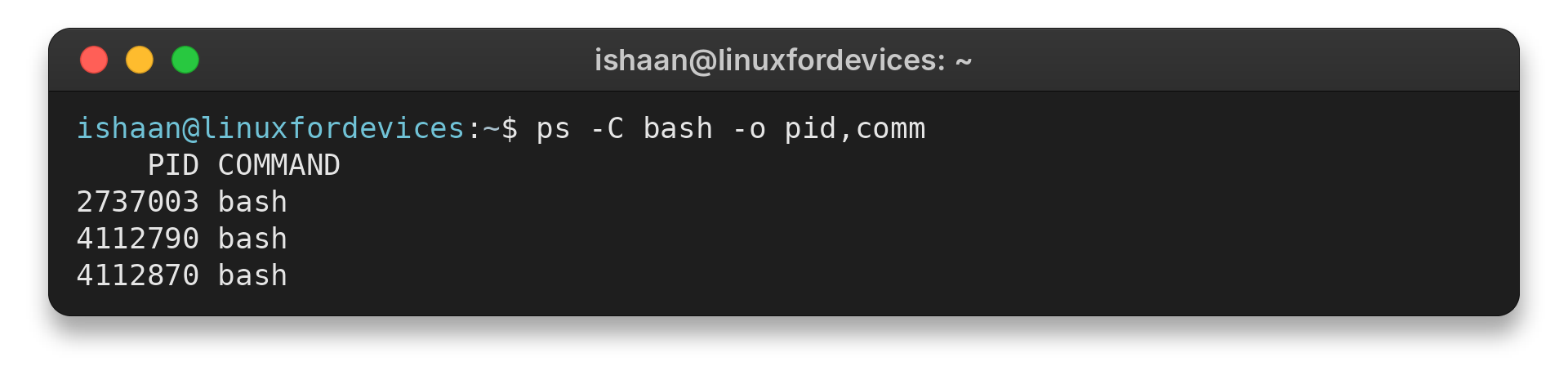
The command selects processes by executable name and prints their process IDs and names. The listed process IDs will differ on your system. To filter by another executable, replace bash with its exact command name.
Linux Command Edge Cases to Check
A command’s name alone does not tell you its effect: paths, privileges, shell expansion and distribution choices can change the result. Check these distinctions before copying a command into a live session.
| Case | What to check | Safer next step |
| Relative path | It starts from the current working directory. | Run pwd and inspect the target with ls. |
| Wildcard | The shell may expand it before the program runs. | Quote the wildcard when find or grep must receive it. |
| Permission denied | Access may depend on the file and each parent directory. | Inspect with ls -l. Do not add privilege blindly. |
| Package command | apt and dnf target different distribution families. | Check the distribution’s own package documentation. |
| Destructive action | rm, service changes and shutdown affect system state. | Read the manual, confirm the target, and get authorization where required. |
For a permission issue, inspect the mode and ownership before changing them. Recursive permission changes can expose files or break expected access. For package operations, choose the package manager documented for the distribution rather than assuming one command works everywhere.
Conclusion: Check Options Before You Run a Command
Use this cheat sheet to find a starting command, then read its manual page when the result matters. Run man command for a specific page or apropos keyword to search manual descriptions.
For focused examples, see how to use cd, the grep command, the Linux kill command, the ip command, and Linux manual pages. The GNU Coreutils manual documents core file and text utilities.
FAQ
These answers cover common questions about finding and using Linux commands.
How do I find the options for a Linux command?
Run man followed by the command name, such as man ls. Use apropos followed by a keyword to search manual-page descriptions.
What is the difference between find and grep?
find searches a directory tree for paths and attributes. grep searches text for lines matching a search expression.
Why should I quote a wildcard in a command?
The shell may expand an unquoted wildcard against names in the current directory before the program receives its arguments. Quote it when another program, such as find, must receive the wildcard expression.