
I was surprised to find that apt update refreshes package indexes but does not update installed software. apt upgrade applies available upgrades without removing installed packages.
Explore what package management does on Linux. You can use that as your starting point for understanding your distribution’s package manager.
What package management does on Linux
Linux package management installs and maintains software through a distribution’s package manager. A package is a bundle of program files and metadata, including its version and dependencies.
The package manager reads package metadata from repositories, resolves dependencies, and records what it installs in the system package database. A repository is a configured source of packages, while a dependency is another package an application needs to work.
The metadata lets the manager choose compatible package versions and identify supporting software before it changes the system. The package archive contains the files to install, while the local database records which files and package versions the manager owns.
APT, DNF, and pacman perform related system tasks, but belong to different Linux distributions. A Debian package with a .deb suffix is a format, not APT, and an RPM file is not DNF.
| Distribution family | Package manager | Package format |
|---|---|---|
| Debian and Ubuntu | APT | DEB |
| Fedora | DNF | RPM |
| Arch Linux | pacman | Arch package archive |
Choose your distribution’s package manager rather than npm, which manages project dependencies instead of operating-system packages.
What to identify before running a package command
Package commands depend on the distribution, so identify it before copying a command. The release name and ID in /etc/os-release tell you which system’s instructions to follow.
This file describes the operating system, not the available package versions. Use it to select distribution documentation, then let that system’s package manager read the configured repositories.
cat /etc/os-release
Use the listed distribution name to pick APT, DNF, or pacman from the table above.
Package operations that change system files need administrator privileges. Prefix the command with sudo when your account has permission, then read the proposed changes before confirming them.
Step 1: Find a package in your distribution repositories
Search before installing so you can check the repository’s package name and description. On Debian and Ubuntu, the following command searches the configured APT package indexes for curl.
apt search --names-only '^curl$'
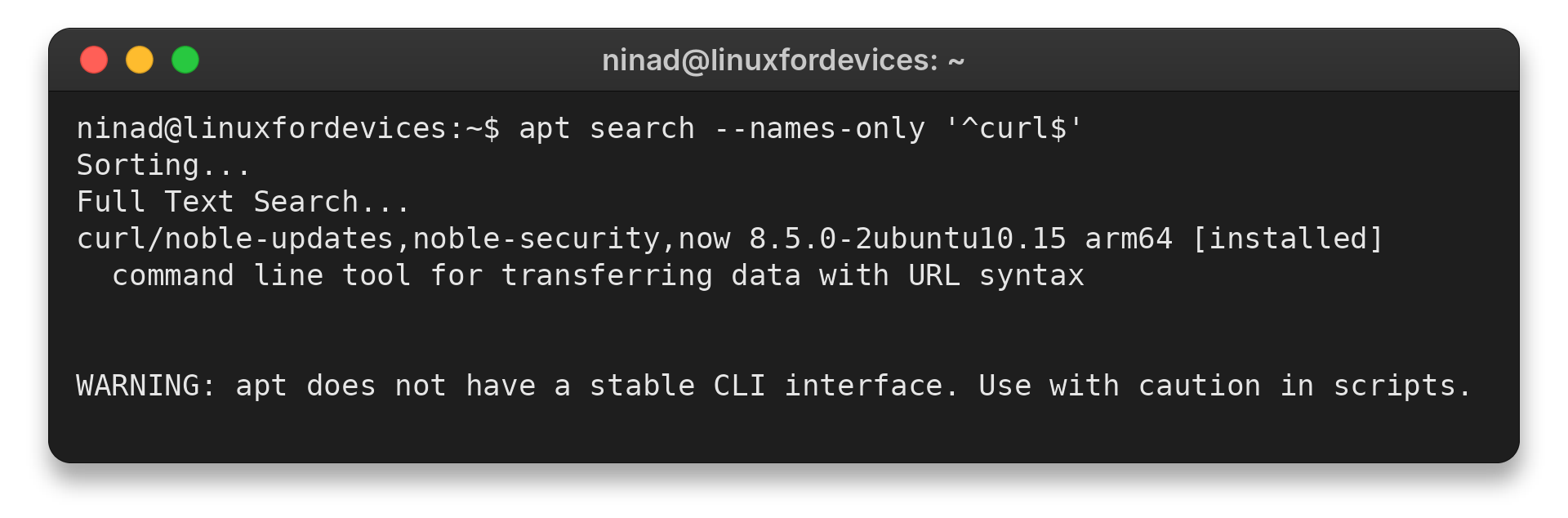
The result includes the package name, repository suites, version, and a short description. Here, curl is already installed, so APT marks it that way.
On Fedora or Arch, search results depend on that system’s enabled repositories.
dnf search curl
pacman -Ss curl
APT searches package names and descriptions by default, while names-only narrows this example to an exact package name. DNF and pacman have their own search syntax, so run each on its matching distribution.
The search command reads local package indexes, so a missing result does not prove that the software has no Linux package. The package may use another name, or its repository may not be enabled for your release.
Step 2: Install a package with the system manager
Ask the native manager to install the package by name. APT resolves required dependencies and shows the proposed changes for confirmation.
sudo apt install curl
Fedora uses DNF for package operations, and Arch uses pacman with its own syntax.
sudo dnf install curl
sudo pacman -S curl
Review the package list before accepting the transaction, especially when the manager proposes removing or replacing packages. If you need the details for one distribution, use the DNF command reference or the pacman guide.
The manager downloads the selected package and any dependencies, unpacks the files, and updates its local package database as one managed operation. That record is why later updates and removals should use the same distribution tool rather than copying package files by hand.
Step 3: Apply package updates safely
On Debian and Ubuntu, apt update downloads fresh package indexes, while apt upgrade applies available upgrades without removing installed packages.
| APT command | What it changes |
|---|---|
| update | Package indexes only |
| upgrade | Installed package versions, without removals |
| full-upgrade | May remove packages to complete the dependency changes |
sudo apt update
sudo apt upgrade
APT can also propose package removals when full-upgrade is needed to resolve the transaction. Read that plan before accepting it, because the command may remove installed packages.
APT upgrade avoids removals when applying available upgrades. If dependency changes require removing or replacing packages, full-upgrade can include those changes in its proposal, so inspect the list before approving the operation.
sudo apt full-upgrade
Fedora uses DNF to update installed packages. Arch expects a full system upgrade, so pacman synchronizes repository databases and upgrades installed packages together.
sudo dnf upgrade
sudo pacman -Syu
Do not run pacman -Sy followed by an install without upgrading the full system. Arch does not support partial upgrades, which can leave installed software and repository libraries out of sync. See the Pacman reference for that boundary.
A package index and installed software are separate states: refreshing the index changes what the manager knows is available, while upgrading changes packages already on the machine. Reboot only when your distribution or updated software asks for it, such as after a kernel change.
Step 4: Remove a package and inspect leftovers
APT remove deletes packaged files but can leave modified system configuration files. Purge removes those package configuration files too.
sudo apt remove curl
sudo apt purge curl
Choose remove or purge deliberately because purge deletes package-managed configuration files.
DNF and pacman use their own removal operations. Check the proposed transaction because packages no longer needed by other software may also be affected.
APT’s remove operation leaves modified system configuration files so a later reinstall can reuse them. Purge removes package-managed configuration files as well, but neither command cleans personal documents or settings from your home directory.
sudo dnf remove curl
sudo pacman -R curl
- APT remove keeps modified system configuration files, while purge removes package configuration files.
- DNF and pacman display their own removal transactions before applying changes.
For the distinctions between remove, purge, and unused dependencies, follow the APT package removal guide. Locally downloaded DEB files have a separate DEB installation walkthrough.
When package commands do not find the software
A search only sees package indexes from repositories configured for that distribution.
Refresh the indexes with the distribution’s documented command, then search the exact package name again. If it is still absent, check the vendor’s supported distribution list before adding another software source.
A downloaded DEB or RPM file is a package format, not a reason to use another distribution’s manager. Avoid adding an unfamiliar repository just to make one command succeed.
If you are unsure what is installed, query the local package database instead of relying on a repository search. Ubuntu users can list installed packages with APT’s installed-package commands, and can confirm the system release with this Ubuntu version check.
- Check the package name and repository suite in search results.
- Confirm the installed distribution before choosing a package tool.
- Use the vendor’s documented repository when the package is unavailable.
Keep package changes inside the distribution’s manager
Use the tool your distribution supports, and inspect the transaction before confirming changes. This keeps package files and the manager’s installed-software record in step.
cat /etc/os-release
Linux package management questions
What is a package manager in Linux?
A package manager installs, updates, and removes distribution packages while tracking package metadata and dependencies. APT, DNF, and pacman are examples for different distribution families.
Which package manager does Fedora use?
Fedora uses DNF to manage RPM packages. RPM is the package format, while DNF is the package-management tool used to work with Fedora repositories.
Is RPM a package manager?
RPM is the package format and low-level package tool associated with RPM-based distributions. Fedora’s DNF provides the higher-level repository and dependency workflow.