

A successful restart prints nothing, so anyone who needs to start, stop or restart a service in Linux ends up reading the status output.
I read that output as three separate answers, covering what is running right now, what will come back after a reboot, and whether the process picked up the change you made.
What a service is on a systemd machine
On Ubuntu, Debian, Fedora and the distributions built from them, background programs are managed by systemd, which the kernel starts as process ID 1. It supervises everything else on the machine, from the login prompt to a database server.
systemctl is the client you use to talk to it, and every program it manages is described by a unit, a small configuration file whose name ends in .service. The unit files live in two directories, and the location tells you who put them there.
| Directory | Who writes unit files there |
|---|---|
| /etc/systemd/system | You, or an administrator adding a service by hand |
| /usr/lib/systemd/system | The package manager, when software is installed |
Confirm that systemd is the thing answering before you type a verb.
ps -p 1 -o comm=
A machine that prints systemd runs every command below unchanged. When the answer is init, the older SysV init is still in charge, and the service command there drives shell scripts in /etc/init.d instead, as it does on a distribution such as Devuan ships without systemd.
Find the unit name and the command to type
The name you installed and the name systemd answers to are not always the same string. The ssh package installs ssh.service, and cron installs cron.service, but a package with a longer name often maps to a shorter unit.
Listing the unit files is the fastest way to check, because it prints the name, the enable state and the preset for every service on the machine.
systemctl list-unit-files --type=service | grep -i ssh
The mapping is not predictable from the package name, which is why the listing above is worth running instead of guessing.
| Package you installed | Unit name to type |
|---|---|
| cron | cron.service |
| openssh-server | ssh.service |
| mariadb-server | mariadb.service |
| avahi-daemon | avahi-daemon.service |
The suffix is optional in every command, which means systemctl start ssh and systemctl start ssh.service are the same request. For a wider view of what is running, listing all services in Ubuntu covers the filters that pair with this one.
Reading state needs no special rights. status, is-active, is-enabled and cat all work as an ordinary user, while start, stop, restart and enable change the machine and need sudo.
The older service command still works on these systems for the plain verbs, because it is a wrapper that hands the job to systemctl. Its manual page documents the hand-off. I read the wrapper script itself, and each of those branches ends in an exec into systemctl rather than running anything on its own.
So service webdemo restart and systemctl restart webdemo run the same job, and the choice is about coverage. systemctl is the one that can enable, disable, mask, print a single property, and read the unit file back.
The wrapper keeps one listing of its own. service –status-all walks the SysV init scripts and prints a symbol for each, + for running, – for stopped and ? for scripts with no status command.
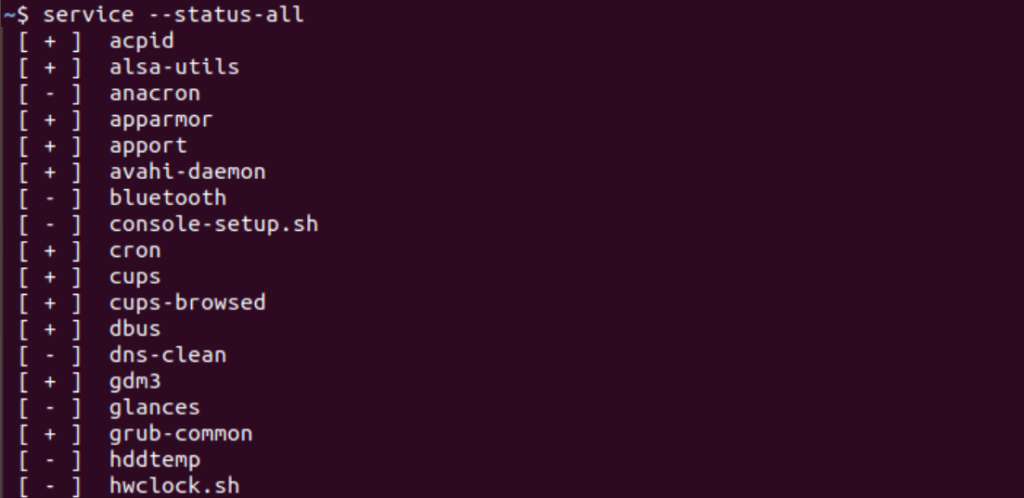
That list covers the init scripts only, so it disagrees with systemctl list-units on a machine that has both. For a new service, start with systemctl.
Every run below acts on one small unit, saved as /etc/systemd/system/webdemo.service, which serves a directory over HTTP so that starting and stopping it produces something you can watch.
[Unit]
Description=LinuxForDevices demo web service
After=network.target

[Service]
Type=simple
ExecStart=/usr/bin/python3 -m http.server 8099 --directory /srv/webdemo

[Install]
WantedBy=multi-user.target
Start, stop, and restart a service
All three verbs take the verb followed by the unit name, and all three are silent when they succeed. The check you run afterwards is what tells you the verb did anything at all.
Start a service and confirm it is running
Starting a stopped unit launches its process and marks the unit active. Starting one that is already running is not an error either, and the second command exits 0 without doing anything.
sudo systemctl start webdemo
systemctl is-active webdemo
The status output is the fuller record, and three of its lines answer whether the start worked.
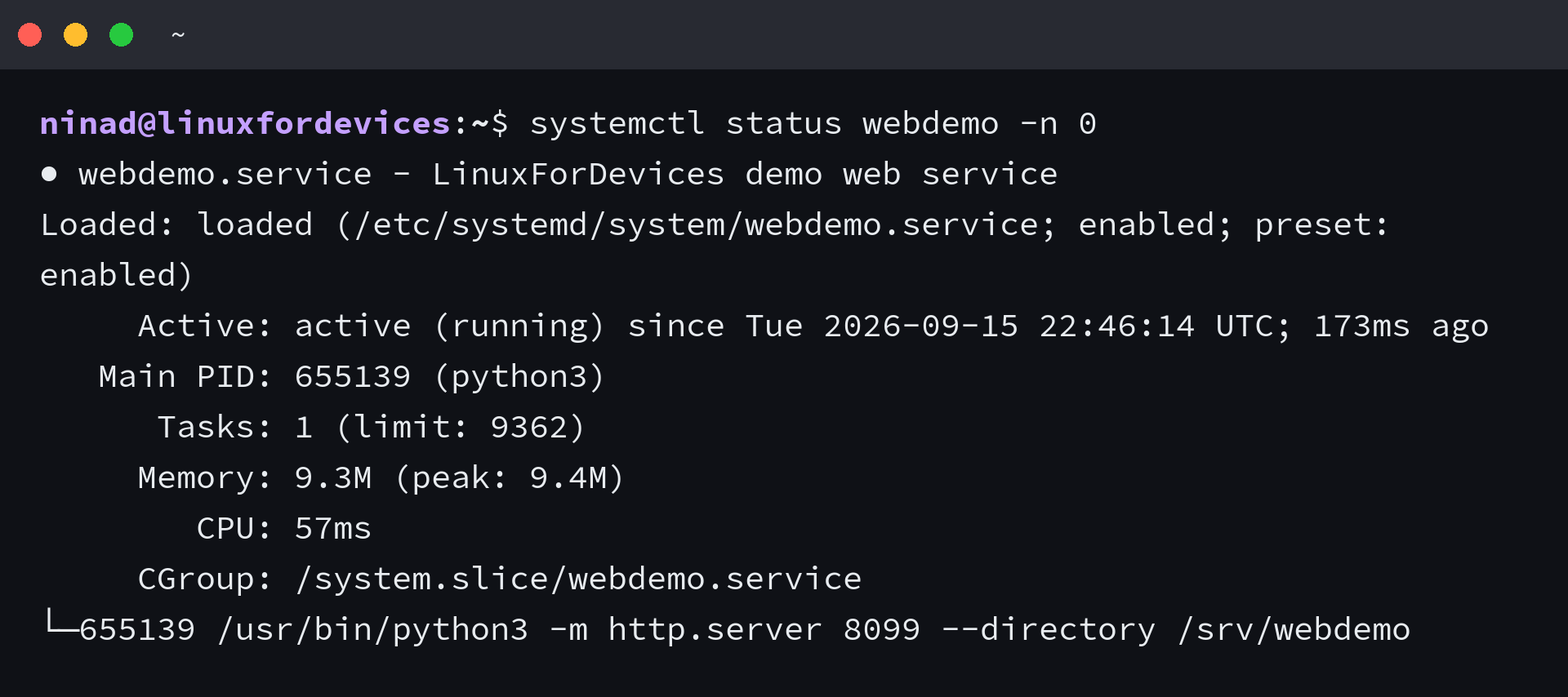
Loaded names the unit file and whether the unit starts at boot. Active carries the state and how long it has held that state, and Main PID names the process systemd is supervising.
status appends the last few journal lines by default, which is useful once a unit misbehaves. The -n 0 in the command above drops them so the state block stands alone.
Stop a service
Stopping runs the unit’s own stop commands, so the program gets a chance to shut down cleanly, and then terminates the process if they do not finish on their own. The systemctl manual is precise about the failure case: the command does not fail when those stop commands fail, because the manager forcibly terminates the unit either way.
sudo systemctl stop webdemo
is-active prints one word and sets its exit code to match, which is how a script reads the result without parsing anything.

Stopping a unit that is already stopped exits 0 without printing anything, so an empty terminal is the expected result rather than a sign the command did not run.
Restart a service
Restart stops the unit and starts it again in a single job, which is the verb to reach for when the program has no way to re-read its configuration while it runs. The old process is gone before the new one starts, so whatever it held in memory goes with it.
systemctl show -p MainPID webdemo
sudo systemctl restart webdemo
systemctl show -p MainPID webdemo
I ran those three commands against the demo unit and the process ID moved from 656148 to 656165. The changing PID is the visible result of a restart, which matters when the empty terminal leaves you unsure.
Restarting a unit that is not running starts it, and restarting one that has failed clears the failure as it comes back up, so the verb is safe to reach for when the current state is unclear. Restarting the whole machine is a different job with a different risk, covered in restarting Linux from the terminal.
The manual names one boundary worth carrying, which is that a restart does not necessarily release everything the old process held. The per-service file descriptor store survives across a restart while the job is pending, so a full reset takes an explicit stop followed by a start.
Read the state before you trust it
The commands below answer different questions about the same unit, and only the first is written for a human to read.
| Command | Question it answers | Exit code |
|---|---|---|
| systemctl status webdemo | Everything, formatted with a journal tail | 0 when the unit exists |
| systemctl is-active webdemo | Is it running right now | 0 active, 3 otherwise |
| systemctl is-enabled webdemo | Will it start at boot | 0 enabled, 1 disabled, 4 unknown |
| systemctl is-failed webdemo | Did the last run fail | 0 failed, 1 otherwise |
I measured those codes by running each command against the demo unit and against a name with no unit behind it. The single-word commands exist for scripts. is-active prints its word and exits 0 only when the unit is active, so a test built on systemctl is-active –quiet webdemo branches correctly without parsing output.
is-enabled also reports static, which means the unit carries no install section and cannot be enabled on its own because another unit pulls it in. A package that ships a static unit expects it to be started by the unit that needs it.
To see everything that is broken at once, ask for the failed units only.
systemctl --failed
For a single unit, systemctl show prints the raw properties, including the ones the formatted status view leaves out. Reading one property at a time is often faster than reading the whole block, and CanReload is the one to read before a reload.
Make a service start at boot
Start and enable are separate facts about a unit, and the status block reports them on different lines. Start covers the next second, enable covers the next boot.
Enabling writes one symlink into the directory belonging to the boot target that should pull the unit in.
sudo systemctl enable webdemo

The symlink points at the unit file, and systemd starts everything reachable from multi-user.target when the machine reaches that target during boot. Disable removes the same link, which is why disabling a unit leaves the running process alone.
Adding –now to enable does both jobs in one command. I tested it on the demo unit, which was active by the time the prompt came back, so it is the shorter path right after an install.
A unit left disabled is one that a reboot will not bring back, and reading is-enabled is how you confirm the state before you rely on it. The boot check is also the first step when you want a program such as Bluetooth to stop returning after startup.
Reload, restart, or daemon-reload
The three verbs look interchangeable and each one acts on a different thing, which is why the wrong choice leaves the change unapplied.
| What you changed | Command | What it acts on |
|---|---|---|
| The service’s own configuration file | systemctl reload | The running process, which re-reads its config |
| The unit file in /etc/systemd/system | systemctl daemon-reload, then restart | systemd’s in-memory copy of the unit |
| The program, or its environment variables | systemctl restart | A new process, replacing the old one |
Reload is the cheapest of the three when it applies, because the process keeps its connections and re-reads its configuration in place. It also refuses to run at all when the unit has nothing to execute, which is the state the demo unit is in.
sudo systemctl reload webdemo

A unit reports CanReload=yes only when it defines an ExecReload directive. I checked that split across the units on one host, and the ones reporting yes were the ones carrying the directive. The message above was about the unit definition rather than your permissions.
systemctl show -p CanReload webdemo
A networking change is a common case for the difference. The interface keeps its old address until the service behind it reloads or restarts, which is the subject of restarting networking on Ubuntu.
After you edit a unit file on disk, the running systemd is still holding the copy it loaded at boot until daemon-reload runs. Editing the file and restarting the service alone leaves the old unit definition in place.
The conditional variants cover the cases where a blanket verb does the wrong thing. try-restart does nothing when the unit is already stopped, and reload-or-restart falls back to a restart when the unit cannot reload.
When a service will not start
The failure messages below cover the states a service gets stuck in, and each one names its own fix.
| Message | What it means | What to do |
|---|---|---|
| Unit X.service not found | No unit on the machine carries that name | Check the name with list-unit-files, then install the package |
| Unit X.service is masked | The unit is linked to /dev/null and cannot start | Run systemctl unmask, then start it |
| Active: failed (Result: exit-code) | The process ran and exited non-zero | Read the journal, fix the cause, then reset-failed |
The first is the one readers meet while typing from memory, since a name that looks right on a package page rarely matches the unit name exactly. A package can install its unit under a shortened name while the page you copied from uses the full one.
sudo systemctl start nosuchsvc
systemd answers with the name it looked for, which is usually enough to spot the difference between what you typed and what the package installed.
Masking is stronger than disabling and it is always deliberate, because somebody ran the command that creates it. The mask links the unit name to /dev/null so nothing can start it, not even a package upgrade that wants to.
sudo systemctl mask webdemo
sudo systemctl start webdemo
I masked a name that had no unit behind it to see what systemd would do, and it wrote the link anyway before the start failed. Unmasking removes that link and leaves a normal unit behind. A unit that is only disabled needs enable rather than unmask.
The failed state is sticky, because a unit can fail on one start and run correctly on the next while the old result stays on the record.
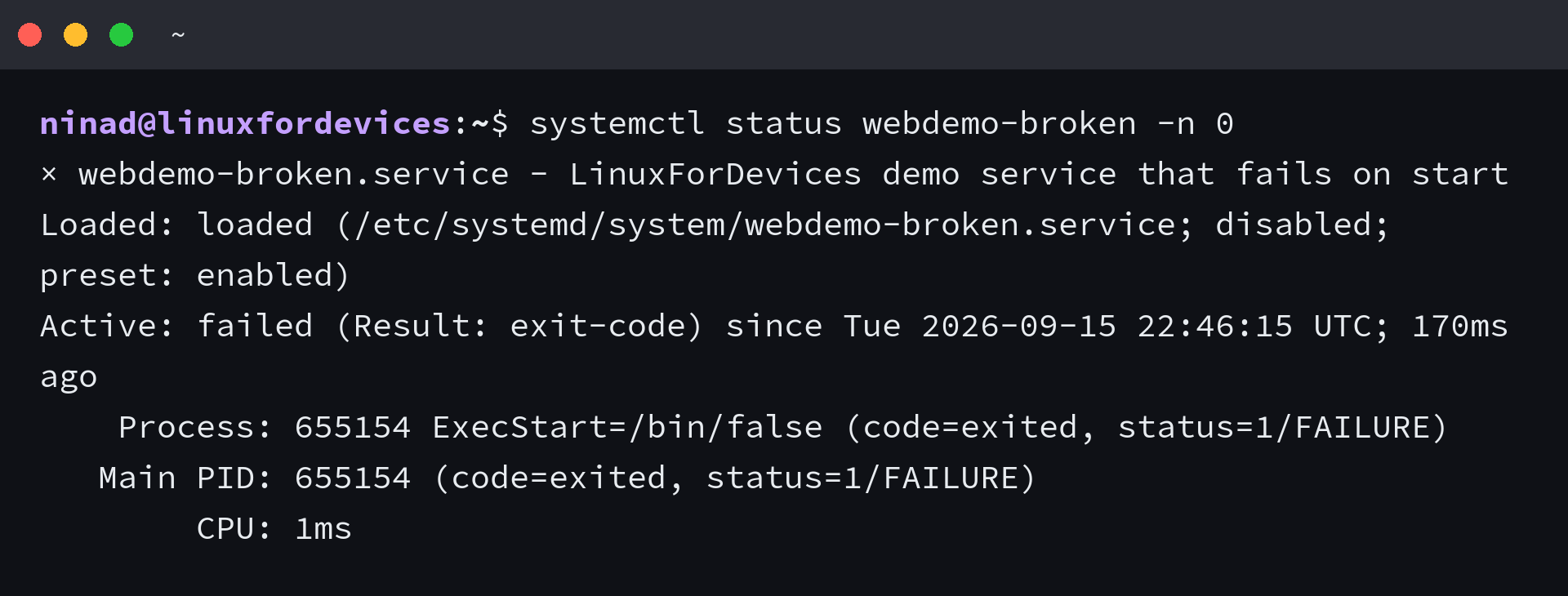
The Result field names the reason, and the process line carries the exit status that the program returned. I cleared the demo unit with reset-failed once, and the is-failed check flipped from failed to inactive.
A repair order keeps the three apart when a unit refuses to come up.
- Confirm the unit name exists with systemctl list-unit-files, and install the package if nothing matches.
- Read the state with systemctl is-enabled to catch a masked unit before you try to start it.
- Read the reason from journalctl -u with the unit name, and fix the cause rather than the symptom.
- Clear the record with systemctl reset-failed once the unit starts cleanly again.
When the unit is healthy and the process behind it is the problem, killing the process by hand is a different job, covered in process termination in Linux.
Watch the service instead of guessing
The state block reports what systemd believes about a unit, and the journal holds the reason it believes it. Following the log while you change something is the step that turns a state line into a fix.
journalctl -u webdemo -f
Restart the unit in a second terminal and the sequence of stop, start and any failure message arrives in the window you are already watching. I read the journal rather than the state block when a unit behaves oddly, because the state is a snapshot and the log is the sequence.
Frequently asked questions
How do I start a service in Linux?
Run sudo systemctl start with the unit name, for example sudo systemctl start nginx. The command prints nothing when it succeeds, so confirm the result with systemctl is-active nginx, which prints active.
How do I restart a service and check that it worked?
Run sudo systemctl restart with the unit name. A restart is silent on success, so compare systemctl show -p MainPID before and after, or run systemctl status to read the active state and the main process id.
What is the difference between systemctl reload and systemctl restart?
A reload asks the running process to re-read its own configuration file and keeps the process, so open connections survive. A restart stops the unit and starts a new process. Reload only works on units that define ExecReload, which you can check with systemctl show -p CanReload.
How do I make a service start at boot?
Run sudo systemctl enable with the unit name. Enabling creates a symlink in the boot target’s wants directory, and it does not start the service immediately. Add –now to enable and start it in one command, and check the result with systemctl is-enabled.
Why does systemctl say Unit not found?
The unit name you typed does not exist on the machine. List the units with systemctl list-unit-files –type=service and search for the package name, because the package name and the unit name are often different strings. If nothing matches, the software is not installed.
What does it mean when a unit is masked?
A masked unit is linked to /dev/null, so systemd refuses to start it even if another unit wants it. Run sudo systemctl unmask with the unit name to remove the link. Masking is deliberate and stronger than disabling.
How do I check whether a service is running inside a script?
Use systemctl is-active –quiet with the unit name and test the exit code, which is 0 only when the unit is active. is-enabled works the same way for the boot state, and is-failed reports a failed unit with exit code 0.
Do I need sudo to manage services?
You need sudo for start, stop, restart, enable and disable, because those change the machine. status, is-active, is-enabled, is-failed and show work as an ordinary user.