
Getting Dropbox running on Ubuntu starts with installing its Linux client. The client includes a daemon, a background process that keeps the local Dropbox folder aligned with files in your account.
I’ll show how to set up Dropbox on Ubuntu, then check whether its folder is syncing.
TL;DR
Install Dropbox from its official Linux package, start the daemon, and sign in to link this Ubuntu computer to your account.
- Architecture: Dropbox’s Linux daemon supports 64-bit Linux.
- Account: complete the browser link before expecting files to sync.
- Check: use the dropbox status command to inspect the sync state.
What Is Dropbox on Ubuntu?
Dropbox on Ubuntu is the desktop client and its background daemon. The daemon keeps the local Dropbox folder aligned with the account’s online files.
For a desktop computer, use the Ubuntu package Dropbox lists for your processor. The account link must be completed before local files become available.
| Part | What it does | What to check |
|---|---|---|
| Desktop client | Starts Dropbox and provides desktop controls | Open the app after installation |
| Daemon | Runs the sync process in the background | Check with dropbox status |
| Dropbox folder | Holds local copies selected for sync | Look in your home folder |
| Account link | Connects this device to your Dropbox account | Finish the browser sign-in flow |
How to Install Dropbox on Ubuntu Step by Step
Use Dropbox’s Linux instructions to install the client and link your account. The steps cover its documented 64-bit x86 headless command and the desktop package route.
Step 1: Check the supported architecture
Check the machine architecture before downloading. Dropbox’s installation page lists the available package options.
uname -m
aarch64
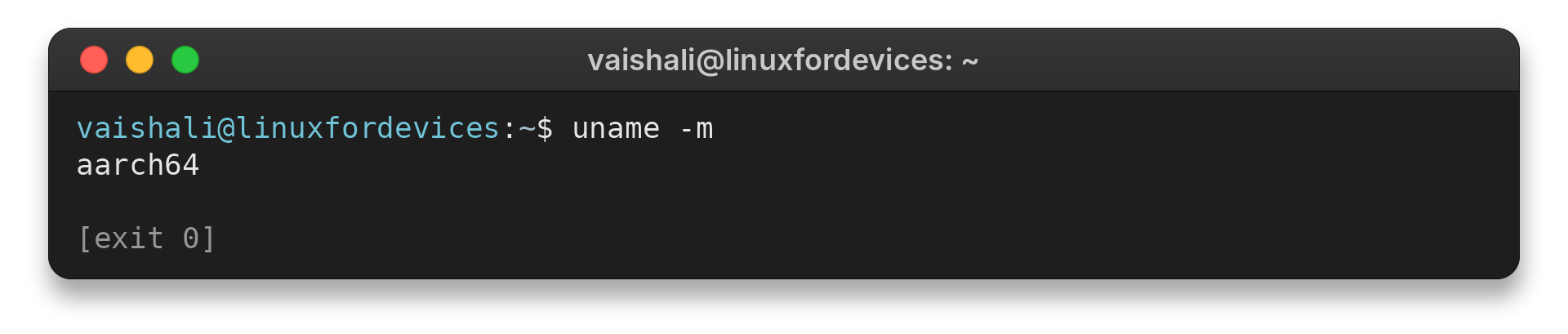
I ran uname -m and got aarch64, the name for an ARM 64-bit architecture. Check the Dropbox page against your machine’s architecture before using its download.
Step 2: Download the official Linux client
The command below is Dropbox’s documented 64-bit x86 headless route. It downloads and extracts the daemon under your home directory.
cd ~ && wget -O - "https://www.dropbox.com/download?plat=lnx.x86_64" | tar xzf -
For a desktop installation, download the matching Ubuntu package from Dropbox’s Linux page and open it with Ubuntu’s package installer. The CLI route uses wget to retrieve daemon files. These are separate installation paths, so follow the package route that matches the computer and its desktop setup.
Step 3: Start Dropbox and link your account
Dropbox’s Linux instructions use this command to launch the daemon. It can open the browser authorization flow when account linking is required.
~/.dropbox-dist/dropboxd
Complete the browser sign-in or account creation page, then return to Ubuntu. The Dropbox desktop installation guide says to follow the prompts to log in or create an account and then configure which files sync.
Step 4: Confirm the Dropbox folder is syncing
After sign-in, check the Dropbox folder in your home directory and inspect the status from the command line. Dropbox documents the dropbox status command for the current sync state and dropbox running for a running check.
dropbox status
dropbox running
The status command gives a human-readable state. The running command is intended for scripts and returns a numeric result. Wait for syncing to finish before treating newly added files as available on other devices.
What Should You Check After Installation?
If the client is open but the folder does not sync, check whether the account link completed or the daemon stopped. Use those checks before reinstalling or removing configuration files.
| Symptom | Check | Next action |
|---|---|---|
| Account link pending | Complete the browser authorization flow | Return to the Dropbox app after confirmation |
| Dropbox reports a stopped daemon | dropbox status | Start the client from the application menu or use dropbox start |
| Some folders are absent | Review selective sync settings | Include the folders needed on this computer |
| Processor package unavailable | uname -m | Check Dropbox’s current supported-platform information |
If the status stays at syncing, Dropbox says network settings or a firewall can affect transfers. Check the connection and any network restrictions before changing local installation files. Its sync troubleshooting steps are the safer next reference for a transfer that remains queued.
Dropbox documents the dropbox start command to start the daemon and dropbox autostart to control whether it starts automatically at login. Its autostart command may only work on currently supported Ubuntu distributions. Avoid deleting the hidden .dropbox or .dropbox-dist directories as a first fix because those paths contain account or installation data.
Dropbox’s CLI reference includes help for individual commands. Use its help output when command options differ from older examples, and avoid copying configuration or reset commands from a different Linux distribution.
Conclusion: Keep the Dropbox Folder in Sync
Install the official Linux client, finish the account-link step, and use Dropbox’s status command to confirm the daemon is syncing. The local Dropbox folder is the place to check for files selected on this Ubuntu machine.
For the package options and CLI reference, use Dropbox’s Linux installation page and its Linux command reference. Our Ubuntu dpkg frontend-lock guide covers a package-manager lock during installation.
FAQ
These answers cover two common questions about Dropbox on Ubuntu.
Does Dropbox support Ubuntu?
Dropbox provides a desktop app for supported Linux systems, including an Ubuntu package. Check Dropbox’s current Linux installation page for the package and platform requirements.
How can I check whether Dropbox is syncing on Ubuntu?
Run dropbox status from the terminal to see the current sync state. Dropbox also documents dropbox running for a script-oriented check of whether the daemon is running.