
Running a trading terminal on Linux can mean choosing between a desktop setup and browser access. MetaTrader 5 is a trading terminal, and MetaQuotes’ Linux installer sets it up through Wine, a layer that lets Windows applications run on Linux.
This article walks through installing MetaTrader 5 with MetaQuotes’ script and explains how to use the browser platform without a local desktop installation.
TL;DR
MetaQuotes’ Linux installer sets up MetaTrader 5 through Wine on Ubuntu, Debian, Linux Mint and Fedora. Run its script as a regular user, follow the installer and restart when it finishes.
- Check your distribution with cat /etc/os-release.
- Use the current mt5linux.sh command from MetaQuotes.
- Use the browser platform if you do not want the desktop installation.
What is MetaTrader 5 on Linux?
MetaTrader 5 is a trading terminal whose Linux desktop setup uses Wine, a compatibility layer for Windows applications. MetaQuotes’ script handles the Wine setup and launches the platform installer on the distributions its instructions list.
Wine translates Windows program calls so they can run against Linux services. That compatibility layer can differ from a native Linux build, so check the platform after installation instead of assuming every broker tool or add-on behaves the same way.
The installer may request permission through the operating system. Enter your password only in that system prompt. Keep the downloaded script in a folder you can find again, and remove it after installation if you do not plan to reuse it.
How to install MetaTrader 5 on Linux
Download the script from the official MetaQuotes Linux instructions and complete the graphical installer it opens. The command below follows that page, checked on October 20, 2026.
Step 1: Check your distribution and open a terminal
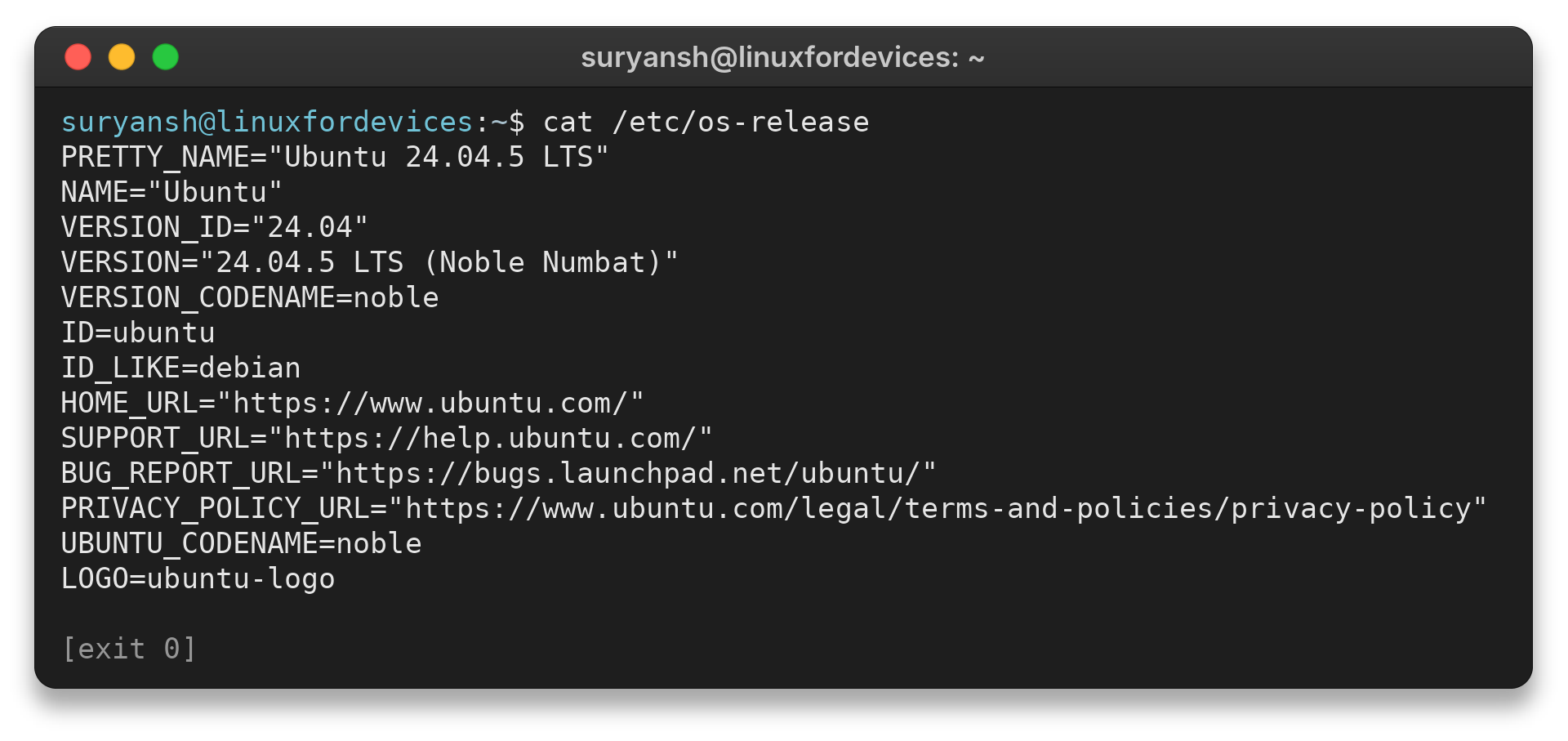
Check that your distribution belongs to the supported set before proceeding. I use the release metadata check because it shows the distribution ID and version without changing system state. The cited vendor page does not give a minimum release number.
cat /etc/os-release
PRETTY_NAME="Ubuntu 24.04.5 LTS"
NAME="Ubuntu"
VERSION_ID="24.04"
VERSION="24.04.5 LTS (Noble Numbat)"
VERSION_CODENAME=noble
ID=ubuntu
ID_LIKE=debian
HOME_URL="https://www.ubuntu.com/"
SUPPORT_URL="https://help.ubuntu.com/"
BUG_REPORT_URL="https://bugs.launchpad.net/ubuntu/"
PRIVACY_POLICY_URL="https://www.ubuntu.com/legal/terms-and-policies/privacy-policy"
UBUNTU_CODENAME=noble
LOGO=ubuntu-logo
The screenshot shows the result of this read-only command. Match the ID and version to the supported distribution families.
Step 2: Download and launch the official script
Open a terminal in the directory where you want to keep the installer, then run the vendor command as your regular user. This command downloads the script, makes it executable and starts it.
wget https://download.terminal.free/cdn/web/metaquotes.software.corp/mt5/mt5linux.sh
chmod +x mt5linux.sh
./mt5linux.sh
Review the URL before running the command. The script runs with your user permissions, so a modified or unrelated download could access files your account can access. Get the address from the vendor page instead of copying it from an old tutorial.
Step 3: Follow the installer prompts
Follow each installer window and note any component prompt or error text. MetaQuotes’ documented flow prepares the compatibility environment and opens the platform setup. Mono and Gecko support .NET and web content in some Windows programs, so accept the vendor’s prompt unless your distribution policy says otherwise.
Continue through the platform installer and keep its default destination unless you have a specific reason to change it. Mixing a manual Wine setup with the vendor script can leave two separate environments, making it harder to tell which one launches the terminal.
Step 4: Restart and open MetaTrader 5
Restart the operating system after the installer completes, as MetaQuotes directs, then open MetaTrader 5 from the applications menu. At first launch, use the account and server details supplied by your broker.
The terminal and a trading account are separate parts of the setup. Keep your broker’s server name and login details available, but enter them only in the platform’s sign-in window after confirming the broker’s instructions.
What to check after installation
After restarting, check that the terminal opens and note the platform directory before you change any settings. The default path is inside Wine’s virtual C drive.
~/.mt5/drive_c/Program Files/MetaTrader 5
The tilde represents your home directory, while drive_c is Wine’s virtual C drive. This folder belongs to the application, so do not treat it as a Linux system directory.
- If the terminal opens, sign in with the broker’s supplied server and account details.
- If it does not open, write down the exact message and your distribution release before troubleshooting.
- Check MetaQuotes’ current installation page before trying a different script or manual package steps.
I would start with the error message and distribution release rather than changing Wine settings at random. Check that the script came from MetaQuotes, that the download completed, and that the graphical installer was allowed to finish. If a window remains open, record its exact prompt before closing it.
Keep the application folder until you know whether it contains settings or platform data you need.
Install updates in a timely manner
Keep distribution packages and the terminal on their own update paths. MetaQuotes recommends current operating-system and Wine versions, but does not publish a fixed Linux version matrix or update schedule. Check the package manager’s proposed changes before applying system updates, since they can affect packages beyond Wine.
The Linux installation page gives an Ubuntu command for applying available system updates. It needs administrator privileges because it changes operating-system packages.
sudo apt update
sudo apt upgrade
These commands change system packages and need administrator permission. Review the proposed package list before confirming, and use the package guidance for your own distribution rather than running Ubuntu commands on Fedora.
Apply distribution updates during a maintenance window when you can close the terminal first. Save work in other applications and read the package manager’s confirmation summary before proceeding.
Avoid downloading a second installer from an unrelated site to force a platform update.
When the installer or terminal reports an available update, follow its prompt and let it finish before reopening the application. If a prompt fails, note its exact text and check the current MetaQuotes instructions before changing Wine packages or deleting the .mt5 directory.
Do not remove Wine or the terminal directory to force an update unless the vendor’s current instructions specifically call for it.
Use MetaTrader 5 without a Linux desktop install
The MetaTrader 5 web platform opens in a browser and avoids a local desktop install, while your broker determines account access and available features.
| Route | What it needs | Choose it when |
|---|---|---|
| Desktop terminal | MetaQuotes installer and Wine | Your workflow needs the desktop application |
| Web platform | Browser and compatible broker account | You want to avoid local desktop setup |
Before entering account credentials, verify that your broker supports the web platform and check the site address. For related Linux application setup, see how to install a Windows application alternative on Linux and how Proton runs Windows software on Linux.
Conclusion: use MetaQuotes’ installer
Use the official installer, follow its prompts and restart when it finishes. Then check that the terminal opens and note where it stores its files.
See the MetaTrader 5 Linux installation instructions for the current command and the MetaTrader 5 platform page for browser access.
FAQ
These answers clarify the supported route and its alternatives.
Can I run MetaTrader 5 on Linux without Wine?
The MetaQuotes desktop instructions use Wine. The web platform offers browser access without installing the desktop terminal locally.
Which Linux distributions does the official installer support?
MetaQuotes lists Ubuntu, Debian, Linux Mint and Fedora on its Linux installation page.
Where is the MetaTrader 5 folder on Linux?
The documented default folder is ~/.mt5/drive_c/Program Files/MetaTrader 5 inside the Wine environment.