

A report can be long when you only need to check its newest records. The Linux tail command prints the end of a file, with options to start at a chosen line or byte count.
I’ll show how to select the part of a file to read and how to follow new log entries.
TL;DR: Linux tail command
The Linux tail command prints the end of a file, and -f keeps showing data appended after the command starts.
- Use tail file.log for the last 10 lines.
- Use tail -n 25 file.log to choose a line count.
- Use tail -F file.log for a log that may be rotated, and press Ctrl+C to stop.
What does the tail command do in Linux?
Tail writes the end of a file to standard output so recent entries are visible without listing the whole file. On GNU systems, it prints the last 10 lines by default.
Standard output is the normal channel for command results. A shell can redirect it to a file or pass it along a pipe. Tail reads input without editing its source file.
| Input | How tail reads it |
|---|---|
| A named file | Reads the specified path. |
| No file argument | Reads standard input. |
| A hyphen as file name | Reads standard input. |
Head prints the beginning of input. Use the explicit -n option in scripts because it states that the count measures lines.
How to use the Linux tail command
Set a line count for a one-time read or follow the file for new output.
Step 1: Print the last lines of a file
Run tail with a file name to see its default output. To choose a different line count, pass that number to -n.
tail -n 3 service.log
I ran tail -n 3 service.log against the sample log. The output is shown in the terminal capture below.
status=ready
request=/health
status=complete
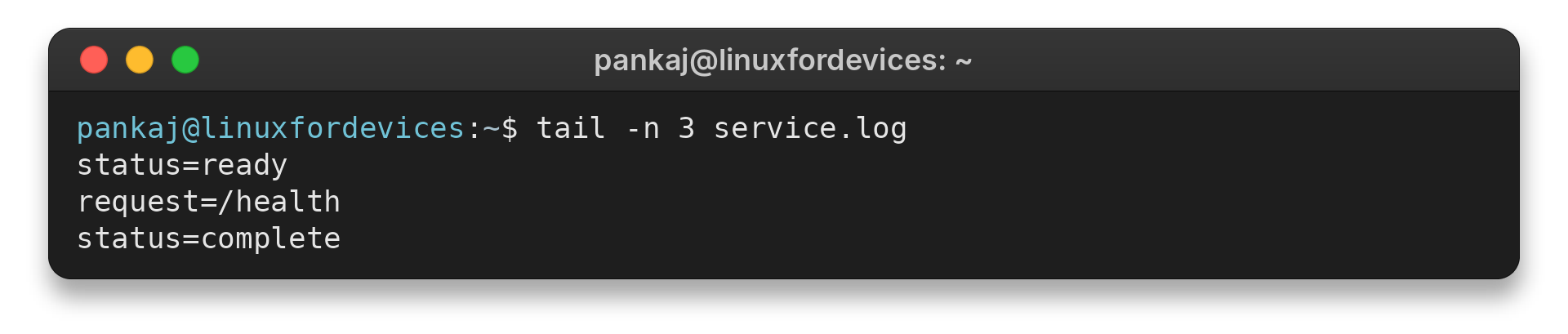
The capture shows each returned line. When the requested count exceeds the file length, tail returns the available lines and adds no padding.
Step 2: Start from a particular line
Prefix the count with a plus sign to select from the beginning of the file rather than counting backward from its end.
tail -n +5 report.txt
This prints line five and every line after it. Use this form when a file has a header row that should be skipped before processing the remaining records.
The offset is one-based. In this example, the output starts with line five, so use plus one to pass the complete file through a pipeline.
Step 3: Select bytes or read piped input
Use -c to select a byte count, or leave out the file name to read another command’s output.
tail -c 100 application.log
printf '%s\n' alpha beta gamma | tail -n 2
The pipe connects one command’s standard output to tail’s standard input, which then returns the two-line suffix.
beta
gamma
Byte offsets can split a multibyte character, so choose bytes only when that is the intended unit.
With no file operand, tail reads standard input. Use a single hyphen to make that choice explicit in a command that also names files.
Step 4: Follow new log entries
Add -f to print new data as a file grows. Tail first prints the existing end of the file, then waits for appended data.
tail -n 20 -f application.log
This is a common tail live workflow for logs. Some log paths are readable only by an administrator. Use an account authorized to read that file.
A foreground follow waits at the current end until you press Ctrl+C.
Follow logs, rotation, and other tail edge cases
I use -F when the log path may be replaced during rotation because it follows the name and retries if that path is missing.
| Need | Option | What it does |
|---|---|---|
| Keep reading the opened file | -f | Follows the file descriptor, the open reference to the original file. |
| Follow a path after rotation | -F | Follows the file name and retries if it is temporarily missing. |
| Label multiple inputs | -v | Always prints file headers. The -q option suppresses them. |
See the Linux file command guide to identify a file before processing it.
For filtered live output, pipe the stream onward with tail -F application.log | grep ‘ERROR’. Grep may buffer output depending on its settings and environment.
A missing filename makes a one-time read report an error. When following a name, GNU tail can retry until the path appears again.
If you do not know the file’s path, the find command guide covers locating files before you inspect them.
- Confirm that the process writing the file is still active if no new lines arrive.
- Inspect nearby lines when a filtered message needs more context.
The checklist helps separate a process waiting for data from a path or permission problem.
GNU tail’s --pid option watches a writer on the same machine, then ends the follow when that process exits. Use it to tie a live view to a local build or service process.
Command flags vary across Unix implementations. Check the target system’s tail manual before depending on an extension in a portable script.
GNU tail has no -r option. Use tac to reverse records.
GNU Coreutils accepts size suffixes for byte counts. The suffix changes whether the unit is decimal or binary.
| Suffix | Byte count | Unit |
|---|---|---|
| K | 1024 | Binary |
| kB | 1000 | Decimal |
| b | 512 | Block |
Byte counts suit fixed-width records or a specified amount of stream data. Line counts preserve the record boundaries of line-oriented text.
A pipeline can narrow a long result from a search command to its newest matches. This is useful for one-time command output as well as logs.
A zero count returns no lines. GNU tail also accepts a negative line count, which omits that many final lines instead of selecting trailing lines.
When more than one file is named, GNU tail adds headers so the output can be attributed to its source. Use -q to suppress those labels or -v to show them even for one file.
Tail leaves error classification to a search filter. Inspect surrounding lines when context is needed.
If the followed file shrinks, GNU tail reports truncation and resumes reading from the start of the shortened file. GNU tail uses inotify notifications when available. Without them, it polls periodically, and -s changes the interval.
The rotation tool controls when it renames or recreates a path. Keep that behavior in view when selecting follow mode.
| Case | What to check | Next action |
|---|---|---|
| No new lines appear | Writer still active | Check the process or wait for new data |
| Follow stops after rotation | File path was replaced | Use -F to follow the name |
| Byte output starts mid-character | Count is in bytes | Use -n for complete lines |
| Reverse-order output needed | GNU tail has no -r | Use tac |
Conclusion: choose lines or follow updates
Use finite output for a snapshot and follow mode for incoming data. Press Ctrl+C to return to the shell.
For authoritative option details, consult the GNU Coreutils tail manual. To inspect a file’s starting lines instead, use the Linux command-line guide for shell basics, or keep the Linux commands cheat sheet nearby.
FAQ
These answers cover the common questions about tail output and stopping a live follow.
What does the tail command do in Linux?
It prints the last part of a file or standard input. By default, GNU tail prints the last 10 lines.
How do I exit the tail command?
Press Ctrl+C in the terminal running tail to interrupt a foreground follow and return to the shell.
What is the difference between tail -f and tail -F?
GNU tail -f follows the open file descriptor by default. -F follows the file name and retries, which is useful when log rotation replaces the file at that path.