
An Ubuntu splash screen that never reaches the sign-in screen needs a diagnosis before a repair. Start with recovery mode to separate a package, filesystem, kernel, or graphics-driver problem, then make one change at a time.
Start with the least invasive boot path
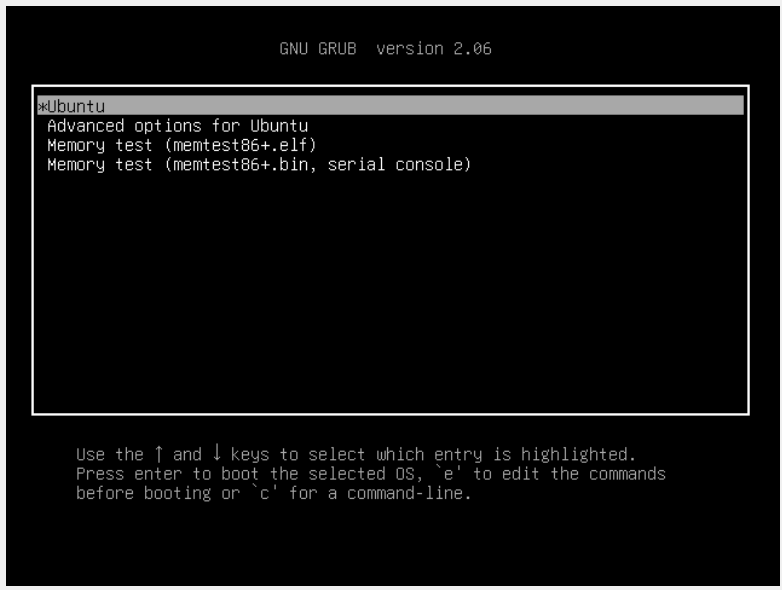
Open the GRUB menu during startup. On many BIOS systems, hold Shift after the system starts. On UEFI systems, press Esc repeatedly after the firmware screen.
Choose Advanced options for Ubuntu, then select the newest entry marked recovery mode.
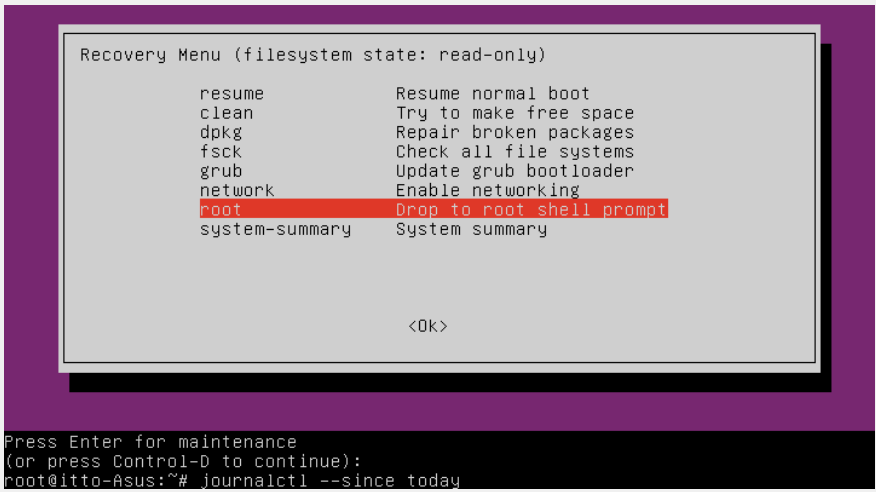
The recovery menu gives you safer starting points than editing files from a normal boot. If you can reach it, choose dpkg to repair an interrupted package configuration first. Use the root shell when you need to inspect logs or run a specific repair.
Check the previous boot before changing GRUB
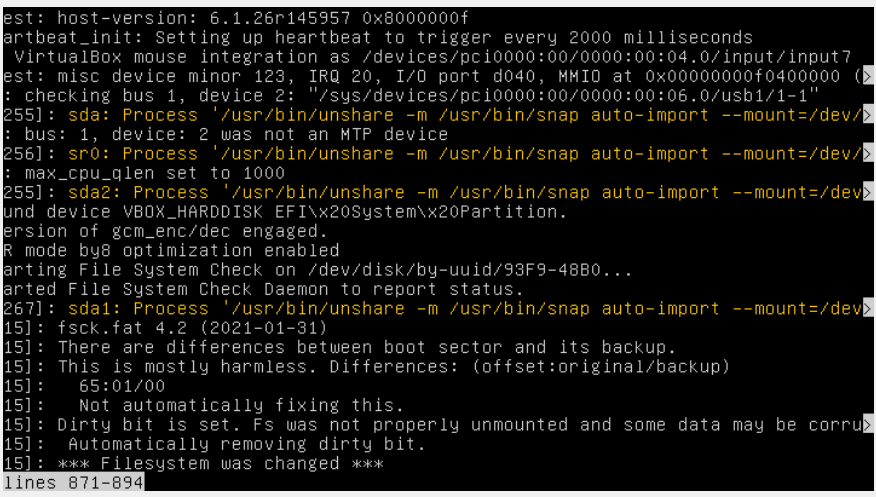
From the root shell, remount the root filesystem read-write before a repair. Then inspect errors from the previous boot. The log often points to a failed service, missing mount, graphics module, or package configuration instead of treating every stuck splash screen as the same fault.
mount -o remount,rw /
journalctl -b -1 -p warning..alert --no-pager
Use the unit or error named in the output to narrow the next step. A filesystem message calls for a filesystem check, while a graphics error calls for a temporary graphics workaround. Do not delete drivers or edit the bootloader until the log gives you a reason.
Repair an interrupted update or broken packages
Choose dpkg in the recovery menu when the problem followed an update, shutdown, or package installation. It runs the recovery-mode package repair flow with networking enabled when available.
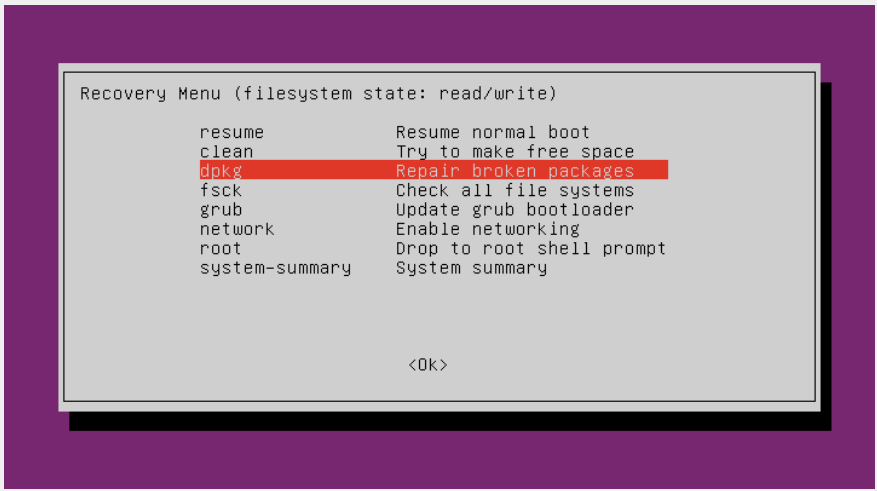
If recovery mode reaches a root shell but the menu repair does not finish, run the package configuration command directly after remounting the filesystem. Reboot only after it completes without an error.
dpkg --configure -a
apt -f install
If a kernel update is the trigger, avoid removing kernels while you still need a fallback boot entry. Use the recovery menu to boot an older installed kernel first, then review how Ubuntu kernel updates are managed before changing update policy.
Use nomodeset only to test a graphics boot failure
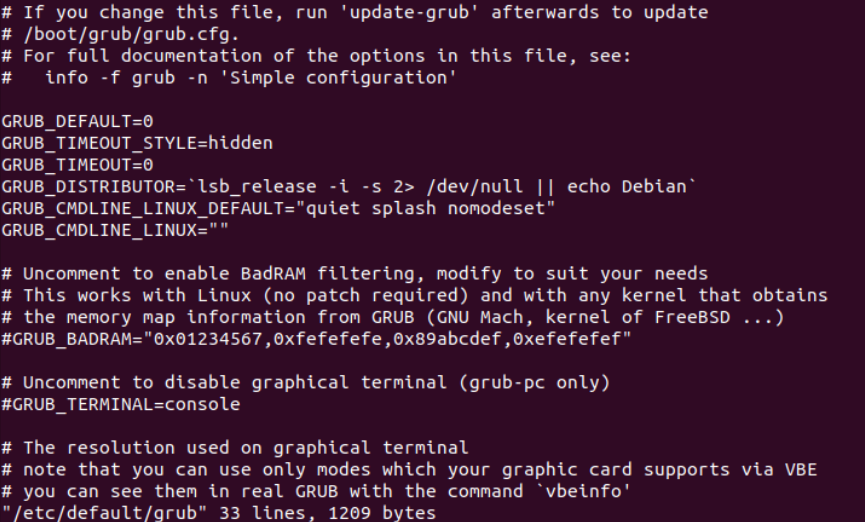
A black screen, a frozen purple splash screen, or a hang after a driver update can be a graphics mode-setting failure. At the GRUB menu, select the usual Ubuntu entry, press E, find the line that begins with linux, and add nomodeset to its end. Press Ctrl+X or F10 to attempt one temporary boot.
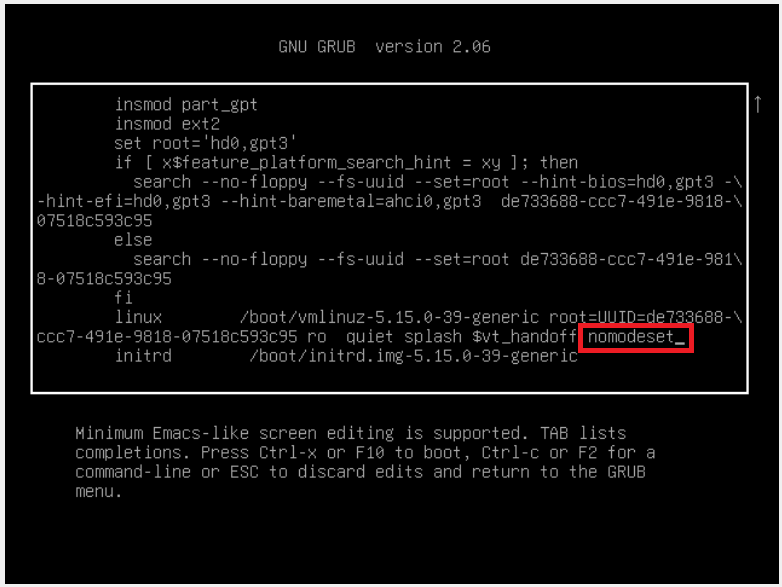
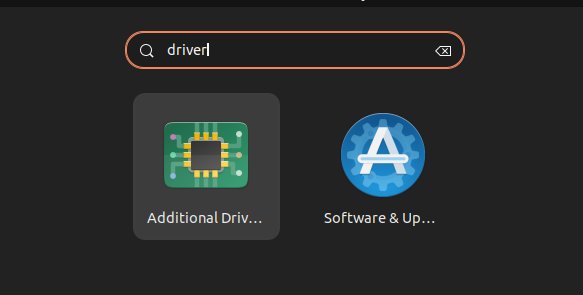
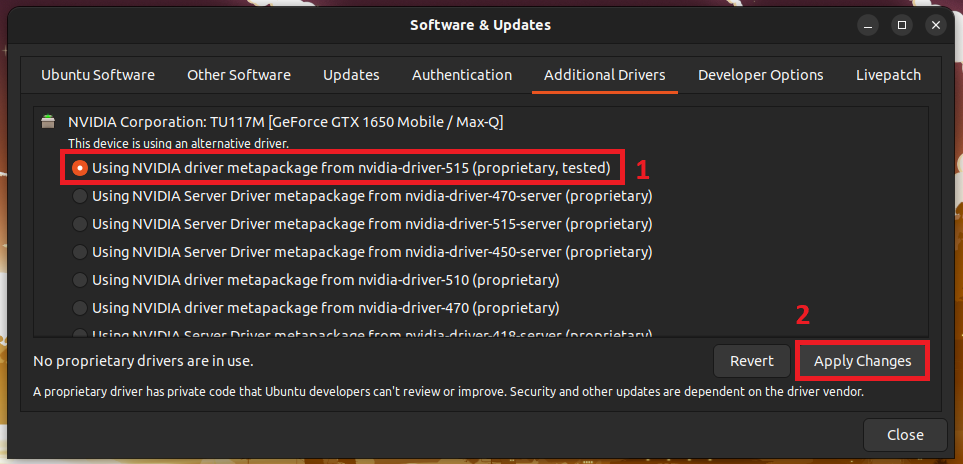
nomodeset reduces graphics support. It is a diagnostic boot option, not a preferred permanent setup. If that boot succeeds, reinstall or select the appropriate driver from Software and Updates, then use the Intel graphics driver path when your hardware uses Intel graphics.
Check storage and bootloader failures separately
If the log reports an I/O error, an unavailable UUID, or a filesystem that cannot mount, do not run fsck on the mounted root partition. Boot from an Ubuntu live USB, identify the Linux partition, and run the filesystem check against the unmounted device. The filesystem type on the affected partition determines the correct repair tool.
If GRUB itself shows a minimal bash-like prompt or cannot find Ubuntu, the failure occurs before the splash screen. Follow the separate GRUB recovery procedure rather than applying a graphics workaround.
A virtual machine adds another boundary. If Ubuntu is stuck after a hypervisor change, confirm the guest settings and the installed integration package with the VMware Tools setup steps before changing the guest bootloader.
Keep a successful repair from becoming a recurring boot issue
Once Ubuntu starts, complete pending updates, keep a known-good kernel installed, and restart once more before treating the incident as closed. A temporary nomodeset boot or an older kernel is evidence about the fault, not the final repair.
If none of the recovery paths can mount the system or the drive reports repeated I/O failures, back up data from a live USB before attempting larger repairs. A reinstall belongs after your data is safe and the hardware or storage fault has been ruled out.