

Applications that keep information between runs need somewhere to store it. MongoDB Community Edition is a database server that stores information as documents.
I’ll show you how to install MongoDB Community Edition from the repository that matches your Ubuntu release and check that its local server is running.
TL;DR
Install MongoDB Community 8.0 on Ubuntu 20.04, 22.04, or 24.04 LTS by adding MongoDB’s signed APT repository, installing mongodb-org, and starting mongod with systemd.
- Use the matching Ubuntu codename: focal, jammy, or noble.
- MongoDB’s Ubuntu package is mongodb-org, not the separate Ubuntu mongodb package.
- Verify the service with systemctl and connect locally with mongosh.
What Is MongoDB Community Edition?
MongoDB Community Edition is a self-managed database server that stores records as BSON documents inside collections. The server process is mongod, while mongosh is a separate command-line client that sends requests to it.
This distinction helps when checking an installation: systemd reports whether mongod is running, and mongosh tests whether a client can connect. I keep the server and client roles separate because their checks answer different questions.
| Ubuntu release | APT codename | Repository suite |
|---|---|---|
| 24.04 LTS | noble | noble/mongodb-org/8.0 |
| 22.04 LTS | jammy | jammy/mongodb-org/8.0 |
| 20.04 LTS | focal | focal/mongodb-org/8.0 |
I place the release table before the commands because the repository suite changes with the Ubuntu codename.
How to Install MongoDB on Ubuntu Step by Step
Package installation creates system files and changes the software on the machine. Run these commands on your Ubuntu host with sudo privileges, following your usual change controls for production machines.
Step 1: Check the Ubuntu release
Save this short check in a file named check_ubuntu_release.sh:
. /etc/os-release && printf '%s %s\n' "$NAME" "$VERSION_CODENAME"
Run the file to print the release name and codename:
bash check_ubuntu_release.sh
Ubuntu noble
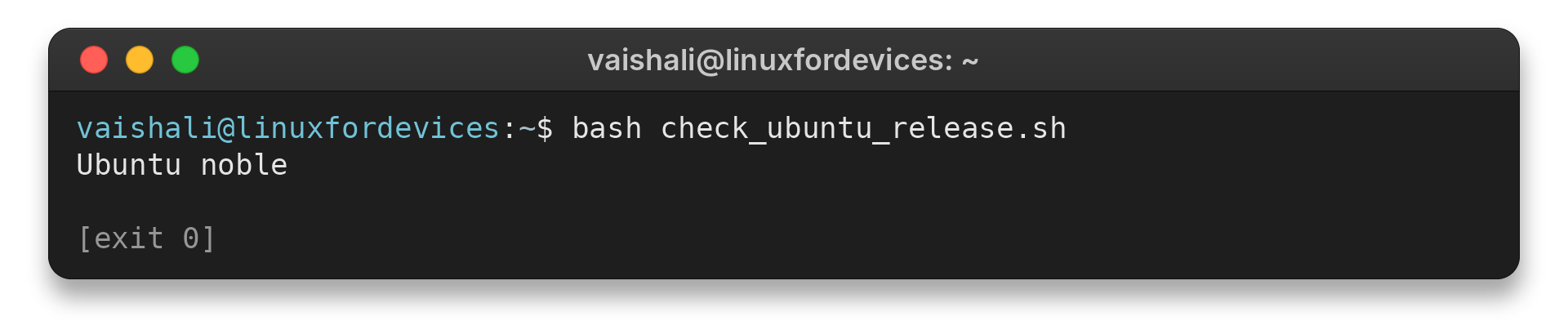
Use the matching codename from the table when you configure the APT source. If the release label identifies Debian, do not run this Ubuntu-specific procedure.
Step 2: Add MongoDB’s signing key
APT verifies repository metadata using a signing key stored in a keyring. Install the prerequisite tools and save MongoDB’s public key in the dedicated keyring path.
sudo apt-get update
sudo apt-get install -y gnupg curl
curl -fsSL https://pgp.mongodb.com/server-8.0.asc | sudo gpg -o /usr/share/keyrings/mongodb-server-8.0.gpg --dearmor
The signed-by setting in the next step limits this repository to the MongoDB keyring. A key or download failure calls for checking the network path and official key URL before adding any source.
Step 3: Add the matching Ubuntu repository
Use the suite that matches your Ubuntu codename. This example uses noble. For Jammy or Focal, replace that suite name in the source line.
echo "deb [ arch=amd64,arm64 signed-by=/usr/share/keyrings/mongodb-server-8.0.gpg ] https://repo.mongodb.org/apt/ubuntu noble/mongodb-org/8.0 multiverse" | sudo tee /etc/apt/sources.list.d/mongodb-org-8.0.list
sudo apt-get update
APT downloads package metadata after the source is configured. If apt-get update reports a signature or missing Release file error, check the codename and keyring path before continuing.
Step 4: Install MongoDB Community Server
The metapackage installs the MongoDB server and component packages from the configured source. For a fixed version, use MongoDB’s version-specific instructions for every required component package.
sudo apt-get install -y mongodb-org
Step 5: Start and verify mongod
Start the database server with systemd, then inspect its service state. Enabling the service is optional and makes it start on future boots.
sudo systemctl start mongod
sudo systemctl status mongod
sudo systemctl enable mongod
Look for an active running state in the status output. If systemd says the mongod unit is missing immediately after package installation, run sudo systemctl daemon-reload and retry the start command.
Step 6: Connect with mongosh
Open a local shell session to try the default connection to the running server.
mongosh
At the shell prompt, you can run db.runCommand({ ping: 1 }) to ask the server to respond. Exit with quit(). If mongosh is not found, consult MongoDB’s separate mongosh installation instructions because the shell package is distinct from the server daemon.
Check Support, Service Errors, and Network Access
When an installation fails, identify the message before changing package or data state. I put diagnosis before cleanup because a repository issue does not justify erasing a database.
| Symptom | Check | Next action |
|---|---|---|
| mongodb-org has no installation candidate | Ubuntu codename and source line | Match noble, jammy, or focal to the installed release, then run apt-get update |
| GPG signature cannot be verified | signed-by path and key download | Recreate the keyring from MongoDB’s official key URL and verify the source entry |
| mongod.service not found | Package installation and systemd unit discovery | Run systemctl daemon-reload, then check status again |
| mongosh cannot connect | Service status and local port availability | Start mongod and inspect its service log for the reported error |
Ubuntu’s mongodb package is not the same package as MongoDB’s mongodb-org, and MongoDB says the two conflict. Check installed package names before changing an existing database installation. Avoid a broad purge unless you have confirmed which packages and data directories will be removed.
The packaged server uses /etc/mongod.conf and stores data and logs in package-managed directories by default. It binds to localhost by default, so remote machines cannot connect. A public binding requires authentication and network controls before remote access is allowed.
sudo systemctl status mongod
sudo journalctl -u mongod --no-pager
These read-only checks show service state and recent service messages. For production deployments, review MongoDB’s production notes and security checklist before changing configuration or exposing the server.
Conclusion: Verify the Local MongoDB Service
After installing mongodb-org, use systemd to inspect mongod and try a local connection with mongosh.
For related Linux package workflows, see how to remove an APT repository in Ubuntu, how apt remove and purge differ, how to list installed packages with apt, the difference between apt and apt-get, and how to fix an unable-to-locate-package error. MongoDB’s official Ubuntu installation guide has the current package-version and support details.
FAQ
These answers cover the common installation and verification questions.
How do I check whether MongoDB is running on Ubuntu?
Run sudo systemctl status mongod and look for an active running state. You can then run mongosh to test a local client connection.
Can I use these MongoDB 8.0 commands on Debian?
No. The cited MongoDB 8.0 APT tutorial covers supported Ubuntu LTS releases and uses Ubuntu-specific repository suites. Use MongoDB’s official documentation to find a supported method for your Debian release.
Why does apt say mongodb-org is unavailable?
Check that the repository codename matches your Ubuntu release and that the signing keyring exists at the path in the source entry. Then run sudo apt-get update and review any repository errors before retrying.