
- -y used to display differences in files side by side
- -s Report when two compared files are identical
- -r If a directory is specified, this option will compare any subdirectories found.
- -i Since Linux is case sensitive, this option will ignore all case sensitive differences.
- -B Ignore blank lines and don’t show them as differences in the output
- -w Ignore whitespaces from the differences
When you have two versions of a text file, such as a settings file before and after a change, spotting what changed by eye is slow. The diff command compares the two files line by line and prints each change.
Reading diff’s output takes a little decoding, so I’ll explain it line by line and then show the unified format that puts each change in context.
What is the diff command?
The diff command compares text files line by line and prints edits that would make the first match the second. It compares content, not metadata such as modification time.
The operand order sets the direction: diff FILE1 FILE2 describes changes from FILE1 toward FILE2. The Linux man command opens the local reference when you need the full option list.
Its command form is diff, optional flags, then the first and second file paths.
| Operand position | Role in the comparison |
|---|---|
| First path | Source that diff describes changing |
| Second path | Content the first path should match |
What you need before comparing files
Use a shell with diff installed and readable text inputs. If you need sample files, create them with the Linux file creation methods, then inspect their contents with the cat command before comparing.
Keep the original as FILE1 and the candidate as FILE2 when you want the output to describe how to change the original. A Linux text editor can apply those changes after you review them.
- Use paths that you can read from the shell.
- Decide which file is the original before choosing operand order.
This setup creates the text inputs used below, including a matching pair and files with blank-line, whitespace, and case differences.
mkdir -p sample-diff/left sample-diff/right
printf 'alpha\ncolour=blue\nomega\n' > sample-diff/left/settings.txt
printf 'alpha\ncolour=green\nomega\nnew-option=true\n' > sample-diff/right/settings.txt
cp sample-diff/left/settings.txt sample-diff/left/same.txt
cp sample-diff/left/settings.txt sample-diff/right/same.txt
printf 'alpha\n\ncolour=blue\nomega\n' > sample-diff/left/spacing.txt
printf 'alpha\ncolour=blue\nomega\n' > sample-diff/right/spacing.txt
printf 'alpha\ncolour=blue\nomega\n' > sample-diff/left/whitespace.txt
printf 'alpha\ncolour = blue\nomega\n' > sample-diff/right/whitespace.txt
printf 'Hello\n' > sample-diff/left/case.txt
printf 'hello\n' > sample-diff/right/case.txt
Step 1: Compare file operands and read normal output
Run diff with the two paths in order. In this example, the first file contains colour=blue, while the second changes it to colour=green and adds new-option=true.
diff sample-diff/left/settings.txt sample-diff/right/settings.txt
2c2
< colour=blue
---
> colour=green
3a4
> new-option=true
The first command, 2c2, says line 2 changes to line 2 in the other file. The next command, 3a4, adds the fourth line from FILE2 after line 3 in FILE1.
Lines beginning with < come from the first operand, and lines beginning with > come from the second. The numbers are instructions for matching the files, not a patch applied by diff.
Step 2: Choose a format that fits the comparison
I ran diff -u on these sample files, and its hunk puts the changed setting and added option beside unchanged context.
diff -u sample-diff/left/settings.txt sample-diff/right/settings.txt
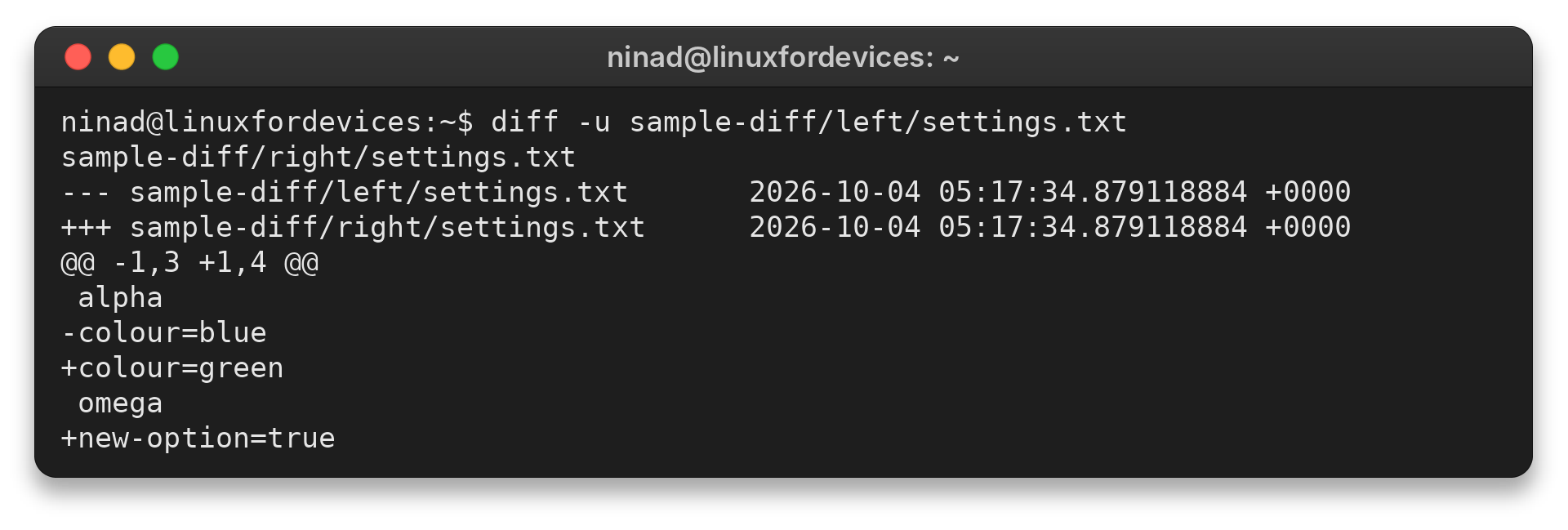
In unified output, minus lines belong to FILE1 and plus lines belong to FILE2, while the @@ header gives the hunk’s line ranges.
The left range ends earlier than the right range, so the change adds a line. Unchanged context helps you see where the edit sits.
diff -y sample-diff/left/settings.txt sample-diff/right/settings.txt
Use -y when matching rows across columns is more useful than a compact patch-style view. The vertical bar marks a changed pair, and > marks a line present only in the right-hand file.
| Task | Option | What it shows |
|---|---|---|
| Review changes with context | -u | Unified hunks with surrounding lines |
| Compare matching rows | -y | Two columns with change markers |
| Check only whether files differ | -q | A brief difference report |
Step 3: Compare directories or confirm matching files
Add -r to compare directory contents recursively. The command reports files that exist on only one side and compares matching paths, so the two directory operands should represent the trees you intend to inspect.
diff -qr sample-diff/left sample-diff/right
Files sample-diff/left/case.txt and sample-diff/right/case.txt differ
Files sample-diff/left/settings.txt and sample-diff/right/settings.txt differ
Files sample-diff/left/spacing.txt and sample-diff/right/spacing.txt differ
Files sample-diff/left/whitespace.txt and sample-diff/right/whitespace.txt differ
The q option limits the output to whether paths differ instead of printing every changed line. Drop q when you need the content differences for matching files.
When two file contents match, diff normally prints nothing and exits with status 0. Add -s when a visible confirmation is useful.
diff -s sample-diff/left/same.txt sample-diff/right/same.txt

A line count from the Linux line-count command can help locate a shorter file, though equal counts do not prove equal content.
Step 4: Ignore only the differences you intend to ignore
Whitespace and case options change what diff treats as a change. Use them only when those distinctions do not matter for the files you are reviewing.
| Option | Comparison rule |
|---|---|
| -B | Ignore changes where lines are entirely blank |
| -b | Ignore changes in the amount of whitespace |
| -w | Ignore all whitespace differences |
| -i | Ignore differences in letter case |
The -B option suppresses changes consisting only of blank lines, while -w also treats whitespace within nonblank lines as insignificant.
diff -B sample-diff/left/spacing.txt sample-diff/right/spacing.txt
diff -w sample-diff/left/whitespace.txt sample-diff/right/whitespace.txt
diff -i sample-diff/left/case.txt sample-diff/right/case.txt

When diff reports a difference or cannot compare
GNU diff uses its exit status to distinguish equal files, different files, and an error. A status of 1 is a normal result when the files differ, so a shell script should not treat every nonzero status as a command failure.
| Exit status | Meaning |
|---|---|
| 0 | No differences found |
| 1 | Differences found |
| 2 | Trouble prevented a complete comparison |
For binary inputs, diff may report that the files differ without presenting a readable line-by-line edit. If byte-for-byte identity is the question, use a byte-comparison tool such as cmp. Do not interpret a text hunk as a binary comparison.
If diff reports that a path cannot be opened, check the spelling and read permission first. For a missing file inside a directory comparison, consult the local diff manual before deciding whether a new-file option fits your task.
Keep the comparison direction explicit
Operand order controls which side diff describes as the source and which side supplies the desired content. Keep that direction clear before you turn a comparison into an edit or patch.
diff -u sample-diff/left/settings.txt sample-diff/right/settings.txt
Questions about the diff command in Linux
What does diff do in Linux?
The diff command compares files line by line and reports edits that would make the first file match the second.
How can I see differences side by side?
Run diff -y FILE1 FILE2 to display corresponding lines in two columns.
What does diff exit status 1 mean?
Exit status 1 means diff found differences. GNU diff uses status 0 for no differences and status 2 for trouble.