

Setting up Proton VPN on Linux starts with matching an installation option to your distribution. Proton VPN’s Linux app connects a desktop to its VPN service using a graphical interface or a command-line interface.
This guide walks through the official Debian and Ubuntu repository route and explains what to check for other Linux distributions.
TL;DR
For a supported Debian or Ubuntu desktop, install Proton VPN from its official repository and use the GNOME desktop package.
- Confirm your distribution with the release-file command below.
- Install Proton’s repository package, refresh APT, then install its desktop package.
- Sign in through the app. For another distribution, check Proton’s support page before choosing a package.
What Is Proton VPN on Linux?
Proton VPN’s Linux app connects a desktop to its VPN service through a graphical interface or a command-line interface (CLI).
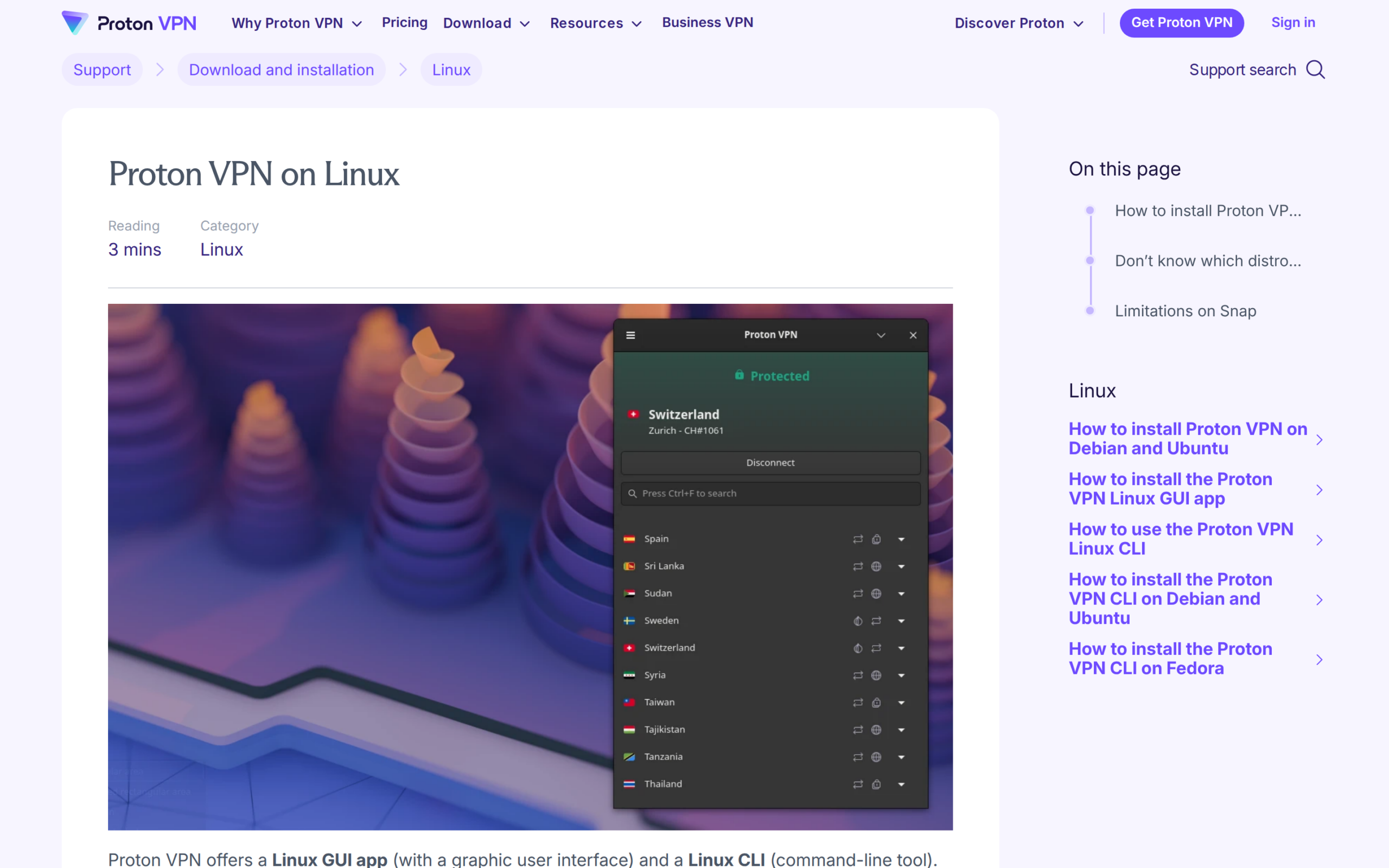
The current Debian and Ubuntu guide installs the proton-vpn-gnome-desktop package from Proton’s repository.
How to Install Proton VPN on Debian or Ubuntu
Use Proton’s official repository instructions on a supported Debian or Ubuntu GNOME desktop. The package commands below require administrator approval and change system software.
Step 1: Confirm your distribution
I ran the release-file command before choosing a repository. It reported Ubuntu 24.04.5 LTS, so the Debian and Ubuntu instructions fit this system.
cat /etc/os-release
PRETTY_NAME="Ubuntu 24.04.5 LTS"
NAME="Ubuntu"
VERSION_ID="24.04"
VERSION="24.04.5 LTS (Noble Numbat)"
VERSION_CODENAME=noble
ID=ubuntu
ID_LIKE=debian
HOME_URL="https://www.ubuntu.com/"
SUPPORT_URL="https://help.ubuntu.com/"
BUG_REPORT_URL="https://bugs.launchpad.net/ubuntu/"
PRIVACY_POLICY_URL="https://www.ubuntu.com/legal/terms-and-policies/privacy-policy"
UBUNTU_CODENAME=noble
LOGO=ubuntu-logo
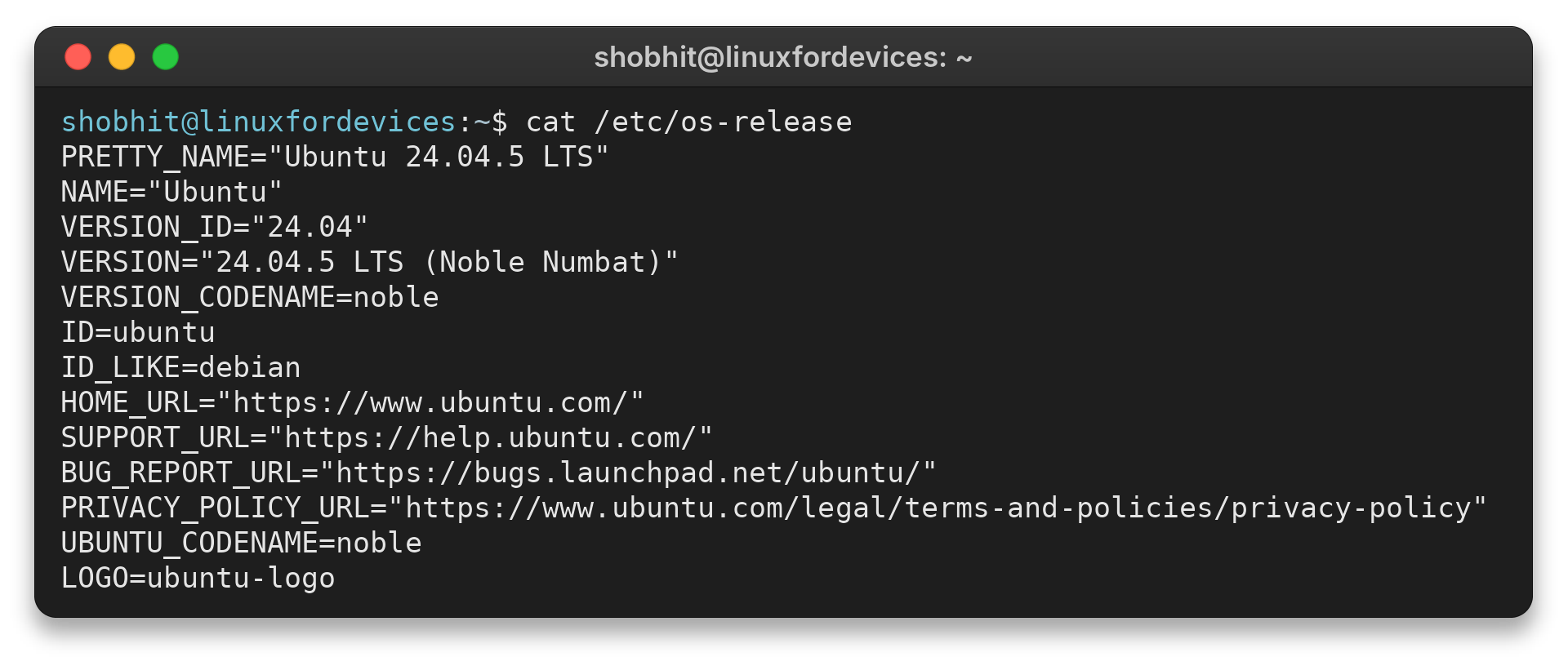
Read PRETTY_NAME and ID to identify the release. The output above identifies Ubuntu 24.04.5 LTS.
Step 2: Download Proton’s repository package
The repository package configures the source and signing key used by APT. Check Proton’s guide for the current package filename before downloading.
wget https://repo.protonvpn.com/debian/dists/stable/main/binary-all/protonvpn-stable-release_1.0.10_all.deb
Use the filename displayed on Proton’s page if it has changed.
Step 3: Add the repository and install the app
Install the downloaded package, refresh APT, then install the desktop metapackage.
sudo dpkg -i ./protonvpn-stable-release_1.0.10_all.deb
sudo apt update
sudo apt install proton-vpn-gnome-desktop
Review APT’s package and disk-change summary before accepting.
Step 4: Sign in and connect
Open the app, sign in, and choose Quick Connect or a location. Available choices depend on the account plan.
Check the app’s connection status before using a network-sensitive application, and disconnect in the app when finished.
For general network checks after connecting, see our Linux ip command guide. If your goal is hosting a VPN server rather than joining Proton’s service, our Linux VPN setup guide covers that separate task.
Common Installation Errors and Next Steps
Check the repository and distribution before changing package sources. The error message often points to a missing index or an outdated command.
| Case | Symptom | Fix |
|---|---|---|
| Proton package index is missing | APT reports “Unable to locate package” | Confirm the repository package was installed, inspect its source entry, then run apt update again |
| Legacy CLI tutorial | protonvpn-cli returns “command not found” | Use Proton’s current Linux guide and select the supported app route for your distribution |
| Unsupported derivative | The Debian or Ubuntu instructions do not match the release | Check Proton’s distribution-specific support page before adding a repository |
Other Linux Distributions and Install Options
Proton’s support page describes current options and their limits.
| Route | Useful when | Boundary |
|---|---|---|
| Native repository | Debian or Ubuntu with GNOME | Official support focuses on latest stable releases |
| Snap GUI | You want a convenient package on a Snap-enabled system | Some advanced features and ARM are unavailable |
| Flatpak GUI | Your distribution uses Flatpak | Third-party packaging, support may be limited |
| Manual WireGuard or OpenVPN | You prefer configuring a connection in the system network tools | Configuration files and server changes may need maintenance |
I checked the old CLI help command and got “command not found.” The command is absent here, which is different from an error installing the current graphical app.
protonvpn-cli --help
/usr/bin/bash: line 1: protonvpn-cli: command not found

Use Proton’s current Linux guide instead of treating this missing legacy command as an installation failure.
Proton documents Snap limits for Proton Protocols, Smart Protocol and Stealth, split tunneling, and ARM. It recommends native packages when those features matter. Flatpak is third-party maintained and may receive limited support.
Linux Mint has separate instructions. For Arch, Kali, KDE, or another derivative, check Proton’s current support page before installing.
An “Unable to locate package” message means APT cannot find Proton’s package index. Confirm the repository package installed, inspect its source entry, and refresh APT. Do not force dependencies from another distribution.
Manual WireGuard configuration is another option when a native app is unsuitable. Proton recommends WireGuard where possible and documents OpenVPN for legacy devices. A manually configured server may require a fresh configuration file if Proton retires that server, so consult the official WireGuard Linux instructions and avoid reusing stale configuration data.
Conclusion
Choose an install route that matches your distribution and the features you need. Check the official Debian and Ubuntu guide for current filenames and the Linux setup overview for support details. Proton’s Linux download page links to the current app.
FAQ
These answers cover common installation choices and support questions.
Which Linux distributions does Proton VPN officially support?
Proton’s Linux overview lists Debian GNOME, Ubuntu GNOME, Fedora GNOME, and Arch. Its Debian and Ubuntu instructions specify latest stable releases. Other distributions may work, but support can be limited.
Can I use the Proton VPN GUI and CLI at the same time?
No. Proton’s Debian and Ubuntu guide says the GUI app and CLI cannot run at the same time. Choose one interface for your session.
Does the Proton VPN Snap include every Linux app feature?
No. Proton documents limits for Proton Protocols, Smart Protocol and Stealth, split tunneling, and ARM devices. Use the native repository when those features matter.