
When a file or directory needs different access, the task is to change its permissions without opening it up more than intended. chmod changes the rules that control access to files and directories.
I’ll show how to set permissions with a number such as 640 or a letter-based change such as u+x, then check the result.
TL;DR
Use chmod to change the read, write, and execute bits for a file owner, its group, or other users, then inspect the resulting mode.
- Use an octal mode such as 640 to set all three classes at once.
- Use a symbolic mode such as u+x to add one permission without replacing the rest.
- Check directory and recursive changes before applying a mode broadly.
What Is the Linux chmod Command?
chmod changes the mode bits that control file and directory access.
Each class has read (r), write (w), and execute (x) bits. In a long listing, these nine characters appear as three groups for owner, group, and others.
A directory uses the same letters for different operations. Read lets a user list names, write permits changing directory entries, and execute means search or traversal.
| Mode | Owner | Group | Others | Typical interpretation |
|---|---|---|---|---|
| 644 | read, write | read | read | Non-executable file |
| 755 | read, write, execute | read, execute | read, execute | Traversable directory or executable file |
| 700 | read, write, execute | none | none | Owner-only access |
A mode alone does not grant access through a parent directory. Search permission on every directory in the path is also required.
How to Change Linux File Permissions with chmod
Inspect the current mode, choose either a full numeric setting or a targeted symbolic change, and verify the result. I ran a small fixture using both forms. Its output shows the mode before and after adding execute permission to the owner.
Step 1: Inspect the current permissions
A long listing shows the symbolic mode, while the file type appears first. The example below is from a temporary file in the workspace, not a change to a system file.
sh chmod_demo.sh
Numeric mode: 640
Symbolic mode: -rw-r-----
After chmod u+x: -rwxr-----
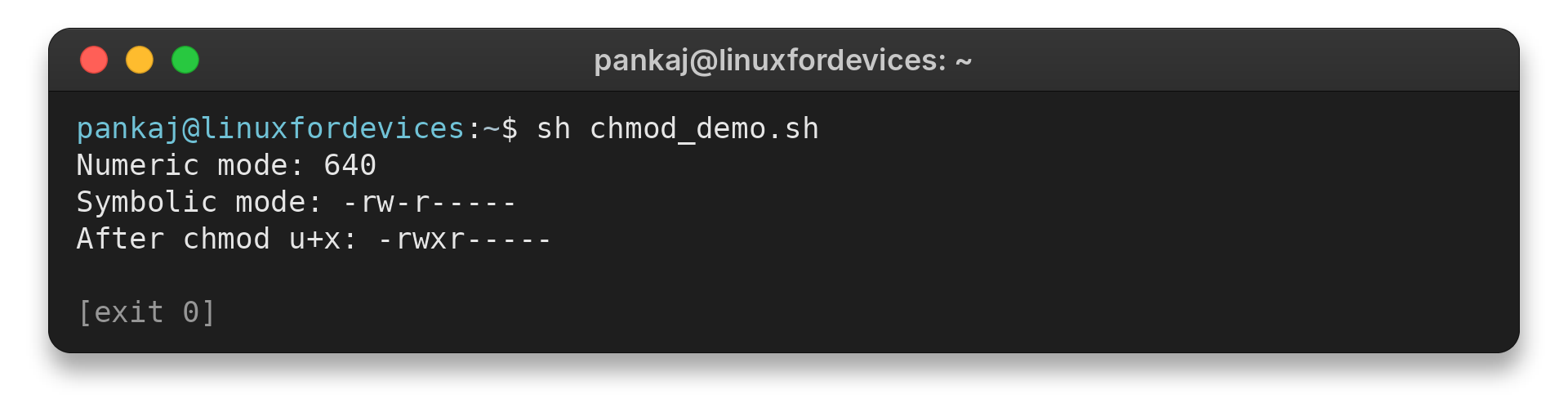
The output begins with mode 640, or rw-r—–. After u+x, only the owner’s execute bit is added, producing rwxr—–. The group and others retain their earlier permissions.
Step 2: Choose an octal mode or symbolic change
In an octal mode, read is 4, write is 2, and execute is 1. Add the values within each class: 640 means owner read/write (6), group read (4), and no access for others (0).
Use the mode expression with the file path you intend to change. Choose u for owner, g for group, o for others, or a for all. The operators plus, minus, and equals add, remove, or assign the listed bits.
The fixture moves from 640 to 740 as only the owner’s execute bit changes. Use numeric mode when the complete target state is known. A symbolic mode states the narrow change when only one class or bit needs adjustment.
Step 3: Verify the mode you set
Read the resulting permission string after a change. The demo also uses stat -c ‘%a’ to print the numeric mode. Its output is shown above, so you can compare the octal number with the symbolic string.
For another view of long listings, see the LinuxForDevices guide to the ls command. Check the path carefully before changing a different file: chmod applies to every pathname supplied to it.
chmod Edge Cases to Check
File ownership, directory traversal, symbolic links, and recursive scope can change what a permission command does. I use the narrowest path and mode that express the intended access, rather than applying a broad setting and trying to repair it later.
| Case | What to know | Safer check |
|---|---|---|
| Mode 777 | Grants read, write, and execute to owner, group, and others. | Identify which class needs access and grant only those bits. |
| Directory | Execute means search or traversal, not running the directory. | Preserve search access needed for intended paths. |
| Recursive change | The recursive option visits a directory tree and may change many entries. | Inspect the target tree first and avoid applying one file mode to unlike files and directories. |
| Symbolic link | GNU chmod follows a link supplied as a command-line operand to its target. Links encountered during recursive traversal are ignored by default. | Confirm the target path and GNU behavior before changing it. |
| Ownership or denial | Only the file owner or a suitably privileged process can change mode bits. chmod does not change owner or group. | Check ownership with chown guidance. Ask the owner or administrator when authority is missing. |
A value of 777 is a poor general response to “permission denied.” It grants every user write access as well as read and execute bits, which can expose content to unwanted changes. The cause may instead involve a parent directory, ownership, or filesystem policy.
For a recursive task, GNU chmod supports the capital execute/search mode, which adds execute/search only to directories and to files that already have an execute bit for some class. This avoids turning every regular file into an executable. The recursive operation still changes a tree.
Inspect the exact target and expected result before applying it. If you need to select paths first, the Linux find guide explains directory searches.
A symbolic link passed as a command-line operand is treated differently from a link encountered during recursive traversal. GNU chmod follows the operand to its target, while recursive traversal ignores encountered links by default. Confirm the path before changing a link because the target may be outside the directory you intended to edit.
Set-user-ID, set-group-ID, and sticky bits affect execution identity or deletion rules, depending on file type and system policy. Avoid setting them unless a documented application or administrator requirement calls for them.
A permission change does not change the file’s owner or group. The chown command guide covers that separate operation.
When a command reports “Operation not permitted,” first confirm the file’s owner and path. A mode change requires the file owner or a suitably privileged process. Do not widen permissions indiscriminately because access bits cannot grant authority to someone who lacks it.
Conclusion: Change Only the Access You Need
chmod sets file access bits with numeric modes or targeted symbolic changes. Verify the resulting mode and treat directory and recursive operations as separate decisions, since their execute and traversal effects differ.
For the neighboring task of changing file ownership, use the LinuxForDevices chown command guide. For permission strings in listings, continue with the ls command guide.
FAQ
These answers cover common chmod questions that come up when choosing a mode.
What does chmod 777 do?
It grants read, write, and execute bits to the owner, group, and others. Avoid it unless every user really needs those permissions.
Can chmod change who owns a file?
No. chmod changes mode bits. Use chown to change the file owner or group, subject to the required authority.
What does execute permission mean on a directory?
On a directory, execute means search or traversal permission, which lets a process access entries by path when the other required permissions are present.