

Getting Chromium onto an Ubuntu computer means installing its package and checking that it is ready to open. Chromium is an open-source browser project, and Ubuntu’s listed package is a Snap from the Snap Store.
I’ll show you how to install Chromium from the Store and check its installed version and channel.
TL;DR
Use the Chromium Snap listed by Snapcraft on Ubuntu, then verify the package before opening it from the desktop app menu.
- The Store package name is chromium.
- Check Snap with the version command before installing.
- Snapd handles routine refreshes. Request a manual refresh when needed.
What is Chromium on Ubuntu?
Chromium is an open-source browser project whose code also contributes to Google Chrome. The Ubuntu listing covered here is Canonical’s verified Chromium Snap, managed by the snapd service.
Use the stable channel for a desktop install because Snapcraft lists candidate as a separate stream. The table records the listing details checked on 2026-10-21.
| Listing field | Current value |
|---|---|
| Package | chromium |
| Publisher | Canonical, verified |
| Stable channel | Updated 15 October 2026 |
| Website | code.launchpad.net |
| Contact | bugs.launchpad.net |
| License | Apache-2.0, BSD-3-Clause, LGPL, MIT, MS-PL, GPL, and MPL terms |
How to install Chromium on Ubuntu step by step
Install from the Snap Store and verify the package before launching it. The first check is read-only, while the install command changes system software and requires administrator authorization.
Step 1: Check that Snap is available
Run the version command to confirm that the Snap client and daemon respond.
snap version
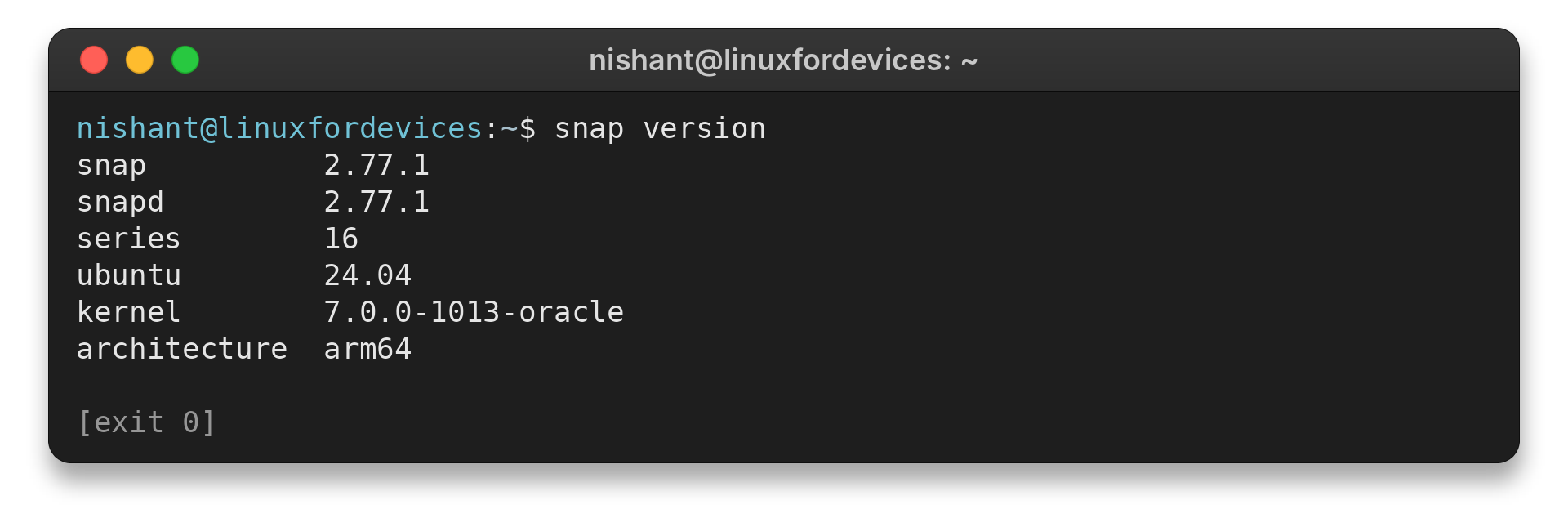
snap          2.77.1
snapd         2.77.1
series        16
ubuntu        24.04
kernel        7.0.0-1013-oracle
architecture  arm64
If the shell cannot find snap, follow Snapcraft’s Ubuntu setup instructions for your release or flavour before continuing.
Step 2: Request Chromium from the Snap Store
The Store’s Ubuntu page gives this command for its Chromium package. It needs administrator authorization because it installs software.
sudo snap install chromium
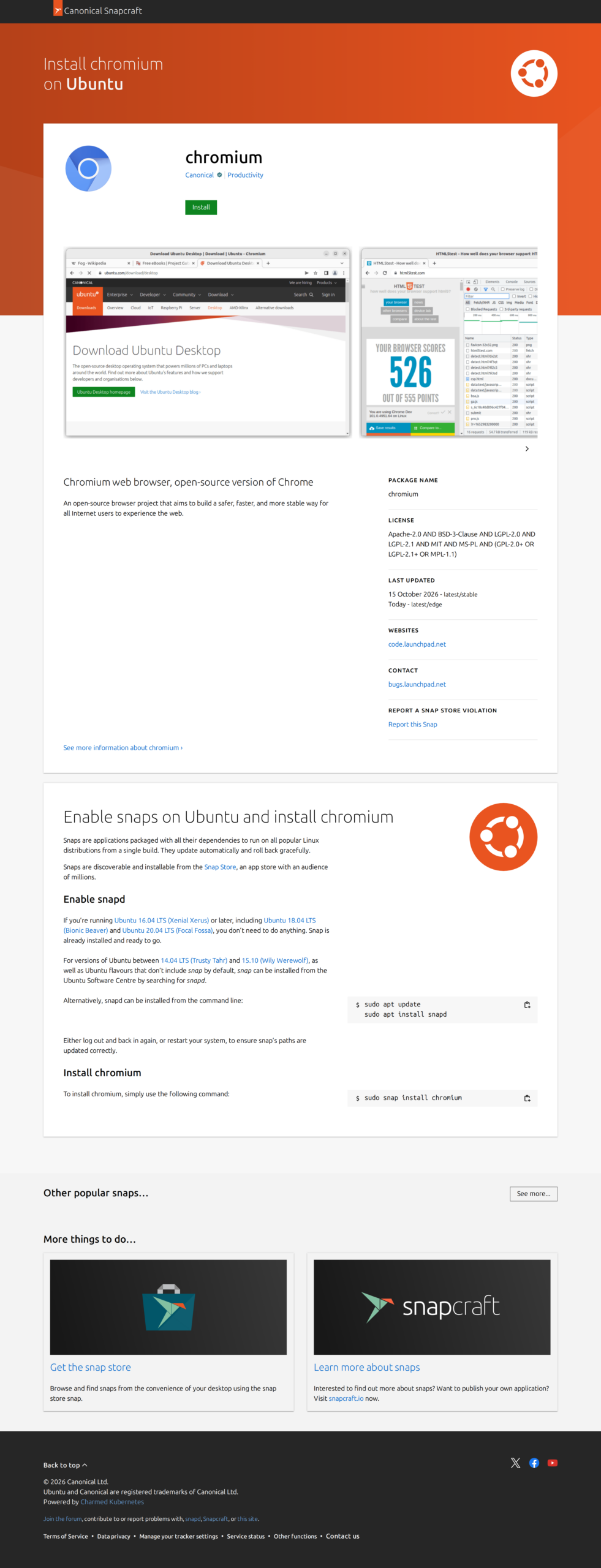
Wait for the command to finish before checking the package. The listing identifies the publisher and package name, so compare both with the page if the Store entry changes.
Step 3: Verify the installed Snap
List Chromium by its Snap name to see the installed version, tracking channel, and publisher.
snap list chromium
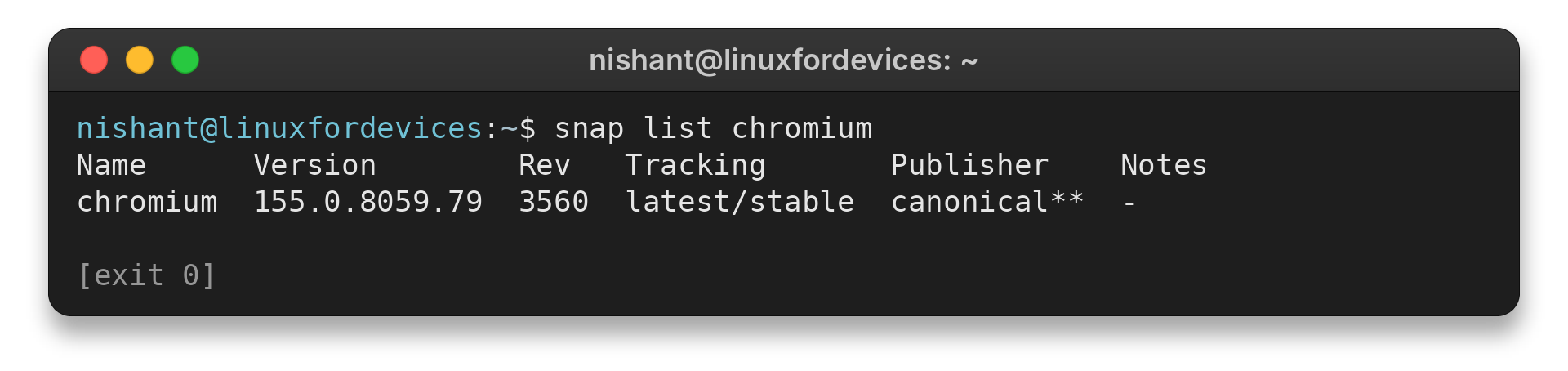
Name      Version        Rev   Tracking       Publisher    Notes
chromium  155.0.8059.79  3560  latest/stable  canonical**  -
When the list shows Chromium on the expected channel, open it from the desktop application menu. A server without a graphical session can stop after package verification.
Step 4: Request an update when needed
Snapd refreshes Store packages automatically by default. Use a targeted refresh when you want to request an update for Chromium now.
sudo snap refresh chromium
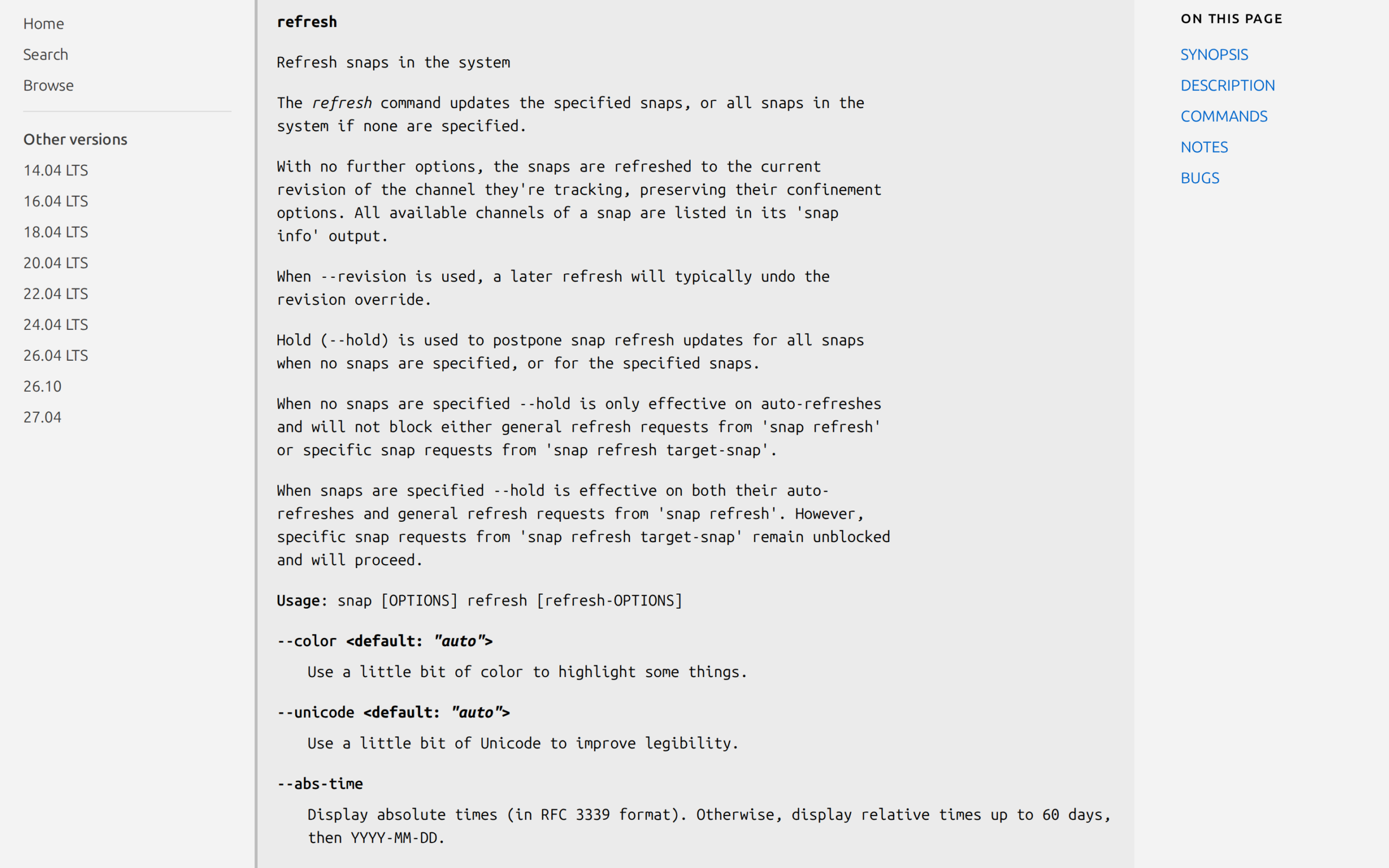
Check Chromium’s tracking channel before requesting a manual refresh because the command follows that stream.
What should you verify after installation?
Ubuntu’s chromium-browser APT package is a transition route to the Chromium Snap. Ubuntu Launchpad documents that relationship, and the read-only query below shows the installed package version.
dpkg-query -W -f='${binary:Package} ${Version}\n' chromium-browser
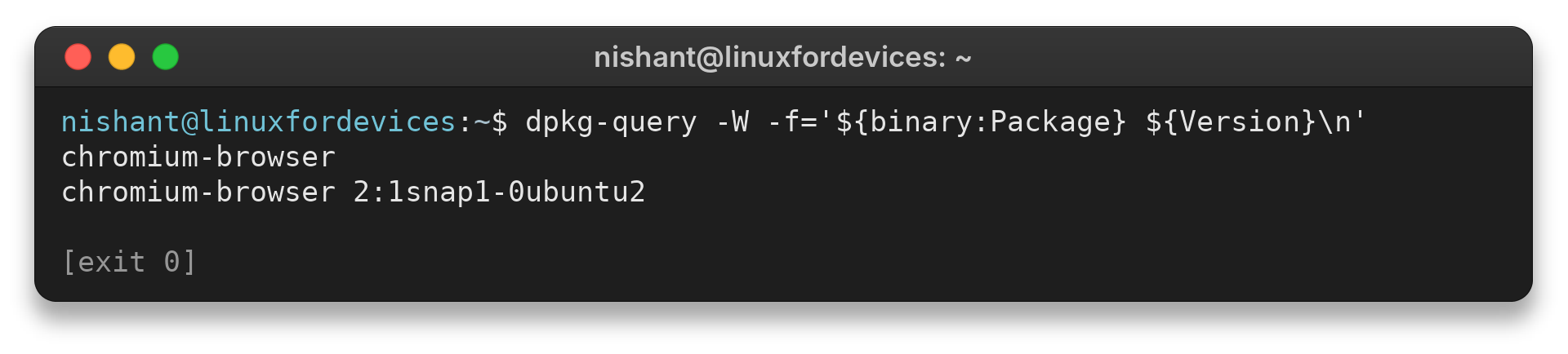
chromium-browser 2:1snap1-0ubuntu2
This query returns the installed package version only. Prefer the direct Snap command when you want the Store route without relying on the compatibility package name.
I used dpkg-query because it reads the installed package database without changing packages.
| Situation | Next action |
|---|---|
| Snap is missing | Use Snapcraft’s Ubuntu instructions for enabling snapd where needed. |
| You need the direct Store package | Use the chromium Snap name shown in the listing. |
| You want to remove this browser | Remove the Chromium Snap, not snapd if other apps use it. |
Snapcraft says Ubuntu 16.04 LTS and later should have Snap ready. For an Ubuntu flavour or minimal image where it is absent, its page documents the package setup command:
sudo apt update
sudo apt install snapd
Snapcraft advises logging out and back in, or restarting, after setup so Snap paths are refreshed. To remove Chromium later, use the matching package command:
sudo snap remove chromium
Leave snapd installed when other applications use Snap. Check the current Snapcraft instructions before changing package sources or removing the daemon.
Conclusion: use Ubuntu’s Chromium Snap
Use the Store’s Chromium Snap, verify its channel, then launch it from the desktop menu.
For package-format context, see the LinuxForDevices guide to Snap packages and the Ubuntu package-manager guide. If Snap is missing, use the Ubuntu App Center guide for a desktop route. The APT command guide explains package metadata, while the Google Chrome on Debian guide covers Google’s separate browser package.
FAQ
These answers cover package naming, setup, and routine updates.
Does APT install a separate Chromium deb on Ubuntu?
No. Ubuntu documents chromium-browser as a transition package to the Chromium Snap. Use the Store package name chromium for the direct Snap route.
How do I install snapd when it is missing?
Follow Snapcraft’s Ubuntu instructions. They document sudo apt update and sudo apt install snapd for a system that lacks Snap support.
Does Chromium update automatically on Ubuntu?
Snapd refreshes Store packages automatically by default. Run sudo snap refresh chromium to request a targeted update now.