
To mount NTFS on Arch Linux, pick a driver, find the Windows partition with lsblk and mount it under /mnt with a normal mount command. Modern kernels include the ntfs3 driver, and the ntfs-3g package is the FUSE (filesystem in userspace) alternative. This guide covers both, fixes the read-only error that Windows Fast Startup causes and ends with a permanent fstab entry for dual-boot setups.
Check your Kernel version
Since Windows uses the NTFS file system unlike Linux which uses Ext4 or BTRFS, you will need additional drivers on Linux distributions in order to support NTFS. Now, these drivers are already built into the Linux kernel versions 5.15 and above, and you don’t need to install anything if you are using the required kernel versions. To check which kernel is being used by your PC, you can type the following command in your terminal:
uname -r
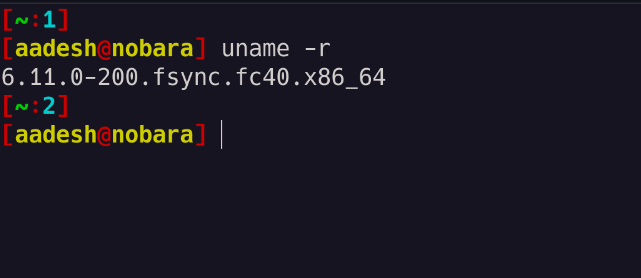
If your Linux kernel version is less than 5.15, then you can either choose to update your system, or simply install the ntfs-3g driver by typing the following commands. The find Linux kernel version guide lists more ways to check what you are running.
# On Debian and Ubuntu based distributions: sudo apt install ntfs-3gOn RHEL, Rocky Linux and AlmaLinux (enable the EPEL repository first): sudo dnf install epel-release
sudo dnf install ntfs-3g For Manjaro or Arch Linux based distributions:sudo pacman -S ntfs-3g
Since my Nobara PC uses the 6.11 kernel, I don’t have to install anything, and we can proceed to the next section, which is setting up the auto-mount.
Choose a driver to mount NTFS on Arch
Arch Linux can read and write NTFS through two drivers, and your kernel version decides which one is available without extra packages. This section explains how they differ, how to check what your system has and how to install the userspace option.
ntfs3 and ntfs-3g compared
The ntfs3 driver runs inside the kernel. Paragon Software wrote it and it landed in Linux 5.15, which is where the 5.15 cutoff comes from. The ntfs-3g driver runs in userspace through FUSE and is maintained by Tuxera.
The new ntfs driver in Linux 7.1
Linux 7.1 added a second in-kernel driver called ntfs, written by Namjae Jeon. It passes 326 xfstests (filesystem regression tests) against 273 for ntfs3, and ntfs3 stays in the tree.
The mount default in util-linux 2.42
util-linux 2.42 changed the default for the ntfs filesystem type. A plain mount call now picks ntfs3 unless your distribution overrides it at build time, so this guide names the driver with -t whenever it matters.
Check which NTFS driver your kernel has
Run the command below to see which filesystem types the running kernel can mount right now. The output lists names like ntfs3 or ntfs when the driver is built in or already loaded. An empty result usually means the module is not loaded yet.
grep ntfs /proc/filesystems
If nothing shows up, try loading the module with sudo modprobe ntfs3 and run the grep again. Kernel configurations change between releases, so trust this runtime check over any static list of enabled drivers.
Install ntfs-3g on Arch Linux
Install the package from the official repositories with pacman. At the time of writing, Arch ships ntfs-3g 2026.9.28 and splits the maintenance tools such as ntfsfix into the separate ntfsprogs package, so install both if you plan to repair volumes.
sudo pacman -S ntfs-3g ntfsprogs
The pacman package manager guide covers the flags used here. Once installed, the ntfs-3g filesystem type becomes available to mount and to fstab.
Recognizing the Drive
First of all, you should recognize the drive or partition you are going to mount from the command line. This can be done by understanding the size of the Windows partition or drive from the GUI and matching it with the command line output of the parted or lsblk command.
sudo parted -l
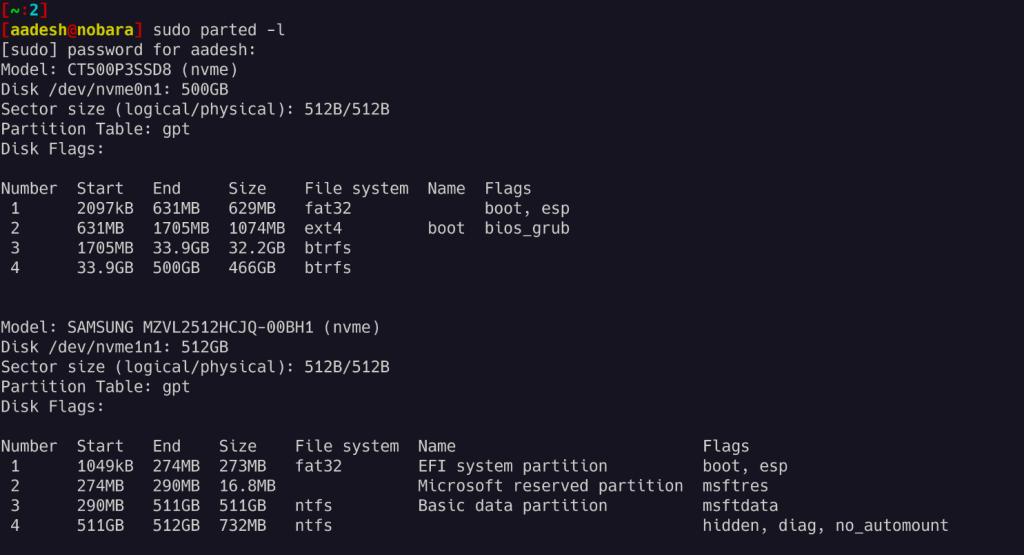
As you can see, I have two NVMe SSDs attached to my PC and my windows drive is located on the second NVME drive which is mounted at /dev/nvme1n1, if you have a hard drive then it should look something like /dev/sda or /dev/sdb.
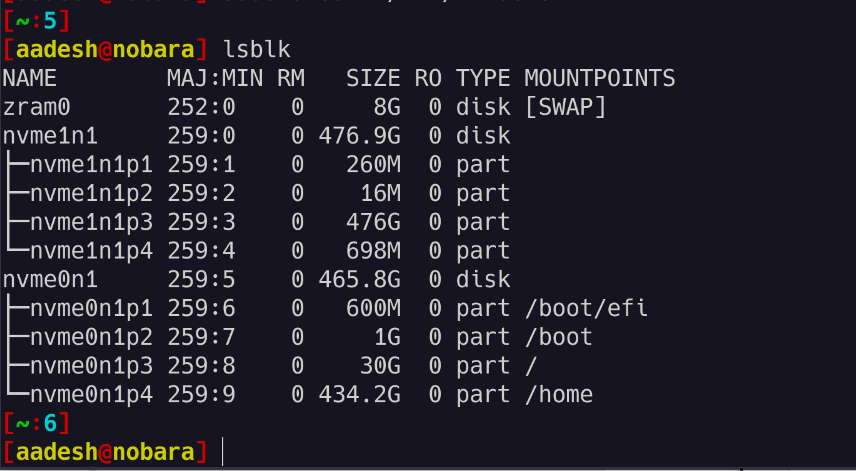
Now, you should notice in the screenshot that my data partition is listed in the 3rd position and is 511GB in size, so my partition’s name is actually /dev/nvme1n1p3. If you are using a hard drive then it should be something like /dev/sda1 or /dev/sdb1 etc. You can verify the partitions using the lsblk command:
lsblk
Confirm the filesystem and copy the UUID
Add the -f flag to lsblk to print the filesystem type, label and UUID (an ID that stays fixed for the partition) next to each device. Look for the row that says ntfs. You need that UUID later for the fstab entry.
lsblk -f
The blkid command prints the same details one device per line, and it also works on unmounted partitions. Windows often creates several small NTFS partitions for recovery, so match the size and label to your data partition before you mount anything.
Mounting the NTFS partition
Once you have recognized the partition, we can begin setting up a mount point in a directory where the drive will be mounted. Normally, the drives are mounted in the /mnt directory, so we’ll make the mounting directory there. Type the following command:
sudo mkdir /mnt/Windows
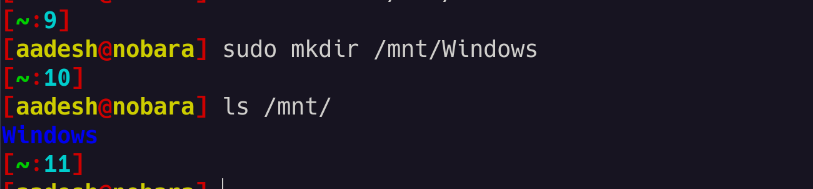
Once the directory is created, you can mount it by typing:
sudo mount /dev/PARTITION /MOUNT_POINT
For example, for my /dev/nvme1n1p3, I have to type:
sudo mount /dev/nvme1n1p3 /mnt/Windows
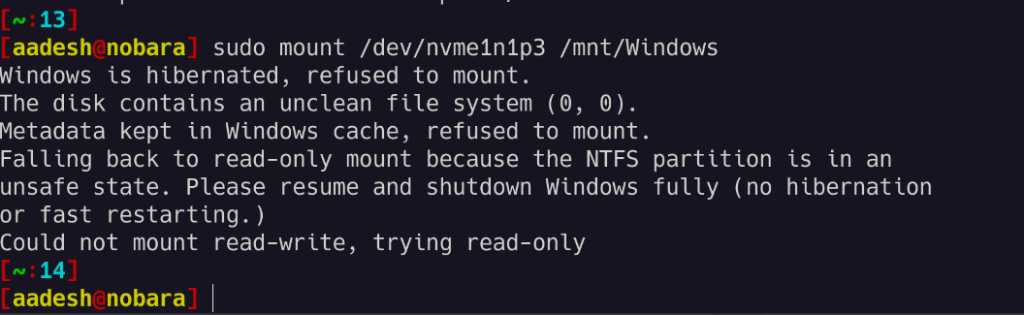
As you can see that I got an error because I didn’t shut down Windows properly (because Fast Startup is enabled from Windows), but I can mount the drive with read-only permission if I want to with the -o ro option like this:
sudo mount -o ro /dev/nvme1n1p3 /mnt/Windows
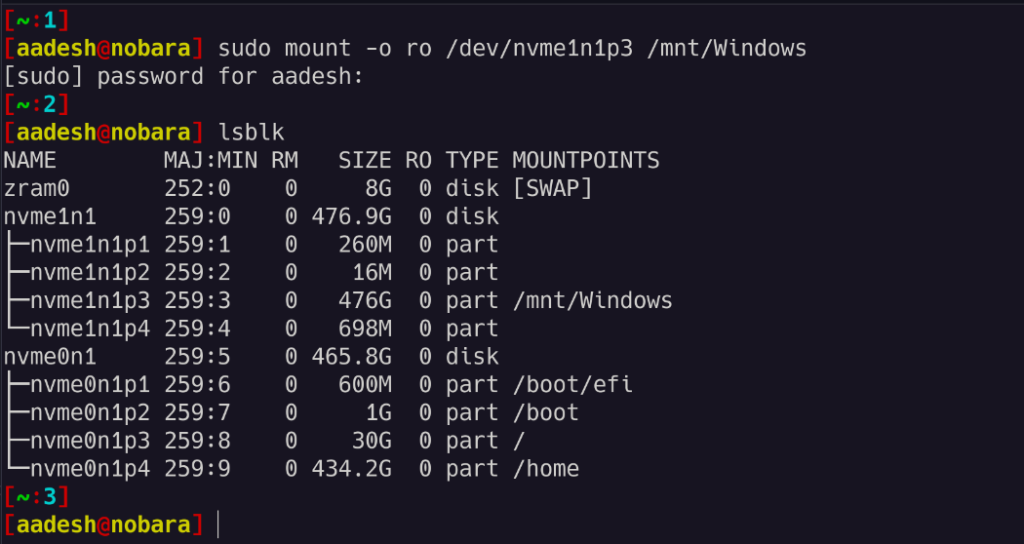
That’s it, you can now access your data from the Windows NTFS partition directly from your Linux PC without having to reboot.
Pick the driver explicitly with the -t option
Pass the filesystem type with -t when you want a chosen driver instead of whatever your mount version picks. Use ntfs3 for the in-kernel driver or ntfs-3g for the FUSE driver. Both accept the same read-only option from the previous step.
sudo mount -t ntfs3 /dev/nvme1n1p3 /mnt/Windows
sudo mount -t ntfs-3g /dev/nvme1n1p3 /mnt/Windows
Run only one of the two lines, since a partition cannot be mounted twice at the same path. Check the result with findmnt /mnt/Windows, which prints the mount source and the driver in the FSTYPE column.
Unmount the partition
Unmount the drive before you reboot into Windows or unplug it. The command takes the mount point, and it fails with a busy error if a terminal or file manager still sits inside the directory.
sudo umount /mnt/Windows
The mount USB drives in Linux guide covers the same mount and umount cycle for removable disks.
Fix the unsafe state and read-only errors
Windows 10 and 11 do not fully shut down by default. Fast Startup saves part of the system state to a hibernation file, so the NTFS volume is left marked as in use. Linux then refuses a read-write mount to protect the data.
Disable Fast Startup in Windows
The cleanest fix is on the Windows side. Boot into Windows, open an administrator Command Prompt and turn hibernation off, which also removes Fast Startup. Then shut down fully and boot back into Linux.
powercfg /h off
Fast Startup is a Windows feature and the BIOS option called Fast Boot is a different setting, so changing the firmware option does not fix this. The dual-boot time mismatch guide covers another common dual-boot annoyance.
Repair the volume with ntfsfix
If the volume is still flagged dirty after a full shutdown, run ntfsfix from the ntfsprogs package against the unmounted partition. The -d option clears the dirty flag when only basic inconsistencies exist.
sudo ntfsfix -d /dev/nvme1n1p3
ntfsfix is not a replacement for chkdsk. It repairs only simple problems, so run chkdsk from Windows if the disk reports real errors.
Force the mount with remove_hiberfile
The ntfs-3g driver offers a remove_hiberfile option that deletes the hibernation file and mounts read-write. Use it only when you accept losing the saved Windows session, because anything open in Windows at hibernation is gone.
sudo mount -t ntfs-3g -o remove_hiberfile /dev/nvme1n1p3 /mnt/Windows
Mount NTFS with write access for your user
A default mount makes every file owned by root, so your normal user cannot write to the drive. Mount options map the ownership at mount time, because NTFS has no Unix owners of its own.
Set the owner and permissions
Find your user and group IDs with the id command. Then pass them as uid and gid, and use umask to set the permission bits. The values below give your user full control and everyone else read access.
id -u
id -g
sudo mount -t ntfs3 -o uid=1000,gid=1000,umask=022 /dev/nvme1n1p3 /mnt/Windows
The same uid, gid and umask options work with ntfs-3g. Use dmask and fmask when you want different permissions for directories and files, for example 022 for directories and 133 for files.
Block characters Windows cannot read
Linux allows filenames that Windows rejects, such as names with a colon or a trailing dot. The windows_names option stops Linux from creating them, so the files stay readable when you boot back into Windows.
sudo mount -t ntfs3 -o uid=1000,gid=1000,windows_names /dev/nvme1n1p3 /mnt/Windows
Both drivers support this option, and ntfs3 also adds options such as discard and nohidden. The kernel documentation for ntfs3 lists the full set.
Auto-mount NTFS on boot with fstab
This is the auto-mount setup promised in the introduction. The fstab file (the table of filesystems that systemd mounts at boot) reads one line per volume. Use the UUID from lsblk -f instead of /dev/nvme1n1p3, because device names can change between boots.
sudo nano /etc/fstab
Add one of the lines below at the end of the file, replacing the UUID with your own. The first uses ntfs3 and the second uses ntfs-3g. Keep only one of them.
UUID=01D8A3B2C4E5F600  /mnt/Windows  ntfs3     uid=1000,gid=1000,umask=022,nofail,x-systemd.automount  0  0
UUID=01D8A3B2C4E5F600  /mnt/Windows  ntfs-3g   uid=1000,gid=1000,umask=022,nofail,x-systemd.automount  0  0
The last two fields are the dump flag and the fsck order. Set both to 0, since Linux cannot run a filesystem check on NTFS. The nofail option lets the system boot even when the disk is missing, and x-systemd.automount mounts the drive on first access instead of during boot.
Reload systemd and test the entry before you reboot. A typo in fstab can drop you to an emergency shell, so a failed test here saves a recovery session later.
sudo systemctl daemon-reload
sudo mount -a
findmnt /mnt/Windows
The mount -a command mounts everything in fstab that is not mounted yet, and it prints an error for any bad line. If findmnt shows the partition, the entry works. The Linux filesystem hierarchy guide explains why /mnt is a sensible home for it.
Mount NTFS without root using udisksctl
Desktop environments mount drives through udisks2, and you can use the same service from a terminal. The command needs no sudo for a local session and mounts under /run/media with your user as the owner.
udisksctl mount -b /dev/nvme1n1p3
The -b option takes the block device. The command prints the mount path when it finishes, and polkit may show a password prompt for some setups. Unmount the same way:
udisksctl unmount -b /dev/nvme1n1p3
This route suits removable disks and one-off access. Use fstab when the Windows partition should appear in the same place on every boot. Arch ships udisks2 2.11.2 at the time of writing.
Troubleshoot common NTFS mount errors
Most failures trace back to a few causes. Work through the list below from the top, since the first two account for the majority of dual-boot reports.
- The volume is in an unsafe state or hibernated: disable Fast Startup or mount with
-o roas shown earlier. - Mount reports an unknown filesystem type: install ntfs-3g or load the ntfs3 module, then name the type with
-t. - ntfs-3g fails as a normal user: run the command with sudo or use udisksctl instead.
- Files are owned by root and read-only: add uid, gid and umask options.
- The partition shows as BitLocker: decrypt it from Windows first, because neither driver reads an encrypted volume.
If none of these match, run dmesg | tail -n 20 right after the failed mount. The kernel log usually names the exact reason, whether it is a dirty flag, a corrupt record or a missing driver.
Key Takeaways
- Kernel 5.15 and later include the ntfs3 driver.
- Install ntfs-3g and ntfsprogs with pacman for the FUSE driver.
- Identify the partition with lsblk -f first.
- Disable Windows Fast Startup with powercfg /h off for write access.
- Mount with -o ro when Windows left the volume unsafe.
- Pass uid, gid and umask so your user can write.
- Use the UUID with nofail in fstab to auto-mount.
- ntfsfix repairs basic problems only and is no chkdsk.
Frequently asked questions
How do I mount NTFS on Arch Linux?
Find the partition with lsblk -f, create a mount point such as /mnt/Windows, then run sudo mount -t ntfs3 /dev/nvme1n1p3 /mnt/Windows, replacing the device name with your own.
Do I need ntfs-3g on Arch Linux?
No, kernels from 5.15 include the ntfs3 driver. Install ntfs-3g only if you prefer the FUSE driver or want its ntfsprogs repair tools such as ntfsfix.
Why is my NTFS drive mounted read-only on Linux?
Windows Fast Startup leaves the volume in an unsafe state, so Linux mounts it read-only. Turn off hibernation with powercfg /h off in Windows, then shut down fully.
How do I auto-mount an NTFS partition on Arch Linux?
Add a line to /etc/fstab using the partition UUID, the ntfs3 type and the nofail option, then test it with sudo mount -a before you reboot.
What is the difference between ntfs3 and ntfs-3g?
The ntfs3 driver runs inside the Linux kernel, while ntfs-3g runs in userspace through FUSE. Both read and write NTFS and accept similar mount options.
Can I mount an NTFS drive without sudo?
Yes, run udisksctl mount -b followed by the device. It mounts under /run/media with your user as owner, and polkit may ask for a password in some setups.
Conclusion
To mount NTFS on Arch Linux, find the partition with lsblk -f and mount it with the ntfs3 or ntfs-3g driver. Turn off Windows Fast Startup so the volume is writable, and add a UUID-based fstab entry with nofail when you want the drive mounted automatically at every boot.